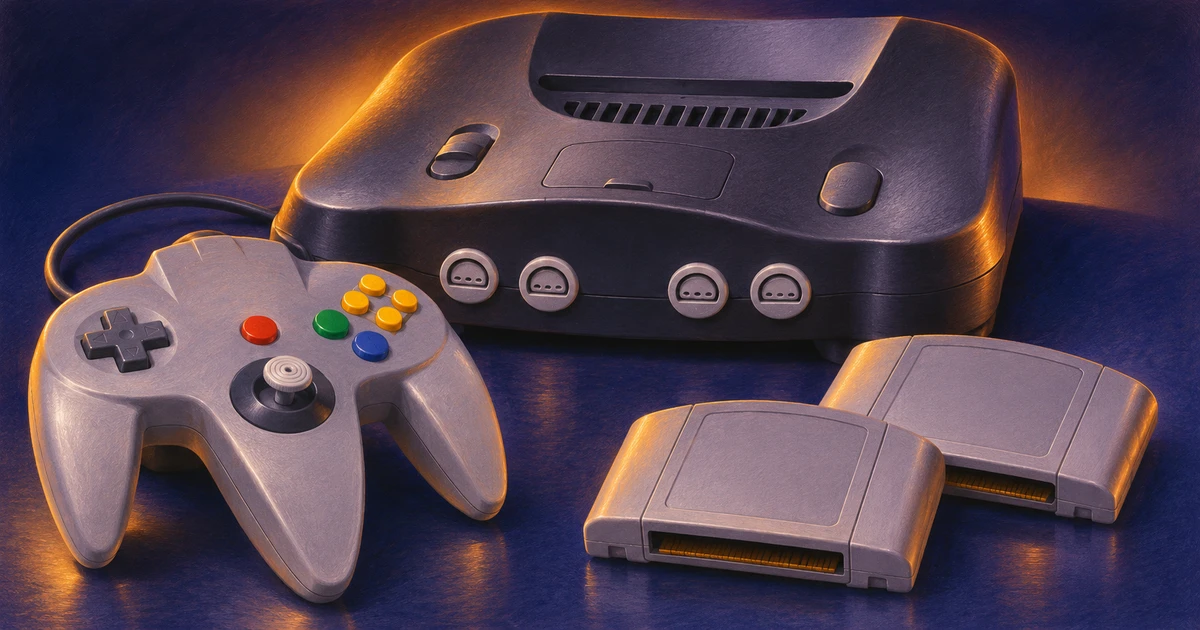
Good N64 controller mapping is the difference between cruising through a 3D platformer and accidentally firing an item every time you try to turn the camera. Nintendo's 1996 trident pad had one analog stick, a Z trigger underneath, two face buttons (A and B), and four yellow C-buttons. Modern Xbox, PlayStation, and Switch controllers have two sticks and four face buttons—which actually gives you a cleaner layout once you map it thoughtfully on Rebit's N64 browser emulator.
The best N64 controller mapping for dual-stick gamepads
Most players settle into one of two layouts depending on the genre:
| N64 input | Modern gamepad mapping | Why it feels natural |
|---|---|---|
| Analog stick | Left stick | Matches 3D movement without hand stretch |
| A & B | Bottom & Left face buttons (A/X and X/Square) | Keeps jump and attack right under your thumb |
| Z trigger | Left trigger (LT / L2) | Mimics the N64's under-grip trigger for targeting and crouching |
| L & R shoulders | LB / RB (L1 / R1) | Leaves triggers free for Z while keeping R easy to reach |
| C-buttons | Right analog stick | Turns camera control and ocarina notes into quick flicks |
Putting the four C-buttons on the right analog stick works wonders for third-person adventures and camera-heavy platformers. If a game uses C-buttons like extra face buttons (such as fighting games or rhythm prompts), you can also keep the right face buttons mapped as secondary C inputs so every press stays crisp.
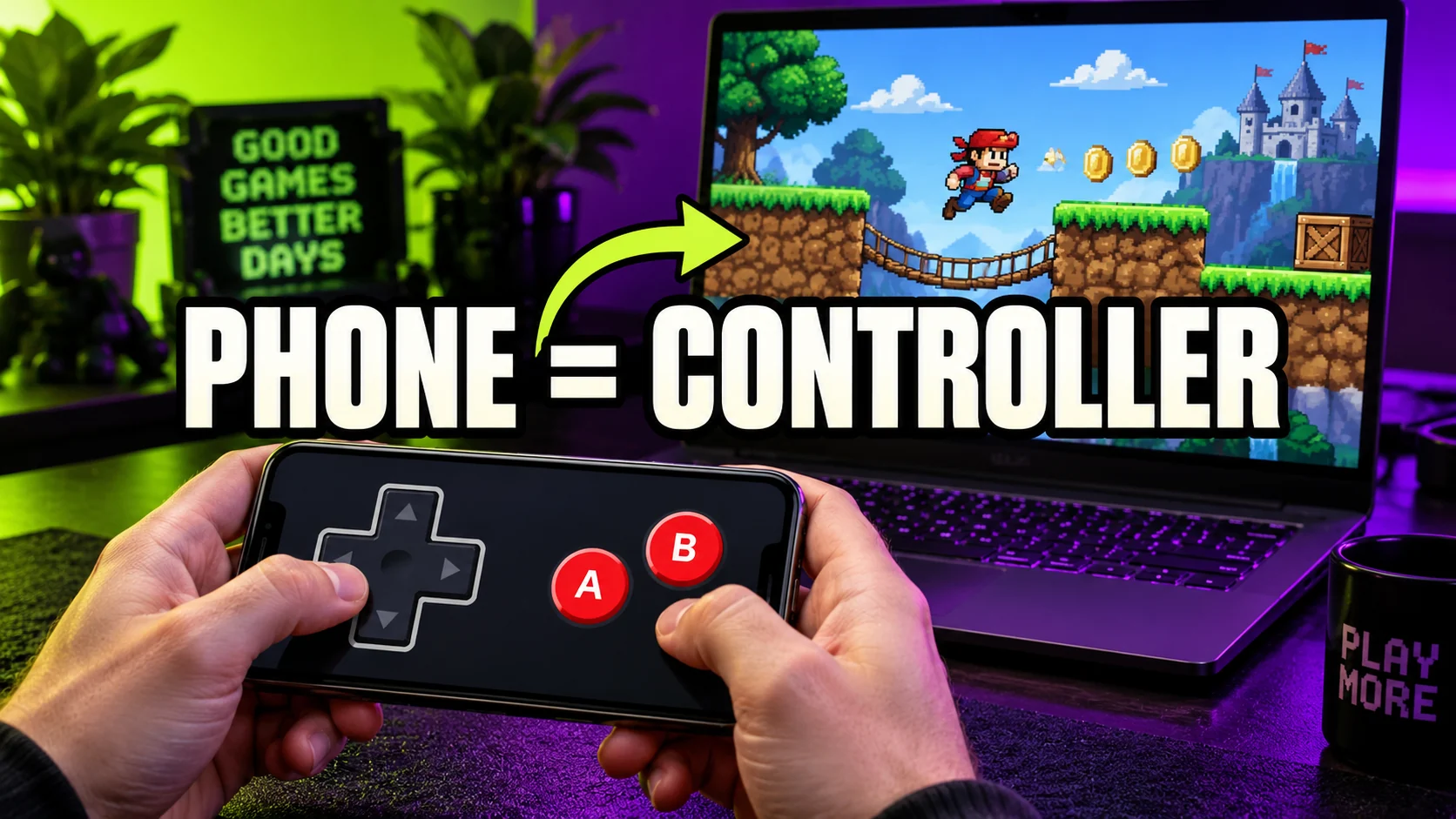
Playing N64 on a phone touchscreen
On a phone screen, give yourself two minutes in a calm starting area before jumping into a timed race or boss fight. Test three things while standing still:
- Check analog range. Walk slowly, then push to the edge to sprint—making sure you can tip-toe past sleeping enemies or line up narrow bridges.
- Locate Z and R. In racers and shooters, Z often fires items or aims while R drifts. Knowing where both sit on the touch overlay prevents panicked mis-taps.
- Pair a Bluetooth pad for longer sessions. Standard Xbox, DualSense, 8BitDo, and Backbone-style controllers work right in mobile browsers and the Rebit phone apps.
Before you blame the controller
If a cartridge boots to an attract screen and ignores your pad, click once inside the browser player to give it focus, or verify you are pressing Start rather than A to leave the title demo. For file format questions, read our N64 ROM formats guide, and if an imported save behaves oddly, check the N64 save size mismatch guide.
Once your pad feels right locally, you can host a Stream room from the in-game menu and let friends join split-screen classics with their own controllers while cloud saves keep your unlocks synced across devices.
Genre-by-genre N64 controller tips
3D platformers and adventures: Keep the left stick for movement, bottom face button for Jump/A, left face button for Attack/B, and the right analog stick for the four C-buttons. Put Z on Left Trigger so locking onto enemies or crouching feels just like modern action games.
Kart racers and arcade shooters: Players who hold A to accelerate while drifting with R and firing items with Z usually prefer Z on Left Trigger and R on Right Bumper. That splits throttle, drift, and item use across different fingers so your thumb never has to leave A.
First-person shooters: Classic N64 shooters used C-buttons for strafing and walking while the stick aimed. Mapping C-buttons to the right stick—or swapping sticks inside Rebit's control settings—makes aiming far more comfortable on modern Xbox, DualSense, or 8BitDo pads.
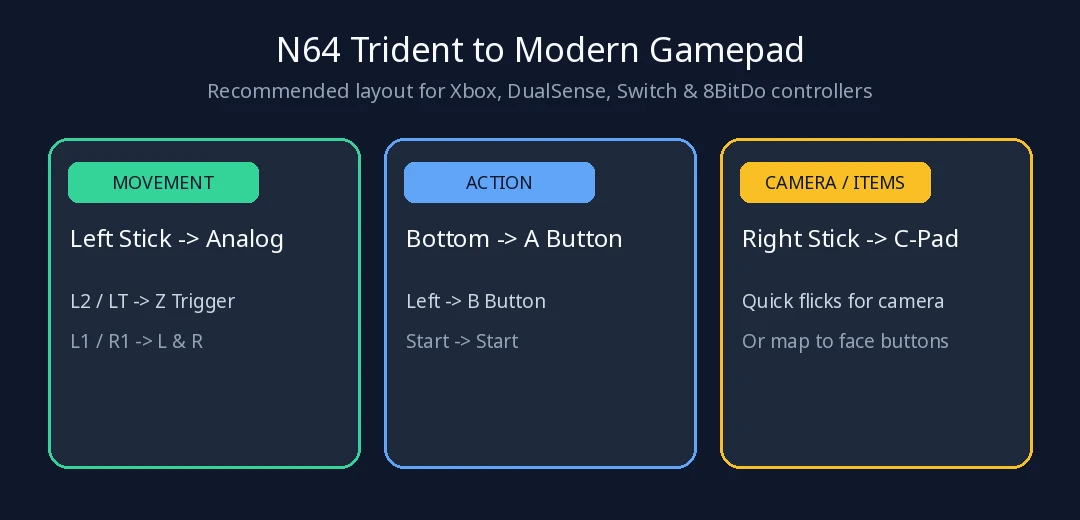 Mapping the N64 analog stick to Left Stick, Z to L2/LT, and the four yellow C-buttons to the Right Stick makes modern controllers feel effortless.
Fixing analog stick sensitivity on modern controllers
Original N64 analog sticks had an octagonal plastic gate and a slightly narrower physical range than modern Hall-effect or potentiometer sticks on Xbox and DualSense controllers. That difference shows up immediately in two places:
- Sneaking and narrow ledges: In 3D platformers, lightly tilting the left stick should make your character walk slowly instead of breaking straight into a sprint. Spend 30 seconds testing half-tilt movement in a safe hub area before tackling tight platforming sections.
- Aiming bows, slingshots, and first-person crosshairs: Smooth micro-adjustments are much easier when you rest the tip of your thumb gently on the center of the stick rather than pushing from the outer rim.
Setting up comfortable keyboard controls in a browser
Do not have a Bluetooth controller nearby? You can still enjoy turn-based adventures, puzzle games, and slower platformers on a laptop keyboard:
- WASD for the analog stick so your left hand stays in a natural PC gaming posture.
- J / K (or Z / X) for A and B, with Space or Shift for the Z trigger.
- Arrow keys for the four C-buttons, keeping camera turns and item triggers completely separate from movement.
- Enter for Start so you never bump pause mid-jump.
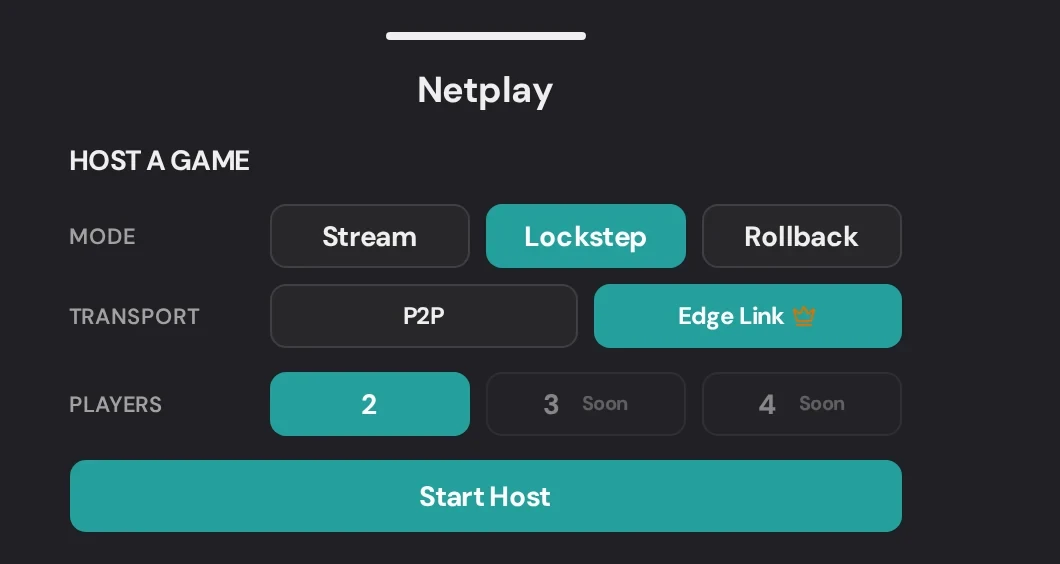 Once your own controller feels natural, open a Stream room from the in-game menu so friends can join 2-to-4-player N64 split-screen with their own pads.
Quick controller troubleshooting on Rebit
- Gamepad not detected in browser? Press any face button after plugging it in or waking it via Bluetooth—browsers keep gamepads hidden from web pages until the first button press.
- C-buttons feel backwards for camera rotation? Remember that many 1990s N64 games inverted horizontal camera rotation compared to modern 3D games. Give your brain five minutes to adjust before flipping axis bindings globally.
- Switching from desktop to phone? Rebit keeps your game progress synced via cloud saves, so you can tackle precise action bosses with a controller at your desk and explore towns or minigames on your phone later. Need to double-check your cartridge files? See our N64 ROM formats guide.
Why the N64 controller still feels different from modern pads
Nintendo designed the 1996 controller as three separate grips—you held the left and right prongs for 2D D-pad games (Kirby 64, Mischief Makers) and shifted your left hand to the middle prong for 3D analog games (Super Mario 64, Ocarina of Time). Because nobody holds a modern controller that way, two small details make all the difference when playing on Rebit:
- 2D D-pad games: Switch to the D-pad on your modern controller instead of forcing the left analog stick—tight platforming jumps and grappling inputs feel dramatically cleaner.
- Z-targeting and shielding: Putting Z on L2/LT and R on R1/RB mirrors modern third-person action muscle memory, so locking onto a boss while circling with the left stick feels completely natural within minutes.