Getting Nintendo DS emulator online controls right makes or breaks DS games in a browser or on a phone, because you are handling two screens, a touchscreen stylus, and shoulder buttons all at once. On Rebit’s Nintendo DS emulator online, melonDS renders both displays with built-in touch, a dedicated Swap Screens bind for keyboard and controllers, full Bluetooth/USB gamepad support, and cloud autosaves across desktop and mobile.
Here is how to configure touch, screen swapping, controllers, and saves so DS games feel natural on whatever device you are holding.
1. How the Nintendo DS touch screen works on desktop and mobile
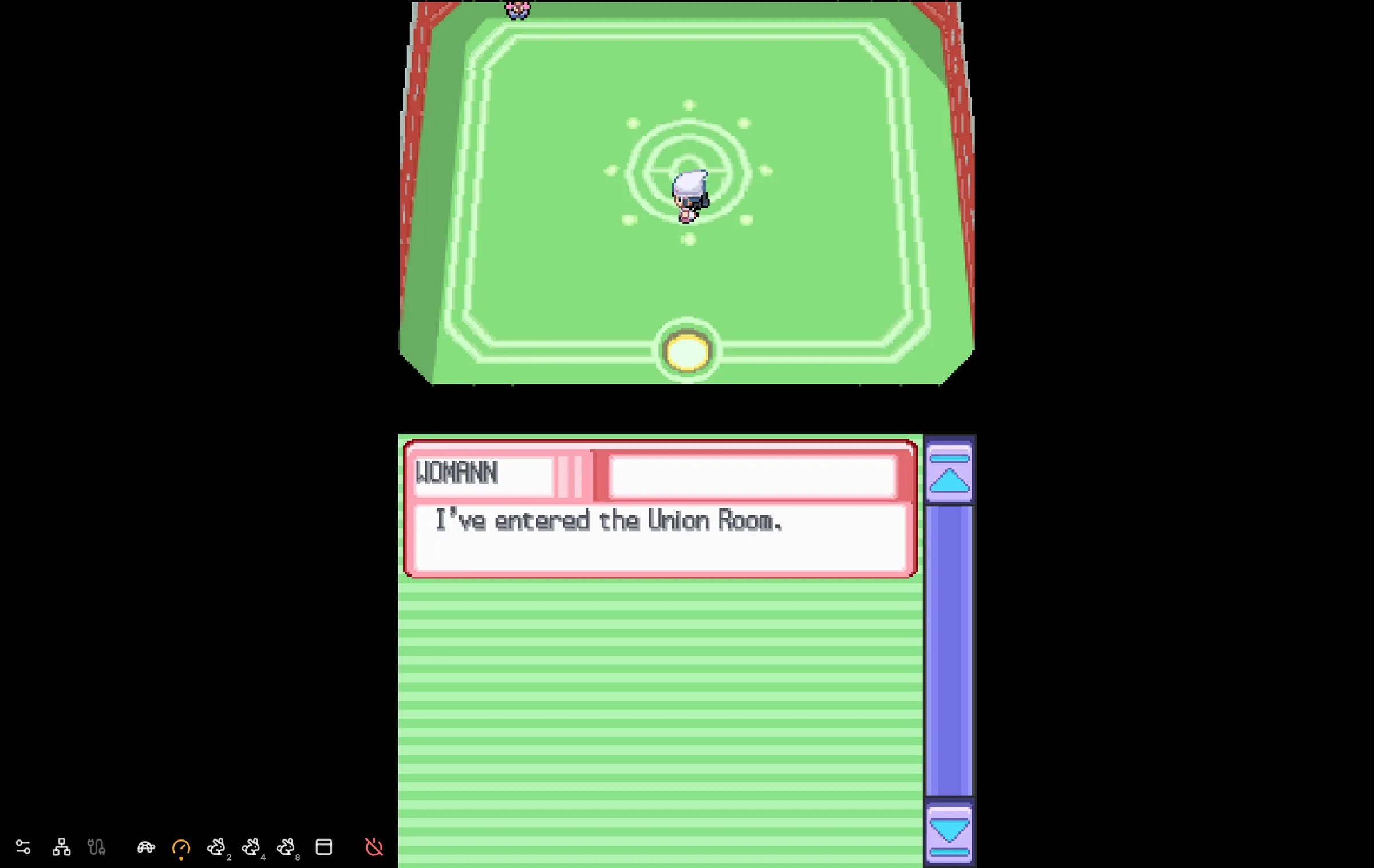
Rebit maps pointer input directly onto the bottom DS screen—no special stylus plugin or browser extension required:
- On a phone or tablet: Tap, hold, and drag directly on the bottom DS display. The on-screen layout puts the D-pad, A, B, X, Y, L, R, Start, and Select around the screens so you can mix physical-style taps with stylus input.
- On a laptop or desktop: Click and drag on the bottom screen with your mouse or trackpad. This works smoothly for Pokémon battle menus, Bag sorting, Pokétch apps, and touch-driven puzzles.
Practical tip for mouse + keyboard players
Keep your left hand on movement/confirm keys and your right hand on the mouse when playing menu-heavy DS RPGs (like Pokémon Platinum, HeartGold/SoulSilver, or Chrono Trigger DS). For action games and racers like Mario Kart DS, a controller feels much better than keyboard + mouse.
2. Set up Swap Screens on keyboard or gamepad
Many DS games treat one screen as the primary viewport and the other as a map, inventory, or battle menu—and sometimes flip which screen matters most during cutscenes or mini-games. Instead of squinting at a smaller secondary display, bind Swap Screens in Rebit’s control settings:
- Open Settings → Controls in Rebit.
- Find the Swap Screens bind (available for both keyboard and gamepad).
- Assign an easy-to-reach key (for example,
TaborSpace) or an unused controller button like R2 (since the original Nintendo DS only has L and R shoulder buttons, L2 and R2 are free on modern gamepads). - Press your bind mid-game anytime you want to flip the top and bottom screens.
3. Pairing a Bluetooth or USB gamepad for DS games
For platformers, Mario Kart DS, and long RPG sessions, a real controller is the biggest comfort upgrade you can make:
| Setup | Works in browser? | Works in Rebit app (iOS/Android)? | Best extra bindings |
|---|---|---|---|
| Xbox / PlayStation / Switch Pro (Bluetooth or USB) | Yes | Yes | Bind Swap Screens to R2; use Big Picture on TV |
| Phone clip / telescopic controller (Backbone, Kishi, etc.) | Yes | Yes | Keep touch screen free for quick bottom-screen taps |
| Keyboard + Mouse | Yes | N/A | Bind D-pad to WASD/arrows and Swap Screens to Tab |
Fixing stick drift and deadzones
If your character creeps sideways or menus scroll on their own with an older Bluetooth pad, open Settings in Rebit and adjust the analog stick deadzone slider (0.1–0.9) using the live preview until the center rests cleanly at zero.
4. Controls for DS online multiplayer (Union Room & Nintendo WFC)
Rebit supports two ways to play Nintendo DS games online, and your control setup carries straight into both:
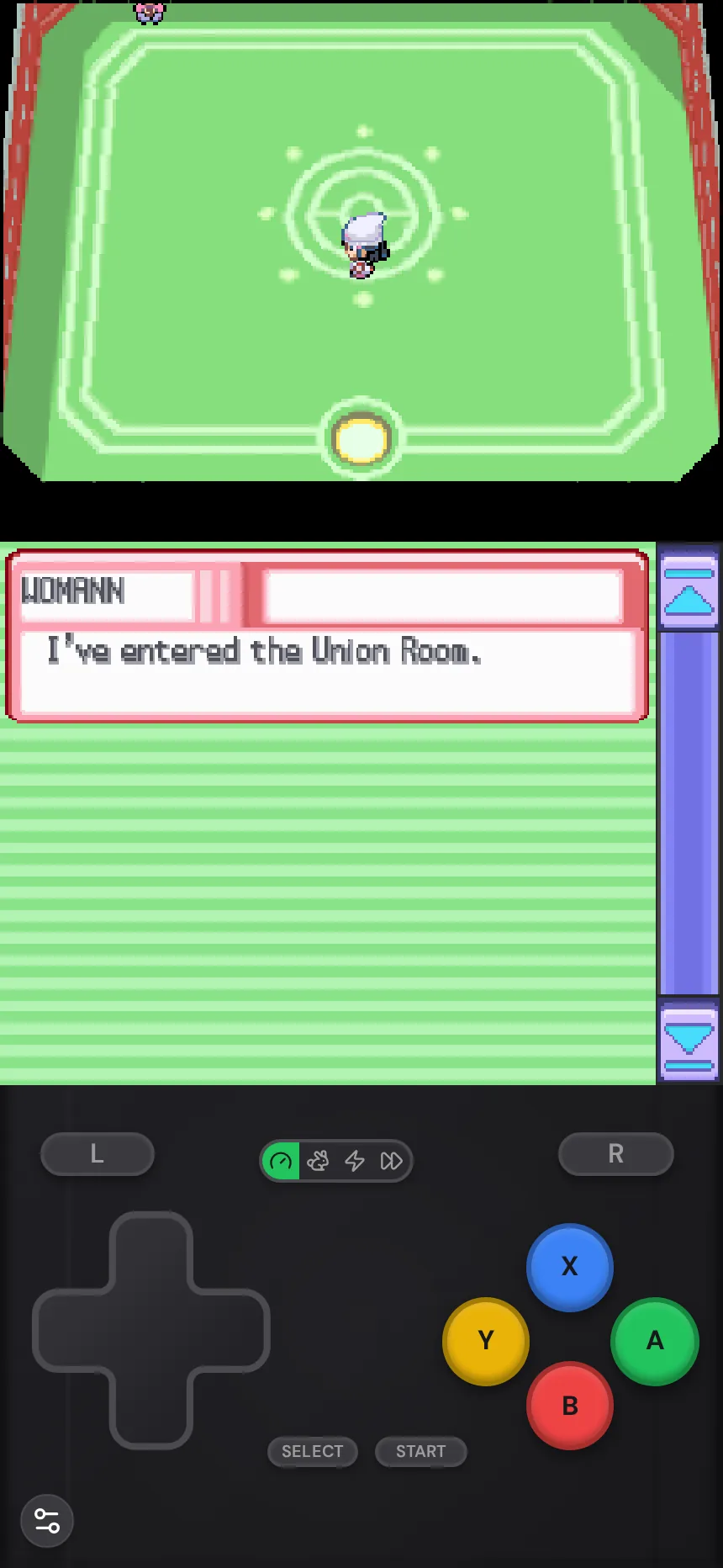
- Local wireless rooms (2 players): Host a room and meet in Pokémon’s Union Room to trade or battle. Use Lockstep when players have compatible sibling versions (like Diamond and Pearl), or Rollback when both players have the exact same ROM. See our full Nintendo DS multiplayer online with friends guide.
- Nintendo WFC online (via Kaeru): Turn on Nintendo WFC in the game’s Rebit settings, then use the game’s own Wi-Fi menu—no manual DNS edits required. Great for racing Mario Kart DS online.
5. Keep your DS saves synced and backed up
Switching between desktop (for long sessions with a gamepad) and your phone (for quick grinding) only works if your saves follow you cleanly:
- Cloud autosaves: Rebit autosaves automatically as you play (every minute on the free plan, every 10 seconds with Pro), so closing a laptop tab and opening the Rebit app on your phone resumes in the exact same spot.
- In-game saves & export: Always save inside the game as usual—especially before entering the Union Room or trading Pokémon. You can export your save from the game’s page anytime, or upload an existing
.sav/.dsvfile to continue a run you started on another emulator. - Fast-forward: Free accounts get up to 4× fast-forward (up to 8× with Pro) to breeze through slow DS text boxes and grinding.
Frequently asked questions
Can I use a Bluetooth controller on my phone while still tapping the bottom DS screen?
Yes. Even with a Bluetooth or telescopic controller paired, tapping the bottom DS screen on your phone still registers as DS touch input, which is ideal for Pokémon battles and touch menus.
Which button is best for Swap Screens on a controller?
R2 or L2 works best because the original Nintendo DS only has L and R triggers, so L2/R2 never conflict with any DS game controls.
Do I need to change DNS settings for Mario Kart DS online?
No. Toggle Nintendo WFC on inside the game’s Rebit settings and connect through Mario Kart DS’s own Nintendo WFC menu—Rebit routes through the community Kaeru service automatically.
Ready to dial in your DS setup? Upload a .nds game you own on the play Nintendo DS games online page and test your controls right in the browser.