Recore · FCEUmm
Play Famicom Disk System games online
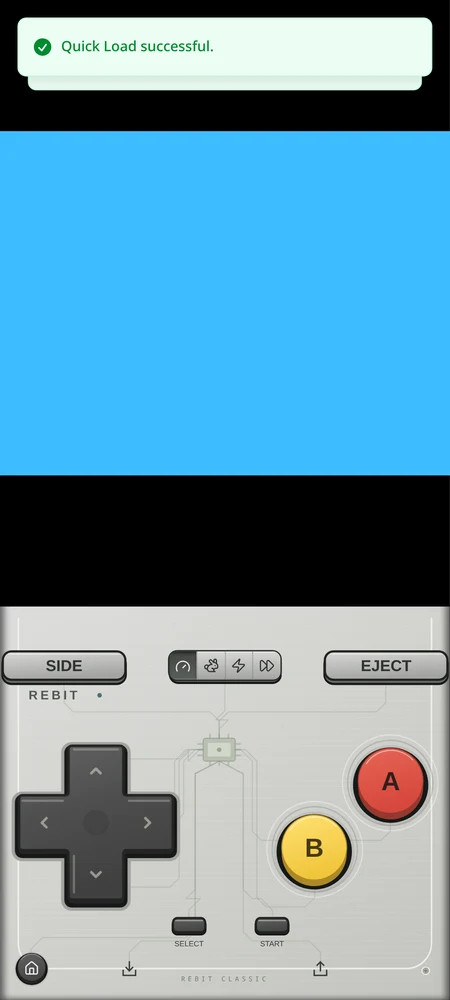
Run your own Famicom Disk System (.fds) disk images in a browser or on your phone—powered by FCEUmm on Recore with the FDS BIOS built in, dedicated Side and Eject buttons for flipping to Side B, quick save states, and automatic cloud uploads whenever a game writes to disk.
Upload your own .fds disk image (auto-detected) — Rebit provides the FDS BIOS. Rebit supplies no games.
- Core & BIOS
- FCEUmm on Recore · FDS BIOS built in
- Files & Disk Swap
- .fds auto-detected · Side (L/Q) & Eject (R/E)
- Saves & Status
- Cloud disk writes + save states · solo only for now
From .fds disk image to Side B in seconds
Bring your own legally dumped .fds disk image.
-
01
Upload your .fds disk image
Rebit auto-detects .fds files as Famicom Disk System and supplies the FDS BIOS for you—no separate BIOS upload required.
-
02
Flip disks with Side and Eject
When a game says “please set side B,” tap Side (gamepad L / keyboard Q) to flip sides and Eject (gamepad R / keyboard E) to eject or insert just like the real drive.
-
03
Save to disk & sync automatically
In-game saves write right to your FDS disk image and upload to the cloud automatically, alongside quick save/load states across desktop and phones (from OTA v2.1.237).
Recore + FCEUmm
Real Side & Eject disk swapping, built-in FDS BIOS, and automatic cloud disk saves
Rebit runs Famicom Disk System (.fds) disk images on Recore with FCEUmm—the same core powering NES—across desktop browsers and phone apps (from OTA v2.1.237). Rebit provides the FDS BIOS automatically, gives you dedicated Side and Eject buttons for two-sided games, and syncs disk writes straight to the cloud.
Built-in FDS BIOS + auto-detected .fdsDrop your .fds disk image and Rebit detects Famicom Disk System automatically—no FDS BIOS upload required.
Dedicated Side & Eject buttonsFlip between Side A and Side B with Side (L / keyboard Q) and eject or re-insert with Eject (R / keyboard E) whenever a game prompts “turn the disk to side B.”
Automatic cloud disk saves + save statesGames save directly back to their virtual FDS disk, and Rebit uploads the saved disk to the cloud automatically—plus quick save/load states.
Yellow disk cards. Browser & phone.
Famicom Disk System (FDS) emulator questions
Do I need to upload an FDS BIOS file?
No. Rebit provides the Famicom Disk System BIOS automatically, so your .fds disk images boot straight away.
How do I flip a disk to Side B on Rebit?
Use the dedicated Side button (gamepad L or keyboard Q) to flip the disk side and Eject (gamepad R or keyboard E) to remove or re-insert the disk—available on screen and on controllers.
How do Famicom Disk System saves work?
FDS games save by writing directly to their disk. Rebit uploads the saved disk to the cloud automatically whenever the game writes, and also supports quick save/load states.
Are FDS netplay rooms or RetroAchievements available yet?
Not yet—RetroAchievements and online netplay rooms are not available for Famicom Disk System right now. Solo play with automatic cloud disk saves and save states is live on web and mobile apps.
Related guides
Other systems
Play your FDS disk library
Open Rebit and add an .fds disk image you own. Start free and upgrade only when your library grows.