To use your phone as a retro game controller in Rebit, start the game on the device you want to watch, open its in-game menu, choose Remote Control, and start a session. Scan the displayed QR code with your controller phone and open the link. The game stays on the main device; the phone supplies the buttons.
This is useful when you want your hands away from the display, or when touch buttons cover too much of the game. You still need a supported game running in Rebit and your own legally obtained game file. Rebit does not provide copyrighted ROM downloads.
Decide which screen does which job
Before pairing, give the devices two clear roles:
| Device | Its job | Keep it doing this |
|---|---|---|
| Main device | Run and display the game | Stay awake with the game open |
| Controller phone | Send button presses | Keep the controller page open |
For example, a laptop can run the game while you hold your phone below the screen. If that laptop is connected to a TV by HDMI, the laptop still runs the game; the TV is its display. That arrangement is different from running Rebit inside a smart TV browser, whose compatibility would need a separate check.
Remote Controller does not create a second trainer, a separate game, or a multiplayer save. If your friend wants to join with their own running game, use the multiplayer mode comparison before pairing anything.
Pair the phone with the running game
First prove that the game works on the main device. Reach a safe menu or starting area and test movement with its existing controls. That gives you a baseline: if the phone later fails to move anything, you know whether the game was responding before pairing.
Then follow the sequence in Rebit's Remote Controller manual:
- Open the in-game menu on the main device.
- Select Remote Control and start the remote session.
- Leave the drawer open while the phone joins.
- On the controller phone, scan the displayed QR code with the camera and open its link.
- Wait for the controller screen to connect, then test a button while watching the main screen.
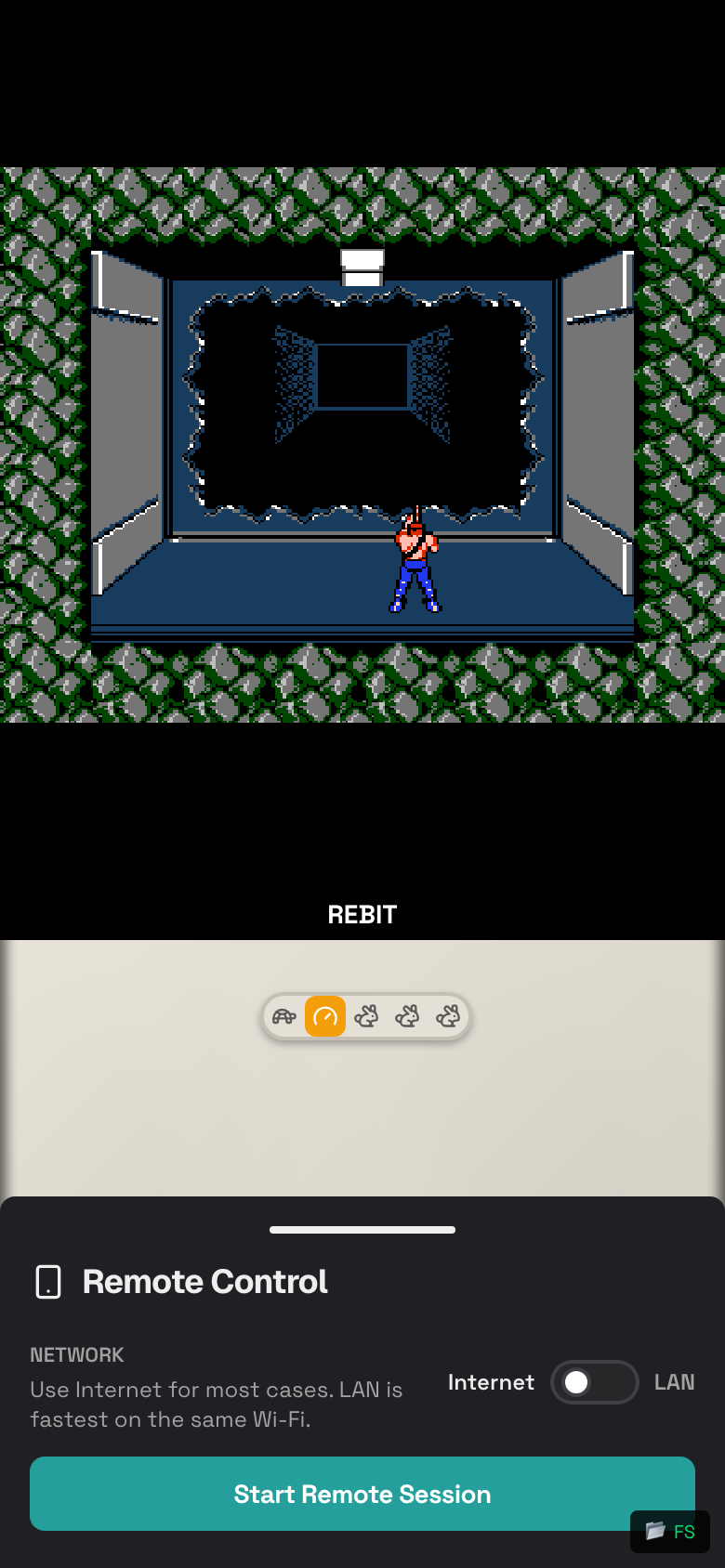
The existing documentation image shows the host drawer before pairing. Use the QR code from your own running session, not a code from somebody else's screenshot.
If scanning fails and the app presents a remote join page, enter the room code displayed on the main device there. Use the remote controller join flow; a multiplayer room with a similar-looking code is a different destination. The manual describes this fallback, but does not give a universal menu path for every client version, so follow the link or page shown by your client.
Test buttons before hiding anything
A connected label is one milestone. A button reaching the game is the next.
In a harmless menu or starting area, try a direction, one action button, and Start where the game uses it. Release each control and check that movement stops. Choose an area where an accidental input cannot delete a save, spend an important item, or start a difficult encounter.
Keep the main device's controls available during this check. Once the phone works, use Hide Controls if you want more display space. Show Controls brings them back. These options are documented in Rebit's in-game settings; hiding the overlay is a display choice, not a way to repair pairing.
Do not judge a controller by buttons the game does not use. A system with two action buttons will not necessarily respond to every button shown by a more general controller layout.
Find the first step that stopped working
Use one comparison at a time instead of refreshing both devices and changing several settings together.
| Symptom | Useful next check |
|---|---|
| The phone never reaches a controller screen | Reopen the link from the current session's QR code |
| The controller page stays disconnected | Confirm the main game is still open, then refresh the controller phone and pair again |
| The phone connects but no action reaches the game | Test the main device's original controls in the same game screen |
| Original controls work but the phone does not | Record the pairing status, devices, browsers, and which phone buttons you tried |
| Both control methods fail | Check whether the game is paused, in a noninteractive scene, or no longer responding |
| The phone responds late while original controls feel immediate | Compare on a stable network, preferably the same Wi-Fi; record whether the difference persists |
The last comparison suggests where to investigate; it does not prove a network fault. If the whole game is running slowly even with its original controls, repairing the phone connection may not address the underlying performance problem.
The manual recommends keeping both devices on a stable network and using the same Wi-Fi when possible. Moving closer to the access point is a simple comparison when Wi-Fi reception is poor. It is not a promise of zero delay.
Stop the controller session deliberately
When finished, open Remote Control on the main device and stop or leave the session, then close the controller page on the phone. Save your game through its normal save workflow before quitting the game itself. Disconnecting the phone is not a save action.
For a first attempt, keep the goal small: one phone, one running game, and a few confirmed inputs. Once that works, you can play retro games online with the display where you want it and the controls in your hands.