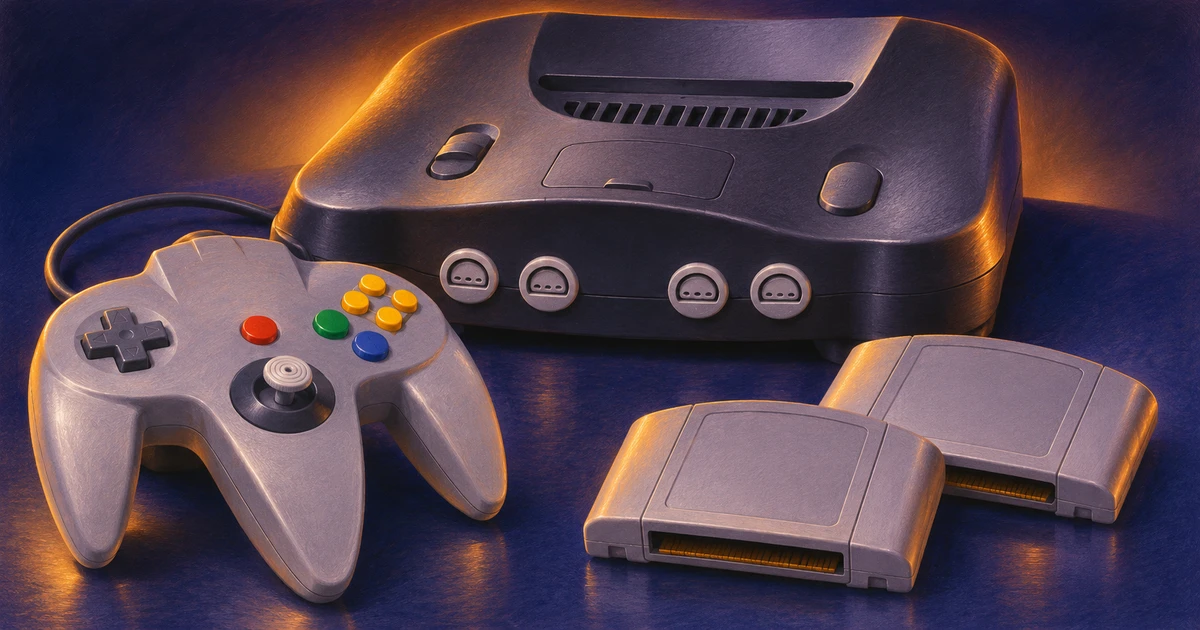
Understanding N64 ROM formats saves hours of frustration when a cartridge backup refuses to accept a fan translation patch or behaves strangely with an imported save. Nintendo 64 dumps show up with three common extensions—.z64, .n64, and .v64—and all three represent the same cartridge data arranged in different byte orders. On Rebit's N64 browser emulator, Mupen64Plus accepts all three formats automatically with no BIOS setup required.
Why three N64 ROM formats exist
In the late 1990s, different hardware backup devices read N64 cartridge chips in different orders. Rather than agreeing on one convention, each copier wrote bytes in whatever layout matched its own microprocessor:
| Extension | Byte order | Common name | Best use |
|---|---|---|---|
.z64 |
Big-endian (ABCD) |
Native / No-Intro standard | Best format for archiving, patches, and RetroAchievements |
.v64 |
Byte-swapped (BADC) |
Doctor V64 format | Older backup unit dumps; still loads in Mupen64Plus |
.n64 |
Little-endian (DCBA) |
Word-swapped | Rare older dumps; convert to .z64 if applying patches |
When you dump your own cartridge with modern hardware, it almost always outputs .z64. That is the cleanest format to keep in your library because community patches (like widescreen hacks or English translations) expect big-endian .z64 byte order.
How to tell if a file extension is lying
Renaming a .v64 file to .z64 does not swap the bytes inside it. A quick way to check is the first four bytes of the file in a hex viewer: a genuine .z64 starts with 80 37 12 40, a .v64 starts with 37 80 40 12, and a .n64 starts with 40 12 37 80. Mupen64Plus inspects the header rather than trusting the filename alone, so your backup still boots on Rebit—but patchers will fail if the byte order does not match what they expect.
Saves, EEPROM, and Controller Paks
Unlike NES or SNES cartridges that mostly use simple SRAM, Nintendo 64 cartridges shipped with four different save mechanisms: 4 Kbit EEPROM, 16 Kbit EEPROM, 32 KiB SRAM, and 128 KiB FlashRAM—plus the removable Controller Pak memory card. If you are moving an older save file into Rebit and it refuses to load, read our N64 save size mismatch guide before renaming files to .srm.
Getting the cleanest N64 setup on Rebit
- Upload your
.z64,.n64, or.v64cartridge backup. Keep one cartridge per upload; Rebit supplies the emulator, never game files. - Use a modern gamepad when you can. The N64's three-pronged layout translates cleanly to dual-stick controllers—see our N64 controller mapping guide for C-button and Z-trigger tips.
- Let cloud saves protect long RPG and platformer runs. Your progress follows your Rebit account between desktop browsers and phone apps via cloud saves.
For local split-screen classics, open a Stream room from the in-game menu so friends can join with their own controllers while your browser or phone hosts the cartridge.
Frequently asked questions about N64 ROM formats
Should I convert my .v64 or .n64 dumps to .z64? If you only plan to play unpatched cartridges in Rebit, you do not have to—Mupen64Plus reads the header and byte-swaps automatically. Converting your working copy to .z64 only becomes essential when you apply ROM hacks, English translations, or texture-free balance patches that assume big-endian byte order.
Why do some N64 uploads fail inside a .zip archive? Keep one cartridge file per upload and avoid nested folders or multi-region packs inside a single archive. If a dump is already .z64, uploading it directly is the fastest way to verify it boots cleanly.
Does byte order affect save files? No, your in-game save format depends on the cartridge's save chip (EEPROM, SRAM, or FlashRAM), not whether the ROM started as .z64 or .v64.
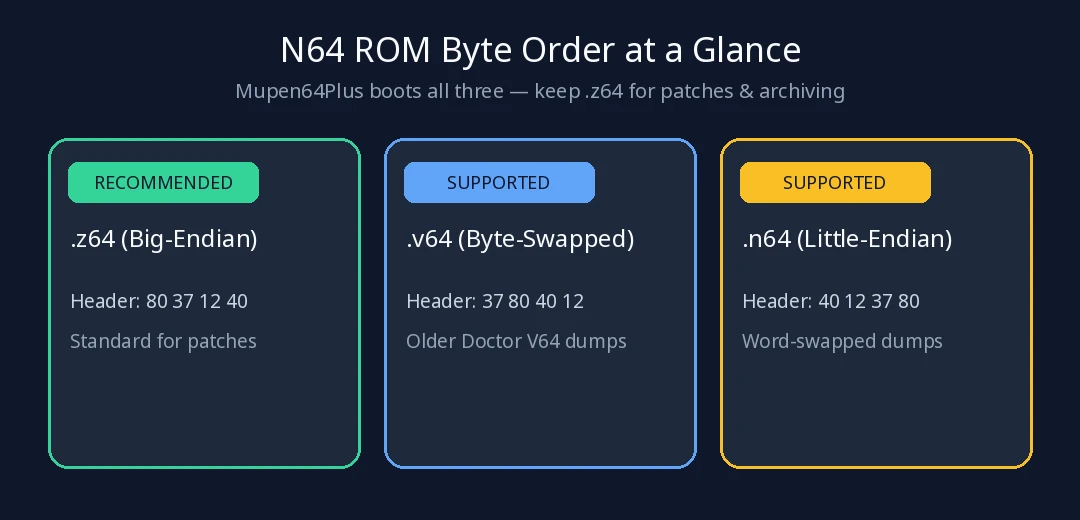 How the first four header bytes distinguish .z64, .v64, and .n64 Nintendo 64 cartridge dumps before Mupen64Plus boots them.
Step-by-step: auditing an N64 dump before uploading
If you have an older folder of Nintendo 64 backups collected over the years, taking two minutes to verify each file prevents broken patches and mystery crashes halfway through a temple:
- Check the file size against standard cartridge sizes. Retail N64 cartridges shipped in exact power-of-two sizes—typically 4 MB, 8 MB, 12 MB, 16 MB, 32 MB, or 64 MB. An odd size (like 12.3 MB) usually means a bad dump or extra copier padding.
- Keep one cartridge per file. Do not bundle multiple regional revisions (
USA,Europe,Japan) inside one.ziparchive. Upload the exact.z64edition you want to play. - Avoid renaming
.v64to.z64blindly. If a ROM patcher asks for.z64, use a dedicated byte-swap utility on a working copy so the bytes actually reorder cleanly. - Test saving early. Boot the cartridge on Rebit's N64 browser emulator, create a quick file slot inside the game, and verify that your in-game save persists alongside Rebit's cloud saves.
Why PAL (50 Hz) vs. NTSC (60 Hz) matters on N64
When backing up cartridges from different regions, remember that North American and Japanese N64 cartridges run at 60 Hz (NTSC) while European cartridges run at 50 Hz (PAL). Many 1990s PAL ports ran slightly slower or letterboxed compared to their NTSC counterparts, and save files from a PAL cartridge will not always load cleanly on an NTSC dump of the same title. Label your working copies clearly by region so you always pair the right save with the right cartridge.
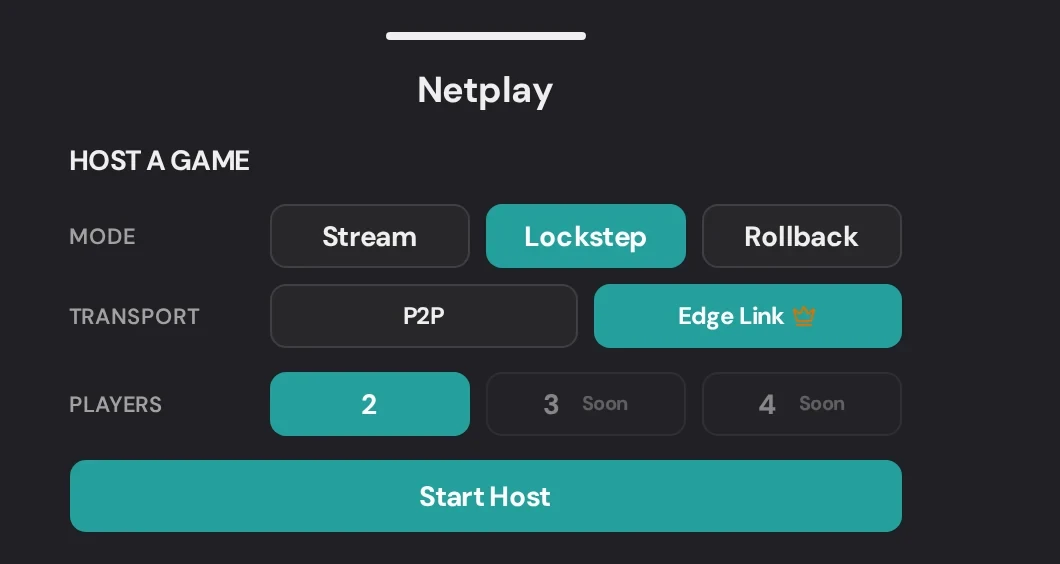 Host a Stream room from the in-game menu to share split-screen N64 classics with friends—only the host needs the .z64 cartridge.
Summary: the cleanest N64 library workflow
Keep .z64 as your gold standard for patching and archiving, let Mupen64Plus handle older .v64 and .n64 dumps directly when playing unpatched, and pair your cartridge with a comfortable dual-stick layout from our N64 controller mapping guide. Whenever you switch between a desktop browser and your phone, Rebit keeps your saves synced automatically.
Real-world example: patching a fan translation cleanly
Suppose you own a Japanese N64 cartridge—like Sin and Punishment or Animal Forest—and want to apply an English fan-translation .bps or .xdelta patch to your personal dump:
- Duplicate your original
.z64dump into a separate working folder so your clean backup stays untouched. - Verify the SHA-1 or CRC32 checksum listed in the patch readme. If your dump is in
.v64byte-swapped order, the patcher will immediately reject it with a checksum mismatch. - Byte-swap to
.z64first, verify the checksum matches, apply the patch, and upload the newly patched.z64file to Rebit under Nintendo 64.
That three-step habit eliminates 95% of failed N64 patches and ensures Mupen64Plus boots your patched cartridge cleanly on the first try.