If your N64 save export is 32 KiB but the destination emulator creates a 290 KiB .srm, do not assume either file is broken. They may represent different containers for the same kind of progress. Renaming changes the filename; it does not rearrange the data inside it.
Before converting anything, identify the source emulator's export format and the destination's exact core. Then use a conversion explicitly intended for that pair. File size is a clue, not enough information to choose a converter.
This is a focused guide to that mismatch. For the broader device-switch routine, see moving retro saves between devices.
Why an N64 save can grow to 290 KiB
The pj64tosrm utility in Libretro's parallel-n64 repository documents a combined save layout. Its output contains these areas, in order:
| Area | Allocated bytes | Size |
|---|---|---|
| EEPROM | 2,048 | 2 KiB |
| Four Controller Paks | 131,072 | 128 KiB |
| SRAM | 32,768 | 32 KiB |
| FlashRAM | 131,072 | 128 KiB |
| Total | 296,960 | 290 KiB |
That total includes space a particular game may not use. It is not a measure of how far you have played. This layout is an example from a specific emulator family, not a definition of every file named .srm.
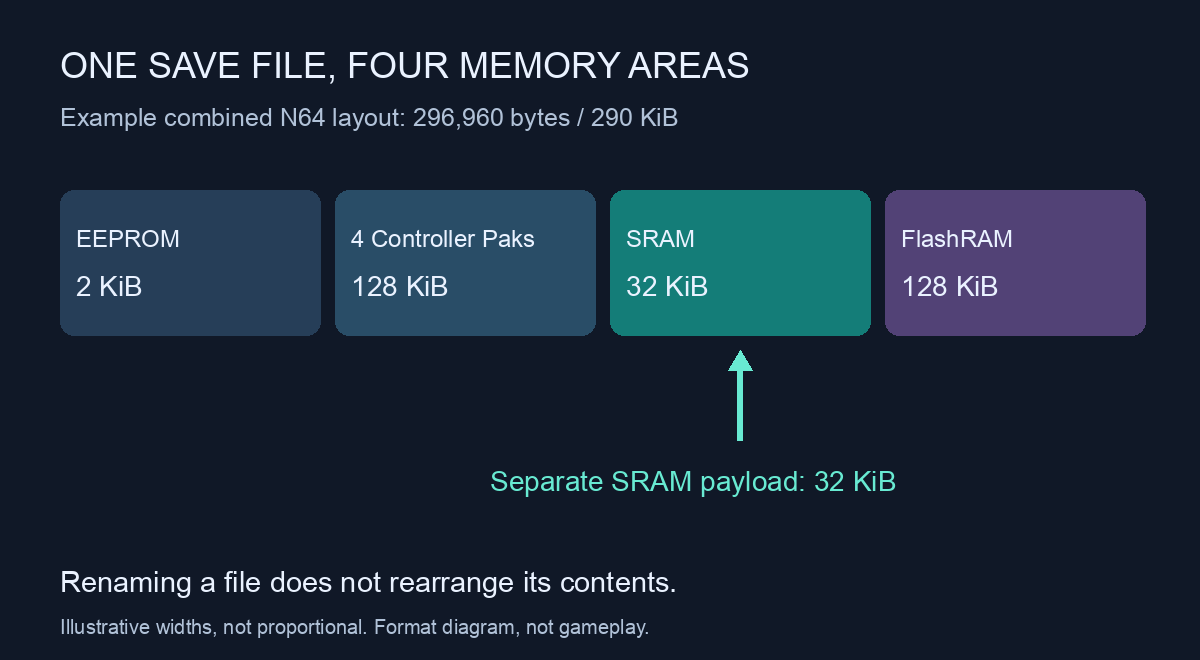
Original format diagram; block widths are illustrative, not proportional. This is not a game screenshot.
A 32 KiB export might be an SRAM payload, but size alone cannot establish that: a Controller Pak also occupies 32 KiB. An extensionless export needs its originating app's documentation or a verified conversion workflow. Giving it a plausible extension does not identify its contents.
What we checked, and what that proves
For this article, we compiled the linked utility and supplied a synthetic 32,768-byte .sra file containing a repeating byte pattern. The output was 296,960 bytes. The original pattern appeared unchanged in the SRAM region, starting at byte offset 133,120.
This small check demonstrates a structural difference: the input was placed inside a larger container. Appending zeroes to its end would not perform the same operation, and renaming would not move it to that offset.
No commercial game save was used in this check. It does not verify a Delta export, a particular Switch setup, or an import into Rebit. A correctly sized output can still contain the wrong data for the game.
Identify both ends before choosing a conversion
Make a separate working copy of your export and record the following:
| Source | Destination |
|---|---|
| App name and version | Emulator and exact core name/version |
| Export action used | Import action or documented save folder |
| Original filename and byte count | Filename and byte count of a newly created test save |
| Game region, revision, and any patch | The corresponding game release |
Use the actual file size, not “size on disk,” which includes filesystem allocation overhead. A file manager may display decimal KB or binary KiB, so the byte count avoids an unnecessary disagreement.
On the destination, use a separate test location or backed-up configuration to create a disposable in-game save. Close the game normally and inspect what it wrote. This gives you evidence of the required name, directory and container without experimenting on the only copy of your progress.
If your export came from the emulator's snapshot menu, first check whether it is a save state rather than an in-game save. The container example above concerns persistent save memory, not a snapshot of the running emulator.
Choose a converter by format, not by extension
The linked utility targets Project64-style .eep, .mpk, .sra and .fla inputs and a Libretro combined output. Its source also notes limitations for some older Project64 and NRage saves. That is a reason to verify the input's origin, not to rename an unknown export to one of those suffixes and hope.
For your actual transfer, look for documentation that names both the source export and the target core. Check whether it handles memory-card containers, headers or byte order where applicable. If those details are missing, ask the converter's maintainer before using its output as your active save.
A useful support question is:
Source app/version and export command:
Original filename and exact bytes:
Destination emulator/core/version:
Destination test-save filename and exact bytes:
Game region/revision/patch on each side:
Converter used, if any:
Result when loading from the game's own menu:
You do not need to attach a ROM or BIOS to answer these questions.
Verify progress through the game itself
Keep the original export and destination backup outside the active save folder. With the destination game closed, import the converted working copy using that emulator's documented method. Start from a normal boot rather than loading an old automatic state, then use the game's own file-select or Continue screen.
Check a recognizable detail: the selected slot, character name, location, inventory or completed objective. If it is correct, make a new in-game save, close normally, and boot again. The second successful load checks that the destination can also write and reopen progress.
If the slot is empty, stop there. Record whether the emulator ignored the file, replaced it, or reported an error. Repeatedly changing filenames and saving a new game can erase the evidence of which step failed.
The same distinction matters for cross-device retro gaming: moving a file through cloud storage does not convert its format. Before you settle into a long session or play retro games online on a different device, prove that the game's own load screen sees the progress you intended to move. Rebit does not provide copyrighted ROM downloads; bring your own legally obtained game files.