Choosing the right Sega CD formats makes the difference between a clean one-click upload and a silent game missing its Red Book soundtrack. On Rebit's Sega CD / Mega-CD browser emulator, Genesis Plus GX runs .chd, .cue with its .bin/.iso/.wav tracks, and .m3u multi-disc playlists—and Rebit supplies the US, European (Mega-CD), and Japanese BIOS files automatically.
Why CHD is the cleanest Sega CD format
Early CD-ROM consoles mixed a data track with dozens of uncompressed audio tracks. A raw rip of a single Sega CD game can easily contain a .cue sheet plus 20 or 30 separate .bin or .wav files. CHD (Compressed Hunks of Data) packs that entire disc—data and lossless CD audio—into one smaller file.
| Format | What to upload | Pros |
|---|---|---|
| CHD | One .chd file per disc |
Smallest upload, impossible to drop an audio track |
| CUE + BIN/ISO/WAV | The .cue sheet plus every track listed inside it |
Works directly from raw disc rips without converting first |
| M3U multi-disc | One .m3u text playlist plus every disc image it references |
Keeps multi-disc RPGs as one library entry with in-game disc swaps |
Do you need to upload Sega CD BIOS files?
No. On original hardware and standalone desktop emulators, matching the right bios_CD_U.bin, bios_CD_E.bin, or bios_CD_J.bin to your disc's region is the #1 reason games refuse to boot. Rebit handles all three region BIOS files automatically for Genesis Plus GX. Bring your own legally owned disc backup—Rebit never supplies game ROMs or ISOs—and launch straight into the Sega CD boot screen.
Common Sega CD upload mistakes to avoid
- Uploading only the
.cuefile. A.cuesheet is just a small text index telling the emulator where each track starts. Always select the.cuetogether with every.bin,.iso, or.wavfile named inside it. - Choosing Sega Genesis instead of Sega CD. Standard cartridge backups (
.md,.gen,.bin) belong on the Sega Genesis player; disc images belong under Sega CD / Mega-CD. - Forgetting the
.m3ufor multi-disc games. If a game spans two discs, list both.chdfilenames (one per line) in a plain.m3ufile and upload the playlist together with the discs so you can swap discs from the in-game menu without losing RAM state.
Once your disc boots cleanly and you hear the full CD soundtrack, cloud saves keep your internal Sega CD backup RAM and save states synced across desktop browsers and phones. Looking for what to boot first? Read our guide to the best Sega CD games to play first.
Checking Sega CD formats before you upload
Before uploading a raw .cue/.bin rip from your own disc, open the .cue file in a text editor and scan every FILE "..." line. Two quick checks prevent almost every failed import:
- No subfolder paths inside the
.cue. Every referenced track filename should sit side by side with the.cuesheet in the same upload. - Exact case and extension match. If the
.cueasks forTrack 02.wavorGame (Track 02).bin, make sure that exact file is selected alongside the.cue.
If you plan to keep more than a couple of Sega CD or Mega-CD titles in your library, converting your rips to .chd once on your computer pays off immediately: uploads shrink dramatically, audio tracks stay lossless, and there is zero chance of leaving Track 18 behind in a folder.
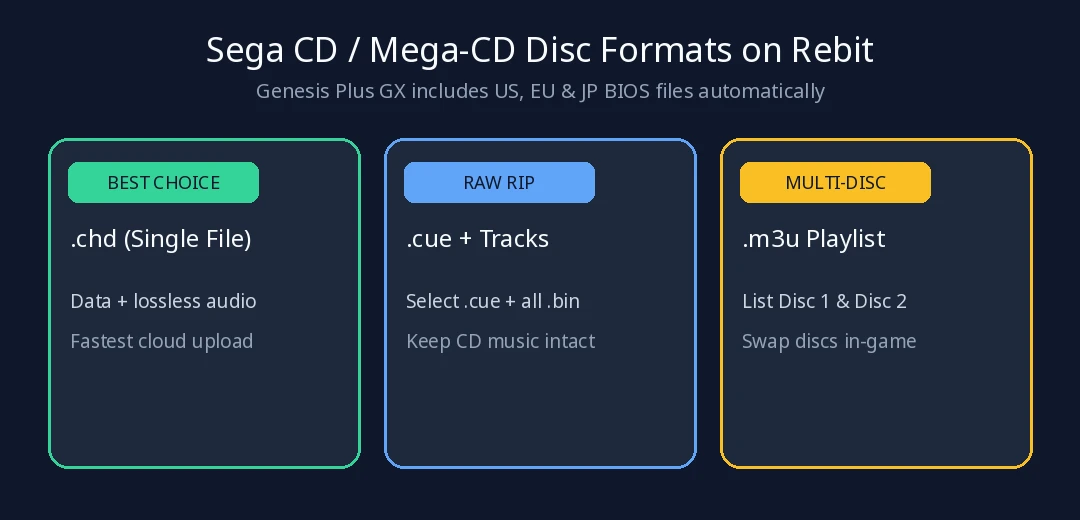 CHD packs data and lossless CD audio into one compact file, while CUE+tracks and M3U playlists work cleanly for raw rips and multi-disc games.
How Sega CD internal backup RAM and RAM carts work
Unlike Sega Genesis cartridges—which either saved to an internal battery or relied on passwords—the Sega CD hardware included built-in internal backup memory (plus an optional Backup RAM Cartridge for players with huge RPG collections). Genesis Plus GX emulates that backup memory automatically, and Rebit syncs it to your account via cloud saves.
A practical habit for long Sega CD RPGs like Lunar: The Silver Star, Lunar: Eternal Blue, or Shining Force CD:
- Save inside the game at inns or headquarters so your authentic backup RAM stays up to date.
- Use Rebit save states before tough bosses or dialogue branches so you can experiment without replaying a 20-minute dungeon.
- Avoid renaming a disc mid-playthrough so your library entry stays paired with its existing save history.
Understanding Sega CD vs. Mega-CD region locking
In the 1990s, North American Sega CD hardware refused to boot European Mega-CD or Japanese Mega-CD discs—and vice versa—because each region used a different boot BIOS. On Rebit, Genesis Plus GX automatically loads the matching US, European, or Japanese BIOS based on your disc header. You never need to hunt down, rename, or manually switch region BIOS files before launching an import you own.
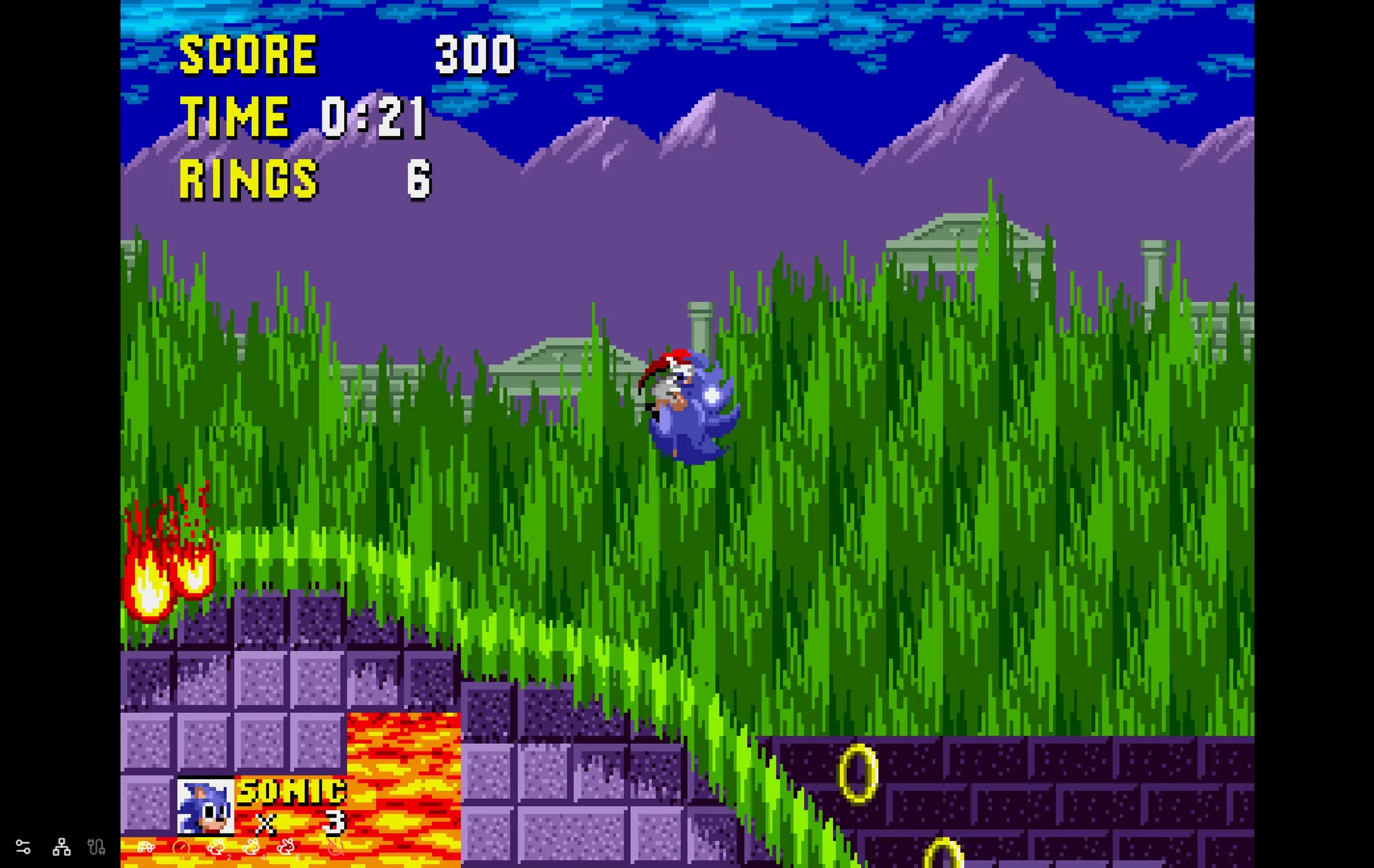 Genesis Plus GX powers Sega Genesis, Sega CD, Master System, and Game Gear in Rebit with clean scaling and instant browser launch.
Step-by-step: converting a multi-track Sega CD rip to CHD
If you have a legally ripped .cue sheet accompanied by 25 .bin or .wav tracks on your computer, compressing it to .chd before uploading takes less than a minute using chdman (chdman createcd -i "Game.cue" -o "Game.chd"). The resulting .chd is typically 40–60% smaller, preserves every audio track bit-for-bit, and uploads as a single clean file to Rebit's Sega CD / Mega-CD player. Ready to pick your first disc? Browse our best Sega CD games to play first.
Checking multi-track audio before you commit to a long RPG
Nothing breaks the mood of a Sega CD classic faster than reaching the first town or boss fight and realizing the background music stopped after Track 02. Before settling into a 20-hour playthrough of Lunar or Popful Mail, do a 60-second audio check right after uploading:
- Let the intro animation play for 15 seconds. Spoken dialogue and CD-quality opening themes confirm that Genesis Plus GX is reading the Red Book audio tracks cleanly.
- Enter the first playable stage or town. Verify that stage music loops smoothly without stuttering or cutting to silence.
- Save once inside the game and confirm your Rebit cloud save indicator updates—now you know both your disc rip and your backup RAM are rock-solid for the rest of the campaign.