You have the old game folder. You remember the opening level. What you do not want is an evening spent reconstructing a DOSBox configuration before you can play MS-DOS games in your browser. Rebit handles the emulator launch, but two decisions still matter: upload the complete game, and run the right program inside it.
Quick answer: Put your legally usable DOS game folder in one ZIP, open Upload, choose MS-DOS, and upload that ZIP. Open the library entry, highlight the game's executable in DOSBox Pure, and press Enter. Once playing, make a test save inside the game, then use Rebit's Save State and Export In-Game Save actions. Reopen and verify the result before starting a long session.
The screenshots here show Doom 1.9 shareware running through Rebit's actual DOSBox Pure core. We checked this workflow on a local Rebit build on October 27, 2026. MS-DOS is a beta system; a successful Doom test does not establish compatibility with every DOS release. Use game files you own or that are legally free. Rebit does not supply copyrighted game downloads.
1. Prepare a complete folder to play MS-DOS games in your browser
A DOS executable is often only the program. Its maps, graphics, sound data, configuration, and other resources can live beside it. Pulling out DOOM.EXE and leaving DOOM1.WAD behind is like taking a record player and forgetting the record.
Start with the folder from a working installation of the DOS edition. Keep its files and subfolders together, then compress that folder into one ZIP. For the Doom shareware example, the installed files include DOOM.EXE, DOOM1.WAD, SETUP.EXE, documentation, and several multiplayer utilities. We retained the complete package.
Do not assume a download archive already contains an installed game. The original Doom shareware distribution, for example, contains an installer and split installation data. If your archive opens to an installer rather than the game's program and data, prepare the installed folder first. Renaming the installer archive will not perform installation.
This is the boundary of “no DOSBox setup”: you do not need to write a mounting command or configure a separate desktop DOSBox instance for the tested, ready-to-run ZIP. It does not mean Rebit can turn every installer, Windows release, or incomplete download into a DOS game. The DOS file guide explains how to tell those cases apart.
2. Upload the ZIP as MS-DOS
Sign in, open Upload, and select the System field. Choose MS-DOS, select your ZIP, then press Upload ROM. That button name is shared with console uploads; for DOS, you are supplying a game package.
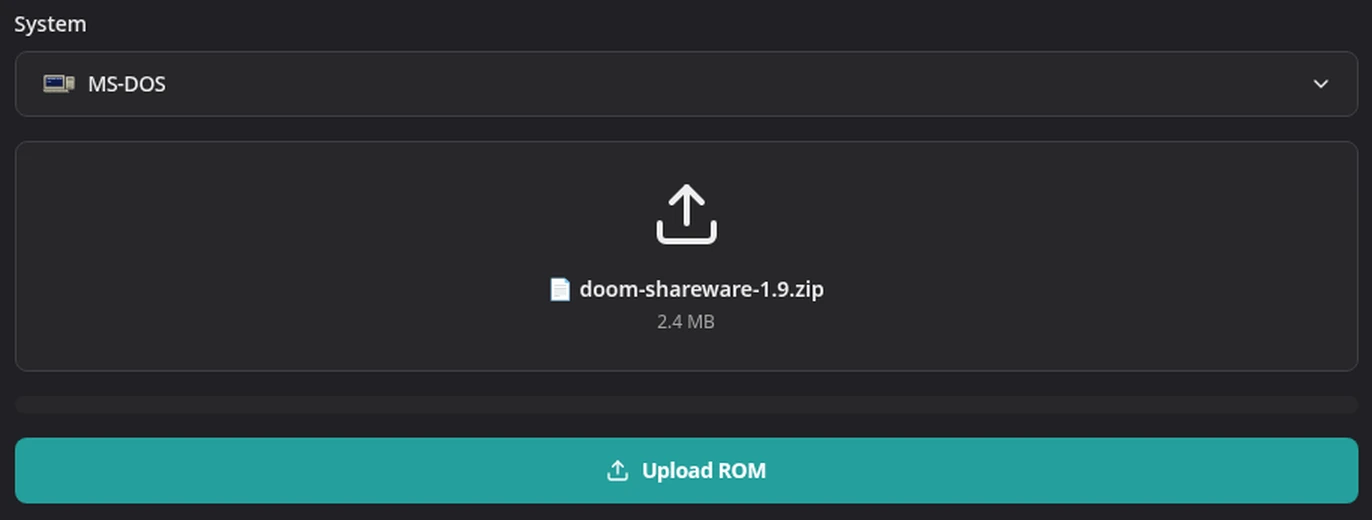
The actual Upload screen with MS-DOS selected and the complete Doom shareware ZIP chosen.
Wait until the upload finishes and opens the game details page. The library entry should say MS-DOS. If it identifies another system, stop there and inspect the package instead of trying different launch settings.
Current upload detection can also recognize a DOS ZIP under Auto when it finds a DOS program and no conflicting console ROM. Choosing MS-DOS explicitly makes the intent clear and ensures that the ZIP is handled as a DOSBox Pure package. Upload it by itself; do not add loose companion files alongside the ZIP.
If this is your first Rebit session, Getting Started covers the account and library flow. The upload instructions explain the file picker and progress screen. There is no reason to rebuild your archive merely because a transfer was interrupted: first check whether the failure happened during transfer or after Rebit inspected its contents.
3. Pick the game, not the installer or network utility
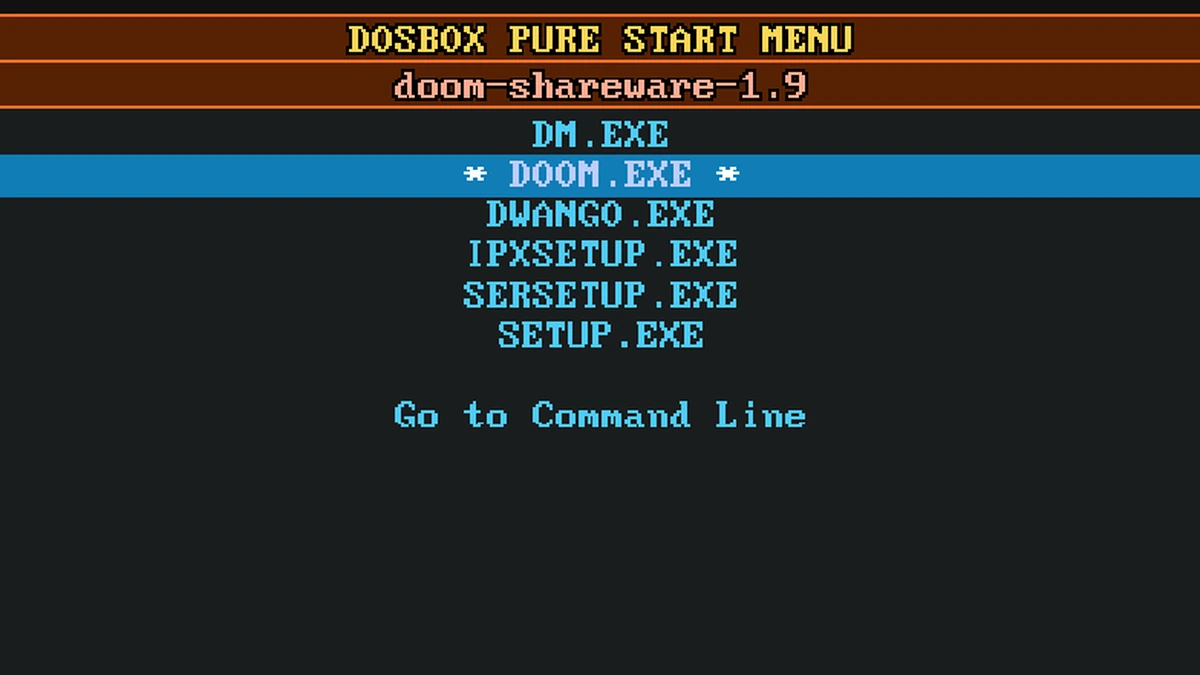
Press Play Now. DOSBox Pure presents a start menu containing the programs it found. This screen is a successful boot, not a frozen game.
Use the up and down arrows to highlight the program you want, then press Enter. In our package, the right choice is DOOM.EXE. The start tip explains the arrow-and-Enter sequence; the right arrow sets the selected program as the automatic start choice for a later launch.
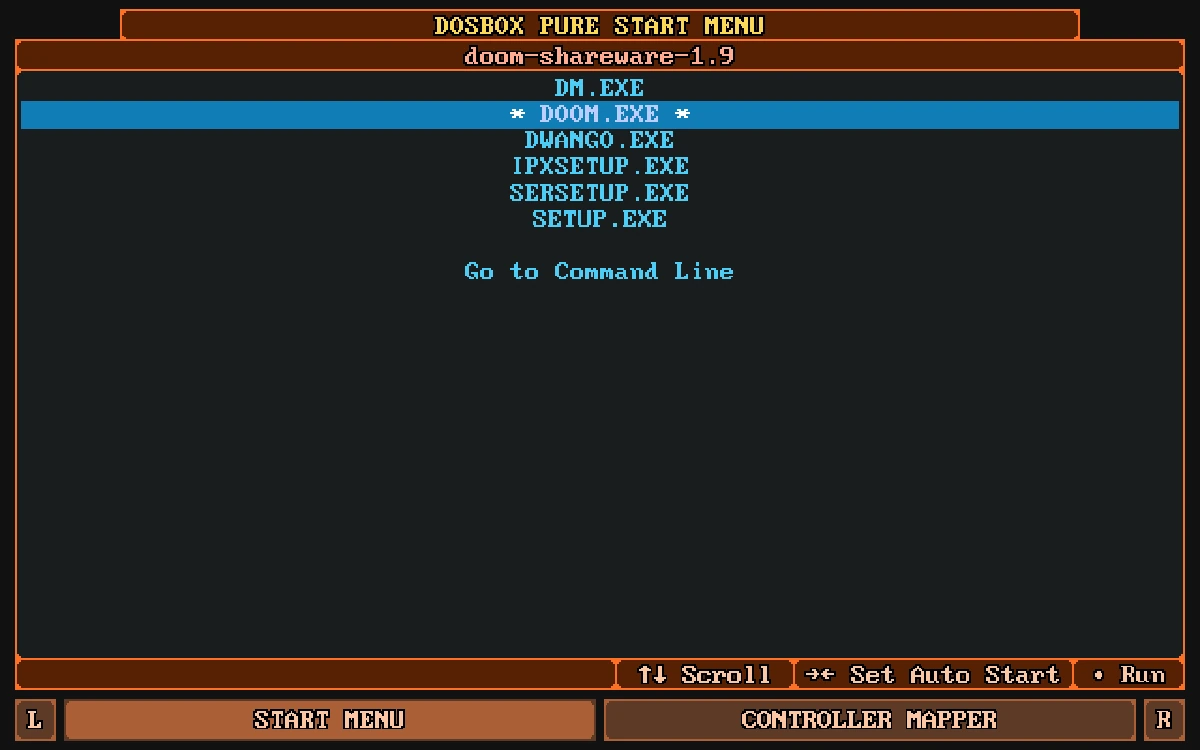
DOOM.EXE is the game. The other executables are separate utilities included in the same shareware distribution.
The distinction is easy to miss. We deliberately opened DM.EXE during the test and got DeathManager's modem/network configuration screen. That was a working program, but it was the wrong program for a solo game. Exit DeathManager with Esc, press any key when DOSBox asks you to return to its start menu, and select DOOM.EXE. Do not rebuild the ZIP or change your account plan to solve a launcher mistake.
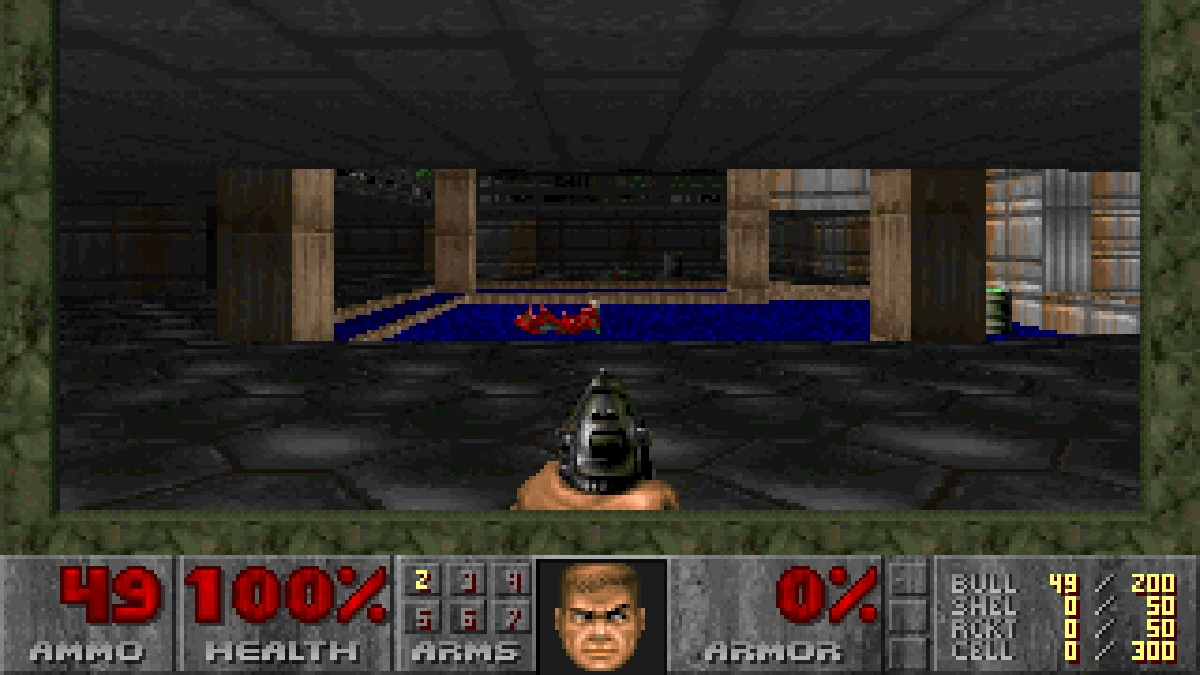
For this Doom example, choose New Game, the shareware episode Knee-Deep in the Dead, and a difficulty. Reaching the opening Hangar room is the first useful success check: the executable has found enough of its data to start actual gameplay.
4. Prove the controls before playing seriously
On desktop, focus the game canvas and use the game's original PC controls. Rebit gives DOS games keyboard input directly rather than treating every key as a console gamepad button. In our Doom run, arrows moved the player, Ctrl fired, F2 opened the save menu, and mouse movement turned the view.
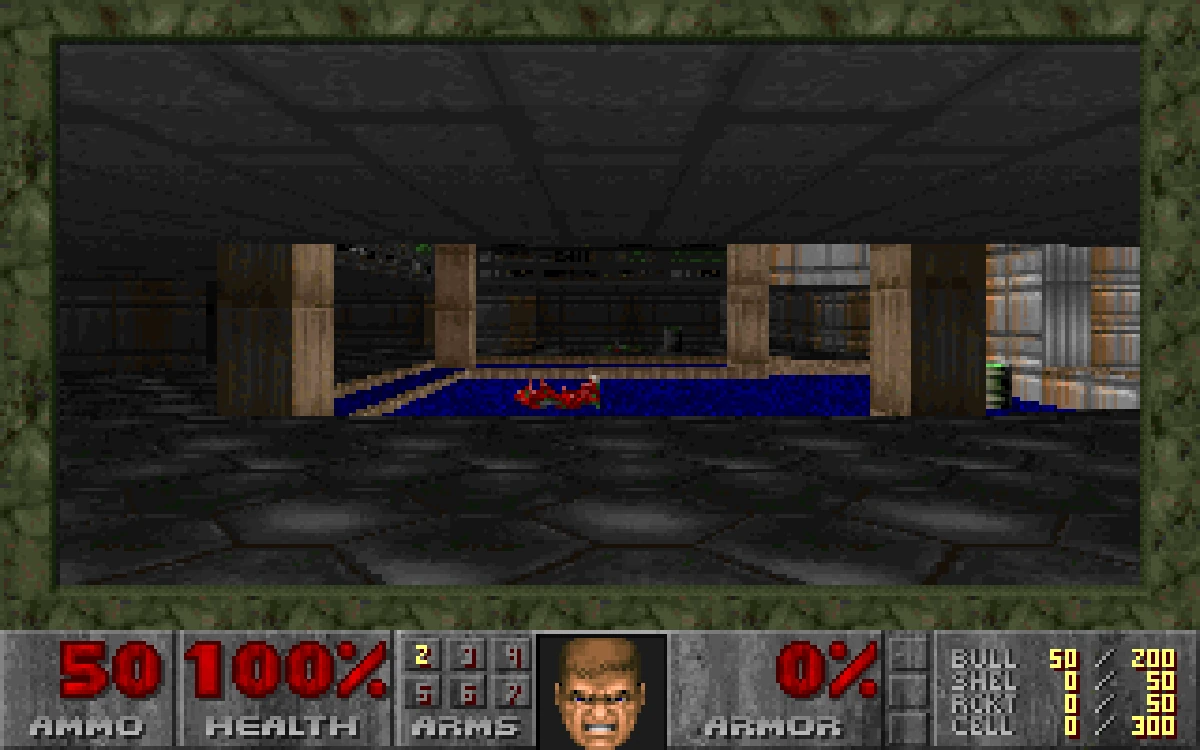
The opening Hangar room reached through DOOM.EXE in Rebit, with the game's original status bar visible.
Test movement, the main action, and the game menu separately. A working menu does not prove that every action key is mapped the way you expect. If you changed Doom's own control setup previously, those settings matter too.
Rebit's DOS touch/gamepad bridge maps directions to arrow keys and action buttons to PC keys. The Rebit Classic touch theme labels them ENT, SPC, CTL, and ALT. A Keyboard button opens extra keys. However, our Chromium phone-viewport test reached the start menu and opened the keyboard but did not successfully launch the selected program using Enter. See the phone controls investigation before relying on touch-only play. These desktop results are not an Android or iPhone performance claim.
5. Make a save you can actually recover
Before exploring beyond the first room, test both kinds of progress.
- Use the game's own save command. In Doom, press F2, choose a slot, enter a recognizable name, and confirm.
- Open Rebit's menu/settings button and choose Save State. Wait for the success message.
- Open the menu again and choose Export In-Game Save. The reminder asks you to save inside the game first; continue once that is done.
- Open Open Saves > In-game and download the exported entry for a separate backup.
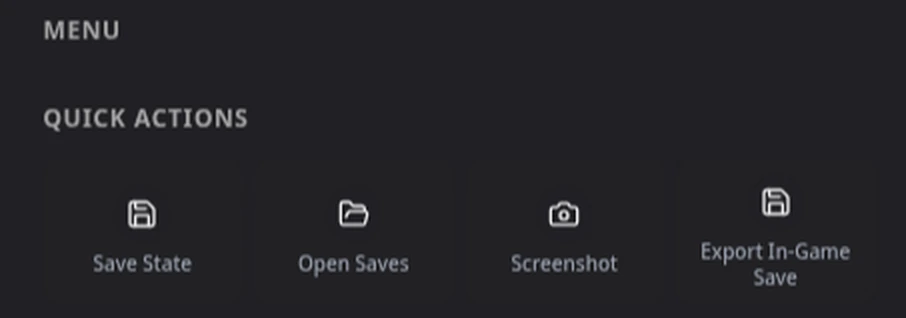
Rebit's save actions while Doom is running. Export In-Game Save stores the game's drive changes in Rebit; the separate download action creates a device copy.
A state preserves the emulator's position and bundles DOSBox's drive changes. The in-game export carries the drive changes without the machine state. In our exported Doom bundle, we verified that the game's DOOMSAV0.DSG file was present. This is why exporting a DOS save is more involved than remembering which level you reached.
Now reopen the same library entry. A state can initially return you to DOSBox Pure's start menu: launch the same game program so the saved position can resume. To check the game's save separately, leave the play screen, use Manage saves > In-game > Play from save on the details page, and inspect Doom's Load Game menu. The DOS saves guide explains this fresh-launch path and an in-session restart problem we encountered.
Troubleshooting FAQ
Why do I see a list of EXEs instead of the game?
That is DOSBox Pure's program selector. Highlight the game's executable and press Enter. If several names look plausible, consult the documentation in your package; SETUP.EXE usually serves a different purpose from the game itself.
Why does Rebit say this is a Windows program?
Windows and DOS software can both use .exe. Rebit checks executable headers and rejects detected Windows programs. Obtain the DOS edition you are entitled to use; changing the extension or putting a Windows installer in a ZIP does not convert it.
Is a DOS save just a normal .sav file?
Rebit's DOS in-game export is a bundle of drive changes, even when the download has a .srm filename. Keep that download intact for Rebit. A generic cartridge save or an arbitrary file renamed to .srm is not equivalent.
Do I need Pro for the steps shown here?
We uploaded, played, manually saved, exported, and downloaded using a non-Pro test account. Some autosave settings are Pro options, including the 10-second interval and 69-save history. Read the available settings in your account rather than assuming every choice is included.
What should I try once the first game works?
Keep the successful package and backup, then tackle another game whose files you can legally use. Our 11 MS-DOS games that still out-design modern releases offers design-focused reading, not a compatibility checklist. Repeat the launch-and-save test for each new title before trusting it with a long campaign.