Upload Your First Game
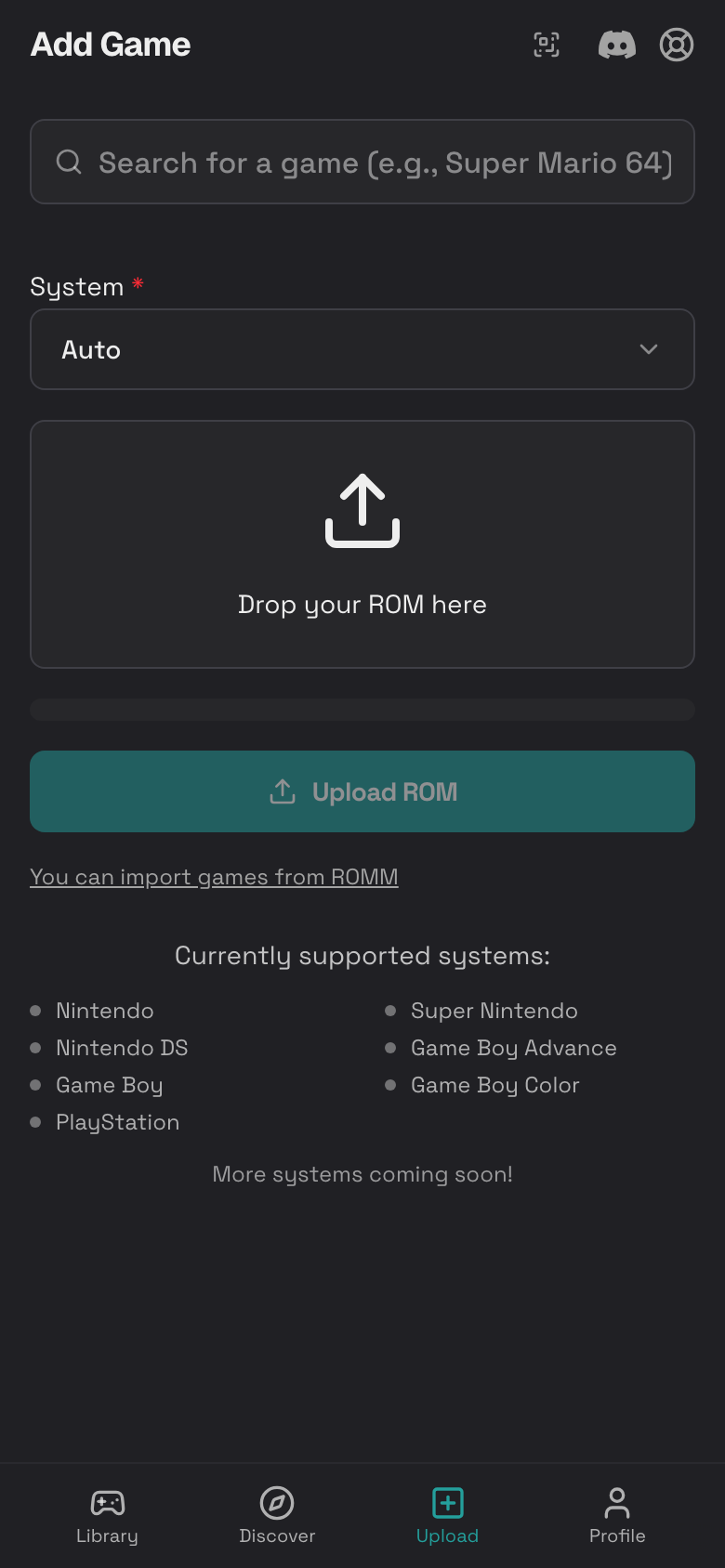
Upload is where you add games from your phone or import from your own RomM server.
Choose a System
- Tap Upload in the bottom dock.
- Tap System.
- Choose Auto if you are not sure.
- Pick a specific system only when you know the file belongs to that console.
Supported Systems and File Types
Rebit accepts the systems shown on the upload screen. Common supported systems include:
- NES:
.nes - Super Nintendo:
.smc,.sfc - Game Boy:
.gb - Game Boy Color:
.gbc - Game Boy Advance:
.gba - Nintendo DS:
.nds - Nintendo 64:
.z64,.n64,.v64 - PlayStation:
.cue,.chd,.pbp,.bin,.img,.mdf,.toc,.cbn,.m3u,.ccd,.iso,.exe - Sega Genesis / Mega Drive:
.md,.gen,.smd,.bin,.68k,.sgd - Commodore 64:
.d64,.g64,.t64,.tap,.prg,.p00,.crt - Amstrad CPC / GX4000:
.dsk,.sna,.tap,.cdt,.voc,.cpr,.m3u - ZX Spectrum:
.tzx,.tap,.z80,.rzx,.scl,.trd
Some extensions, including .bin, .tap, and .m3u, belong to more than one system. If Auto chooses the wrong target, select the system manually before upload.
You can also upload a ZIP file when Rebit can find a supported game file inside it.
Upload a ROM from Your Phone
- Tap the upload area that says Drop your ROM here.
- Choose a game file from Files, Downloads, iCloud Drive, Google Drive, or another phone file picker.
- Tap Upload ROM.
- Stay on the page while the upload runs.
- When Rebit finishes, open the game from your library.
Large Upload Progress and Cancel
Large files can take time on mobile.
- Watch the progress bar while the upload runs.
- Keep Rebit open and avoid locking your phone.
- Use Wi-Fi when possible.
- Tap the cancel button if you picked the wrong file or the upload stops.
- Start again after canceling.
ZIP Extraction
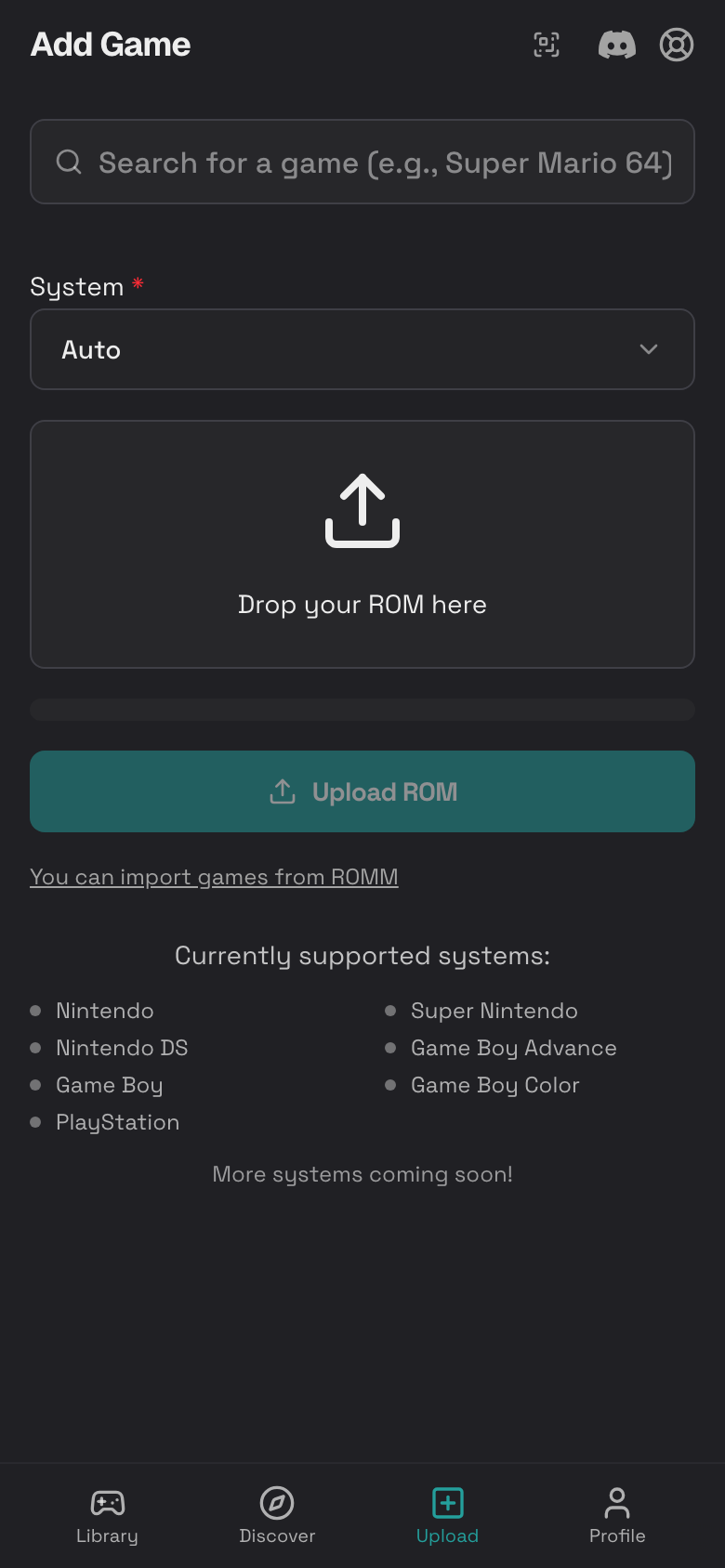
When you upload a ZIP file, Rebit looks inside it for a supported game file.
- Put one main game file in the ZIP when possible.
- Avoid uploading a ZIP full of unrelated files.
- If a ZIP fails, unzip it on your phone or computer and upload the game file directly.
Import Games from RomM
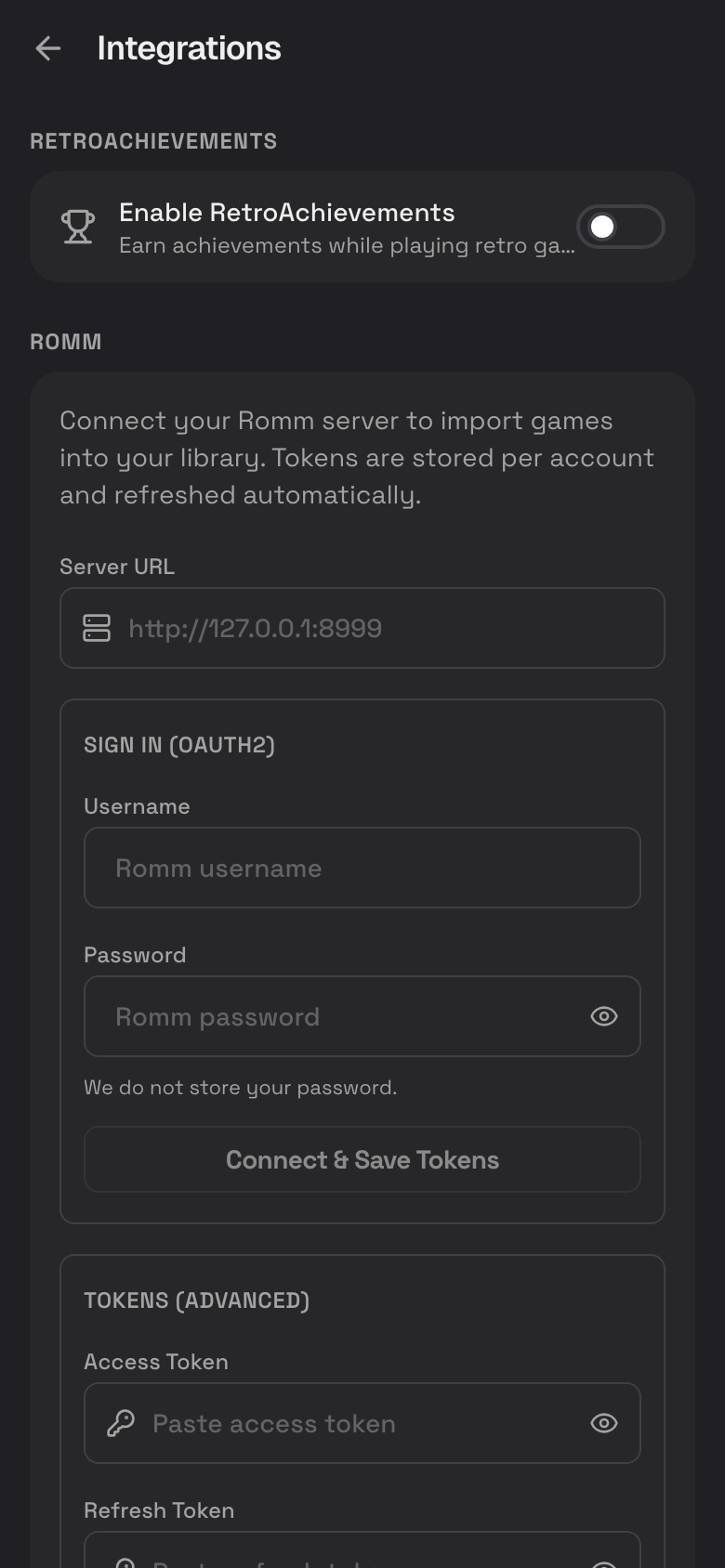
RomM import is useful if you already host games on your own RomM server.
- Connect RomM in Settings.
- Tap Upload.
- Tap Import games from RomM.
- Search by game name.
- Select one or more games.
- Tap Import.
- Wait while Rebit queues the imports.
If an Upload Fails
- Check the file extension.
- Try Auto system detection.
- Make sure you have enough storage in Storage and Pro.
- Use Wi-Fi for large PlayStation files.
- Pick a specific system for ambiguous
.binfiles. - Try uploading the unzipped game file instead of the ZIP.