Your Game Library
Your library is where your uploaded games live after you add them. From here, you can find a game, open its details, and start playing.
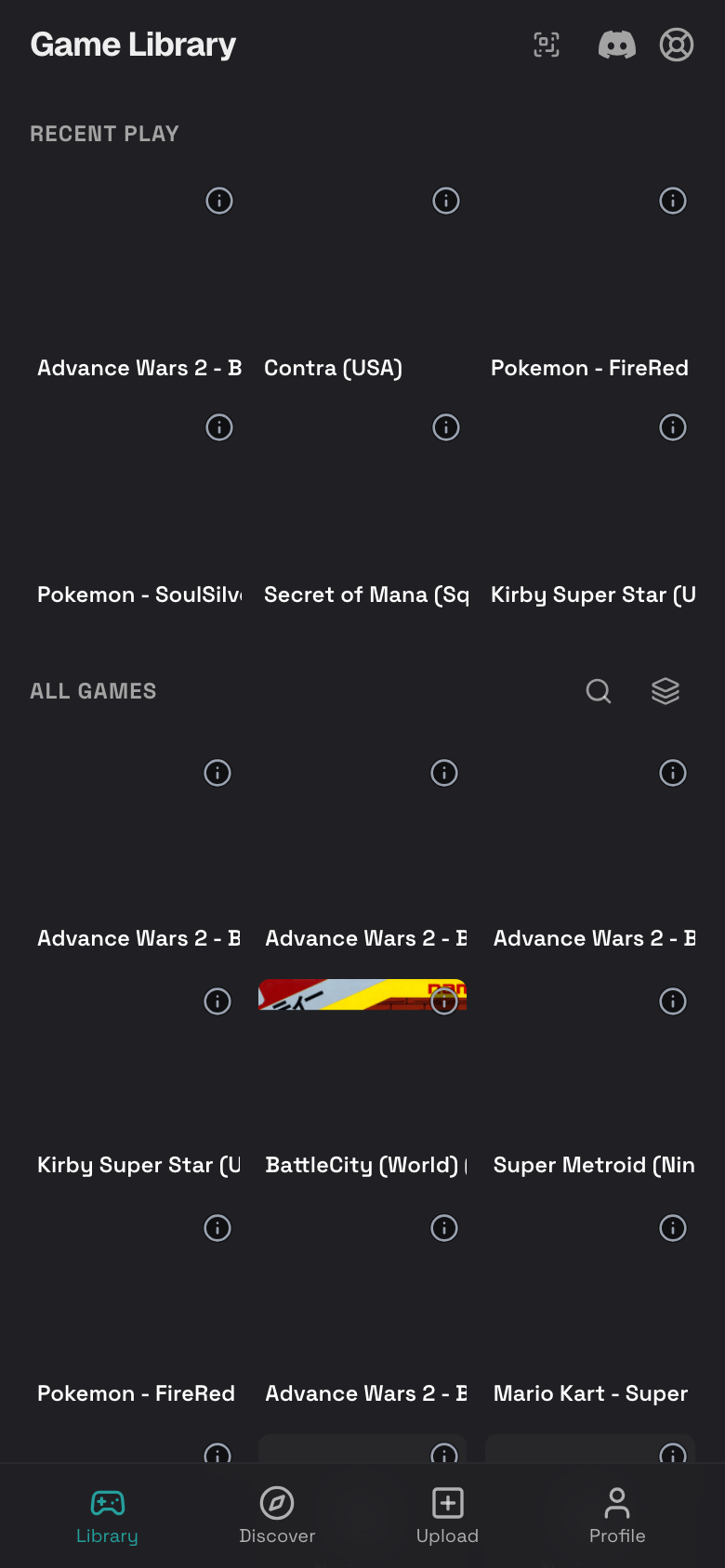
Open Your Library
- Tap Library in the bottom dock.
- Look for Recent Play at the top if you have played games before.
- Scroll to All Games to browse everything.

Image Description: Capture the signed-in library page on a phone. Show Recent Play, All Games, and several game covers.
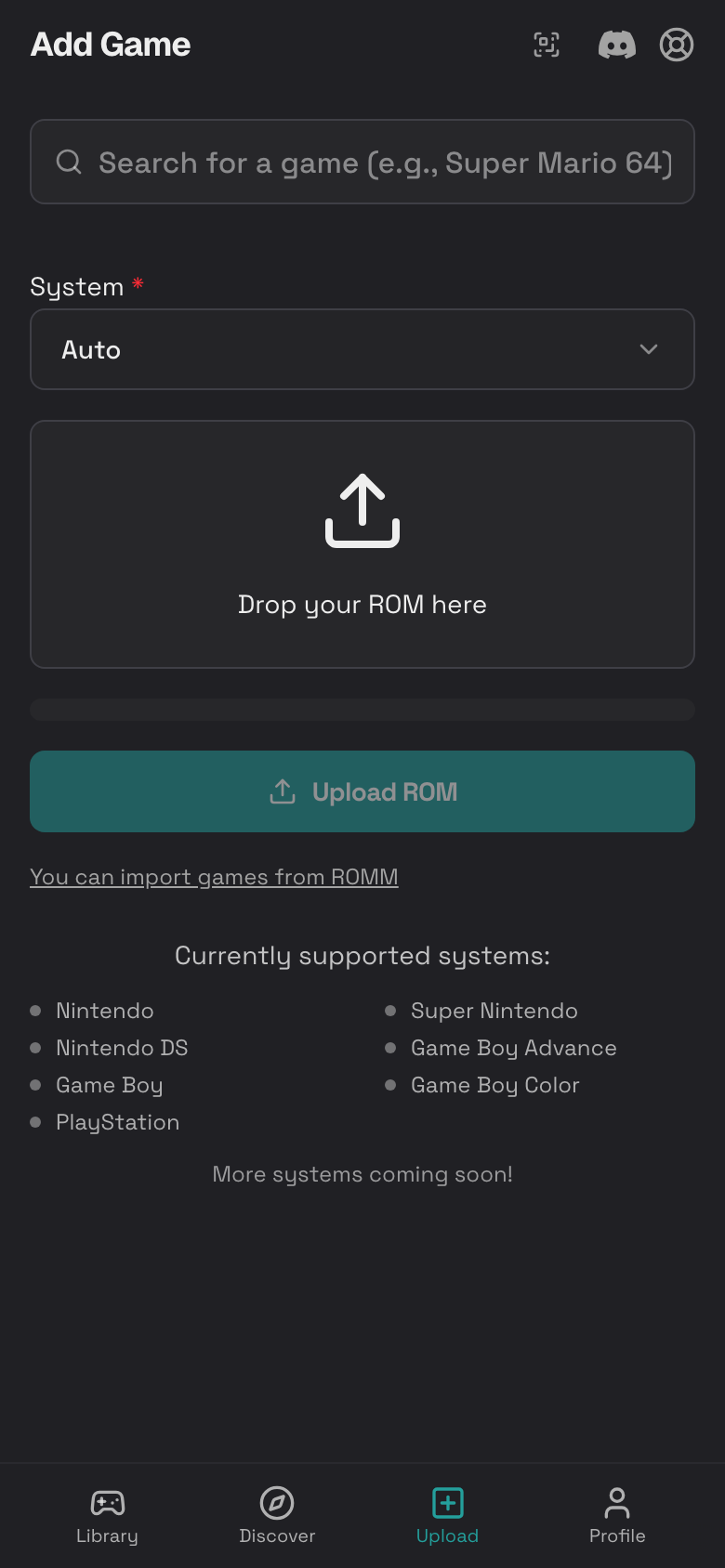
Add Another Game from Your Phone
- Tap Upload in the bottom dock.
- Tap System.
- Choose Auto if you are not sure, or pick the console manually.
- Tap the upload area that says Drop your ROM here.
- Choose a game file from your phone.
- Tap Upload ROM.
- Keep the page open until the progress reaches 100%.

Image Description: Capture the Add Game screen on mobile. Show the System selector, upload area, progress bar, and Upload ROM button.
Supported Game Systems
Rebit shows the supported systems on the Add Game screen. Common systems include:
- Nintendo Entertainment System
- Super Nintendo
- Game Boy
- Game Boy Color
- Game Boy Advance
- Nintendo DS
- PlayStation
If your file is not accepted, check that it matches one of the supported file types shown by the upload screen.
Search Your Library
- Tap Library.
- In All Games, tap the search icon.
- Type part of the game name.
- Tap a matching game cover to open it.
- Tap the X inside the search field to clear the search.
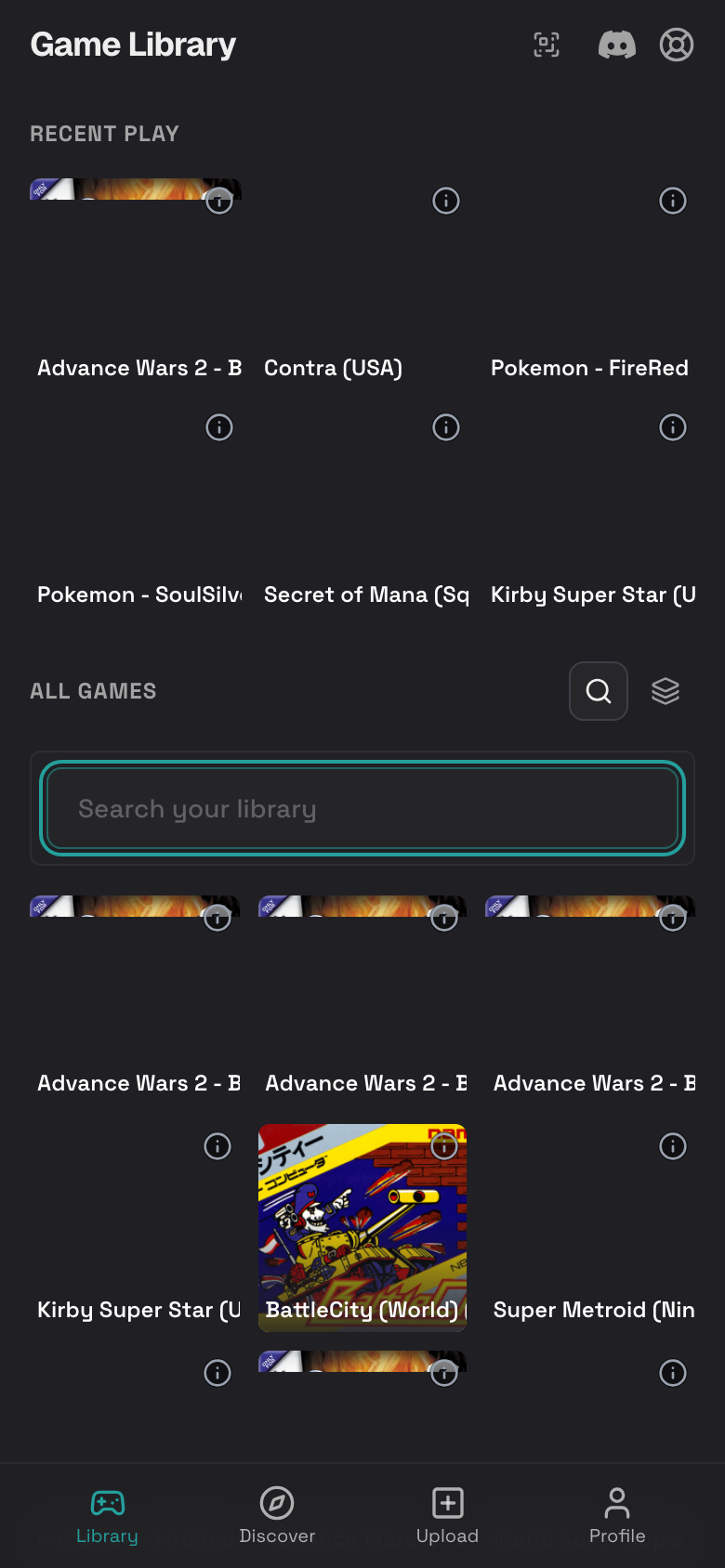
Image Description: Capture the library after tapping the search icon. Show the search field with example text and filtered game covers.
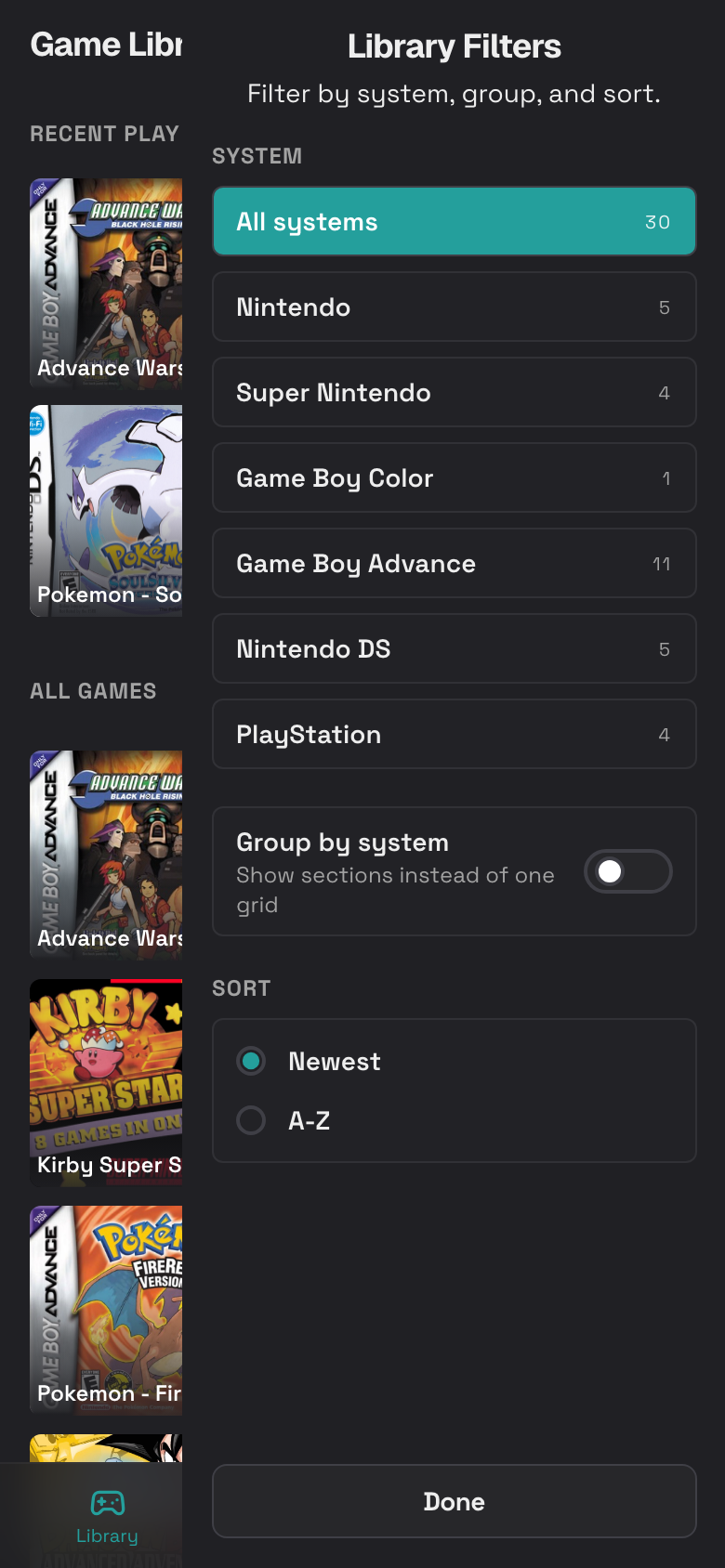
Filter, Group, and Sort Games
- Tap Library.
- Tap the filter icon near All Games.
- In Library Filters, tap a system such as Game Boy Advance.
- Turn on Group by system if you want console sections.
- Choose Newest or A-Z.
- Tap Done or close the drawer.

Image Description: Capture the right-side Library Filters drawer showing system choices, Group by system, and sort options.
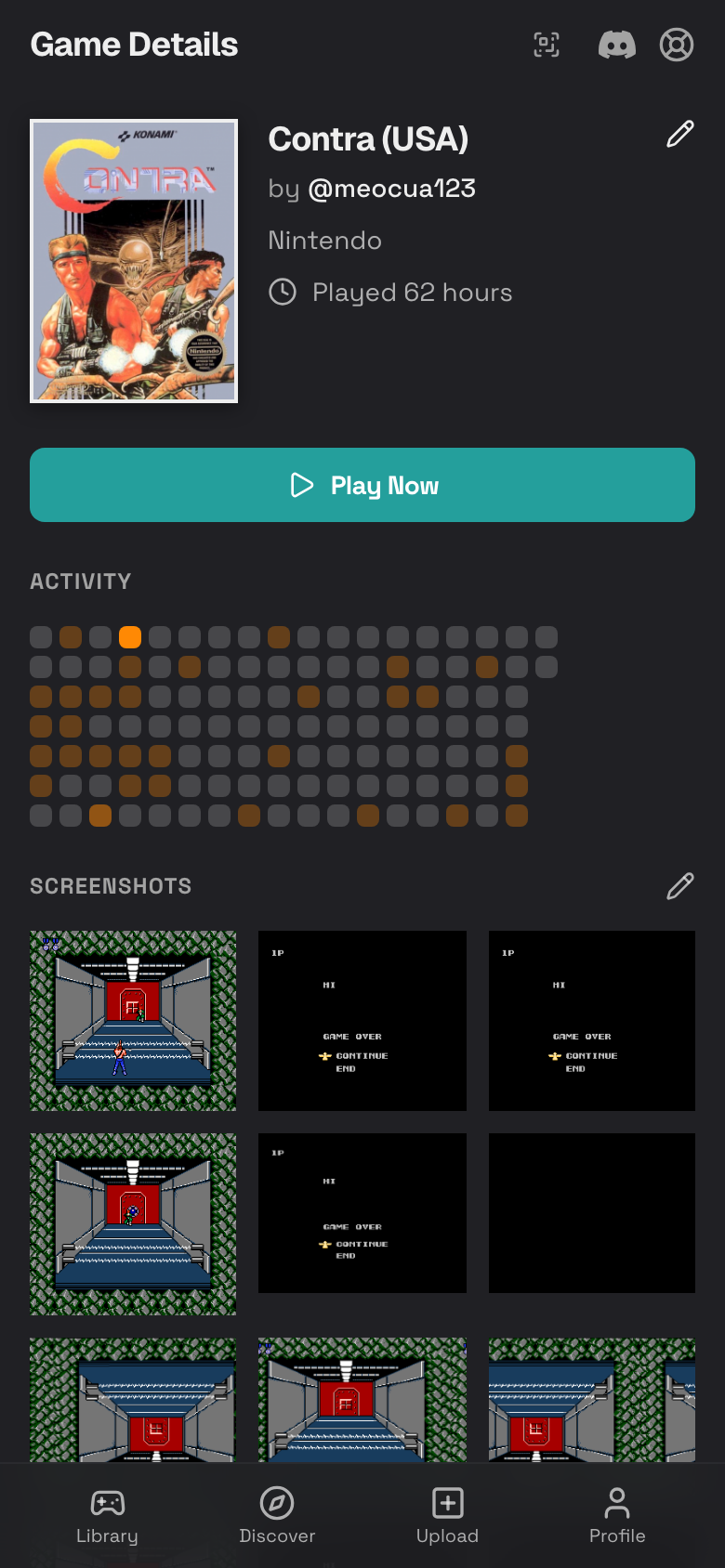
Open Game Details
- Tap a game cover in your library.
- Review the game page:
- Box art
- Game title
- System
- Playtime
- Screenshots
- Achievements
- Tap Play Now to start.

Image Description: Capture a game details page on mobile. Show the box art, title, Play Now button, Activity, and Screenshots area.
Rename a Game
- Open the game details page.
- Tap the pencil icon beside the title.
- Edit the title.
- Tap Save.

Image Description: Capture the game details page while the title is being edited. Show the text field, Save, and Cancel buttons.
Delete a Game
Deleting a game also removes its related saves, screenshots, and play history.
- Open the game details page.
- Scroll to the bottom.
- Tap Delete Game.
- Confirm only if you are sure.

Image Description: Capture the bottom of a game details page showing Share, Download ROM File, and Delete Game.
Import Games from RomM
If you have connected RomM in Settings, you can import games instead of uploading files manually.
- Tap Upload.
- Tap Import games from Romm.
- Search by game name.
- Tap the checkbox beside each game you want.
- Tap Import.
- Wait while Rebit queues the imports in the background.

Image Description: Capture the Import from Romm dialog on mobile. Show the search field, game rows with checkboxes, Load more, Cancel, and Import.