Discover
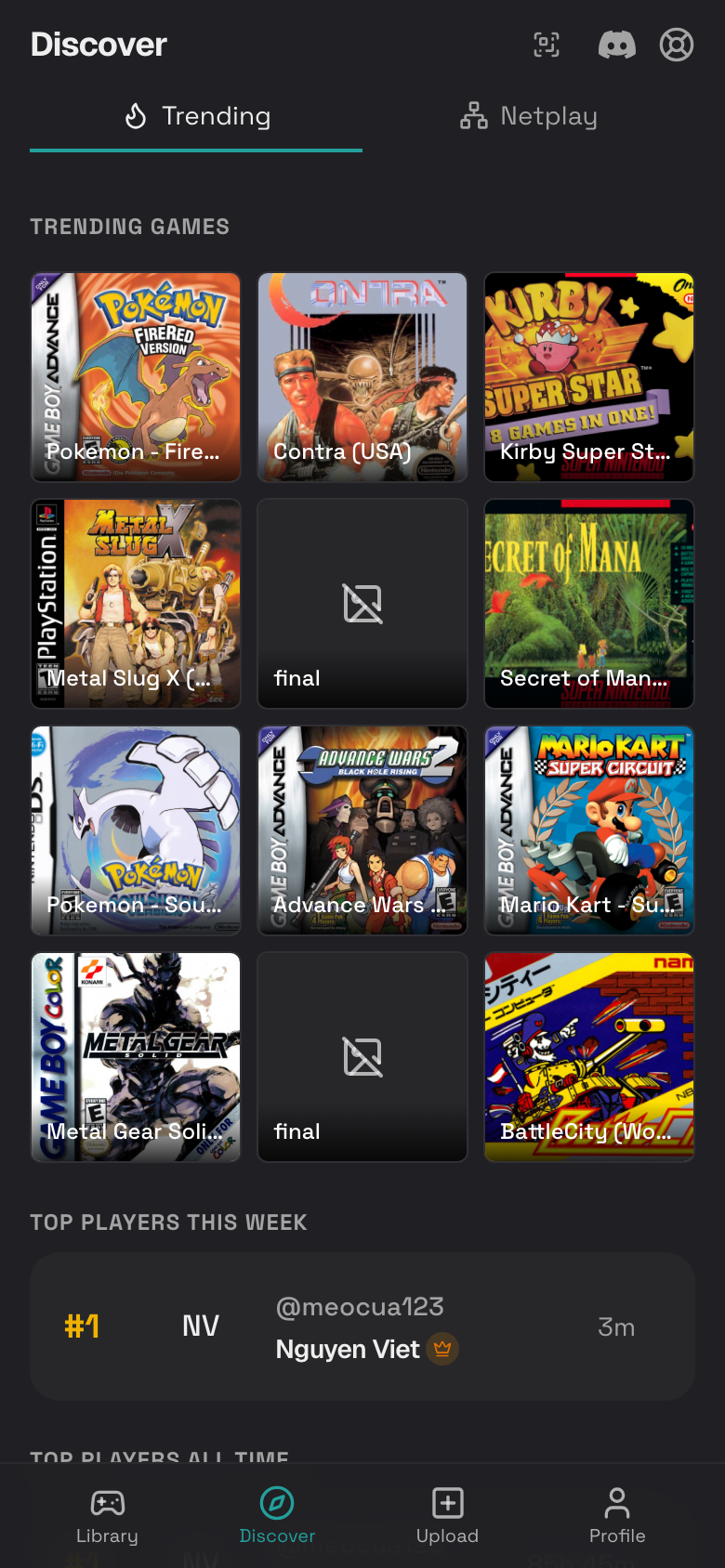
Discover helps you find activity across Rebit: friends activity, trending games, top players, public game pages, and active rooms.
Open Discover
- Tap Discover in the bottom dock.
- Scroll through the page.
- Tap any game, player, screenshot, or active room that interests you.
View Friends Activity
Friends activity shows games and screenshots from people you follow.
- Tap Discover.
- Look for Friends Activity.
- Tap a user name to open their profile.
- Tap a game title to open the game page.
- Tap a screenshot to view it larger.
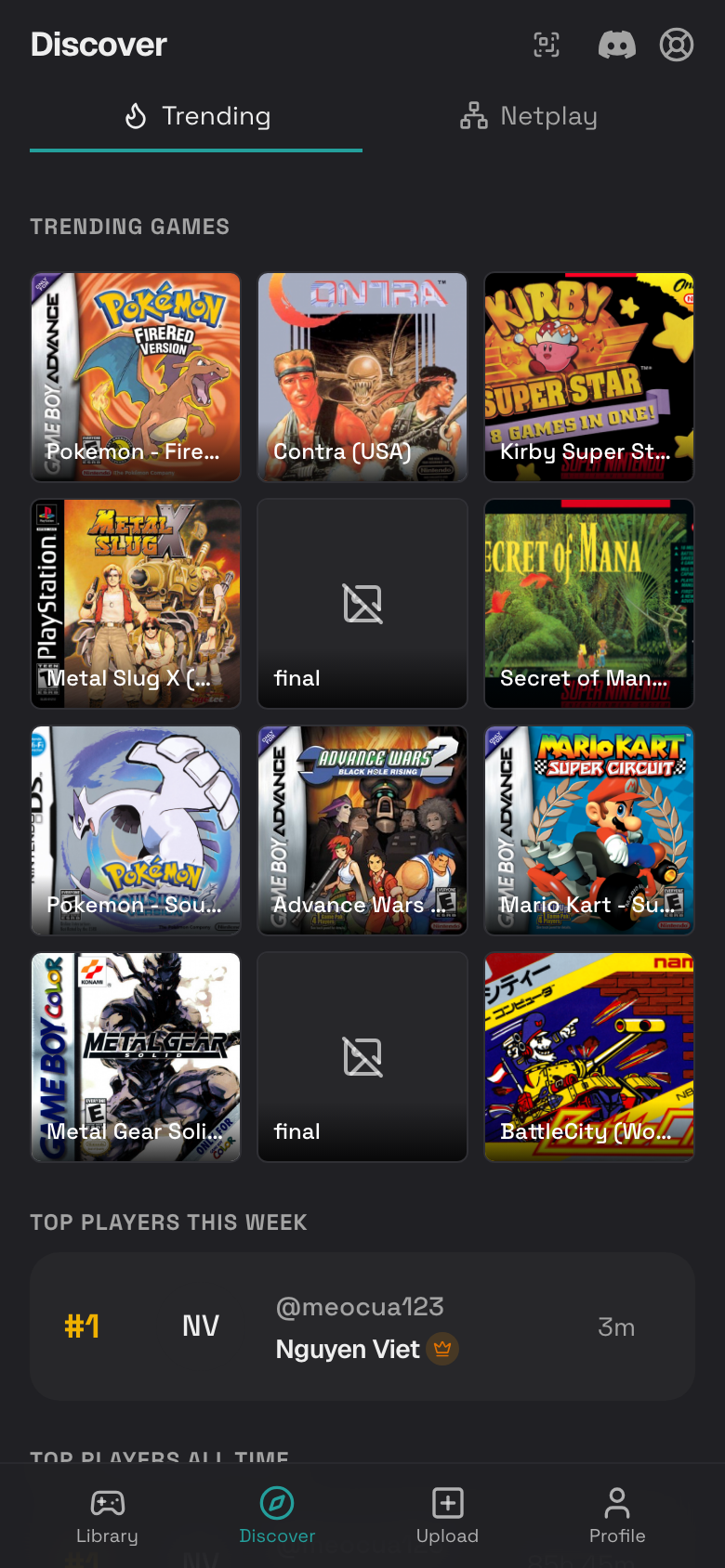
Browse Trending Games
- Tap Discover.
- Scroll to Trending Games.
- Tap a game cover.
- Review the public game page.
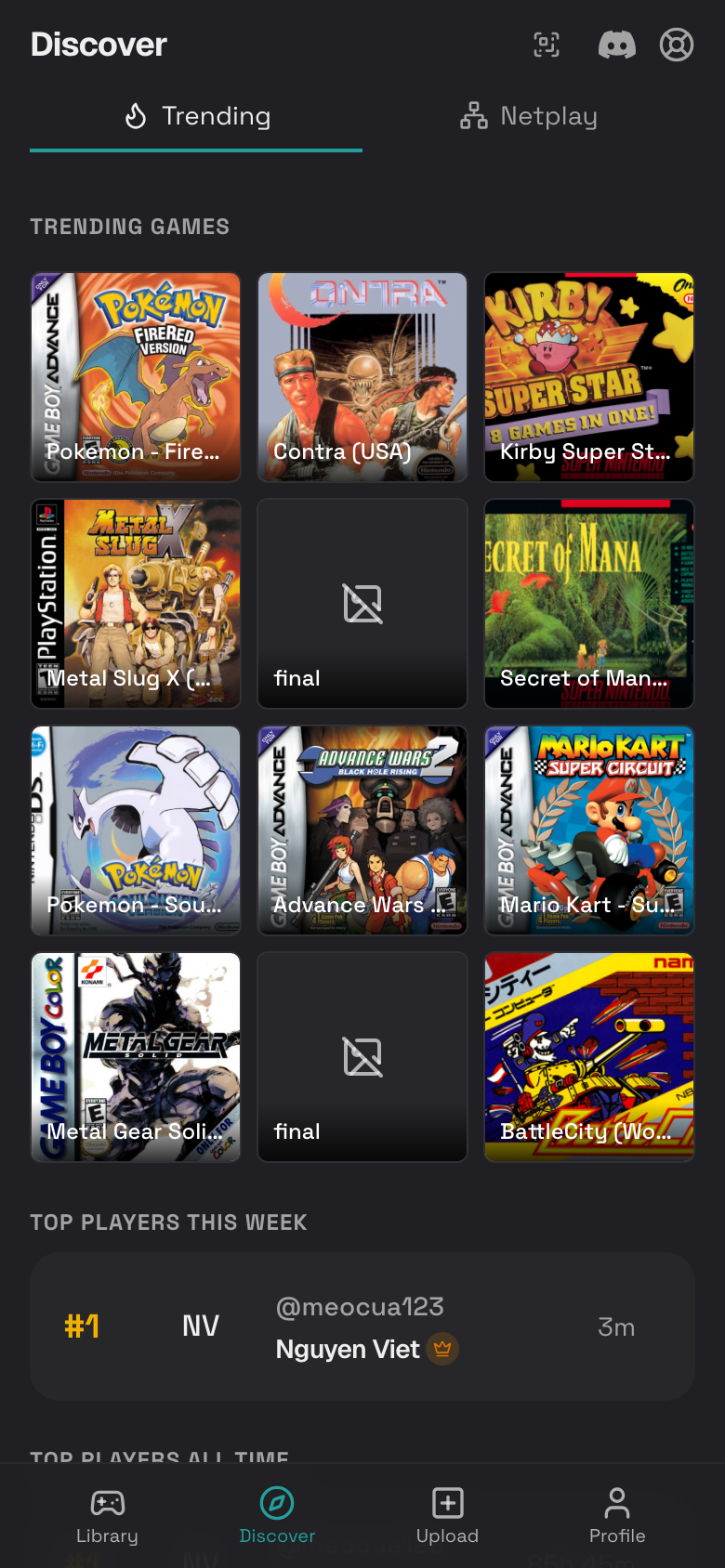
See Top Players
- Tap Discover.
- Scroll to Top Players This Week or Top Players All Time.
- Tap a player to view their profile.
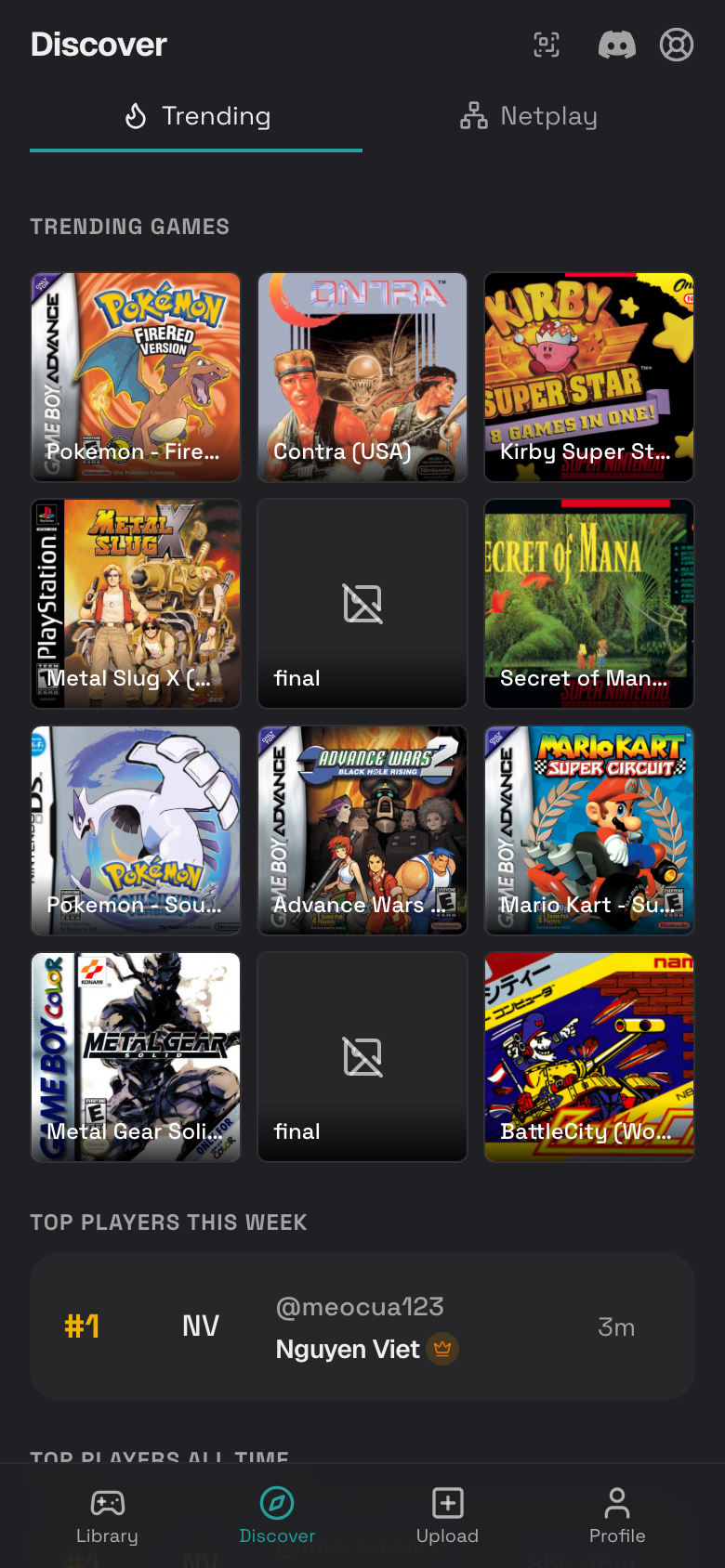
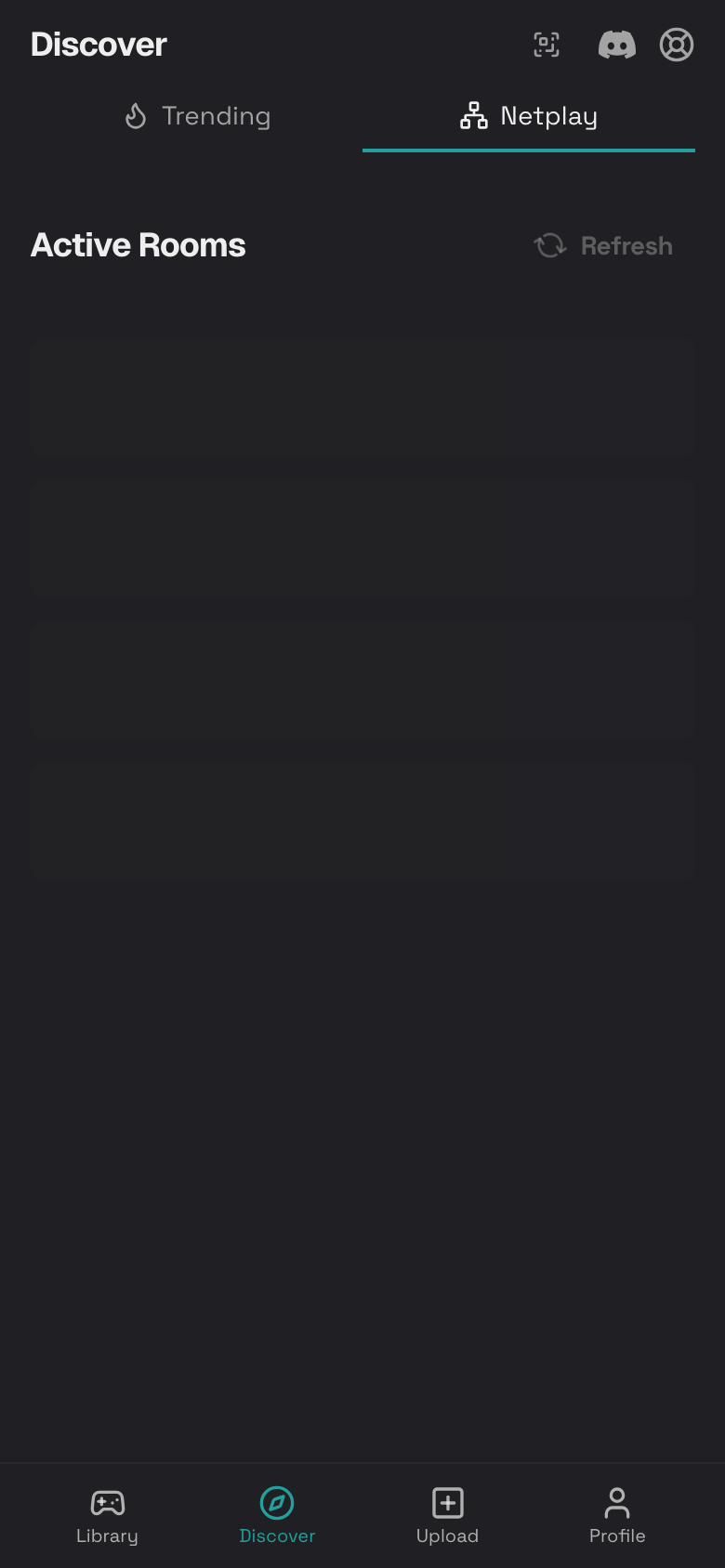
Find Active Netplay Rooms
- Tap Discover.
- Open the active rooms area.
- Tap Refresh if the list looks old.
- Tap Join on a room you want to enter.
For Nintendo DS cloud rooms, Rebit asks you to choose an NDS game from your library. For GBA Link Cable rooms, choose a Game Boy Advance game.
Follow Someone
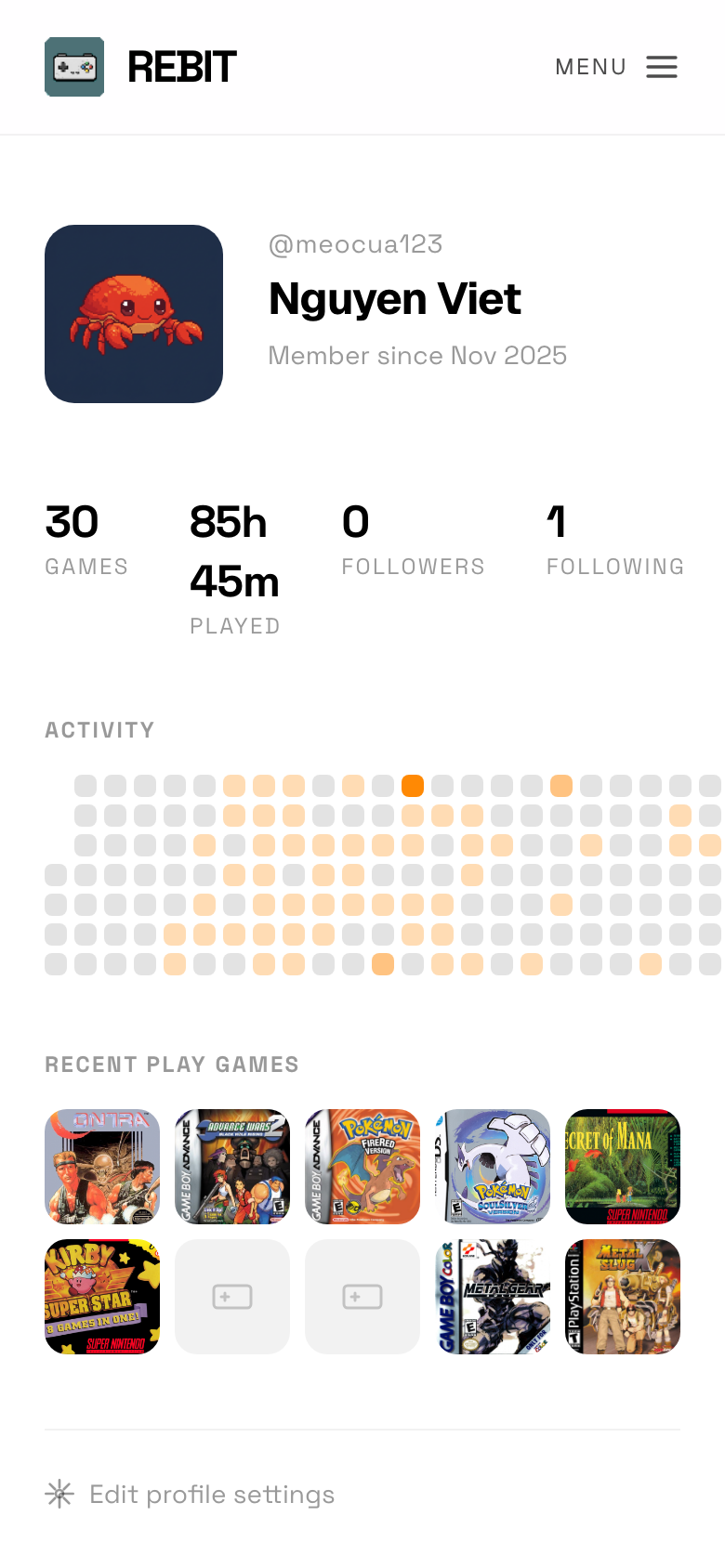
- Open another user's profile.
- Tap the follow button near their name.
- Their activity can appear in your Friends Activity feed.
- Tap again if you want to unfollow.
View Followers and Following
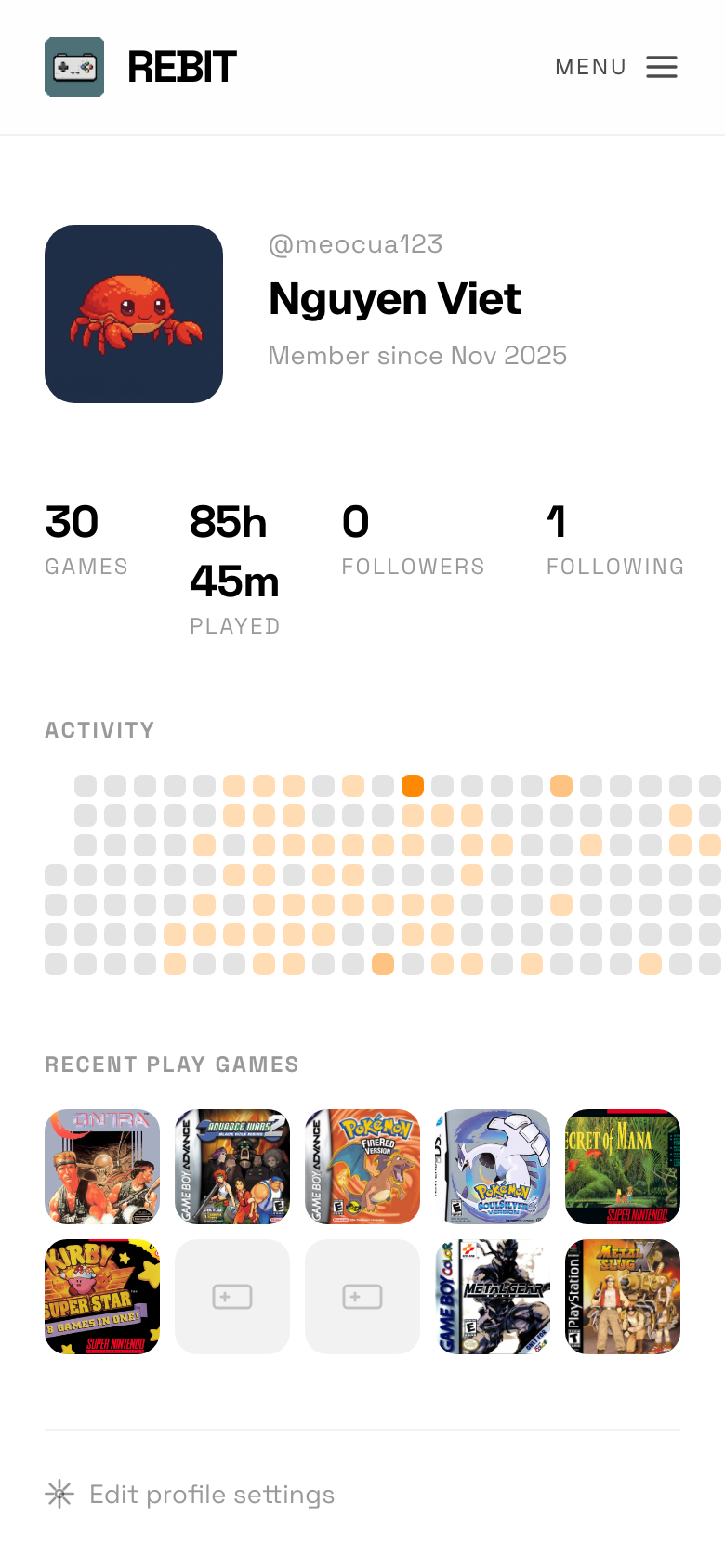
- Open a profile.
- Tap Followers to see who follows that user.
- Tap Following to see who that user follows.
- Tap a person to open their profile.
More Community Guides
- Public Profiles explains profile pages, followers, following, account tools, and deletion.
- Sharing explains public profile links, public game links, and saving public games.
- RetroAchievements explains achievement setup and where achievements appear.
- Nintendo DS Cloud Rooms explains how to host and join Nintendo DS multiplayer rooms.