Playing Games
The play screen turns your phone into a retro console. Start here for the core play flow, then use the detailed guides for saves, settings, netplay, and remote control.
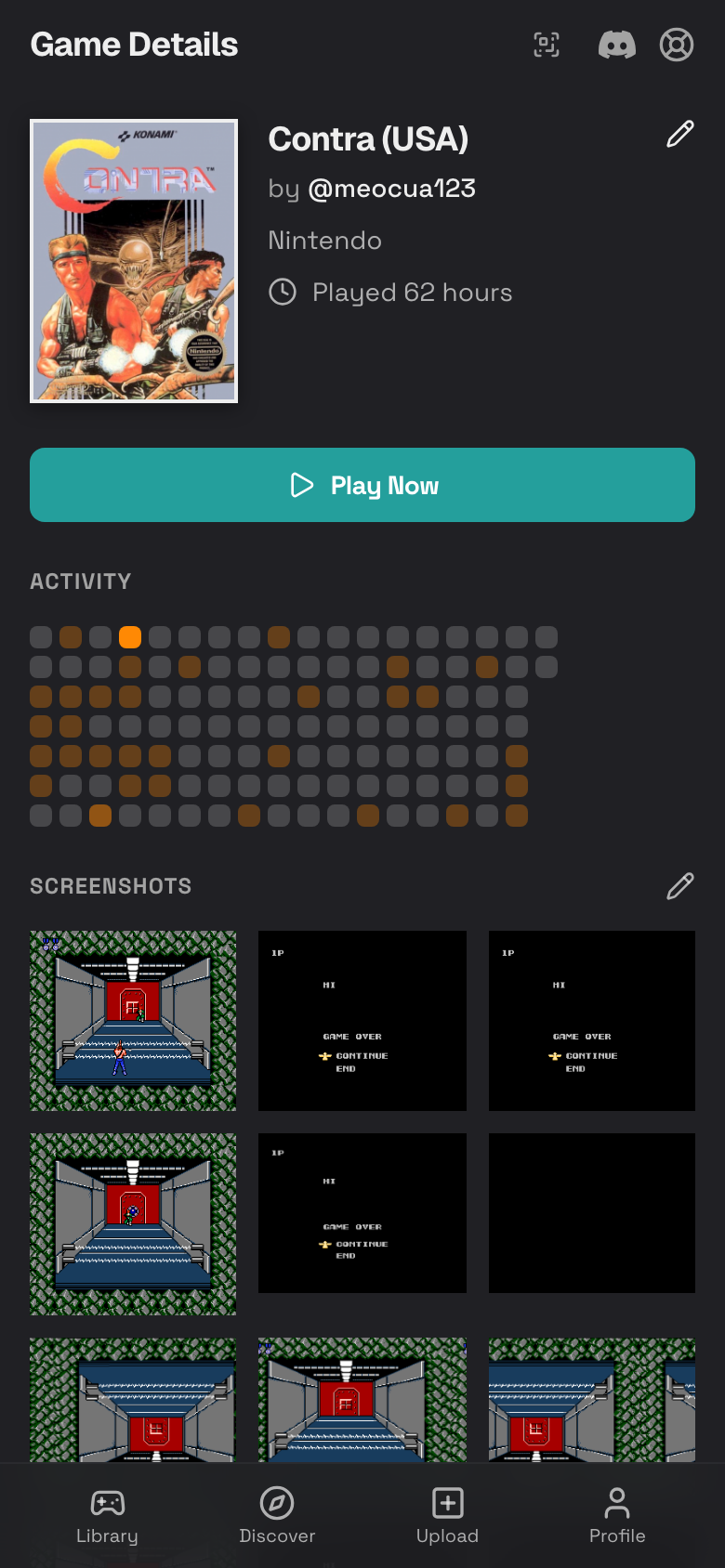
Start a Game
- Tap Library.
- Tap a game cover.
- Tap Play Now.
- Wait for the game to load.
Use Touch Controls
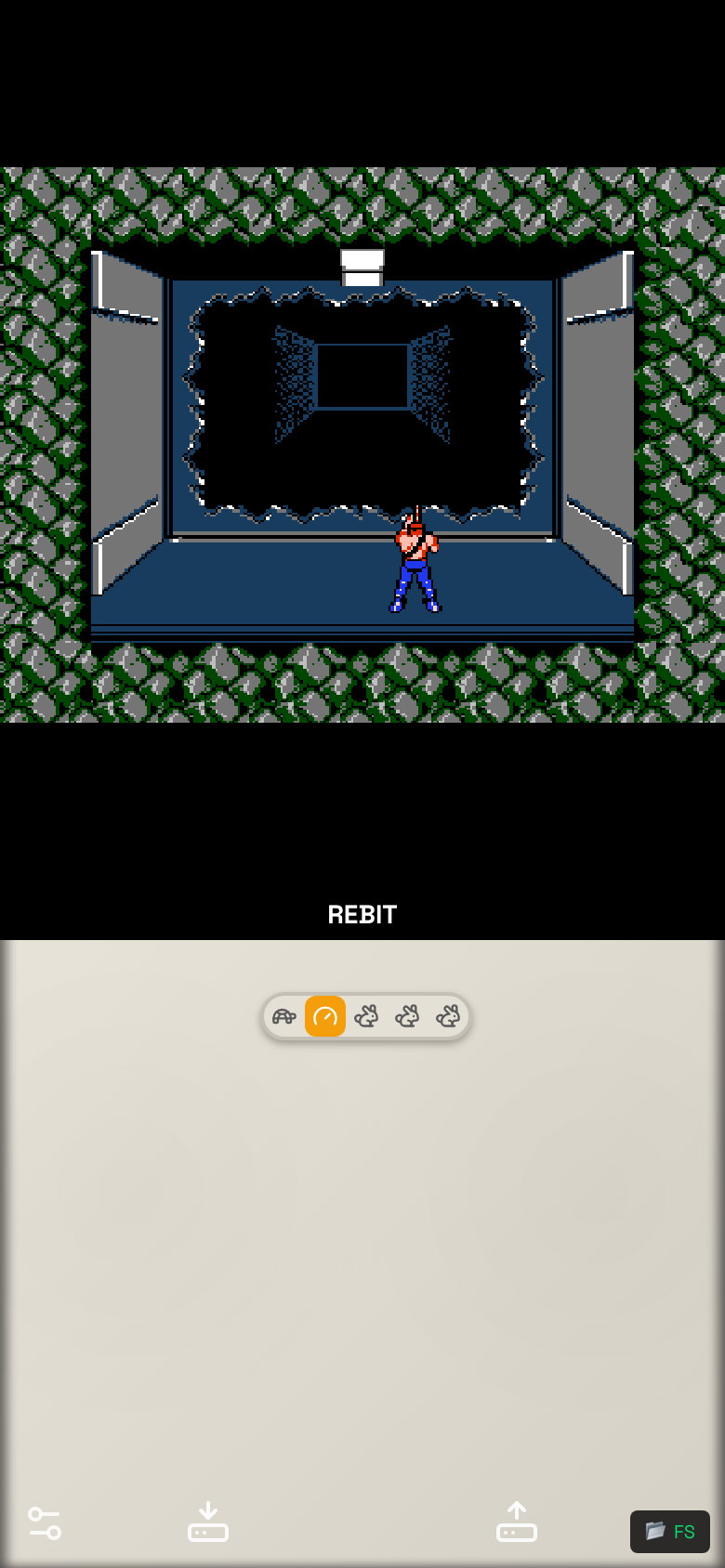
When the game opens, on-screen controls appear over or below the game area.
- Tap the action buttons just like a controller.
- Press and hold a direction on the D-pad to move.
- Rotate your phone for a wider play area.
- Try another D-pad style if movement feels wrong.
- Hide the controls if you are using a hardware controller or remote phone.
Use Action Buttons and Speed Controls
Most games use A, B, X, Y, L, R, Start, and Select. Some systems do not use every button.
The speed control bar lets you slow down or speed up gameplay when the emulator and game support it. Return to normal speed before saving if something feels odd.
Open the In-Game Menu
- While playing, tap the small menu/settings button.
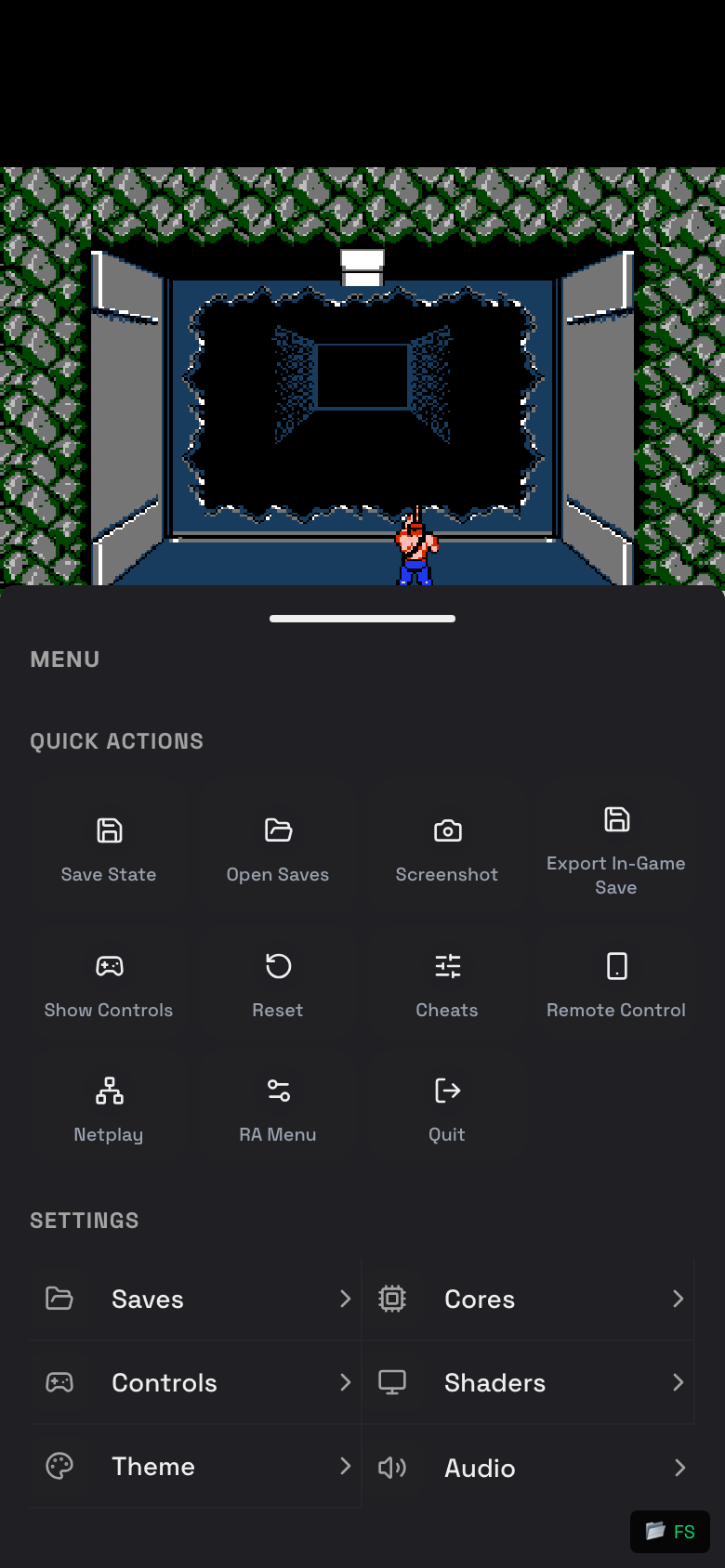
- The Menu drawer opens.
- Tap a quick action or setting.
- Swipe down or tap outside the drawer to return to the game.
Quick Actions in the Menu
- Save State: Save exactly where you are.
- Open Saves: Load, download, upload, or delete saves.
- Screenshot: Capture the current game screen.
- Export In-Game Save: Save the game's own battery save file after using the game's save menu.
- Hide Controls or Show Controls: Toggle the on-screen controller.
- Fullscreen: Use more of the phone screen if your browser allows it.
- Reset: Restart the game.
- Cheats: Add, upload, enable, disable, or delete cheats.
- Remote Control: Use another phone as a controller.
- Netplay: Host or join multiplayer.
- Quit: Return to your library.
Quick Save and Quick Load
Use Save State before difficult parts or before changing settings. Use Open Saves to load manual, auto, or in-game saves.
For the complete save guide, read Saves, Screenshots, and Cheats.
Quit Safely
- Open the in-game menu.
- Tap Save State if you want to keep your exact spot.
- Tap Export In-Game Save if the game uses its own save menu and you already saved inside the game.
- Tap Quit.
More Play Guides
- In-Game Settings: controls, audio, shaders, themes, cores, fullscreen, and ROM cache-related choices.
- Saves, Screenshots, and Cheats: save states, SRAM, autosave, screenshots, and cheat codes.
- Netplay: host or join multiplayer.
- Remote Controller: use a second phone as a controller.