Netplay
Netplay lets you host a multiplayer room or join someone else's room. Use it when each player is playing from their own device.
Supported rooms may also produce a private Multiplayer Replay after the session ends.
Before You Start
- Use strong Wi-Fi when possible.
- Keep the game tab open while hosting.
- Make sure each player has a stable connection.
- Some games and emulator cores work better than others.
- Use Nintendo DS Cloud Rooms for Nintendo DS multiplayer games. Every player joins with their own Nintendo DS game from their library.
- Use Link Cable instead for Game Boy, Game Boy Color, and Game Boy Advance games — they link through their own feature, and regular Netplay is not available for them.
- Use Remote Controller instead if one phone should only act as a controller.
Host a Game
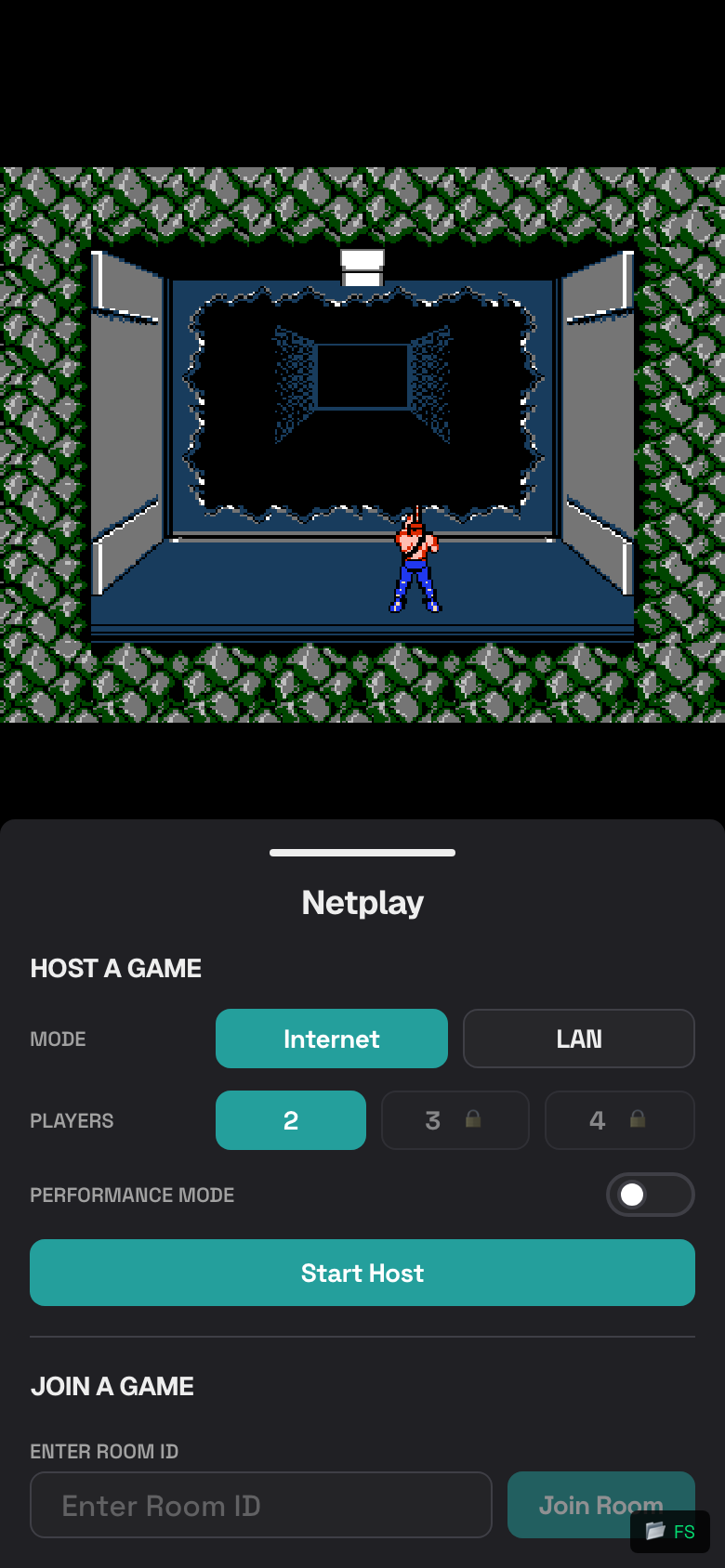
- Start the game you want to host.
- Tap the in-game menu button.
- Tap Netplay.
- Choose Internet or LAN.
- Choose the number of Players.
- Optional: turn Performance Mode on if the game feels slow.
- Tap Start Host.
- Share the Room ID with your friend.
Copy the Room ID
- After hosting starts, look for Room ID.
- Tap the copy icon beside it.
- Send the Room ID to your friend.
Join by Room ID
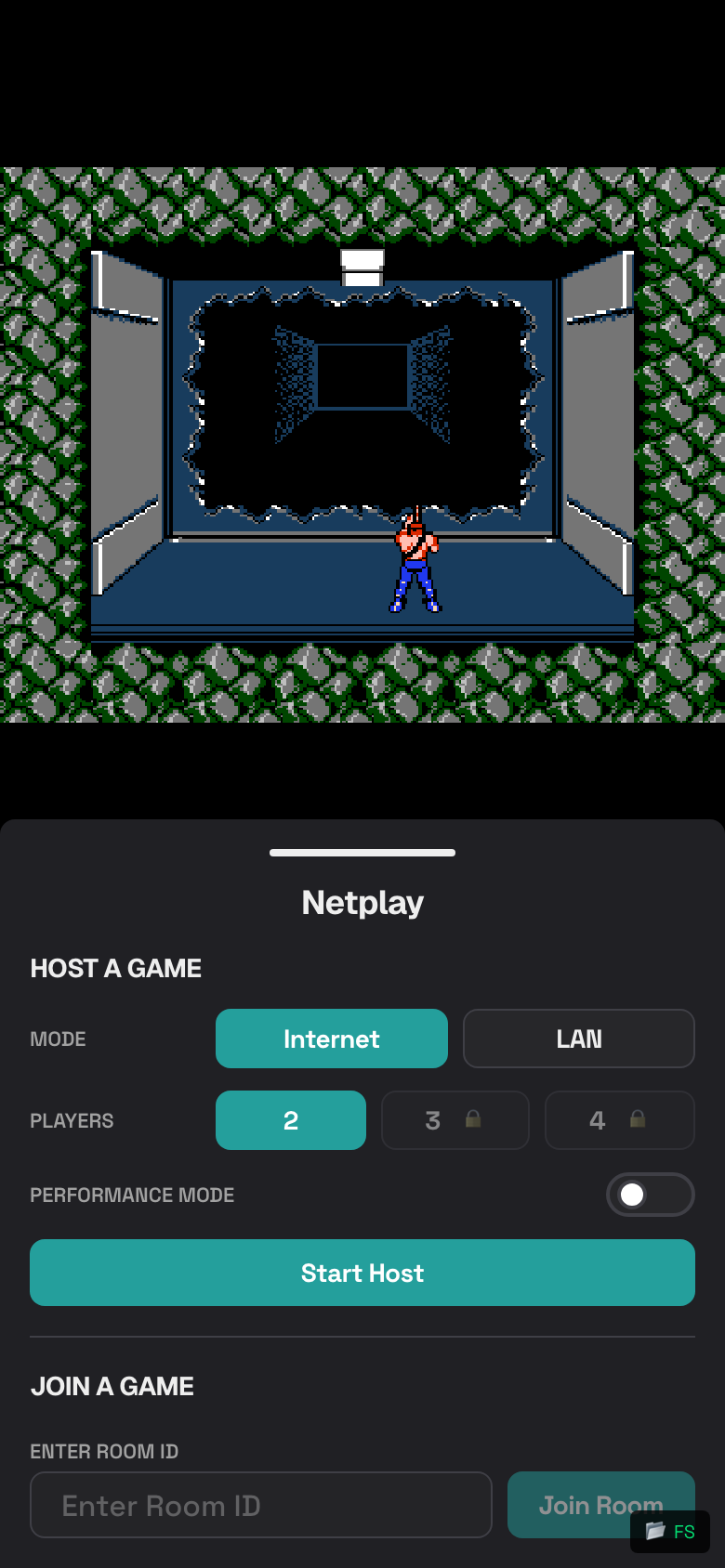
- Start a game or open the netplay screen.
- Tap Netplay.
- Under Join a Game, type the Room ID.
- Tap Join Room.
Join from Discover
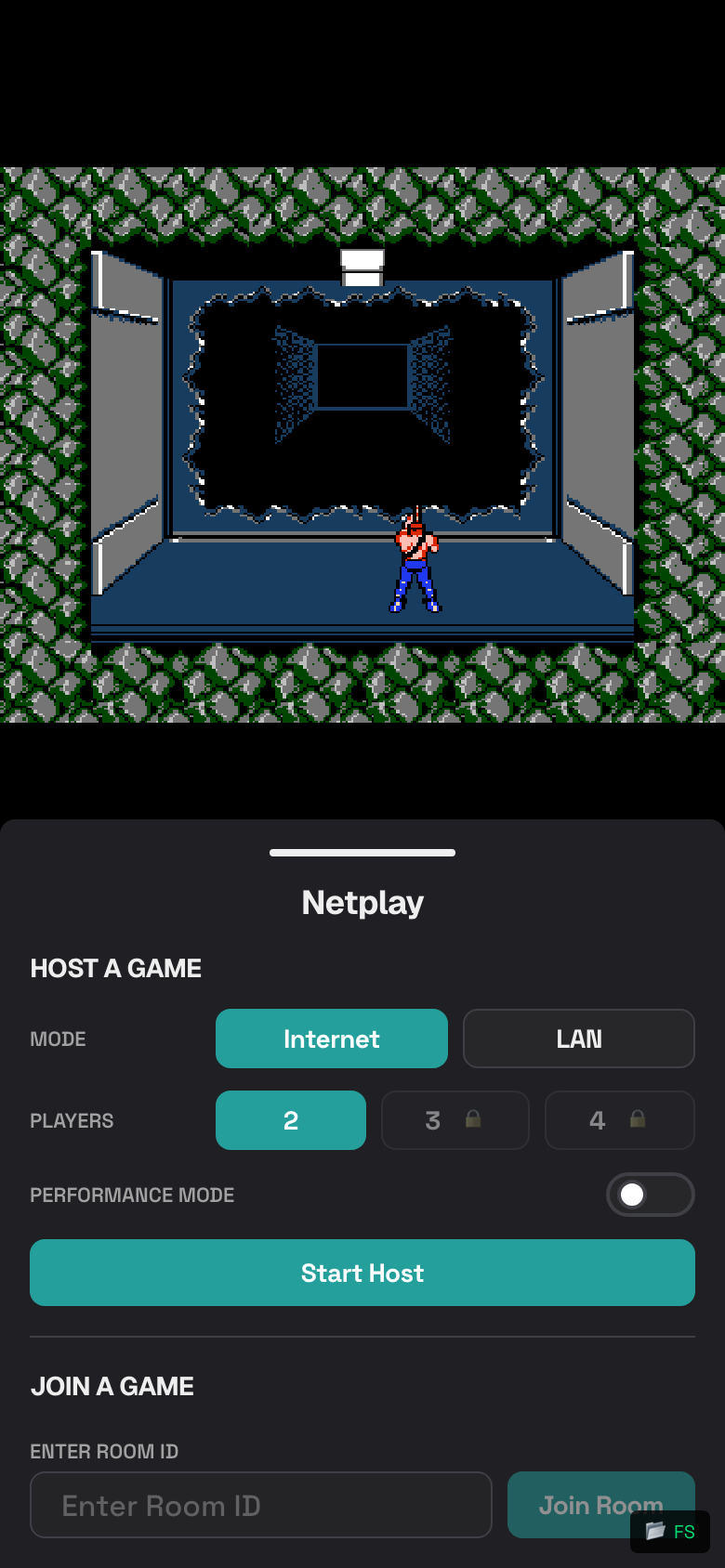
- Tap Discover in the bottom dock.
- Open the active rooms area.
- Pull down or tap Refresh if you do not see recent rooms.
- Find a room.
- Tap Join.
For a Nintendo DS cloud room, Rebit may ask you to choose the Nintendo DS game from your library before joining.
Use LAN Mode
Use LAN when both devices are on the same local network.
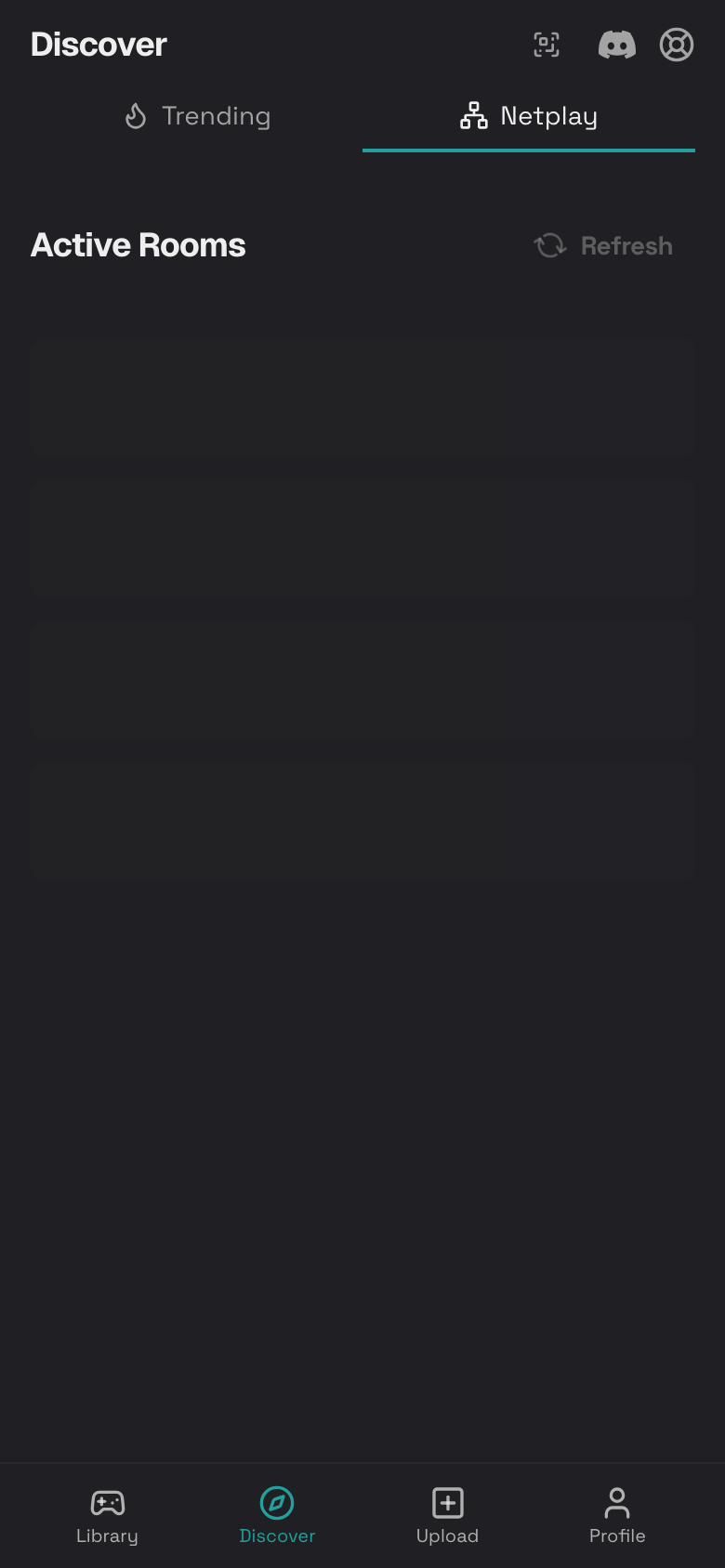
- Open Netplay.
- Tap LAN.
- Host or join as normal.
- Share the Room ID with someone on the same Wi-Fi.
LAN may feel faster on the same Wi-Fi, but it is not useful if players are in different places.
Leave a Netplay Session
- Open the in-game menu.
- Tap Quit.
- If you are hosting, tell other players before leaving.
Netplay Troubleshooting
- Confirm the Room ID is exactly right.
- Ask the host to copy the Room ID again.
- Use Internet mode if players are not on the same Wi-Fi.
- Use LAN only when both devices are on the same local network.
- Ask the host to start a fresh room if joining fails.
- Use Performance Mode if the game feels slow.