Storage and Pro
Storage shows how much space your games, saves, and screenshots use in your Rebit account.
Open Storage
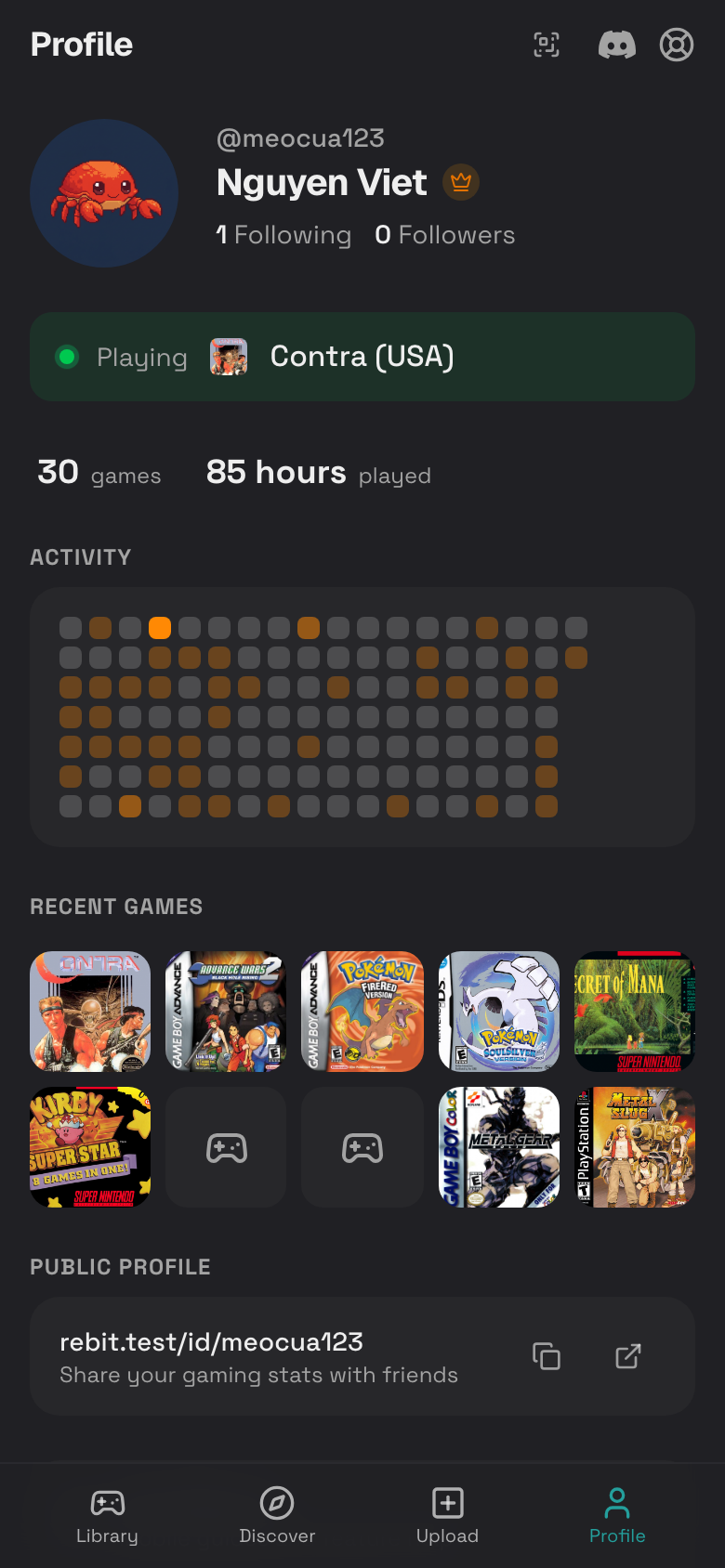
- Tap Profile.
- Tap Settings.
- Tap Storage.
- Review the usage bar and breakdown.
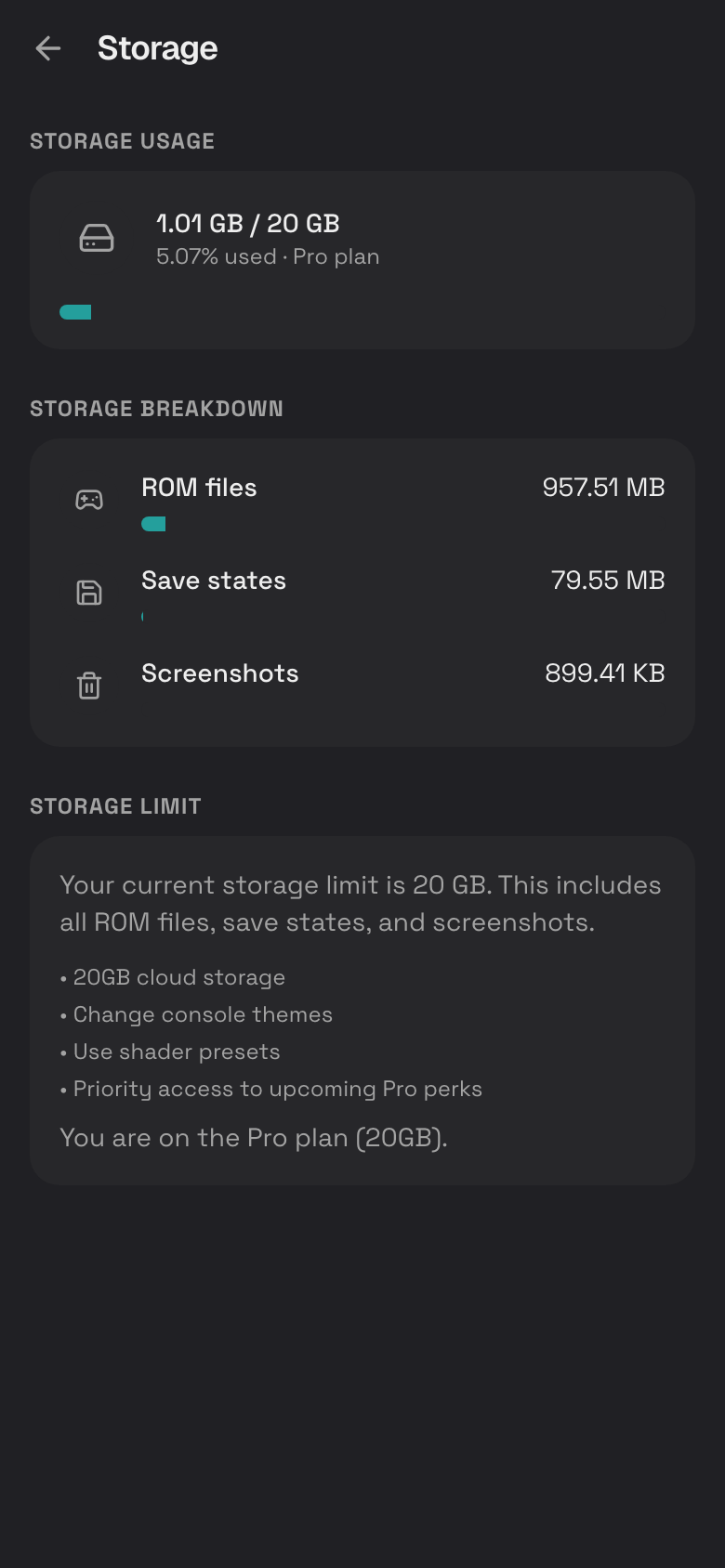
What Uses Storage
Your account storage can include:
- Uploaded ROM files.
- Imported RomM games.
- Manual save states.
- Auto save states.
- In-game save files such as
.srmor.sav. - Screenshots.
Clean Up Storage
Start with the largest items.
- Open Settings > Storage to see what uses space.
- Delete games you no longer need from their Game Details page.
- Delete old screenshots from Game Details.
- Delete old manual or auto saves from Saves, Screenshots, and Cheats.
- Lower the number of auto saves Rebit keeps in In-Game Settings.
Download Before Deleting
Before deleting something important:
- Download a ROM file from the game details page if you need your own backup.
- Download important save files from the saves sheet.
- Keep screenshots you care about before deleting them from Rebit.
Upgrade to Pro
If your account shows Upgrade to Pro, you can upgrade for more room or premium features shown by the app.
- Tap Profile.
- Tap Upgrade to Pro.
- Follow the checkout steps.
- Return to Settings > Storage to check your plan.
ROM Cache Is Different
ROM cache is local storage in your phone browser. It helps games load faster on that device, but it is separate from account storage.
- Open Settings.
- Tap ROM Cache.
- Tap Refresh.
- Delete one cached ROM or tap Clear All.
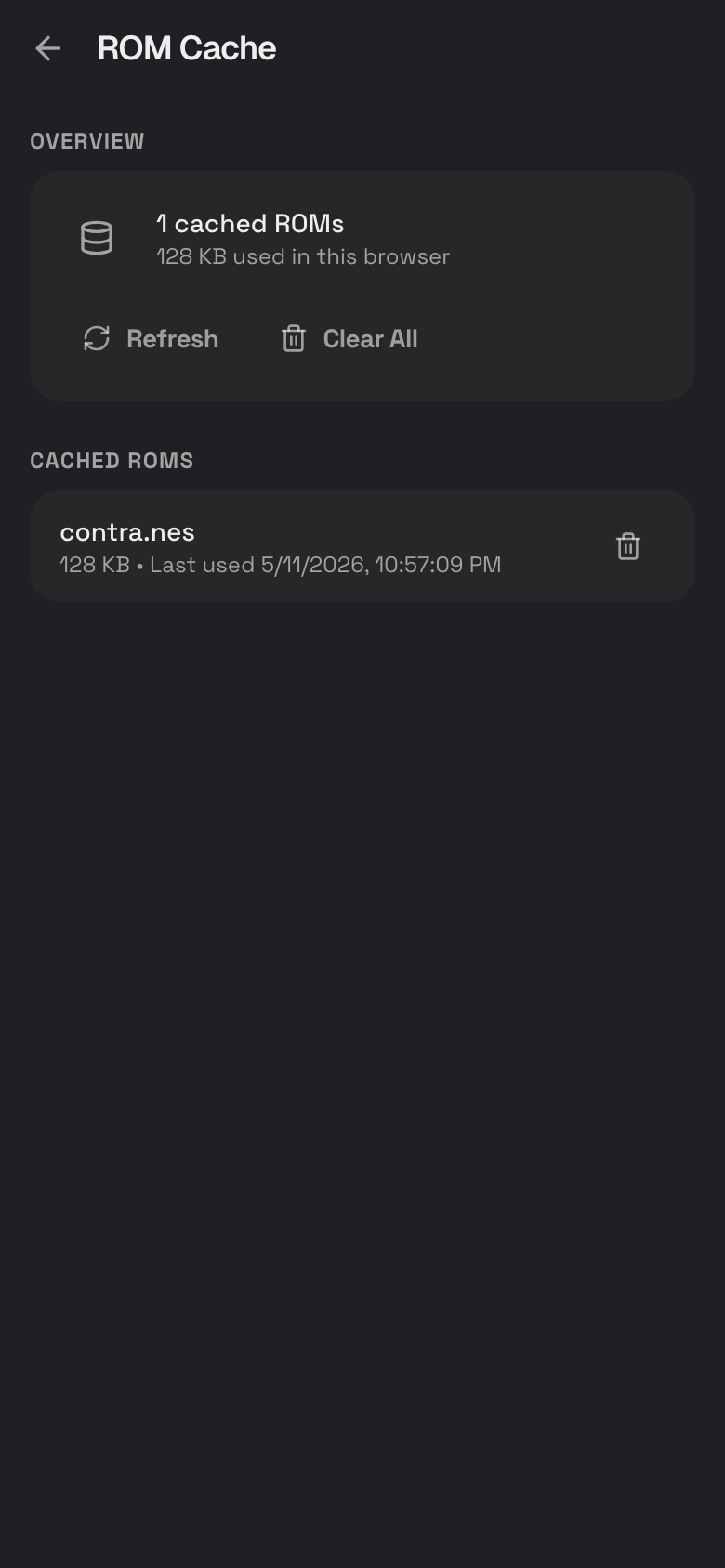
Clearing ROM cache does not delete a game from your account.
Storage Troubleshooting
- If upload fails, check your storage usage before trying again.
- If screenshots fail to save, free space and try again.
- If auto saves fill space quickly, keep fewer auto saves.
- If a game is very large, use Wi-Fi and keep the upload page open.