In-Game Settings
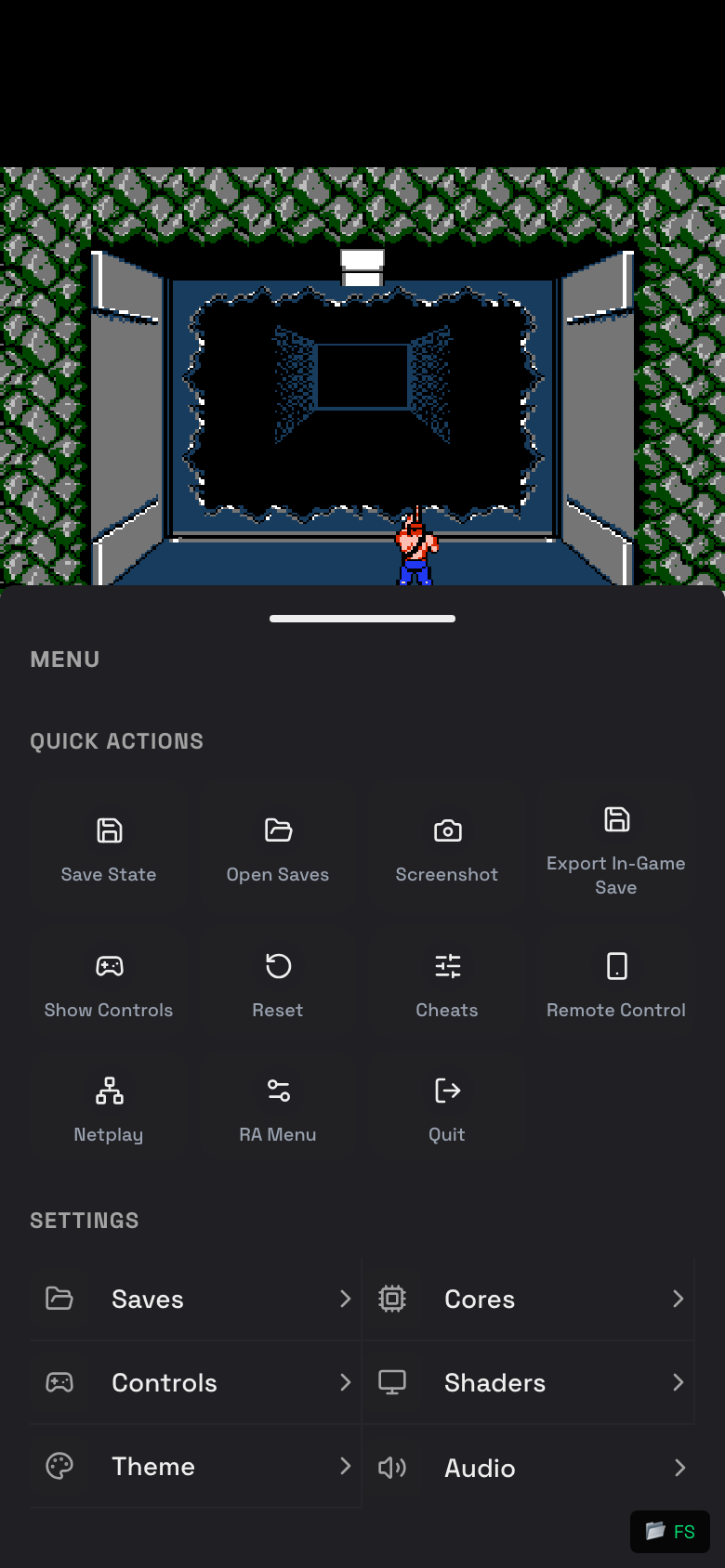
Use the in-game menu to adjust the current play session without leaving the game.
Open In-Game Settings
- Start a game.
- Tap the in-game menu button.
- Choose Saves, Controls, Cores, Shaders, Theme, or Audio.
- Close the drawer to return to the game.
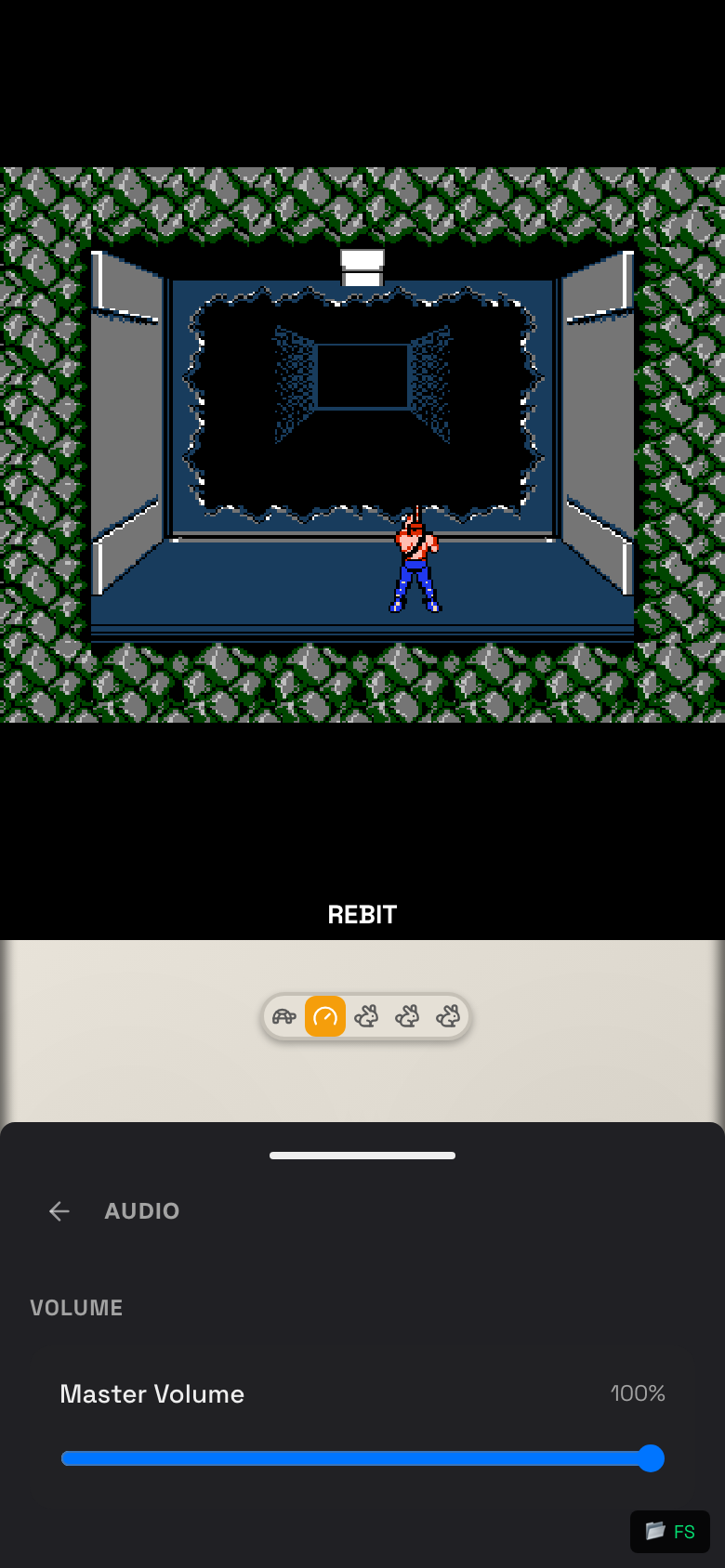
Audio and Volume
- Open the in-game menu.
- Tap Audio.
- Drag Master Volume left or right.
- Lower the volume if the game feels choppy on your phone.
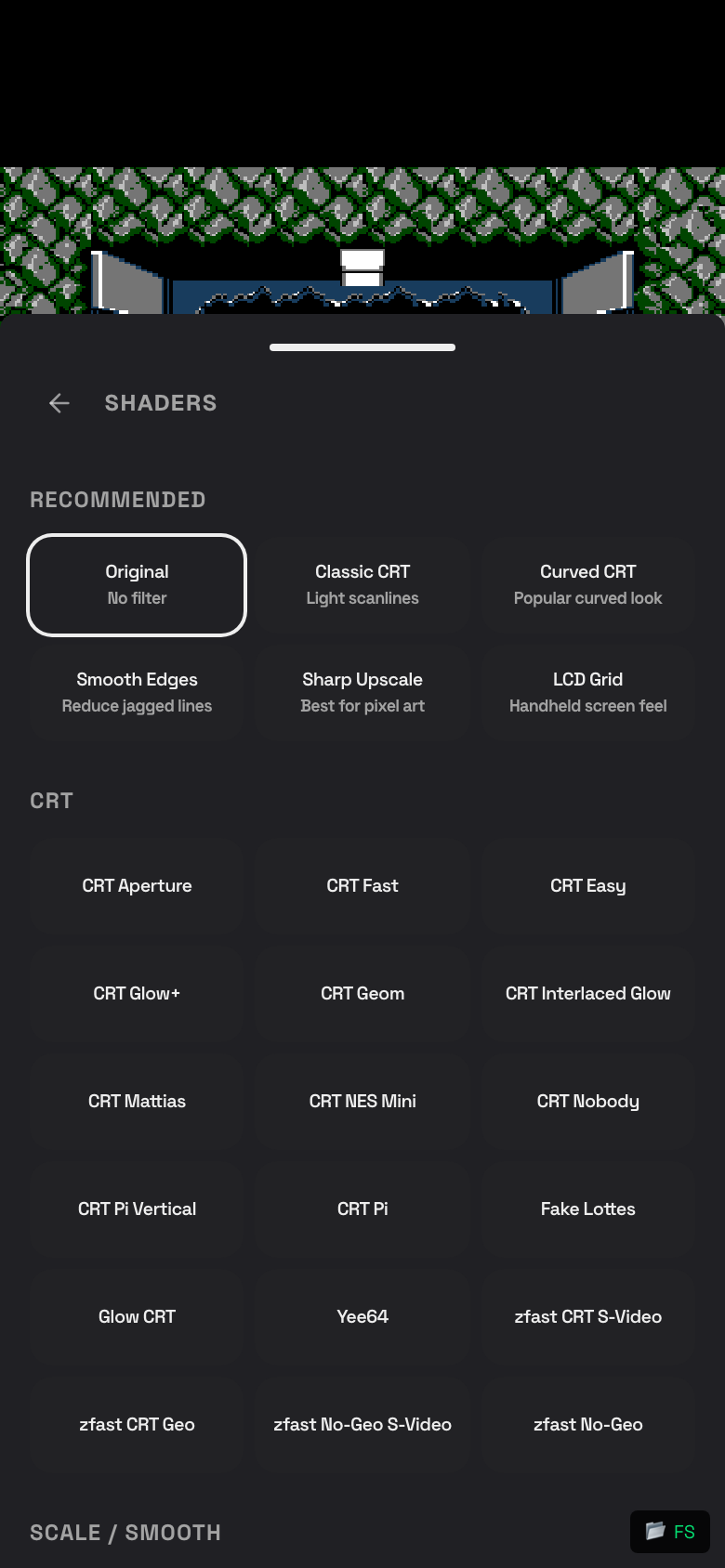
Shaders and Screen Filters
Shaders change how games look. Some mimic a CRT TV or handheld screen.
- Open the in-game menu.
- Tap Shaders.
- Choose a filter such as Original, Classic CRT, Curved CRT, Smooth Edges, Sharp Upscale, or LCD Grid.
- Choose Original if performance matters most.
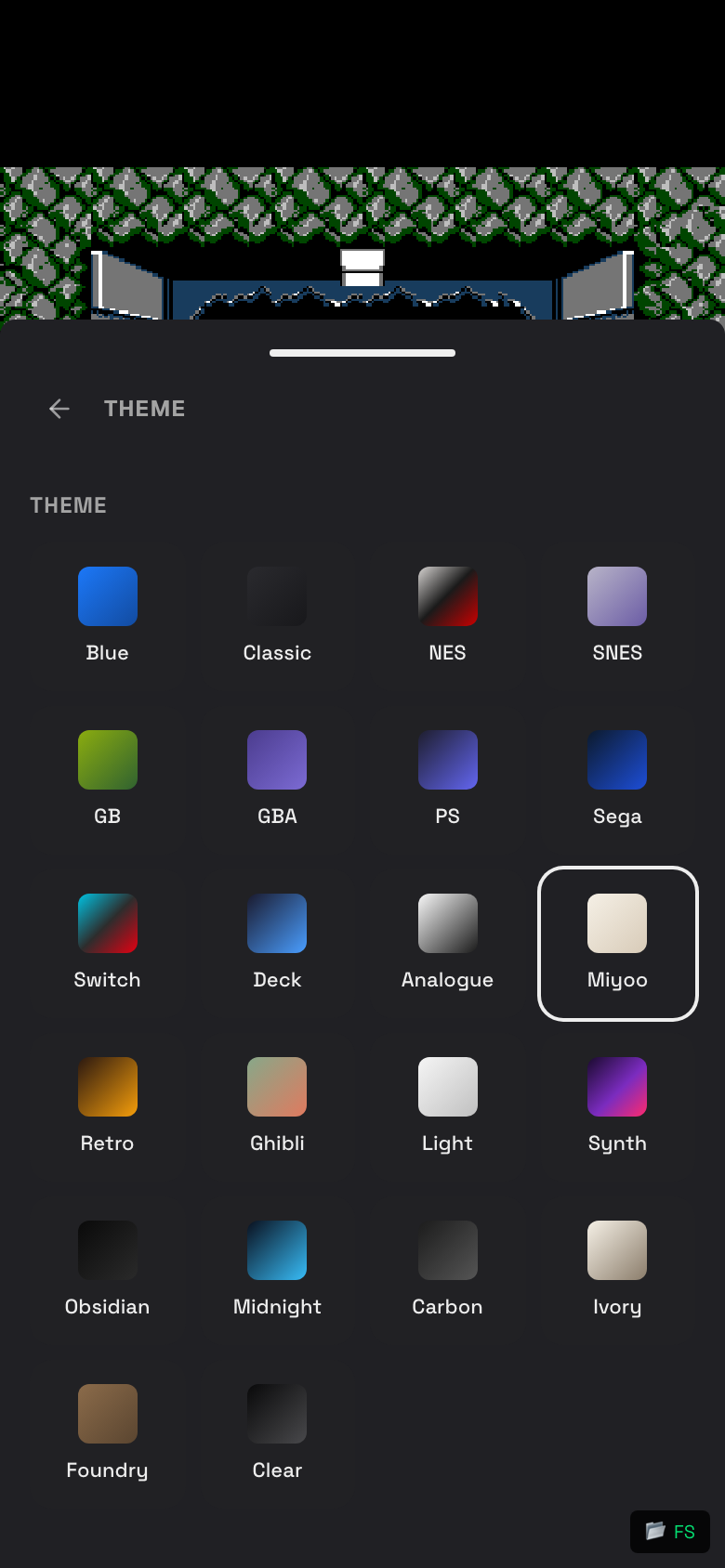
Console Themes
Console themes change the color and style of the on-screen controls.
- Open the in-game menu.
- Tap Theme.
- Tap a theme preview.
- Return to the game.
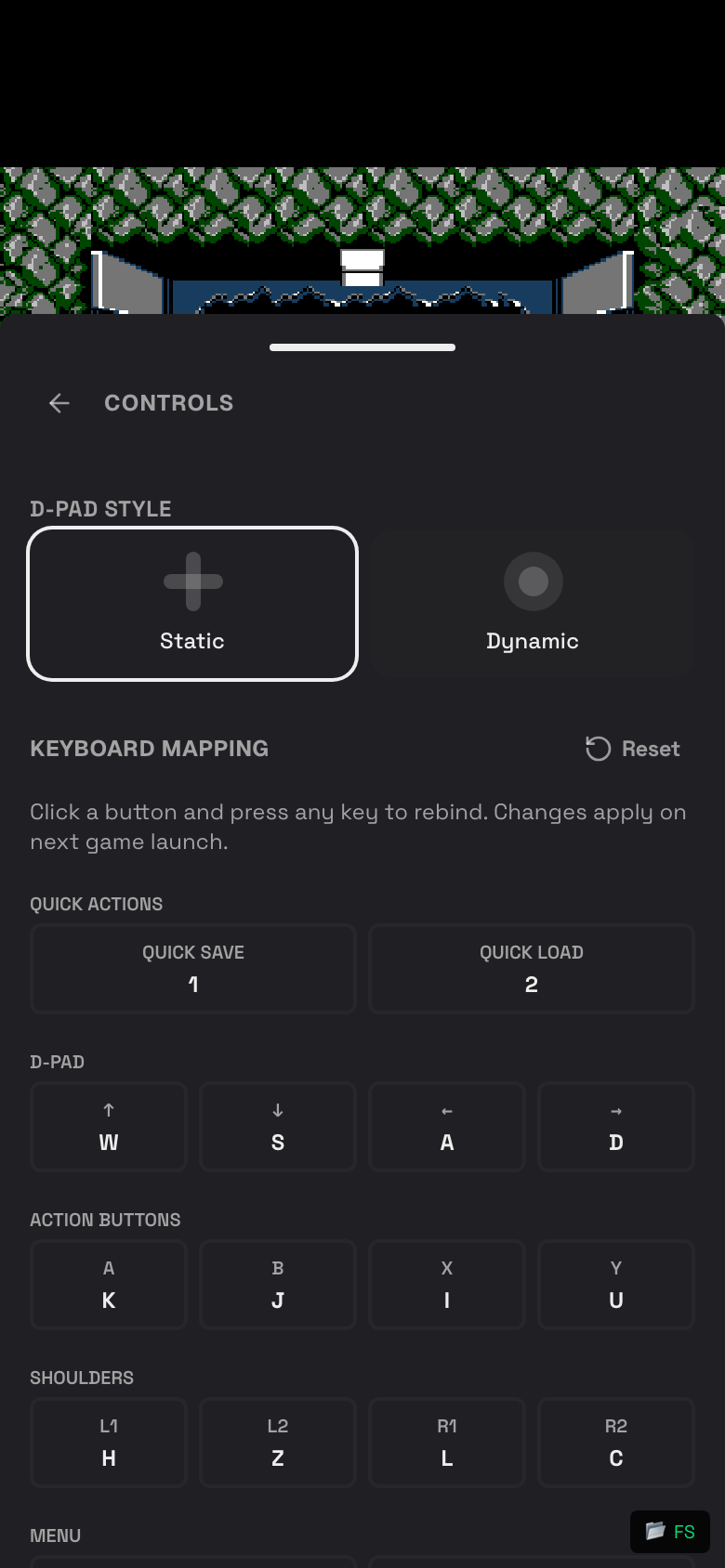
Controls and D-Pad Style
- Open the in-game menu.
- Tap Controls.
- Choose Static or Dynamic D-pad style.
- Hide controls if you use a physical controller or remote phone.
- Show controls again when you want touch buttons back.
Current Game Core
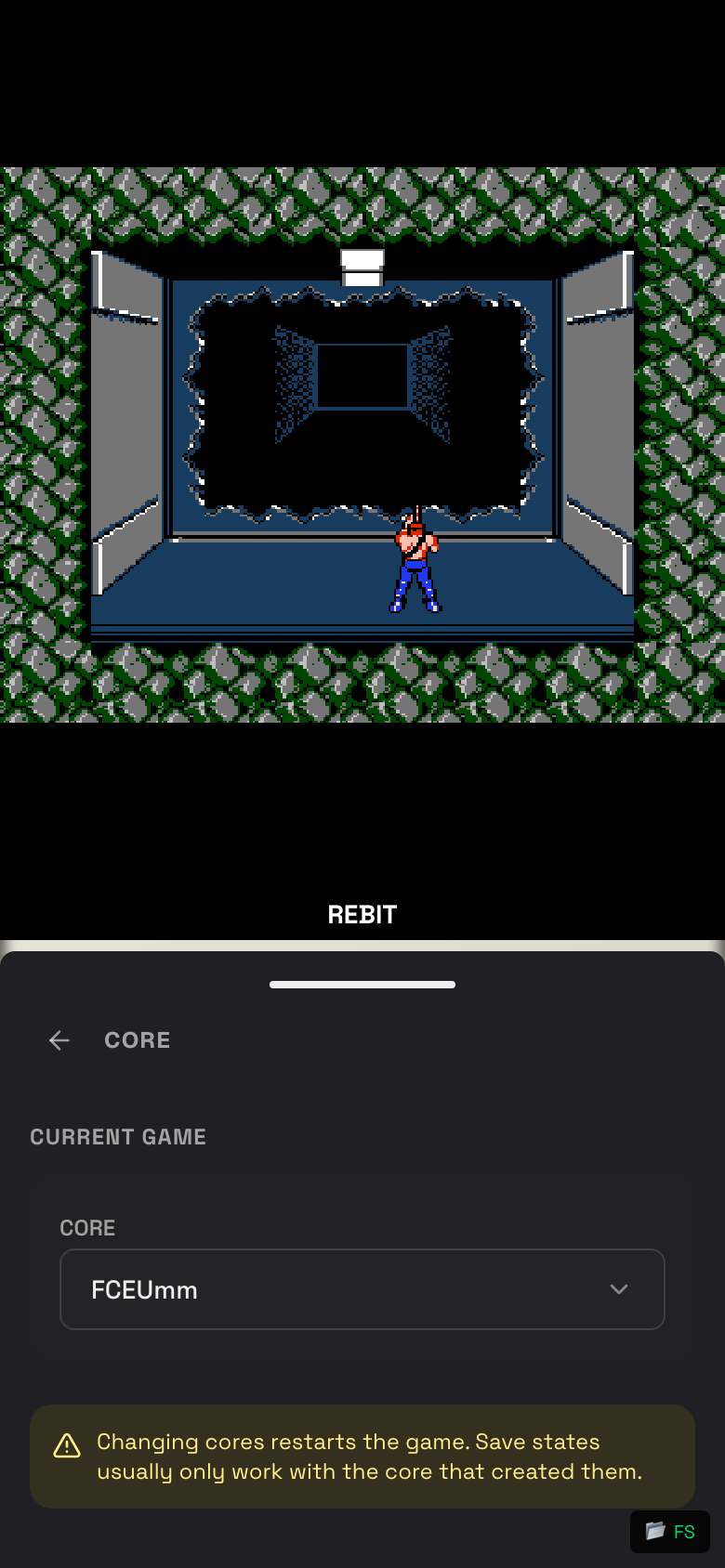
A core is the emulator engine Rebit uses for a game. Changing the current game's core restarts the game, so save first.
- Open the in-game menu.
- Tap Cores.
- Tap the Core selector.
- Pick a different core.
- Confirm the change.
Save Settings While Playing
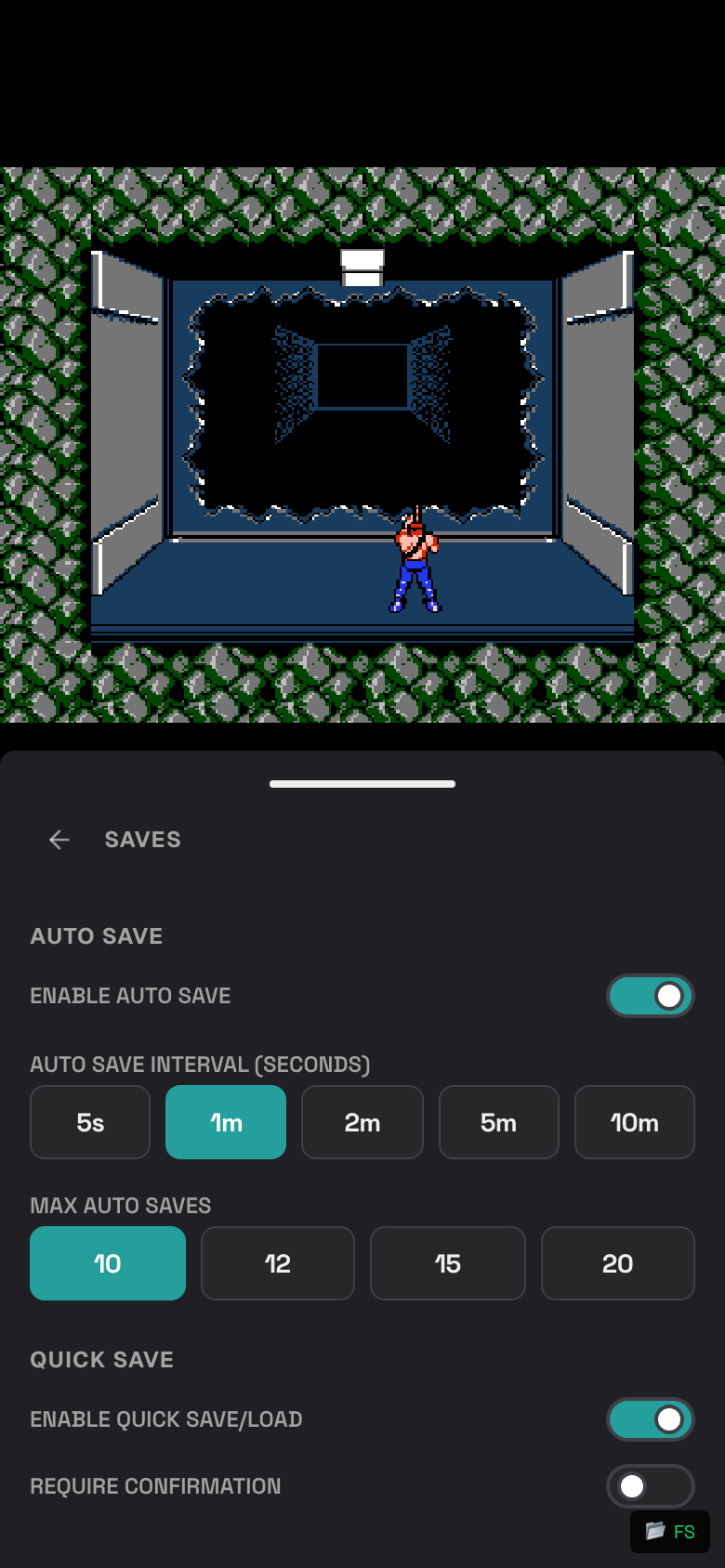
- Open the in-game menu.
- Tap Saves.
- Turn Enable Auto Save on or off.
- Choose an auto save interval.
- Choose how many auto saves Rebit should keep.
Fullscreen and Hide Controls
- Use Fullscreen when your browser offers it and you want more room.
- Use Hide Controls when a game needs more screen space or you are using another controller.
- Use Show Controls to bring touch buttons back.
Settings That Affect Every Game
Some settings live outside the play screen: