Getting Started
Use this short guide when you are opening Rebit for the first time: sign in, add one game, open your library, and play.
Sign In
- Open Rebit in your mobile browser.
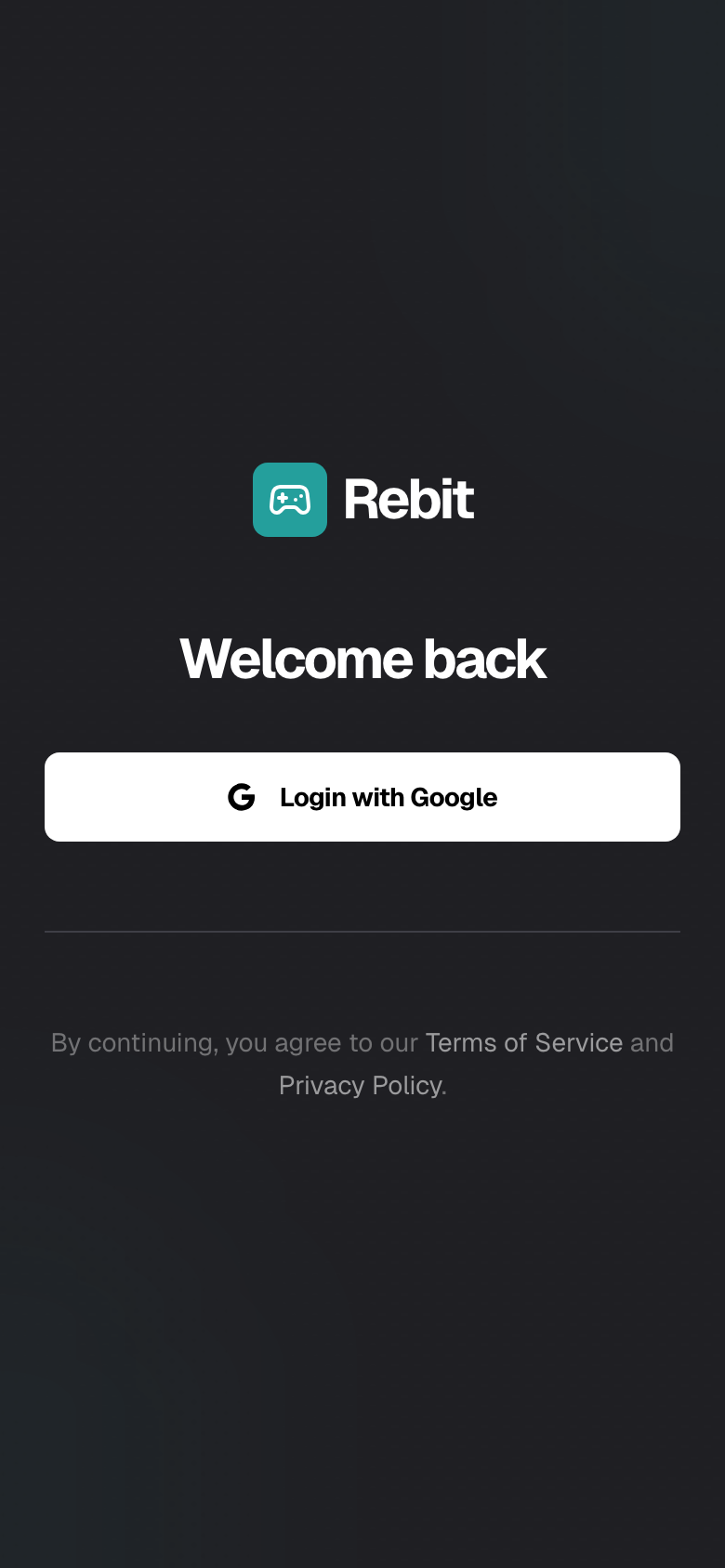
- Tap Log in.
- Sign in with email and password, or choose Continue with Google if you prefer Google sign-in.
- After signing in, Rebit opens your Library.
Upload One Game
Your library starts empty until you add a game.
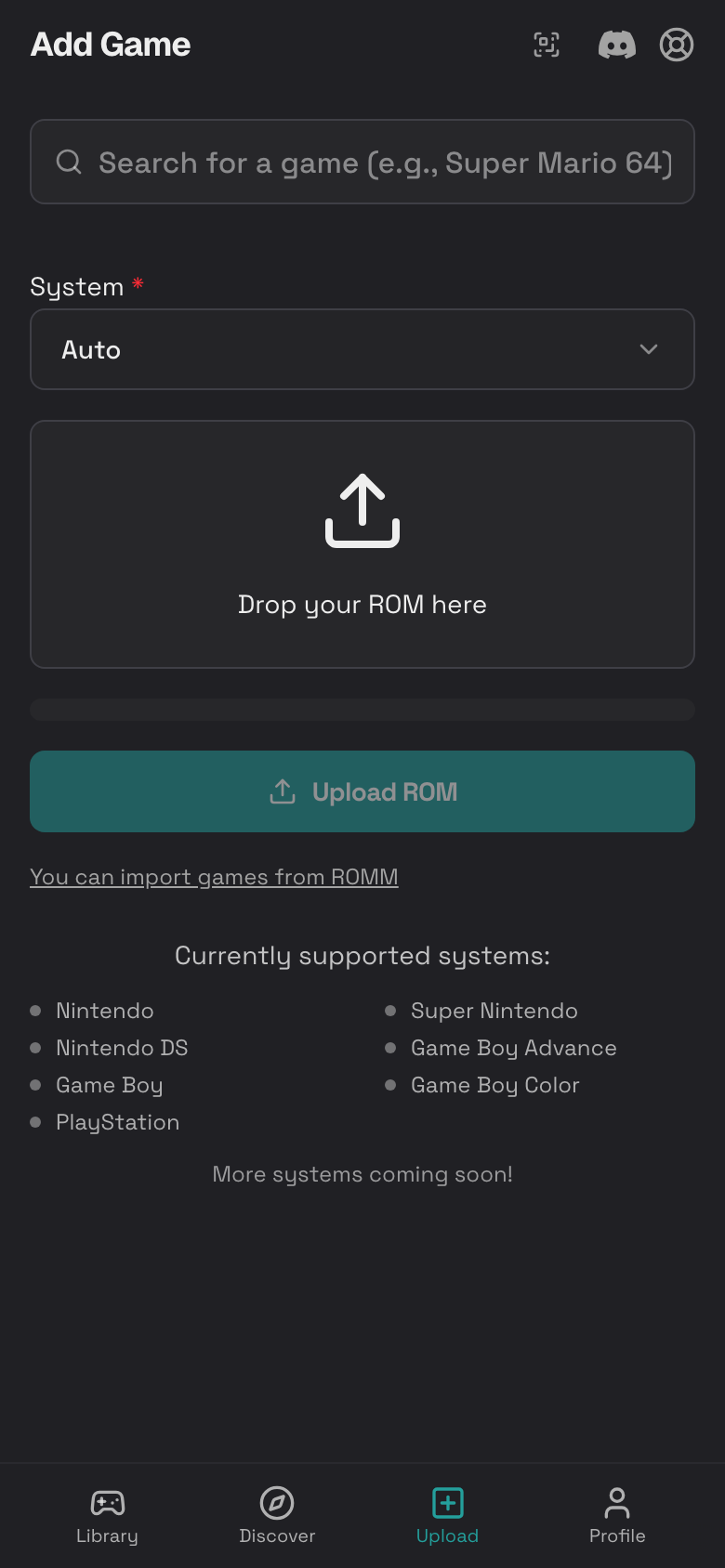
- Tap Upload in the bottom dock.
- Tap System and choose Auto if you are not sure.
- Tap the upload area.
- Choose a supported game file from your phone.
- Tap Upload ROM.
- Keep the page open until Rebit finishes.
For file types, ZIP files, large upload progress, canceling an upload, and RomM imports, read Upload Your First Game.
Open Your Library
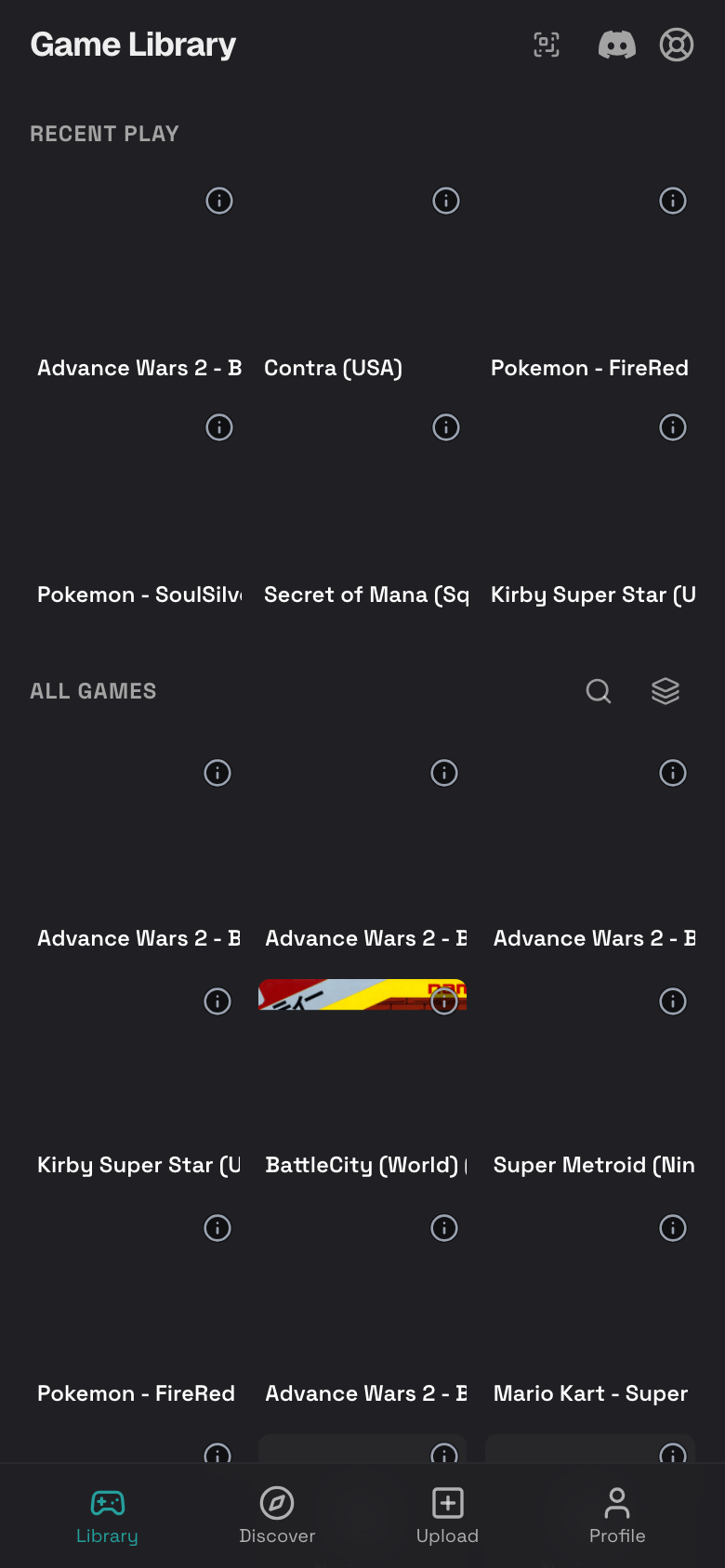
- Tap Library in the bottom dock.
- Look under All Games.
- Tap your game cover.
- The game details page opens.
Start Playing
- On the game details page, tap Play Now.
- Wait for the emulator to load.
- Use the on-screen buttons.
- Open the in-game menu if you need to save, take a screenshot, change settings, or quit.
Where to Go Next
- Use Library to search, filter, sort, or manage games.
- Use Game Details to rename, share, view activity, download, or delete a game.
- Use Playing Games for basic play controls.
- Use Saves, Screenshots, and Cheats when you want to protect progress.
- Use Installation when you want Rebit on your home screen.