Sharing
Rebit lets you share your public profile and public game pages with friends.
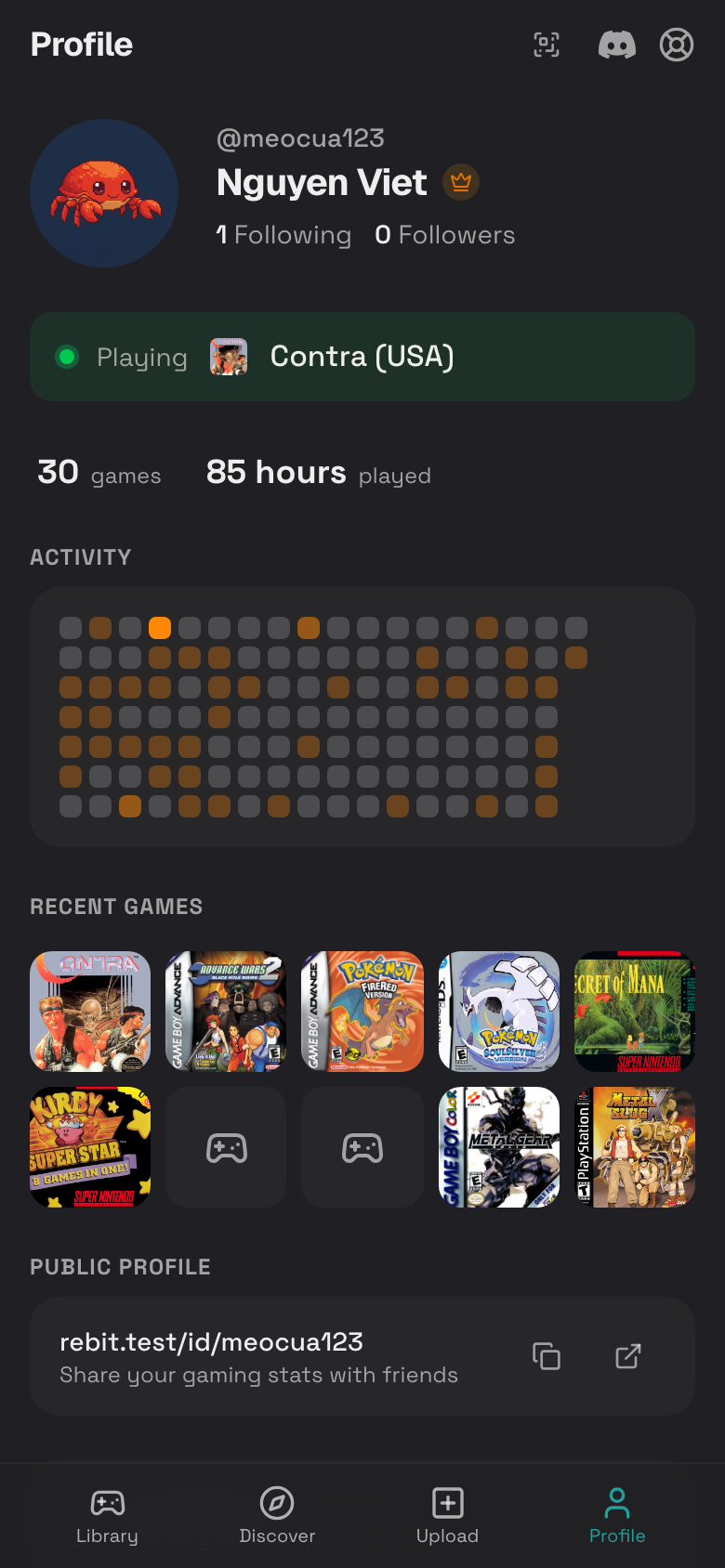
Share Your Profile
- Tap Profile.
- Scroll to Public Profile.
- Tap the copy icon.
- Paste the link into a message.
Share a Game
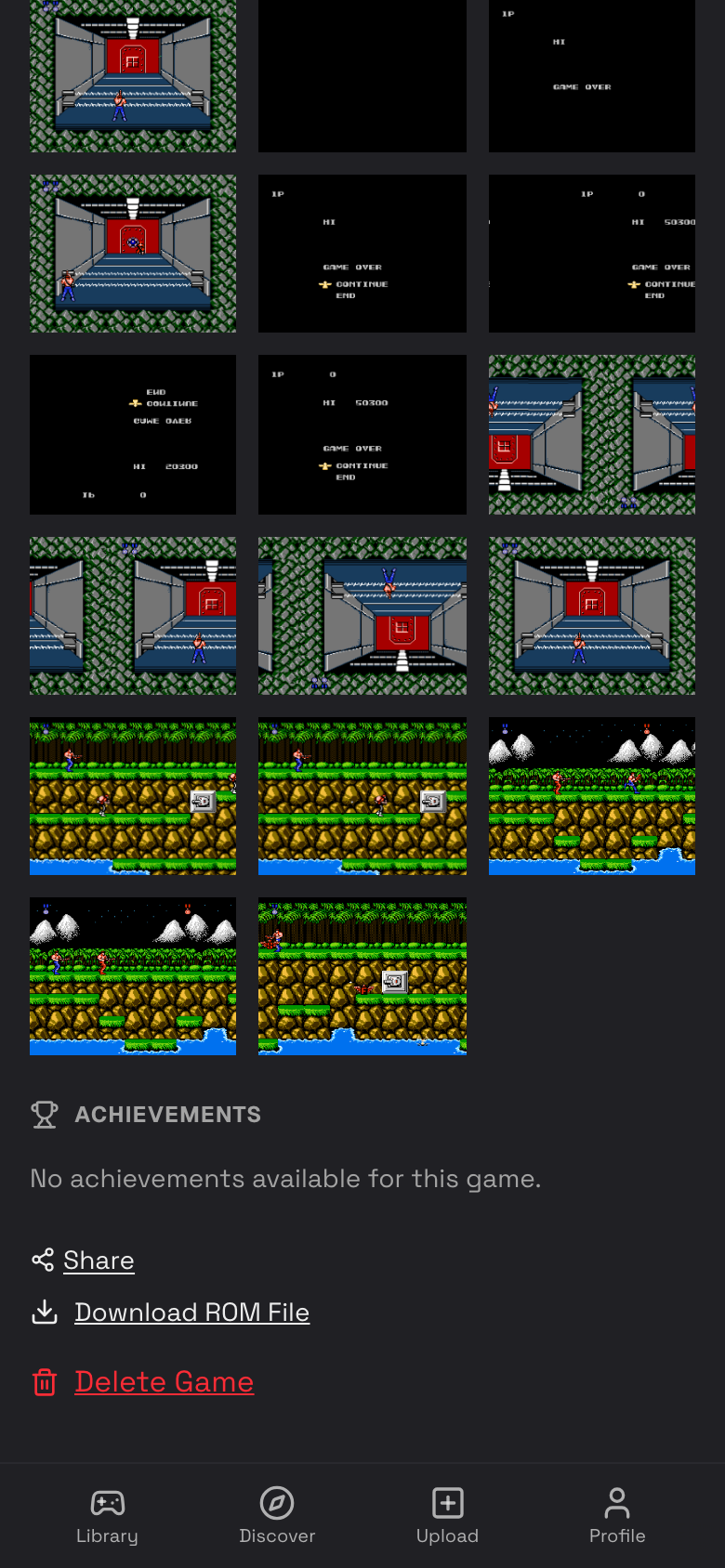
- Open one of your game details pages.
- Scroll near the bottom.
- Tap Share.
- Rebit copies the public game link to your clipboard.
- Paste it into a message.
Open a Public Game Page
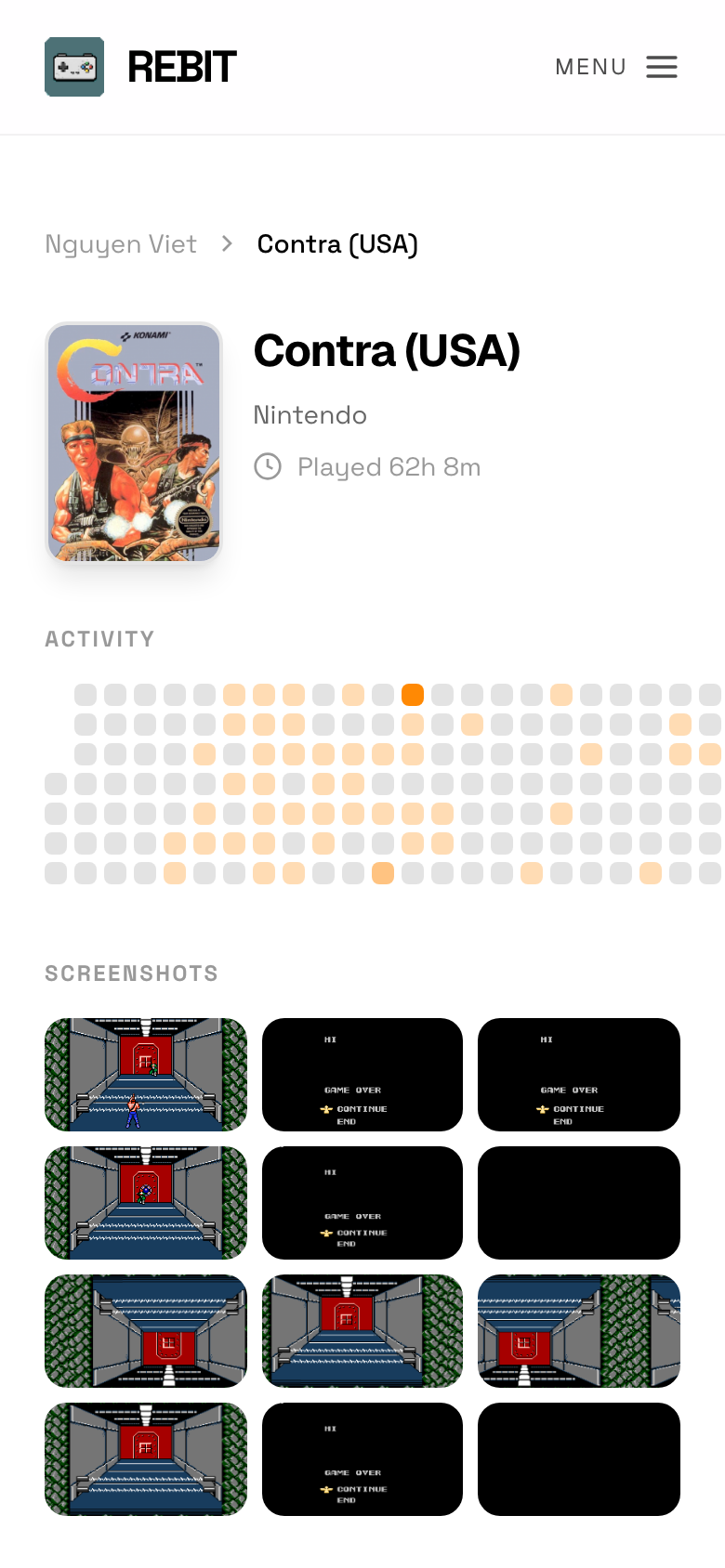
Public game pages let other people view a game page without owning that game in their own library.
- Open a game link someone sent you.
- Review the title, system, screenshots, and available public details.
- Sign in if Rebit asks you to before saving the game.
Save a Public Game to Your Library
When viewing a game owned by someone else, you may see Save to library.
- Open a public game page.
- Tap Save to library.
- Wait for Rebit to save the game.
- Rebit opens the copied game in your library.
What Sharing Includes
Public pages can show useful game and profile information, such as:
- Game title and system.
- Box art and screenshots.
- Public profile name and activity.
- Follow buttons and followers/following lists.
- Achievements when available.
Private account settings, login details, and files that are not meant to be public are not shown as profile tools.
Changelog and Public Stats
Use the public Changelog to see what changed recently. Use Public Stats to view high-level Rebit activity such as popular consoles, playtime, and active players.