Public Profiles
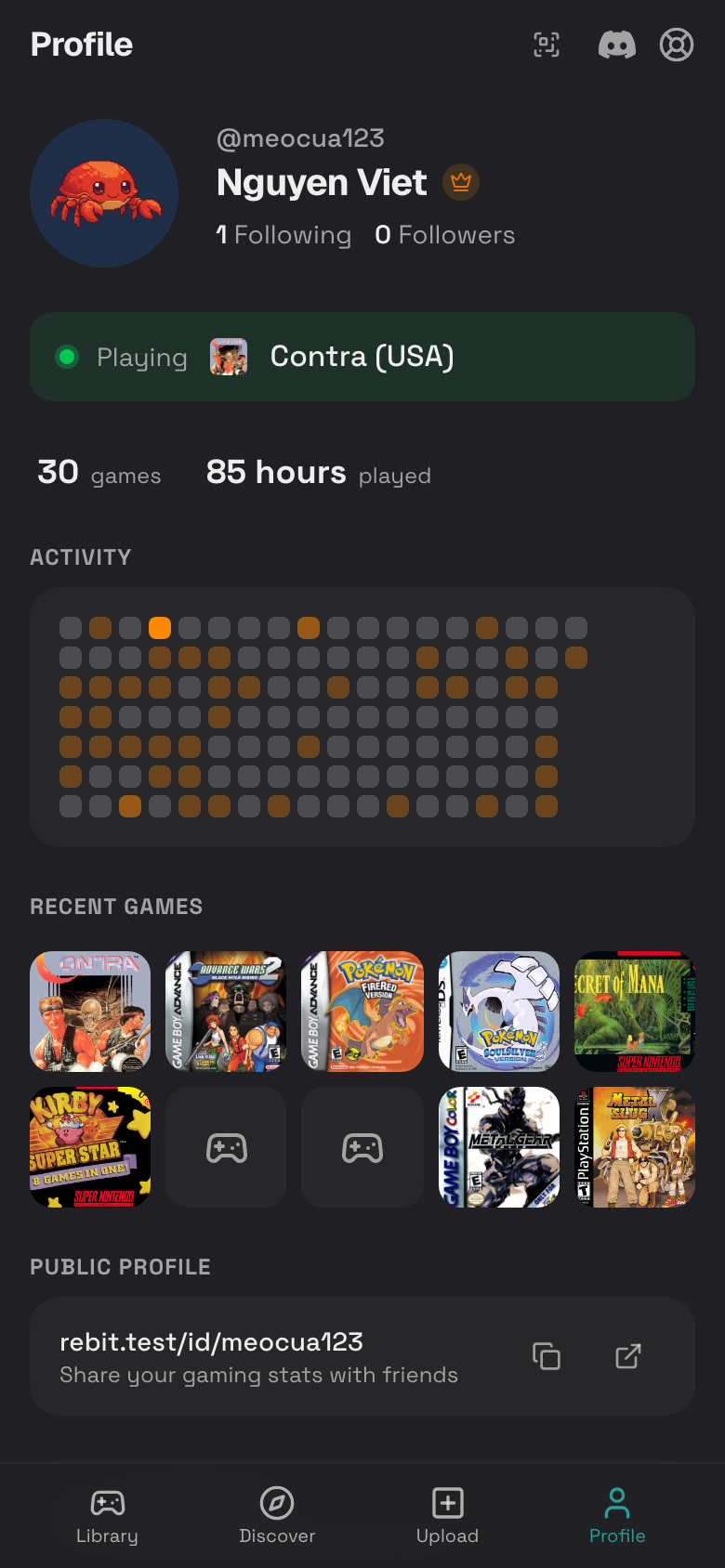
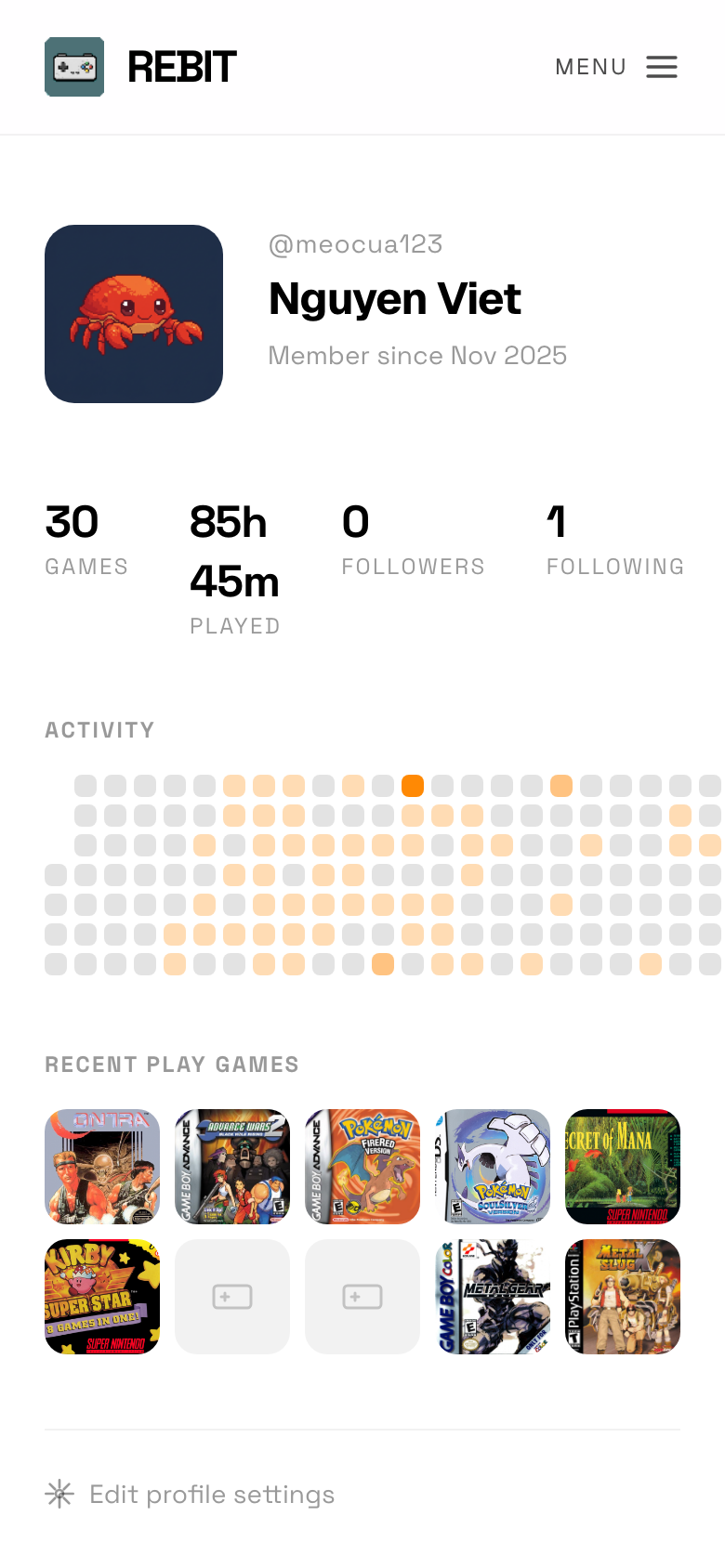
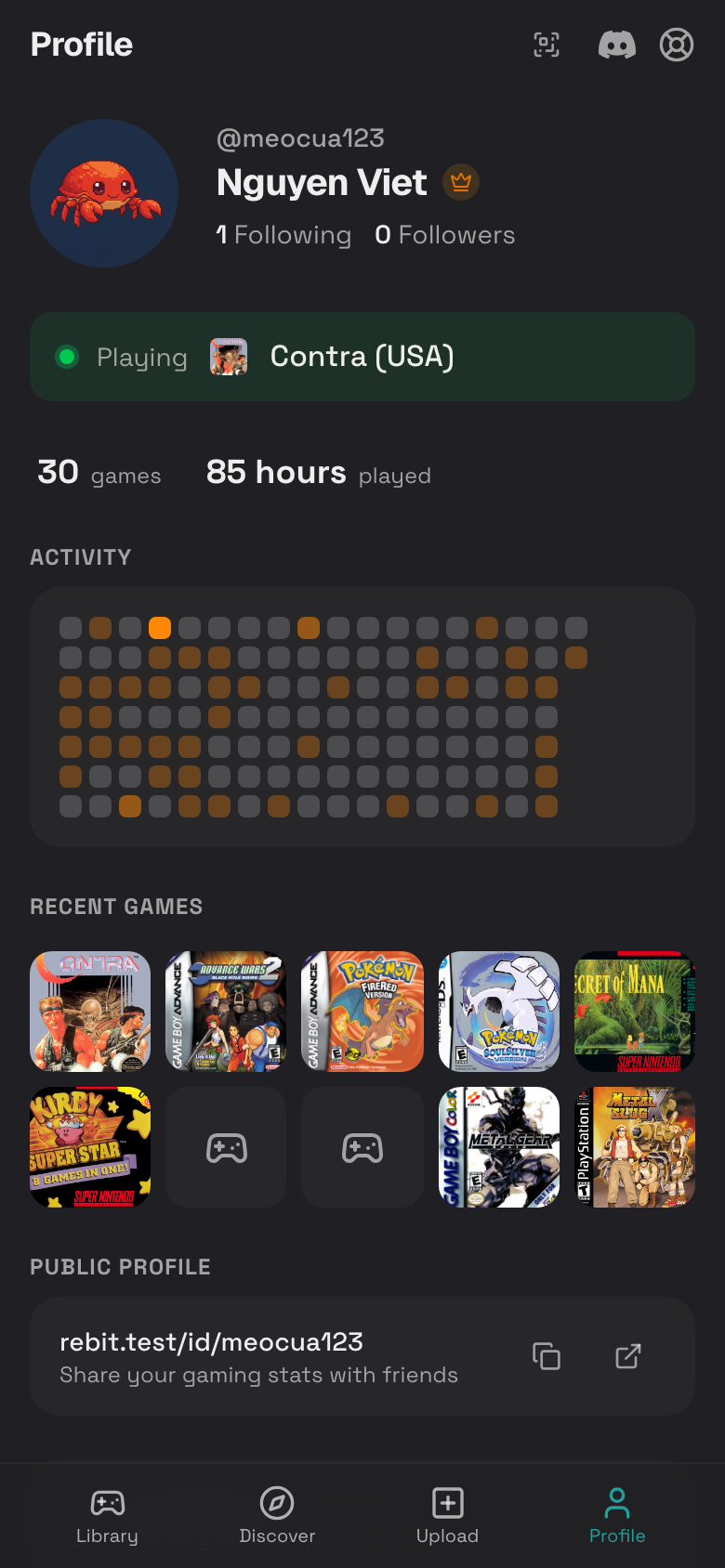
Your profile shows your games, playtime, activity, achievements, followers, and public sharing link.
Open Your Profile
- Tap Profile in the bottom dock.
- Review your profile card, stats, activity, recent games, and account tools.
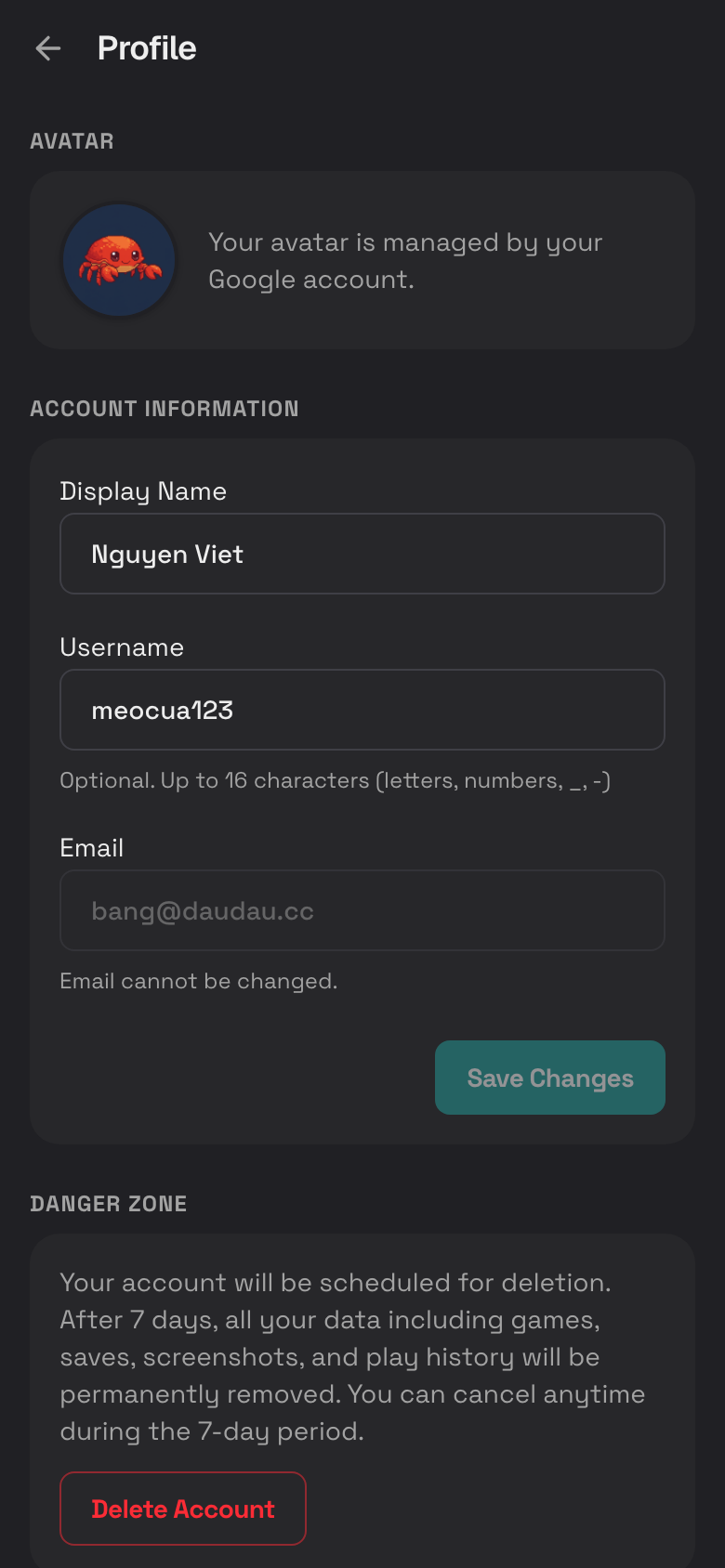
Edit Your Display Name or Username
- Tap Profile.
- Tap Settings.
- Tap Profile.
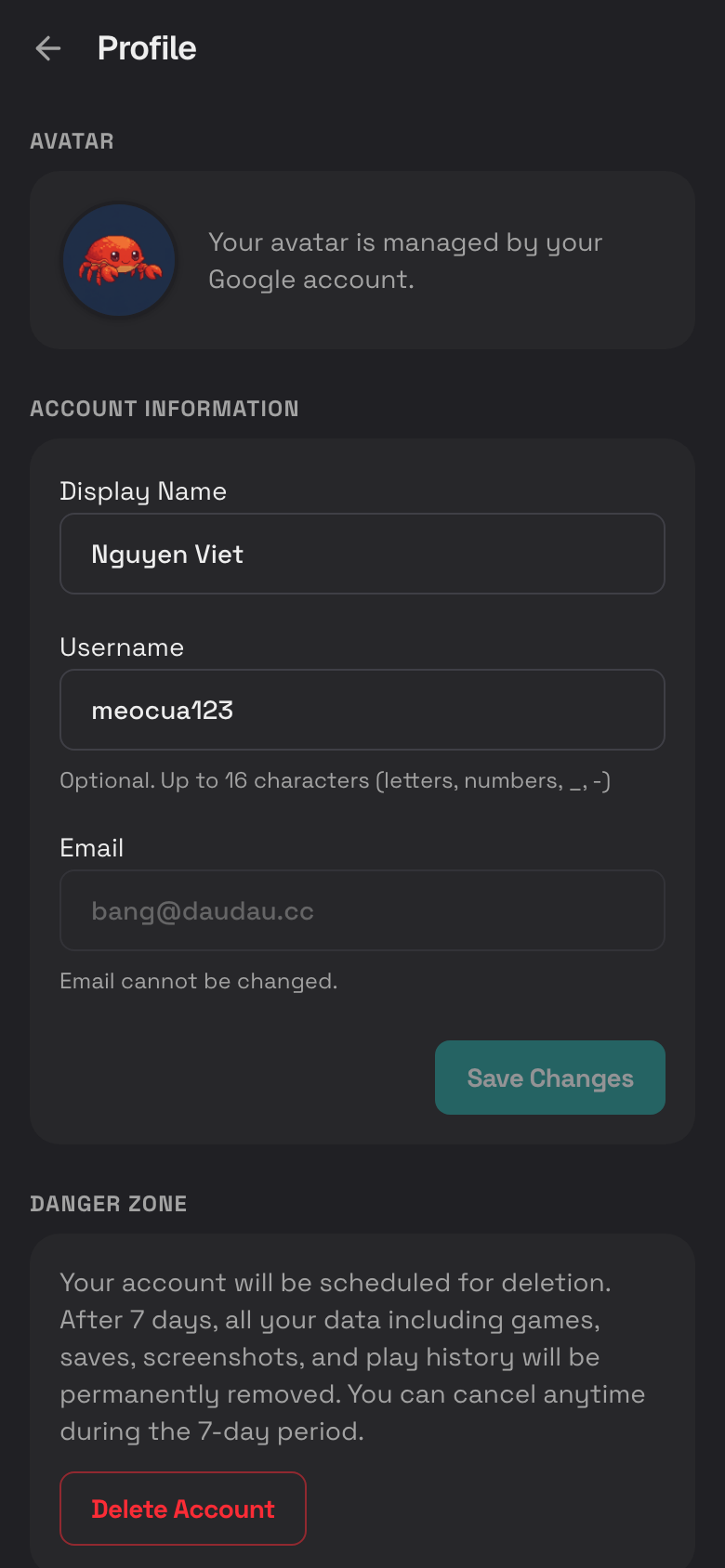
- Edit Display Name or Username.
- Tap Save Changes.
About Usernames and Avatars
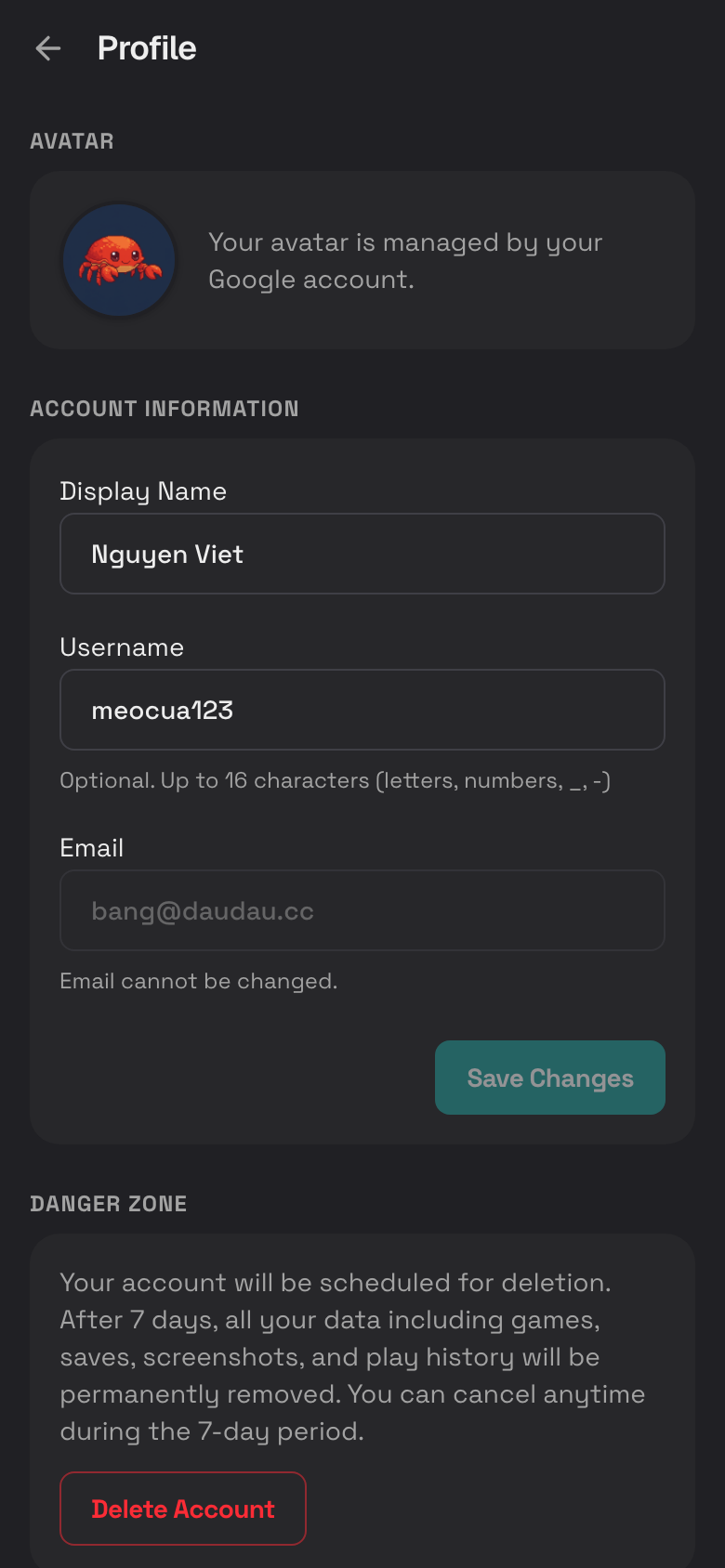
- Your username makes your public profile easier to share.
- Usernames can use letters, numbers,
_, and-. - Usernames can be up to 16 characters.
- Your avatar appears anywhere Rebit shows your profile. If your account does not have a custom avatar option, Rebit uses the avatar available from your account.
Follow and Unfollow People
- Open another user's profile.
- Tap Follow.
- Their activity can appear in your Friends Activity feed.
- Tap the follow button again to unfollow.
View Followers and Following
- Open a profile.
- Tap Followers or Following.
- Tap a person to view their profile.
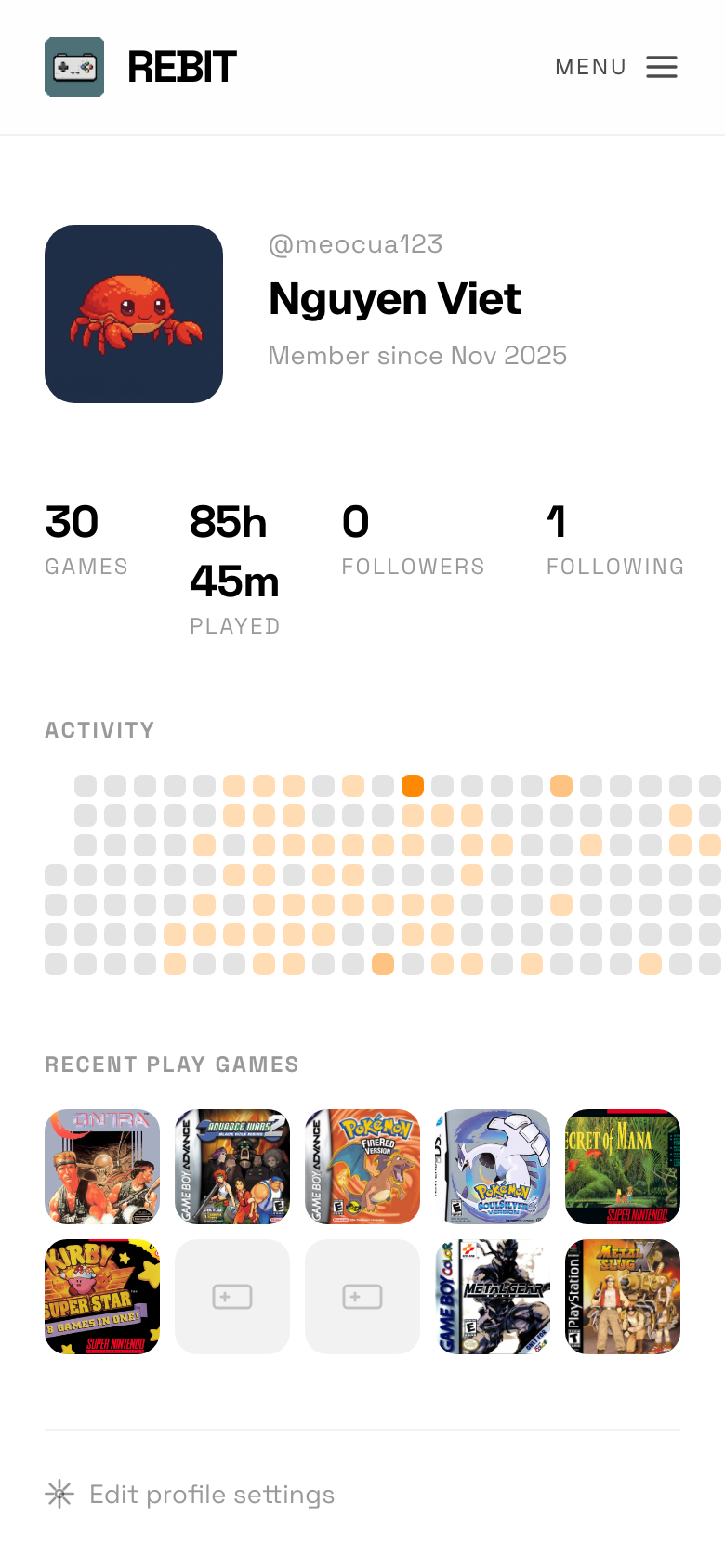
Share Your Public Profile
- Tap Profile.
- Scroll to Public Profile.
- Tap the copy icon.
- Paste the link into a message.
- Optional: tap the external link icon to preview the public page.
Install Rebit from Your Profile
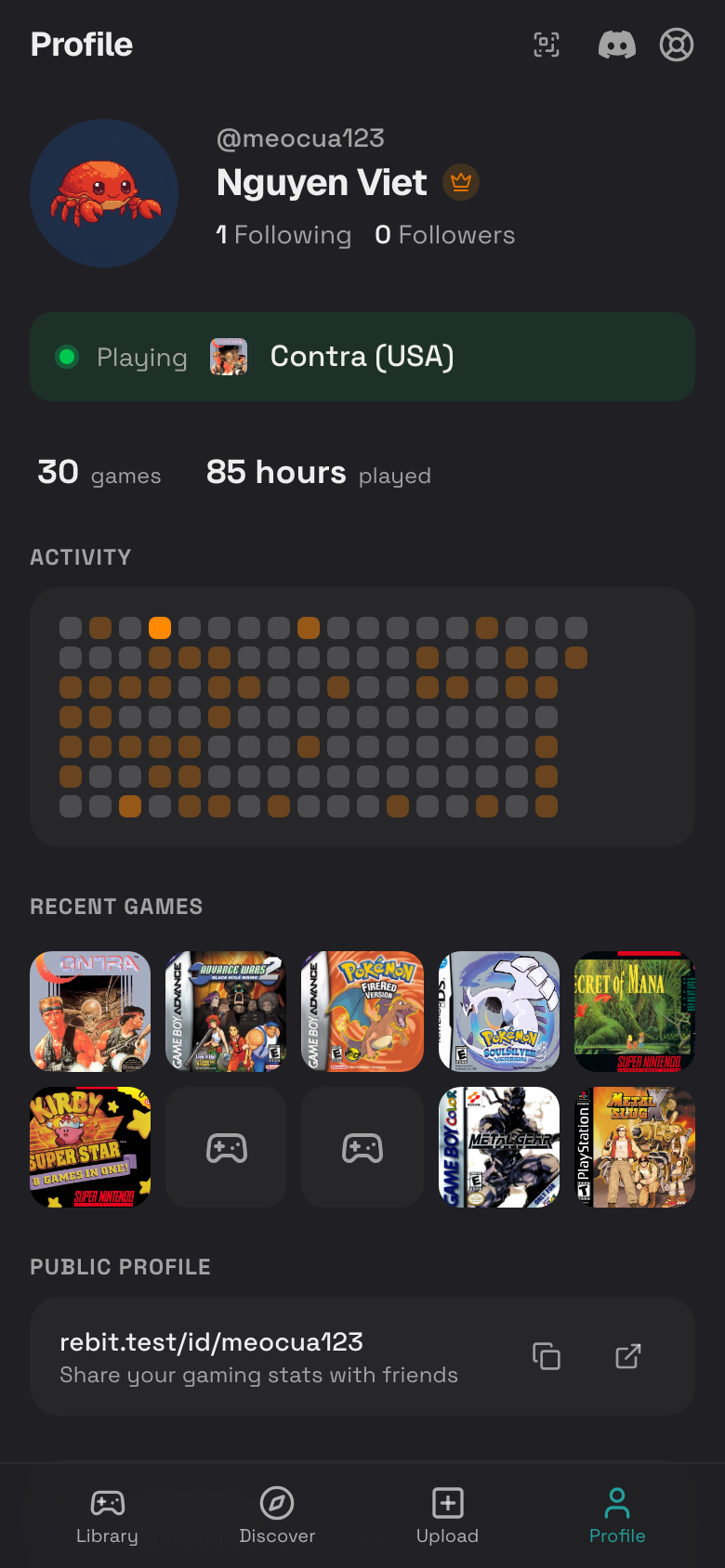
The Profile page is where Rebit shows app installation options. For the full iPhone and Android steps, use the Installation guide.
- Tap Profile.
- Scroll to the App section.
- Tap Install App if your phone shows it, or follow the browser prompt.
Log Out
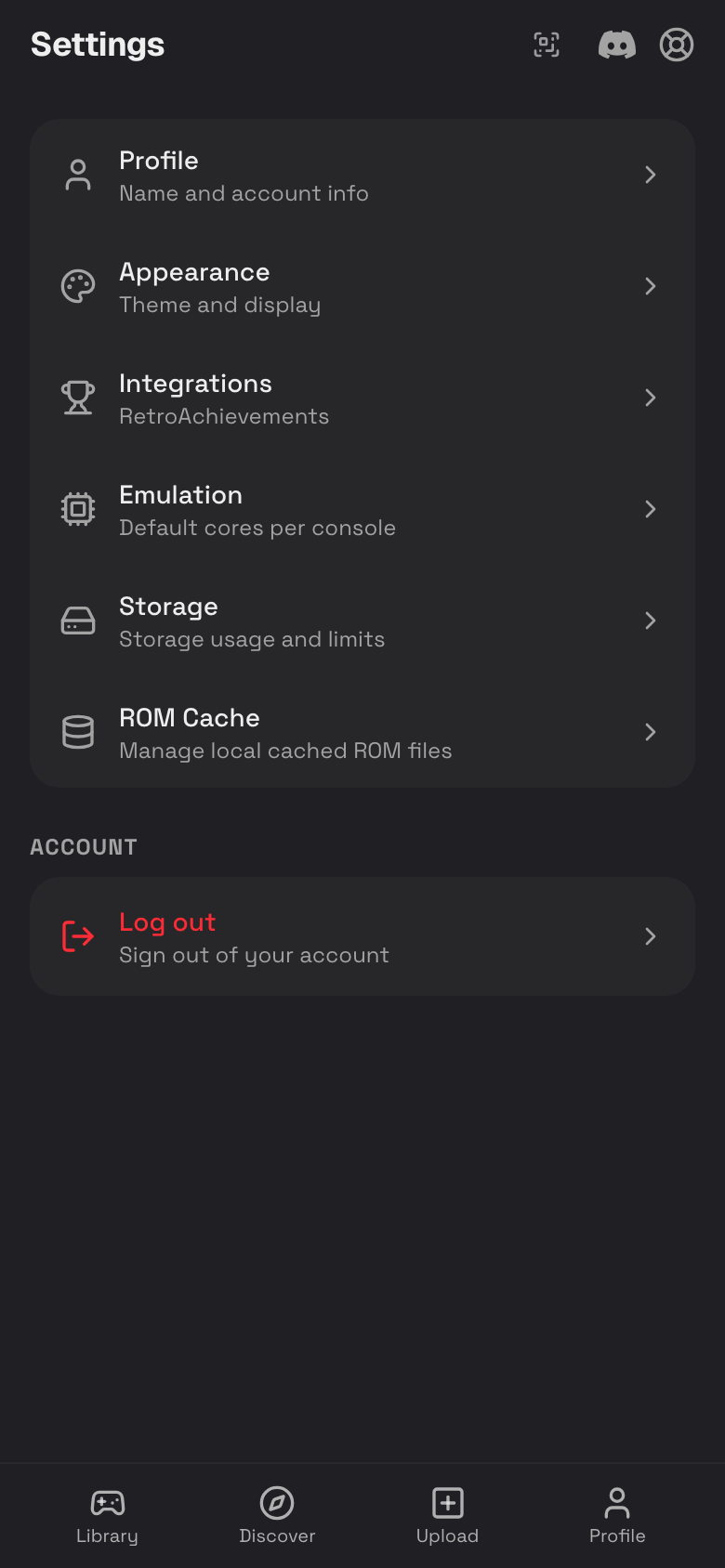
- Tap Profile.
- Tap Settings.
- Scroll to Account.
- Tap Log out.
Delete Your Account
Deleting your account is serious. Rebit schedules deletion and gives you 7 days to cancel.
- Tap Profile.
- Tap Settings.
- Tap Profile.
- Scroll to Danger Zone.
- Tap Delete Account.
- Read the confirmation.
- Tap Delete Account only if you are sure.
Cancel Account Deletion
If you changed your mind during the 7-day period:
- Go to Settings.
- Tap Profile.
- In Danger Zone, tap Cancel Deletion.