Saves, Screenshots, and Cheats
Rebit gives you several ways to keep progress, collect moments, and change a game with cheat codes.
Save Types
Rebit uses three helpful save types:
- Manual save state: Saves the exact moment you are playing.
- Auto save state: Rebit creates these for you while you play, if auto save is on.
- In-game save: A game's own save file, often used by games with battery saves or save menus.
Create a Manual Save State
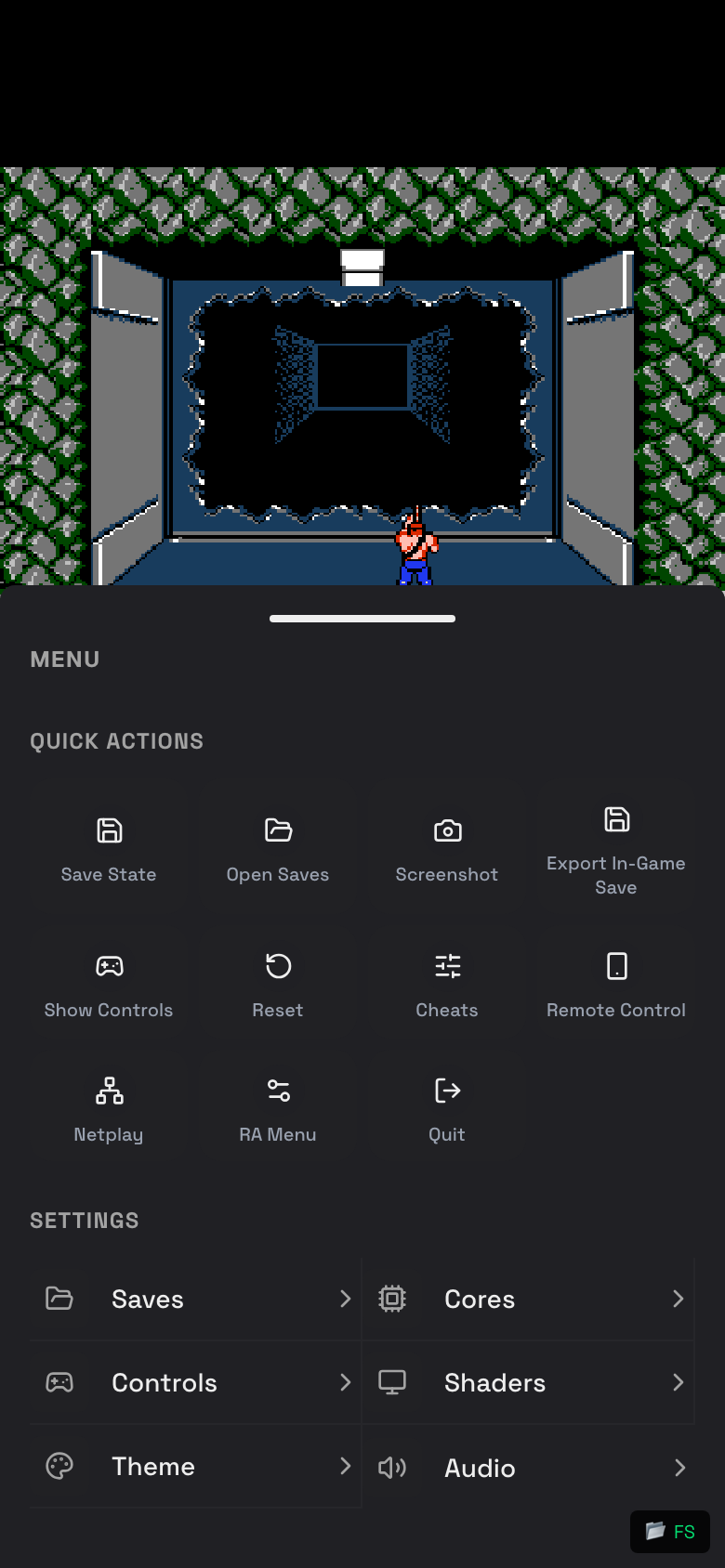
- Start a game.
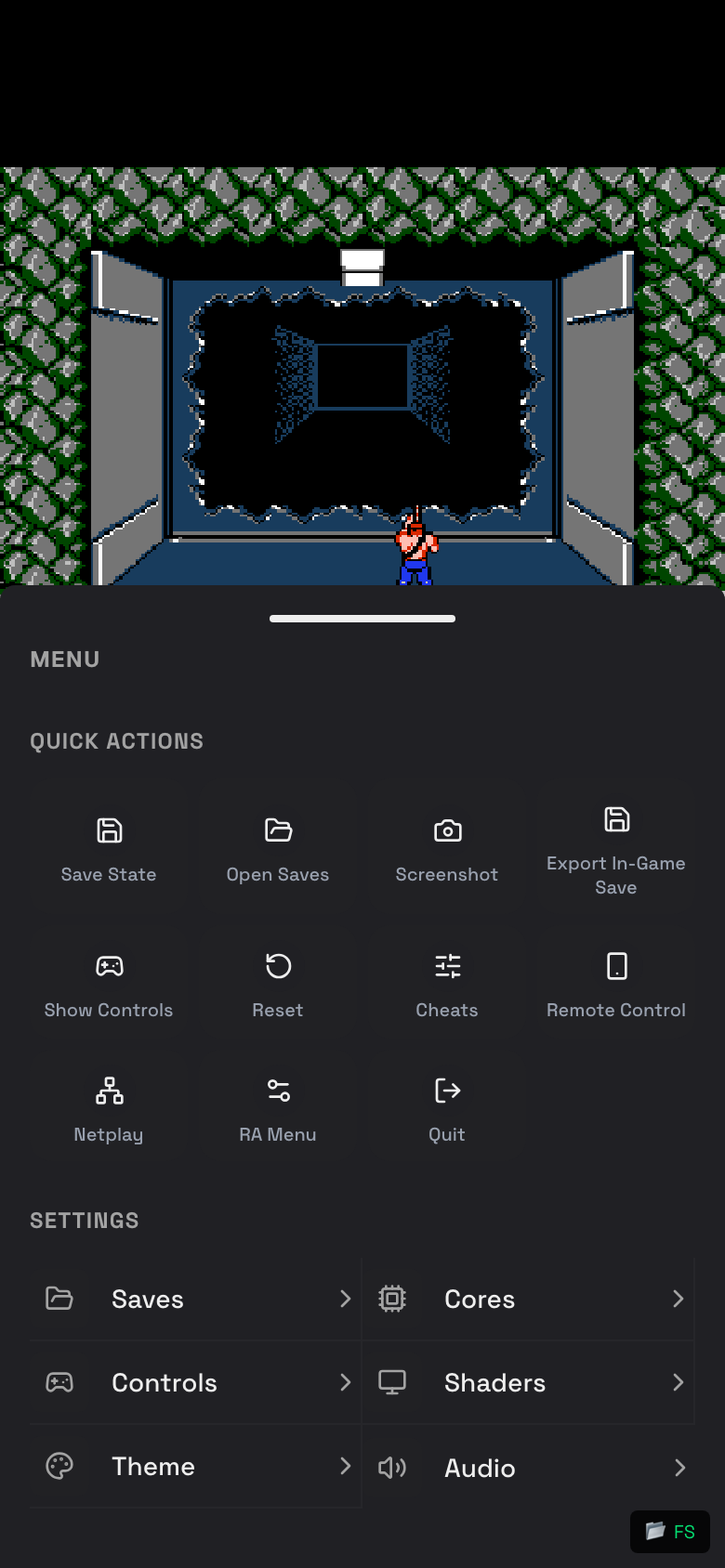
- Tap the in-game menu button.
- Tap Save State.
- Wait for the save confirmation.
Load a Save
- Start the game.
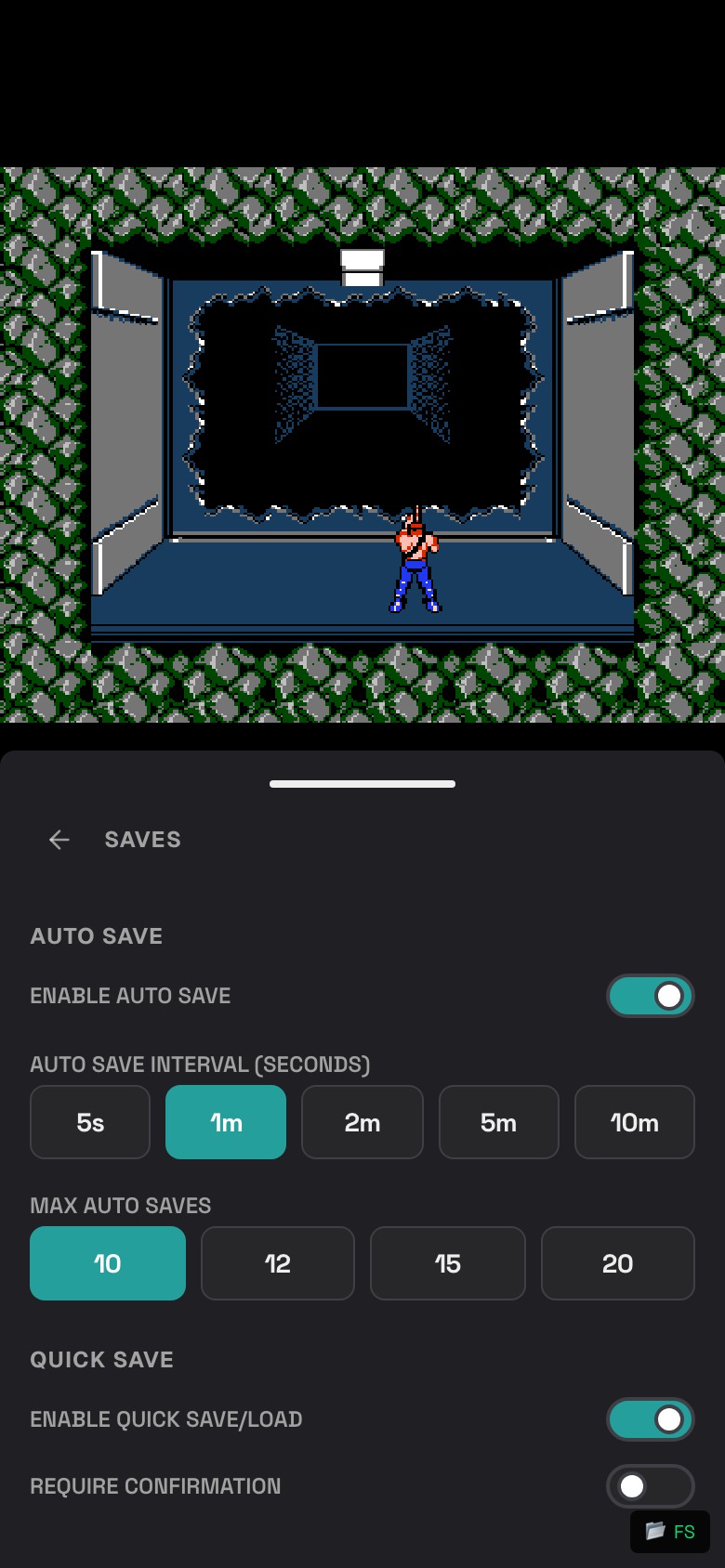
- Tap the in-game menu button.
- Tap Open Saves.
- Choose Manual, Auto, or In-game.
- Tap the save you want to load.
Upload an In-Game Save File
Use this if you already have a .srm or .sav file from another emulator.
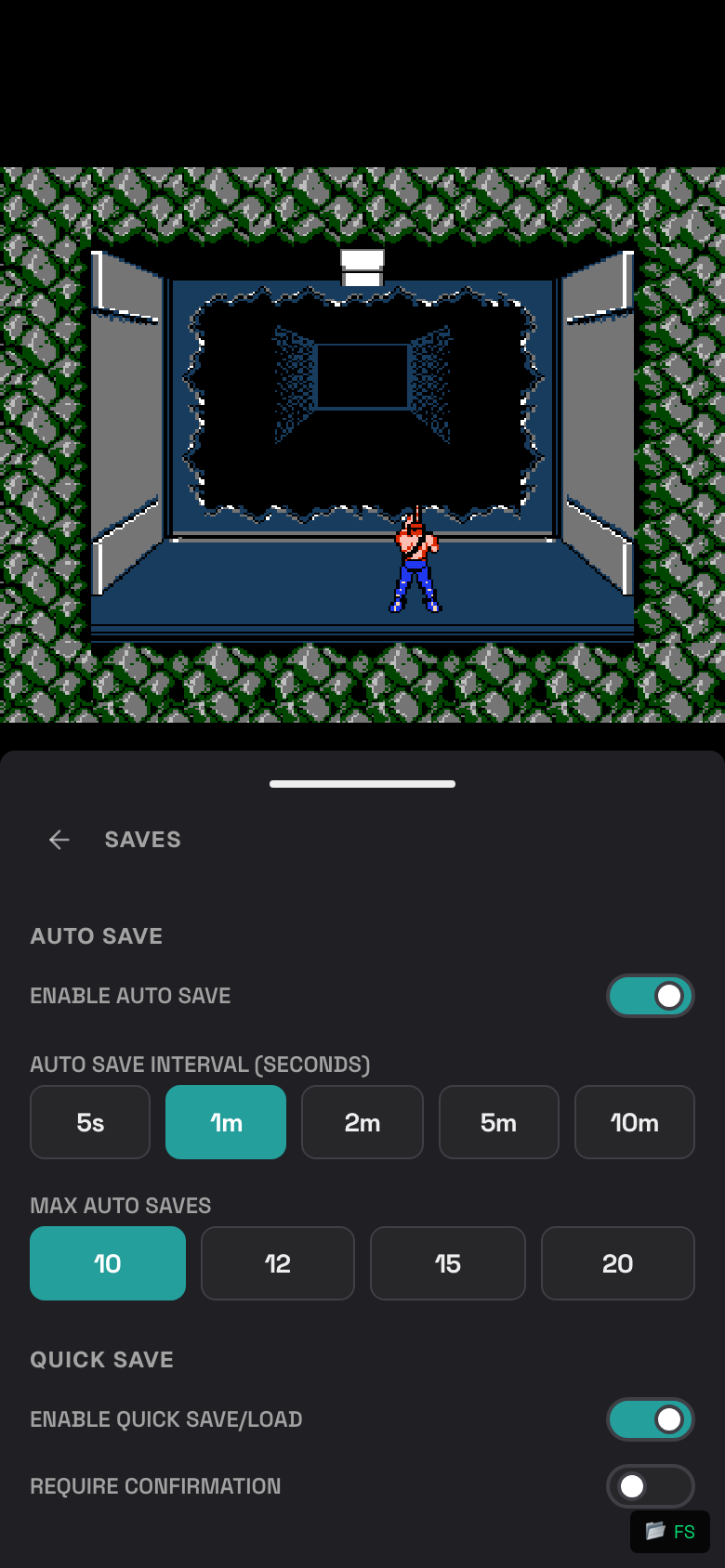
- Start the game.
- Tap the in-game menu button.
- Tap Open Saves.
- Tap In-game.
- Tap Upload Save File.
- Choose your
.srmor.savfile.
Export an In-Game Save
Some games have their own save menu. For those games:
- Save inside the game first.
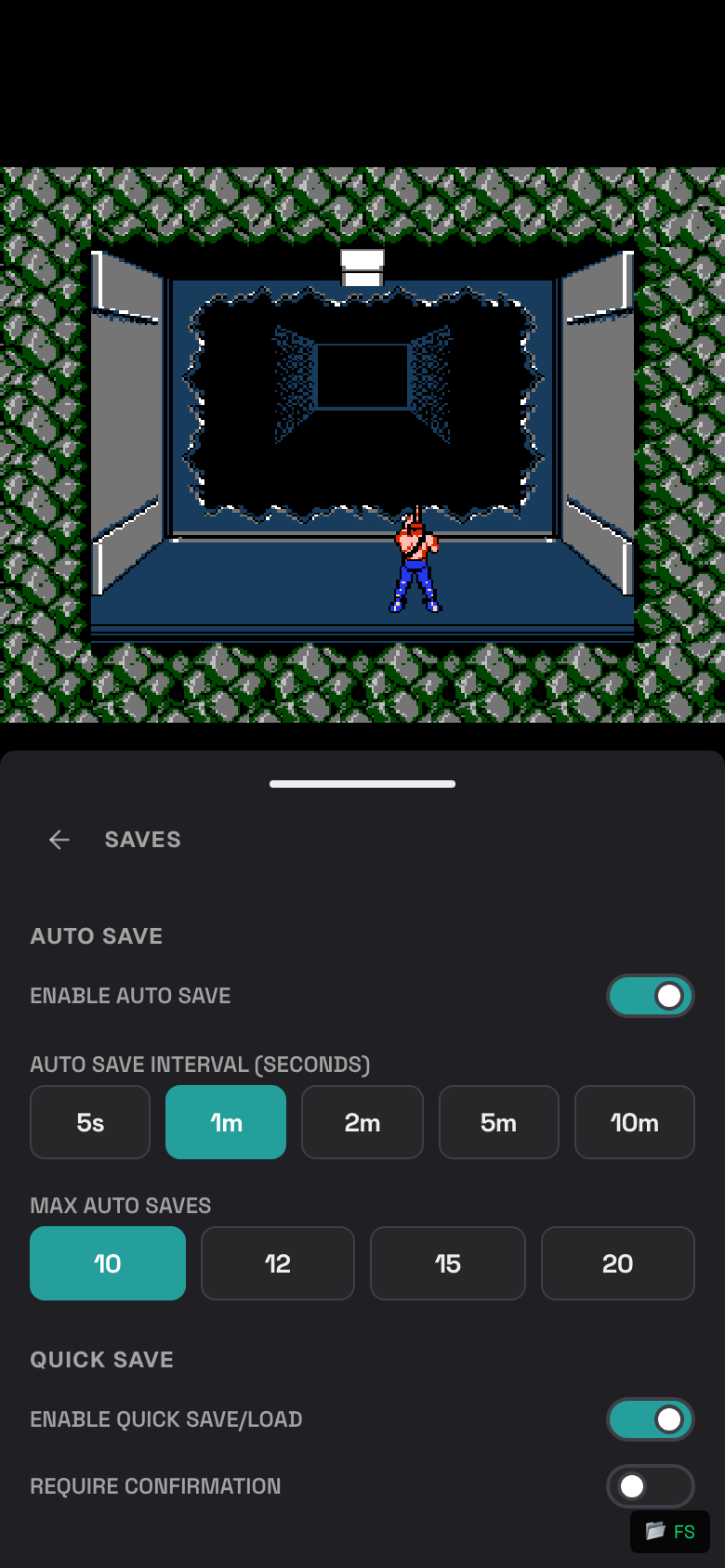
- Open the in-game menu.
- Tap Export In-Game Save.
- If Rebit shows a reminder, tap Continue.
Nintendo DS Cloud Rooms also use Export In-Game Save. Save inside the Nintendo DS game first, then export so Rebit can store the cloud room save in your library.
Download or Delete a Save
- Open Save States.
- Find the save you want.
- Tap the download option to keep a copy on your phone.
- Tap the delete option only if you no longer need it.
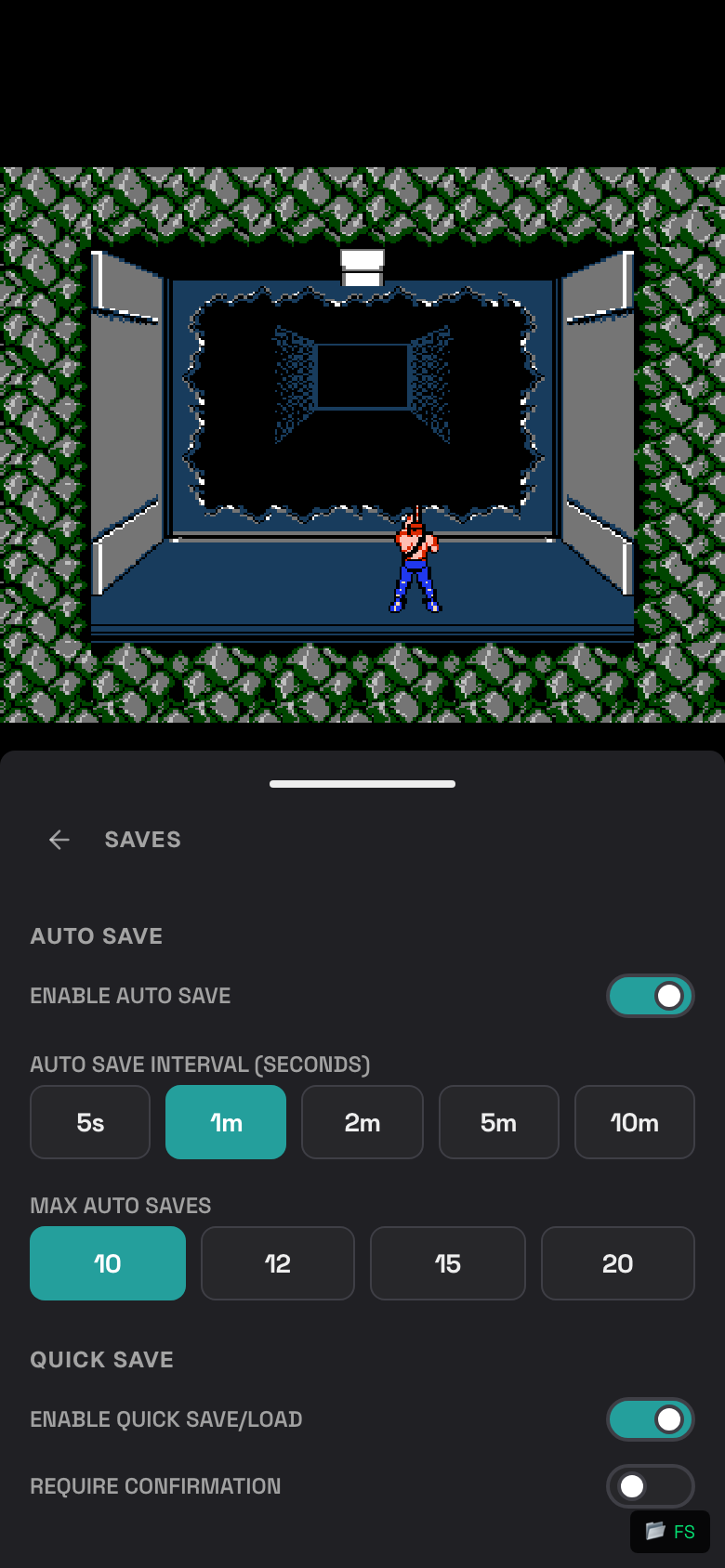
Turn Auto Save On or Off
- Start a game.
- Open the in-game menu.
- Tap Saves.
- Turn Enable Auto Save on or off.
- Choose an Auto Save Interval.
- Choose Max Auto Saves.
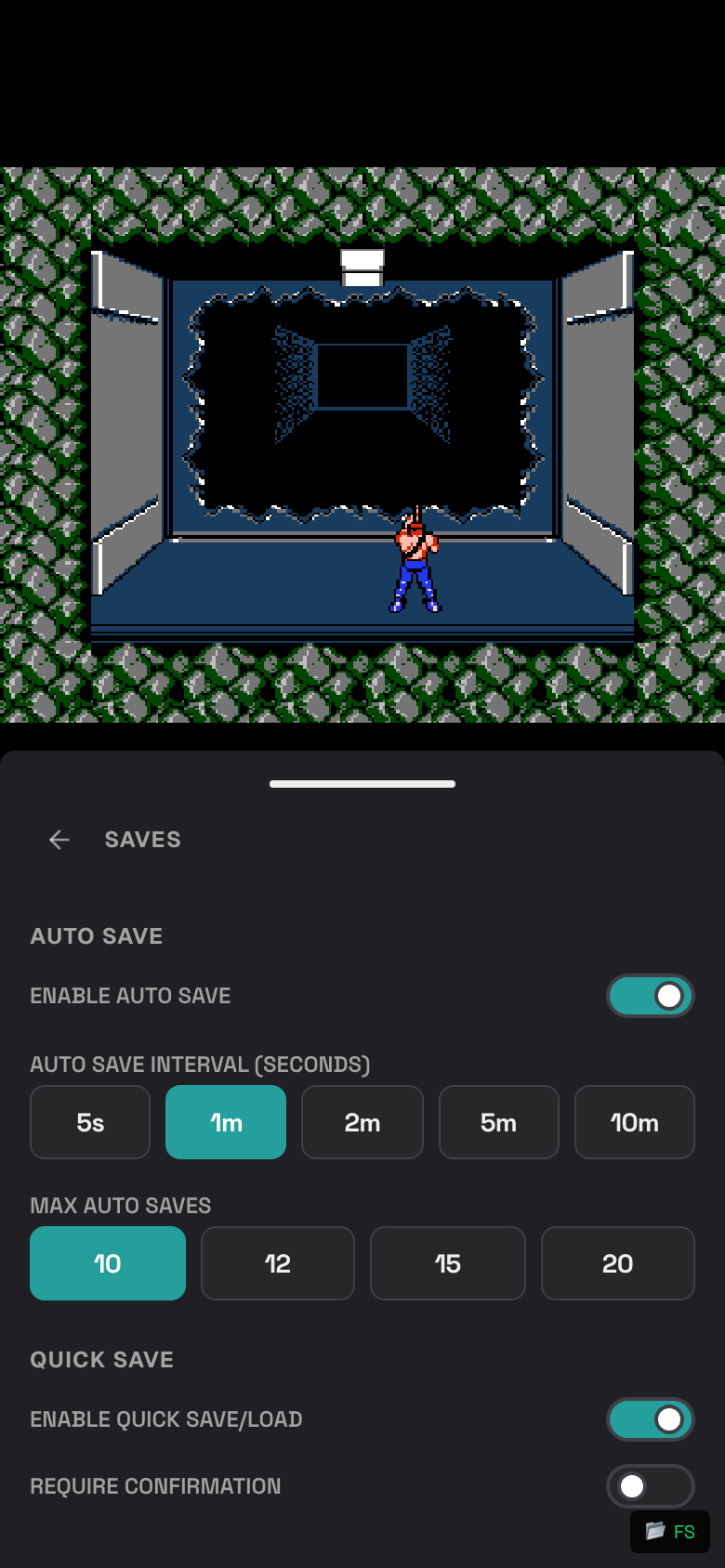
Take a Screenshot
- Start a game.
- Get to the moment you want to capture.
- Tap the in-game menu button.
- Tap Screenshot.
- Rebit saves the screenshot to the game details page.
View Screenshots
- Open the game details page.
- Scroll to Screenshots.
- Tap a screenshot to open it larger.
- Tap outside the image to close it.
- Use the left or right arrows if available.
Delete Screenshots
- Open the game details page.
- Scroll to Screenshots.
- Tap the pencil icon.
- Tap each screenshot you want to select.
- Tap Delete.
- Tap Cancel if you want to exit without deleting.
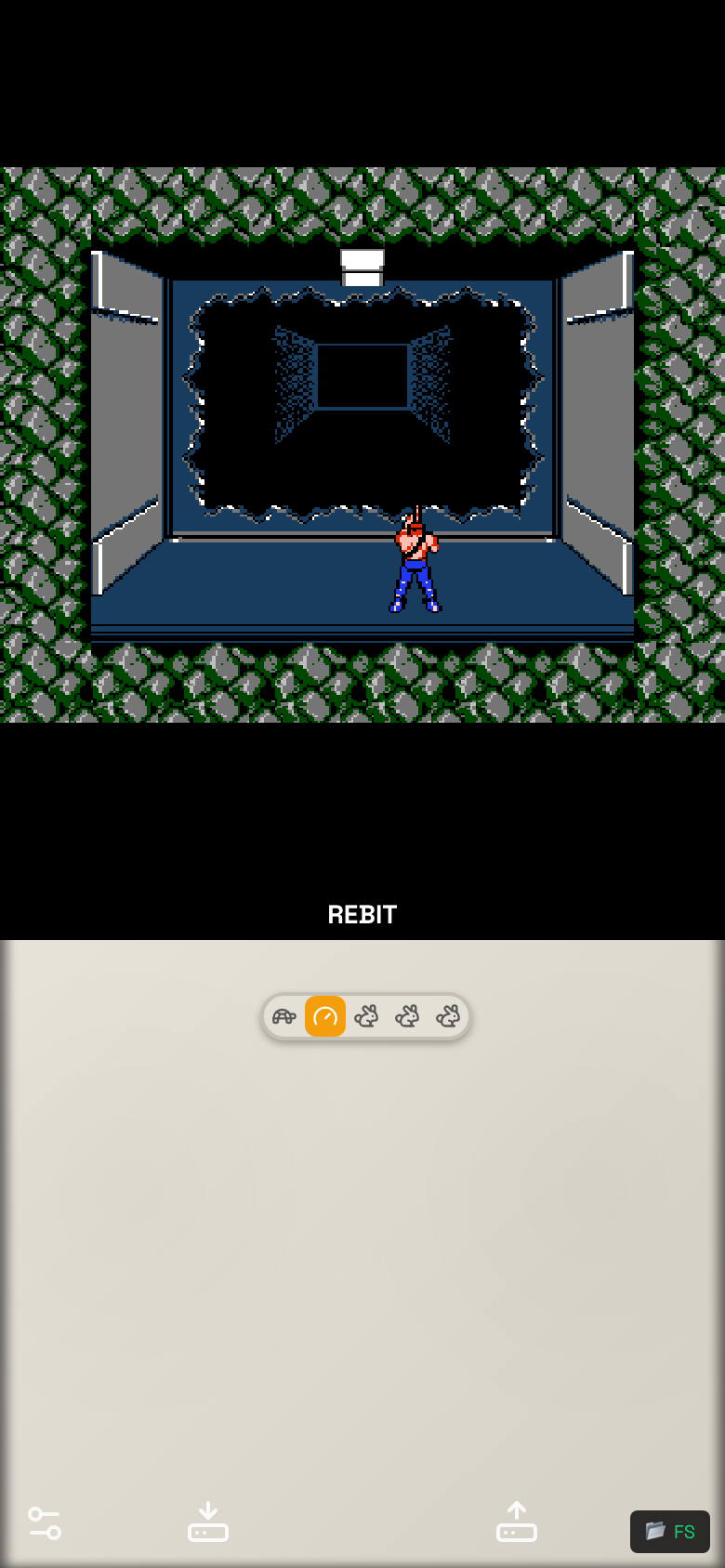
Add Cheats Manually
- Start the game.
- Open the in-game menu.
- Tap Cheats.
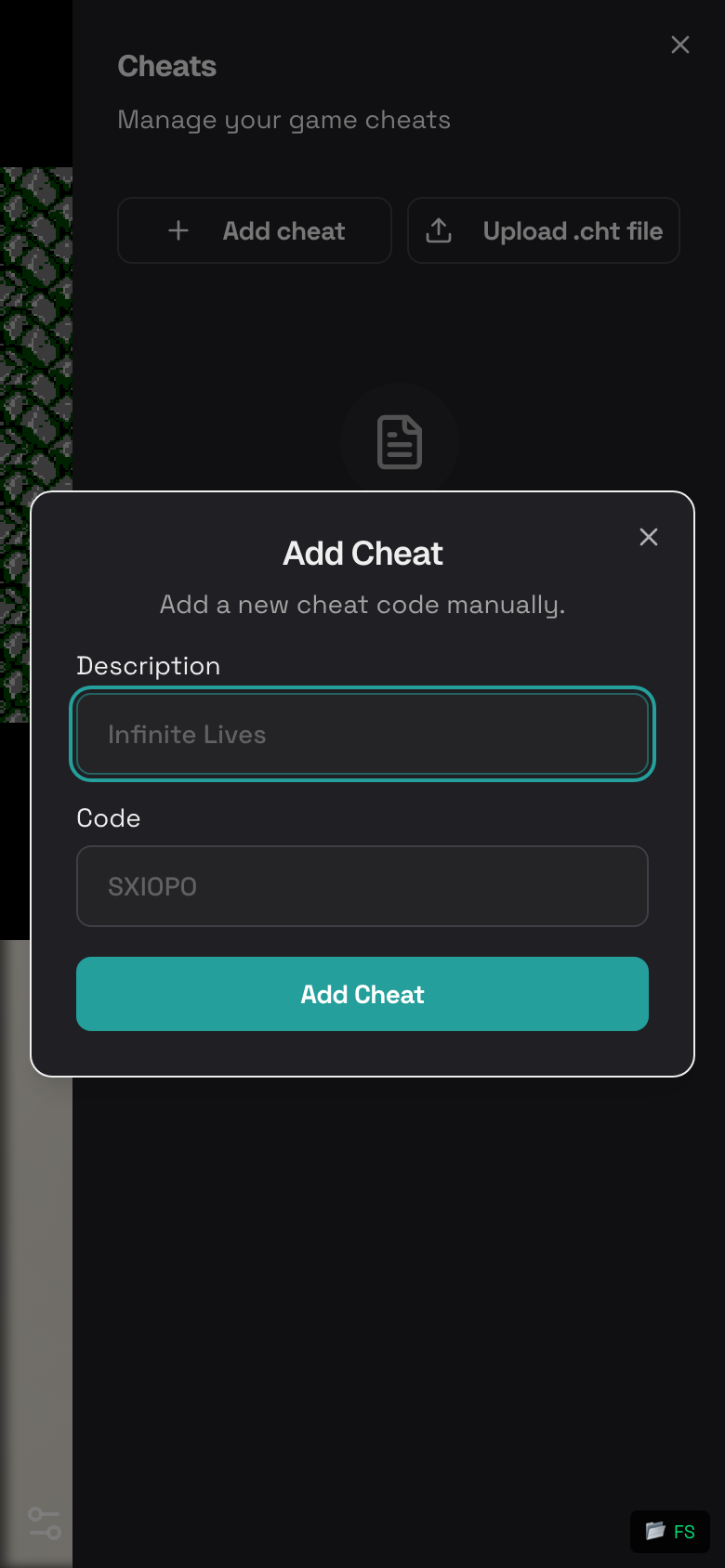
- Tap Add cheat.
- Enter a Description and Code.
- Tap Add Cheat.
Upload a Cheat File
- Start the game.
- Open Cheats.
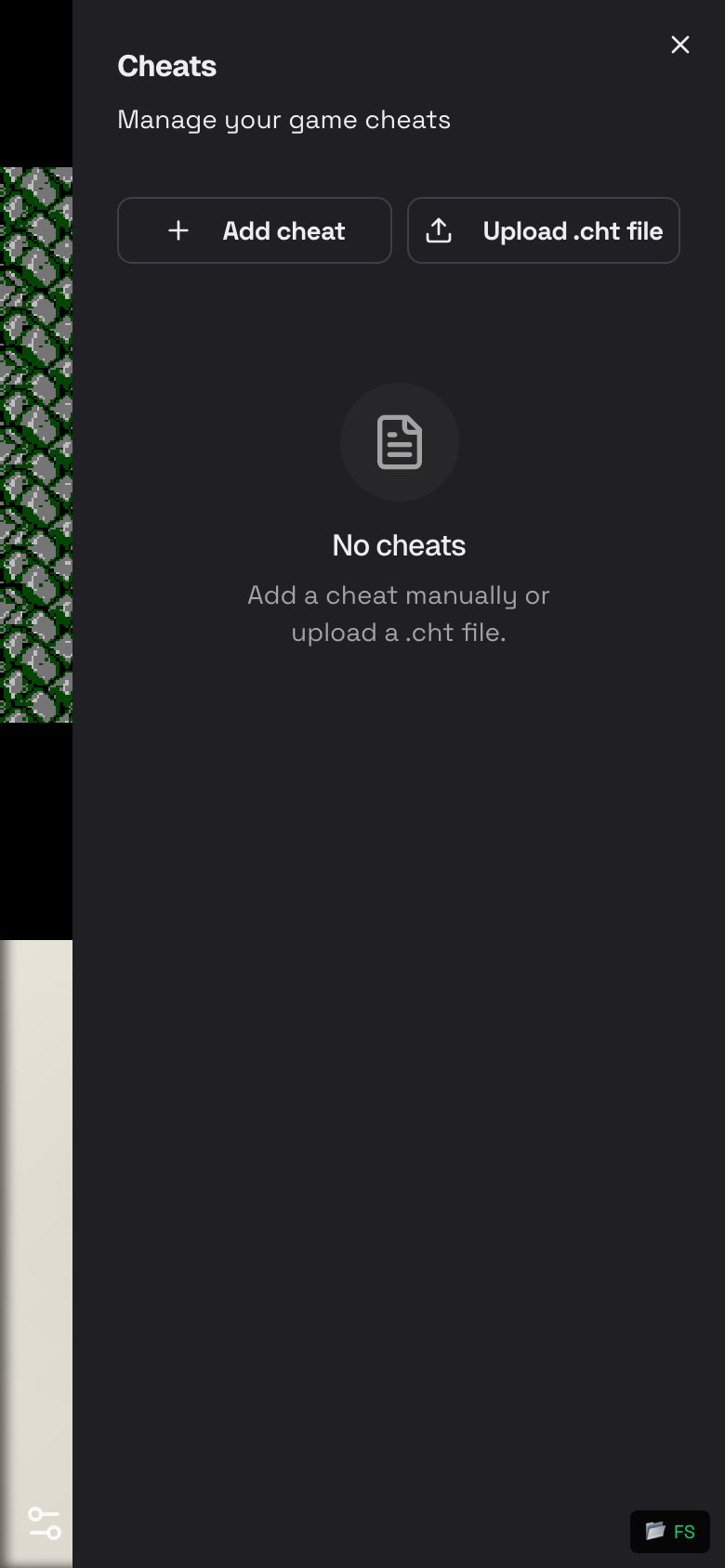
- Tap Upload .cht file.
- Choose a
.chtfile from your phone.
Turn Cheats On or Off
- Open Cheats.
- Use the switch beside a cheat to turn it on or off.
- Return to the game.
Delete a Cheat
- Open Cheats.
- Find the cheat you no longer want.
- Tap the delete option.
- Confirm if Rebit asks.
Only use cheats when you want to change the normal game experience. Some cheats may make a game unstable.