Settings
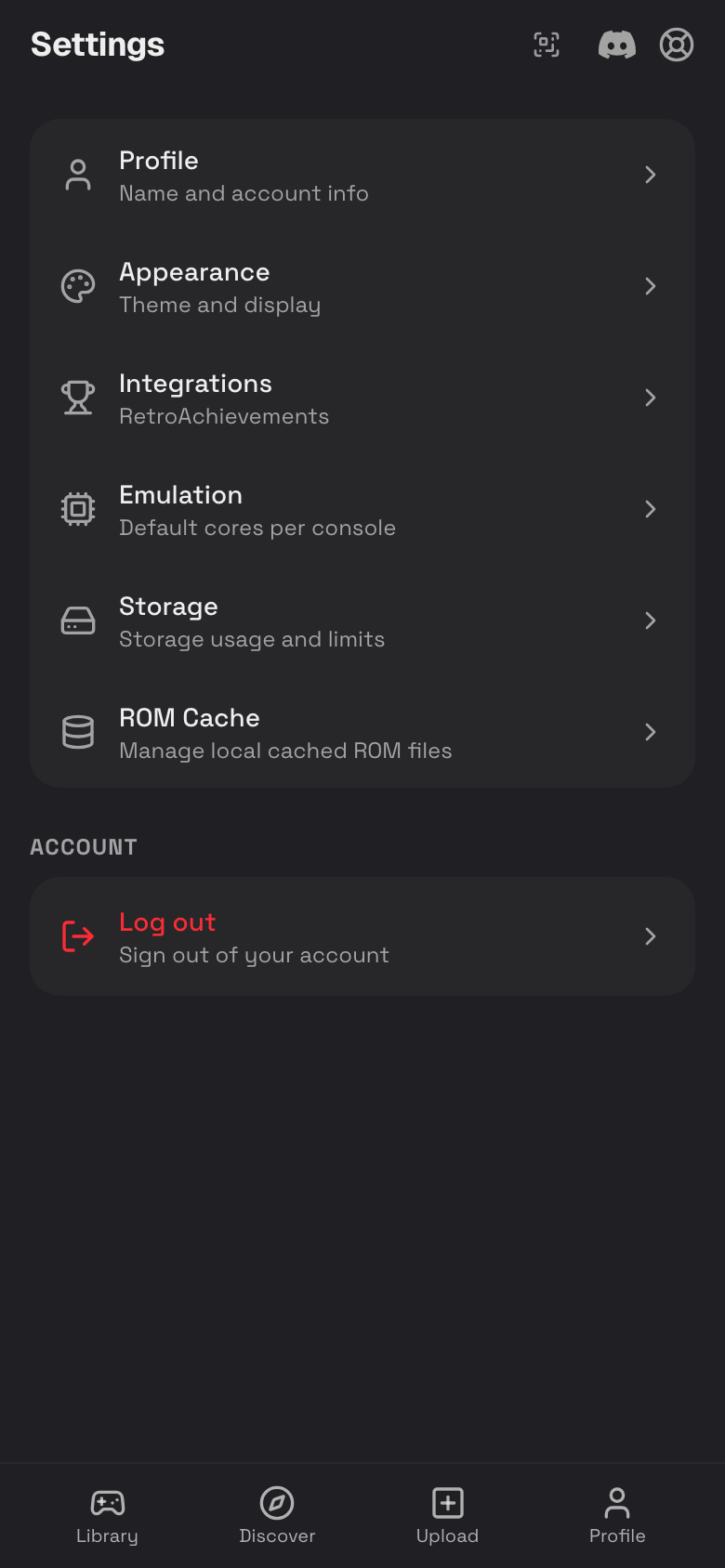
Settings is the hub for your profile, appearance, connected services, emulation defaults, storage, and local ROM cache.
Open Settings
- Tap Profile.
- Tap Settings.
- Tap a settings section.
Profile Settings
Use Profile settings to update your display name, username, and account details.
- Open Settings.
- Tap Profile.
- Edit Display Name or Username.
- Tap Save Changes.
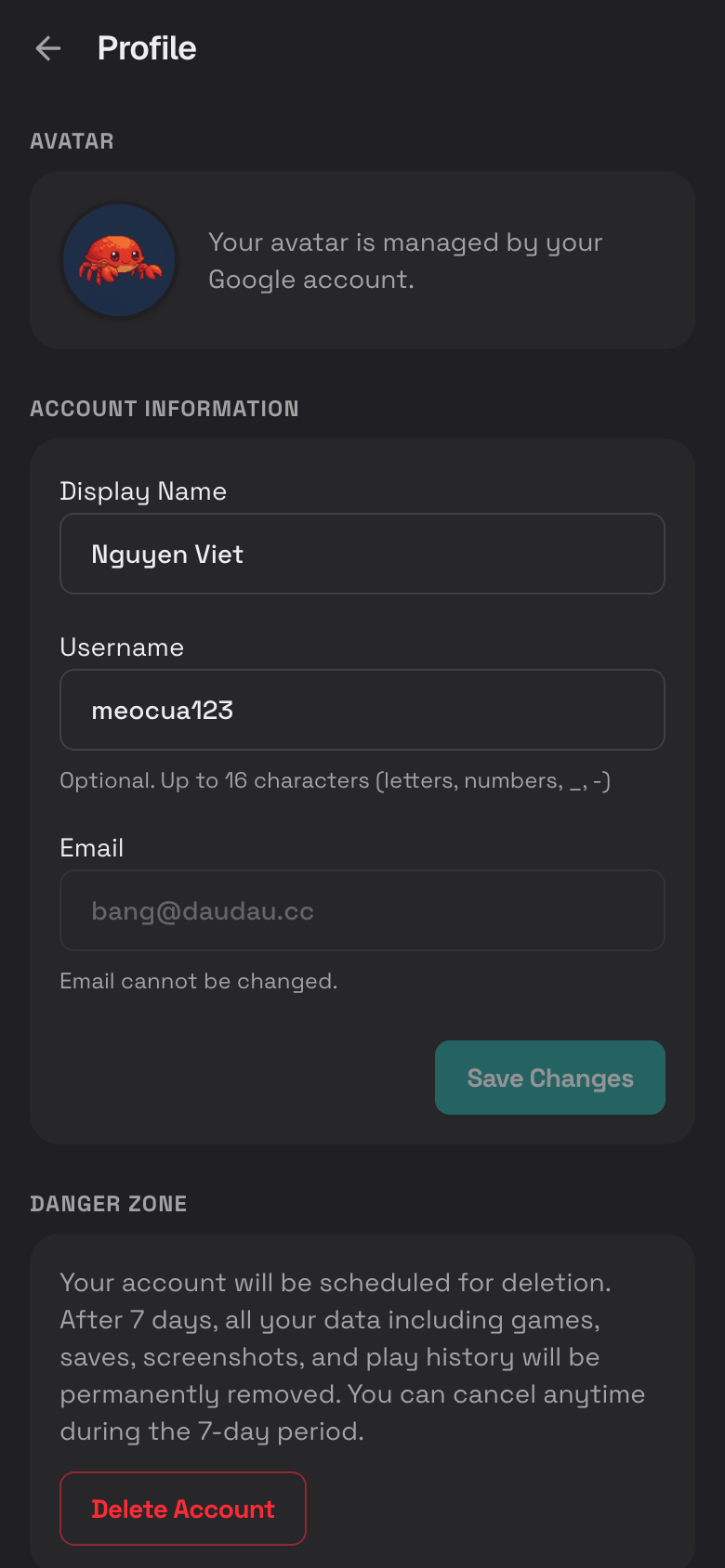
See Public Profiles for usernames, avatars, logout, delete account, and cancel deletion.
Appearance Settings
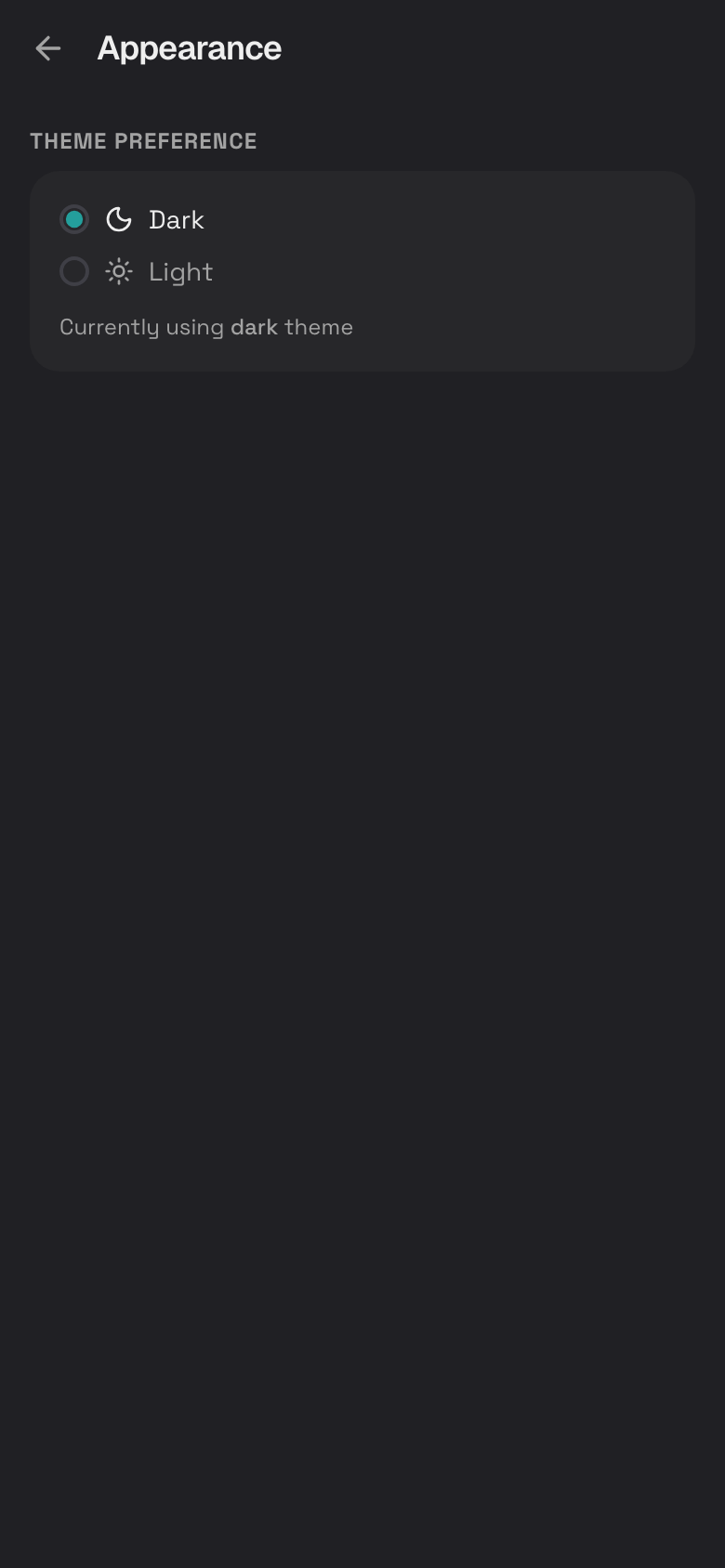
Use Appearance to choose between light and dark mode.
- Open Settings.
- Tap Appearance.
- Tap Dark or Light.
RetroAchievements Settings
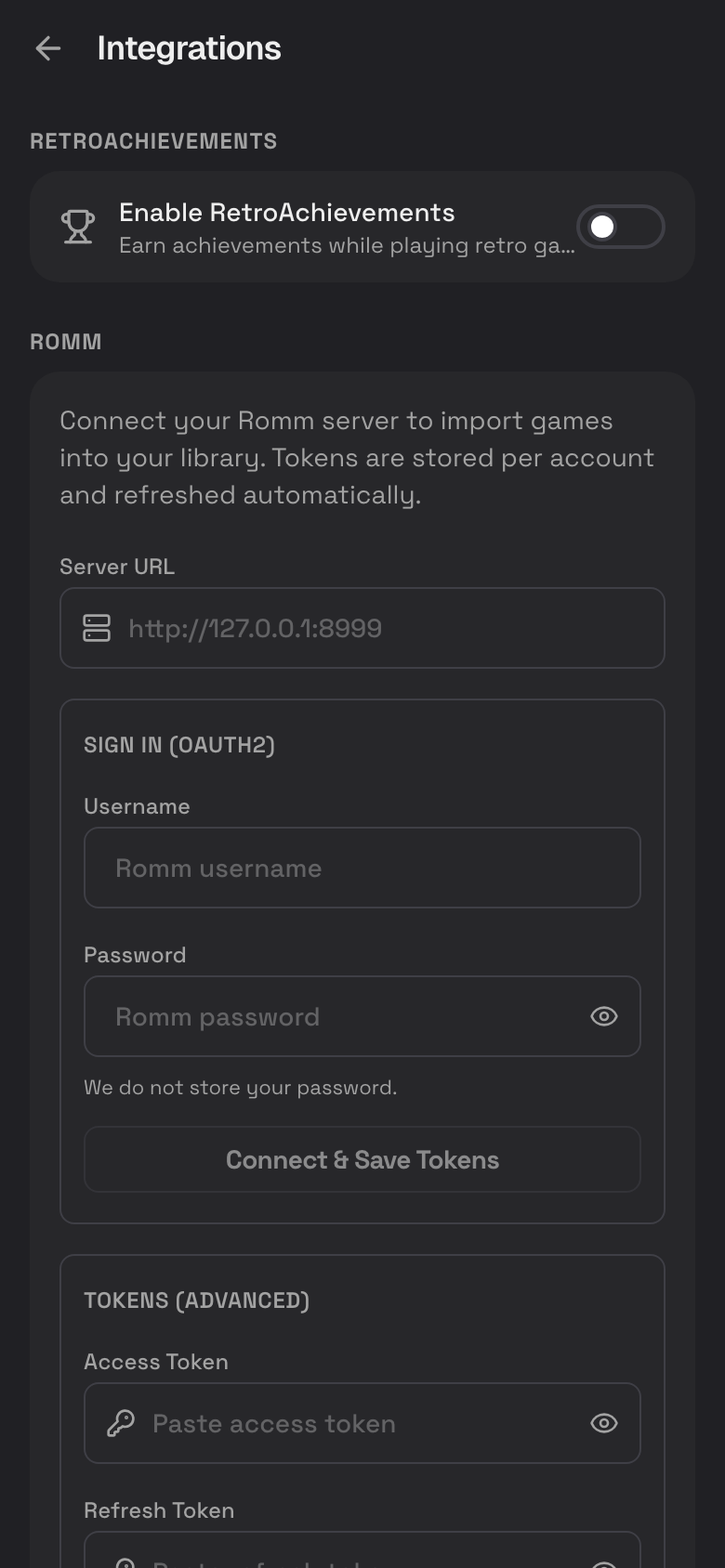
Use Integrations to connect RetroAchievements.
- Open Settings.
- Tap Integrations.
- Turn on Enable RetroAchievements.
- Enter your RetroAchievements username.
- Enter your RetroAchievements account password.
- Tap Verify Credentials.
- Optional: turn on Encore Mode.
See RetroAchievements for where achievements appear and how to troubleshoot them.
RomM Settings
RomM lets you import games from your own RomM server.
- Open Settings.
- Tap Integrations.
- Scroll to RomM.
- Update your RomM server to the latest version.
- Enter your Server URL.
- Enter your API Token.
- Tap Verify Connection if available.
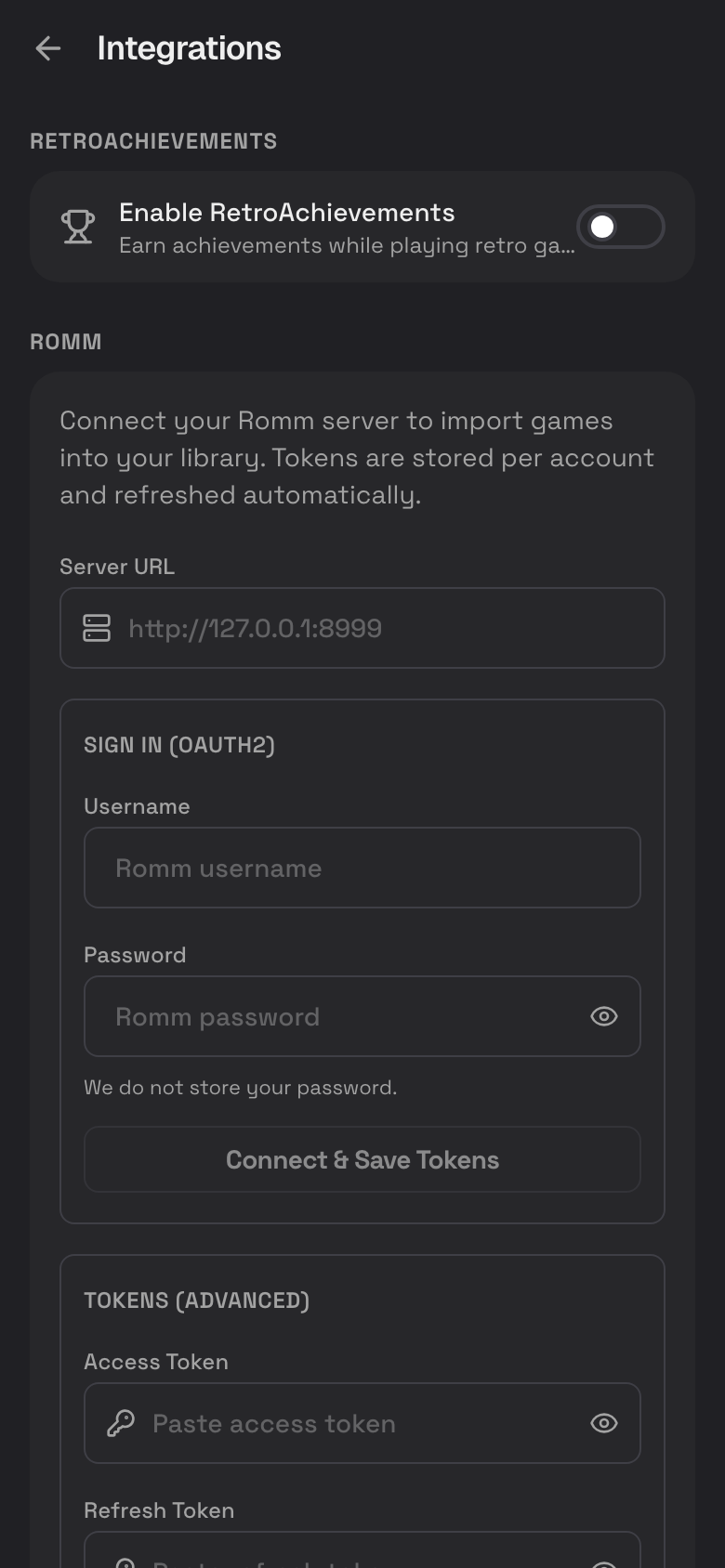
After connecting, use Upload Your First Game to search and import RomM games.
Emulation Settings
Use Emulation to choose the default core for each console. A core is the engine Rebit uses to run a game.
- Open Settings.
- Tap Emulation.
- Find the console you want.
- Tap the core selector.
- Pick a core.
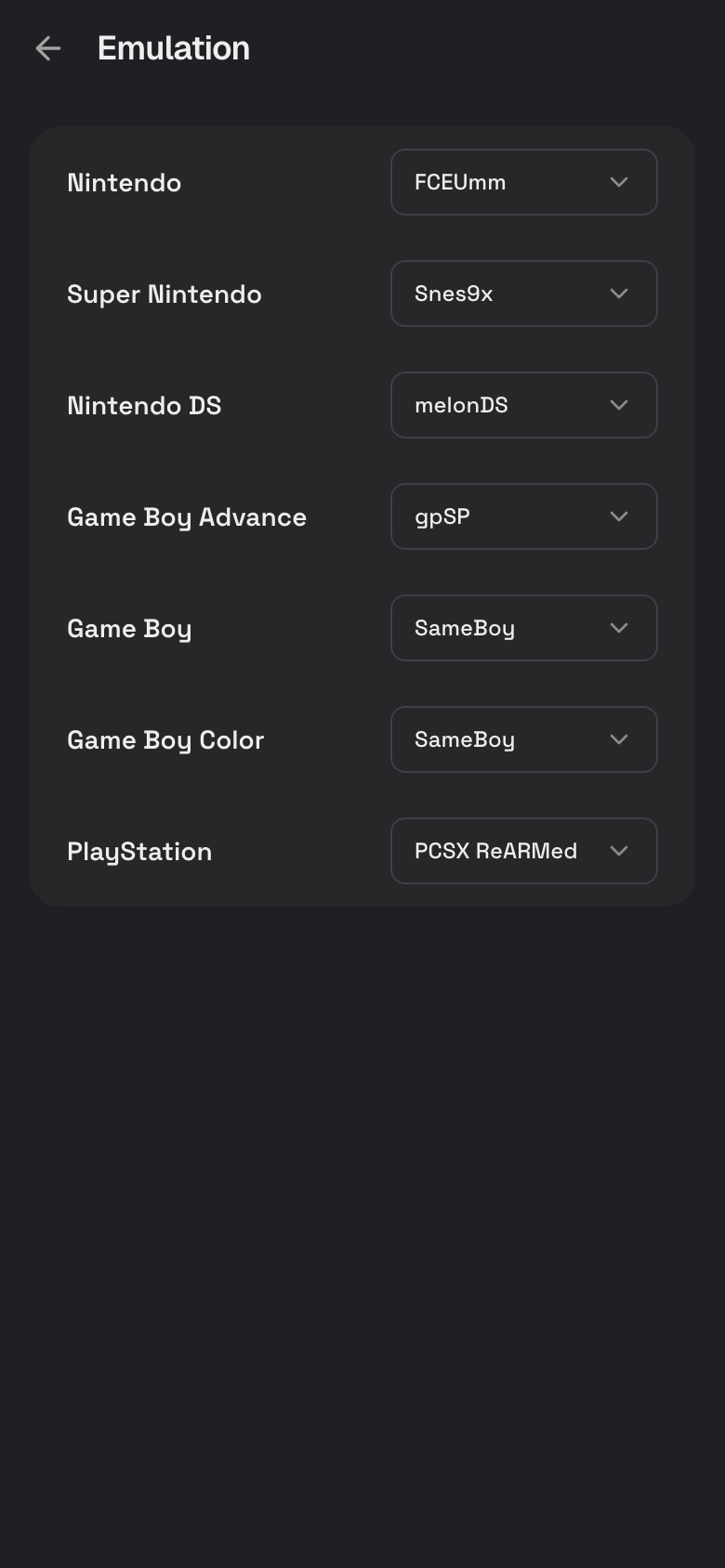
For one game only, change the current game core from In-Game Settings.
Storage Settings
Use Storage to see how much account storage you are using.
- Open Settings.
- Tap Storage.
- Review your usage bar.
- Check the breakdown for ROM files, save states, and screenshots.
- Delete files or upgrade if you need more room.
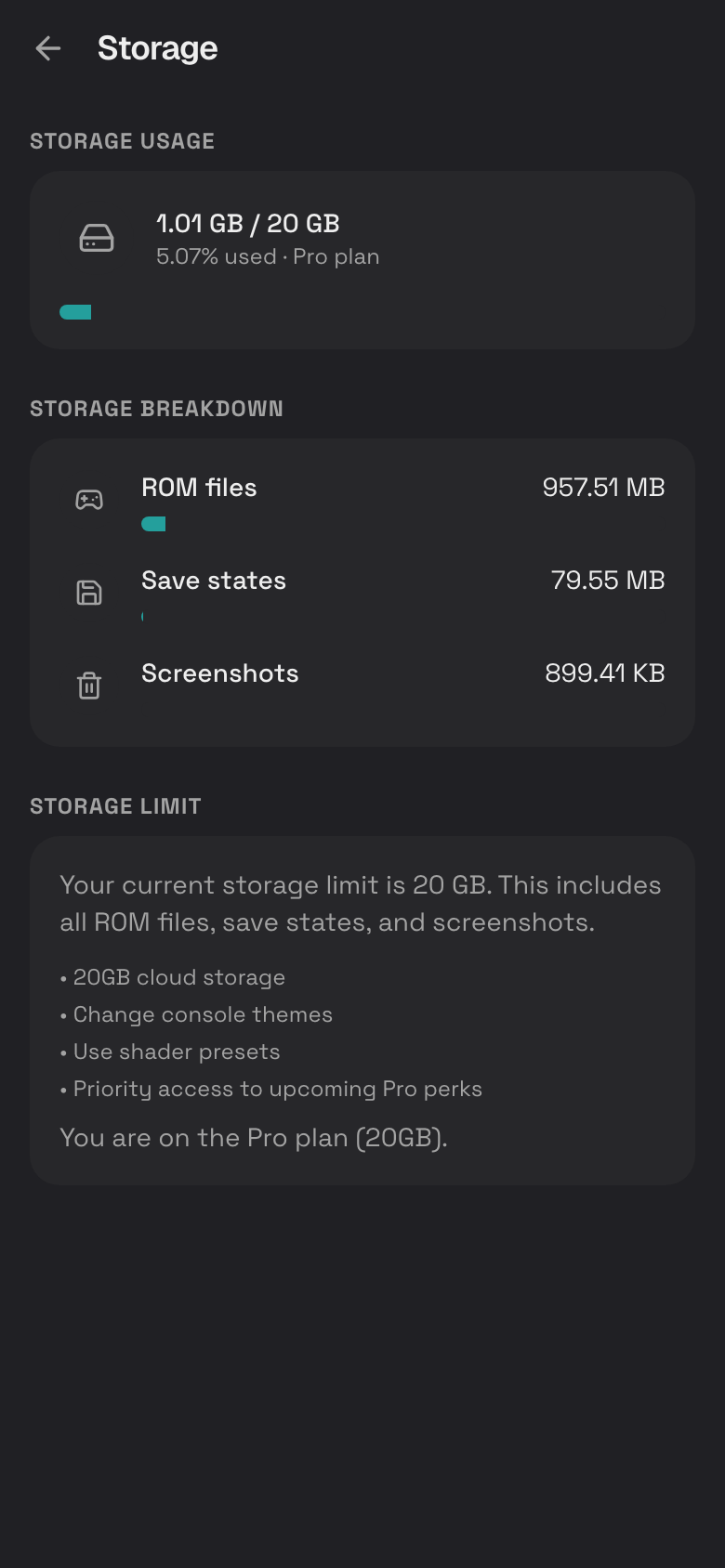
See Storage and Pro for cleanup steps, limits, and upgrades.
ROM Cache Settings
ROM cache is local storage in this phone's browser. It can help games load faster after you have opened them once.
- Open Settings.
- Tap ROM Cache.
- Tap Refresh to update the list.
- Tap the trash icon beside one cached ROM to remove it.
- Tap Clear All to clear every cached ROM from this browser.
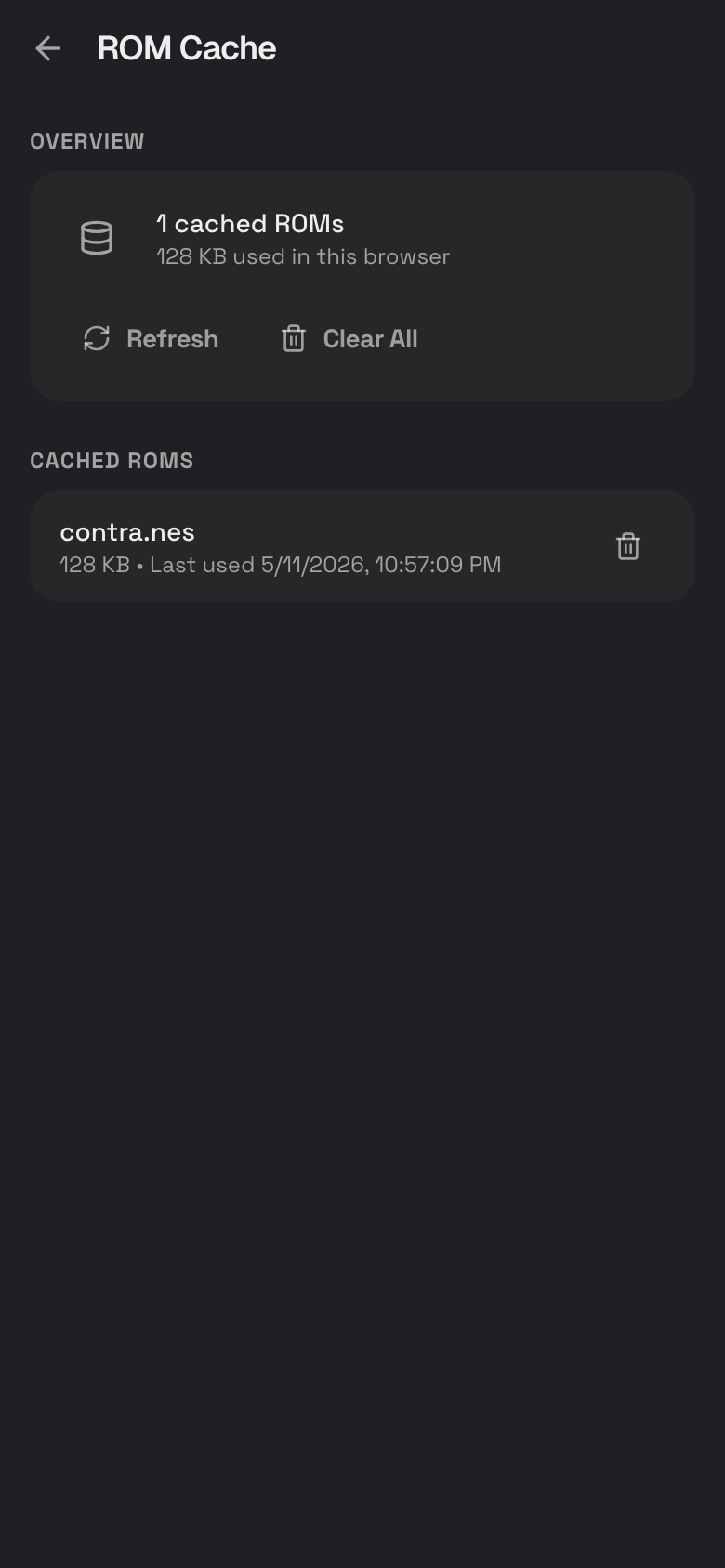
Clearing the ROM cache does not delete the game from your account library. It only removes the local browser copy on that device.
In-Game Settings
The play screen has its own settings drawer for saves, controls, cores, shaders, themes, and audio.
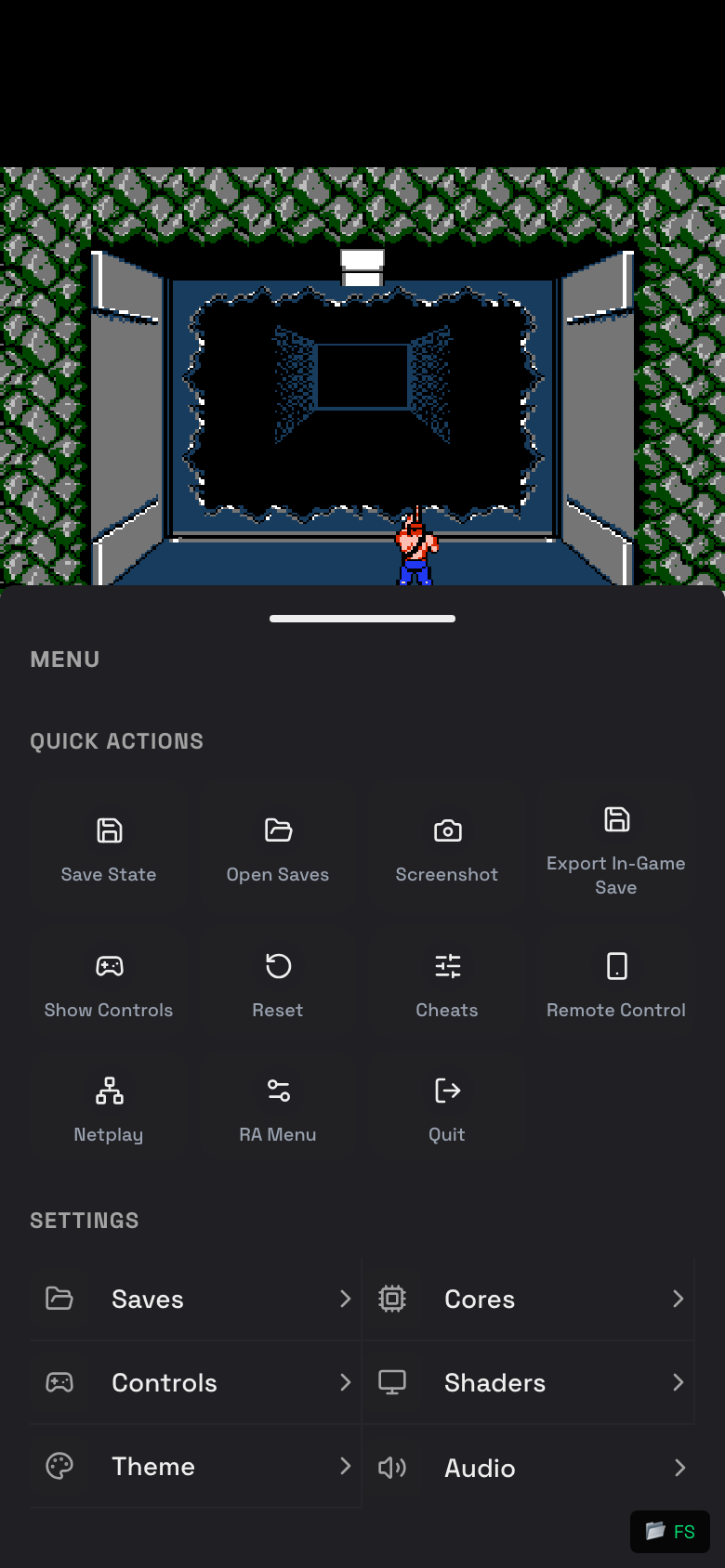
Use In-Game Settings for the full play-screen settings guide.