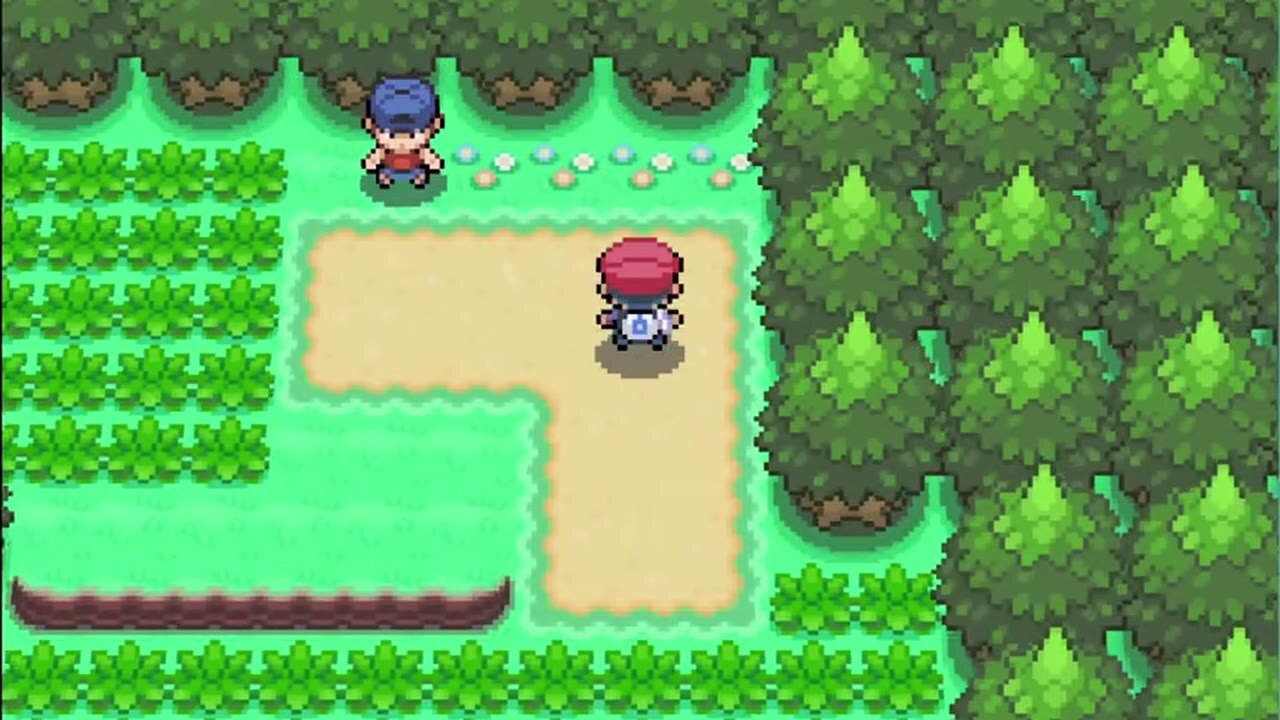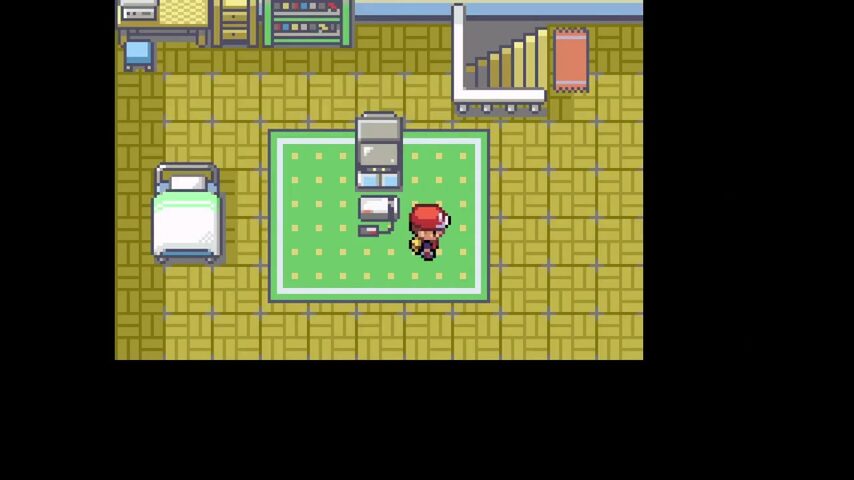
You saved in Doom. The slot had a name. Then you reopened the game and saw a program menu instead of your marine. Did the save disappear, or are you looking at the wrong part of the launch process? MS-DOS cloud saves involve both the emulated machine and the files the game wrote to its drive. Understanding those two pieces makes recovery much less mysterious.
Quick answer: Save inside the game, then use Rebit's Save State for your current position and Export In-Game Save for the game's drive changes. Wait for confirmation. Download the In-game entry for a separate backup. On a fresh launch, start the same executable from DOSBox Pure's menu; a pending state resumes after the game starts. Test the game's own Load menu separately.
We tested Doom 1.9 shareware with the real DOSBox Pure core and a local Rebit account on October 27, 2026. The downloaded in-game bundle contained Doom's DOOMSAV0.DSG. Separate fresh desktop launches restored the saved position and the game's named save slot. The phone guide documents an unresolved touch-launch limitation. Use game files you own or that are legally free.
What MS-DOS cloud saves actually preserve
DOS games commonly write progress into files on their emulated drive. DOSBox Pure keeps changes to a ZIP-based game's drive in a separate .pure.zip archive. That can include saved games, setup choices, and the program selected for automatic starting. Your original uploaded game package remains the starting material for the session.
Rebit packages those drive changes when it saves DOS progress. The two actions have different purposes:
| Action | What it stores | How to verify it |
|---|---|---|
| Save inside Doom | A game save written to the emulated DOS drive | Open Doom's Load Game menu |
| Rebit Save State | Emulator state plus the current DOS drive-change files | Reopen and resume the saved position |
| Export In-Game Save | The drive-change files without an emulator state | Load the In-game entry, then inspect the game's Load menu |
| Download an In-game entry | A separate copy of that Rebit save bundle | Confirm the download completed and retain the file |
The word Export is easy to misread. The game-menu action saves the in-game data to Rebit. The download action beside the saved entry creates a file on your device. Do both if you want a backup outside your account.
1. Create a small, recognizable in-game save
Use a harmless starting point for the first test. In Doom shareware, begin the first level, press F2, select a slot, type a short name, and confirm. Then open Load Game with F3 to check that the slot exists.
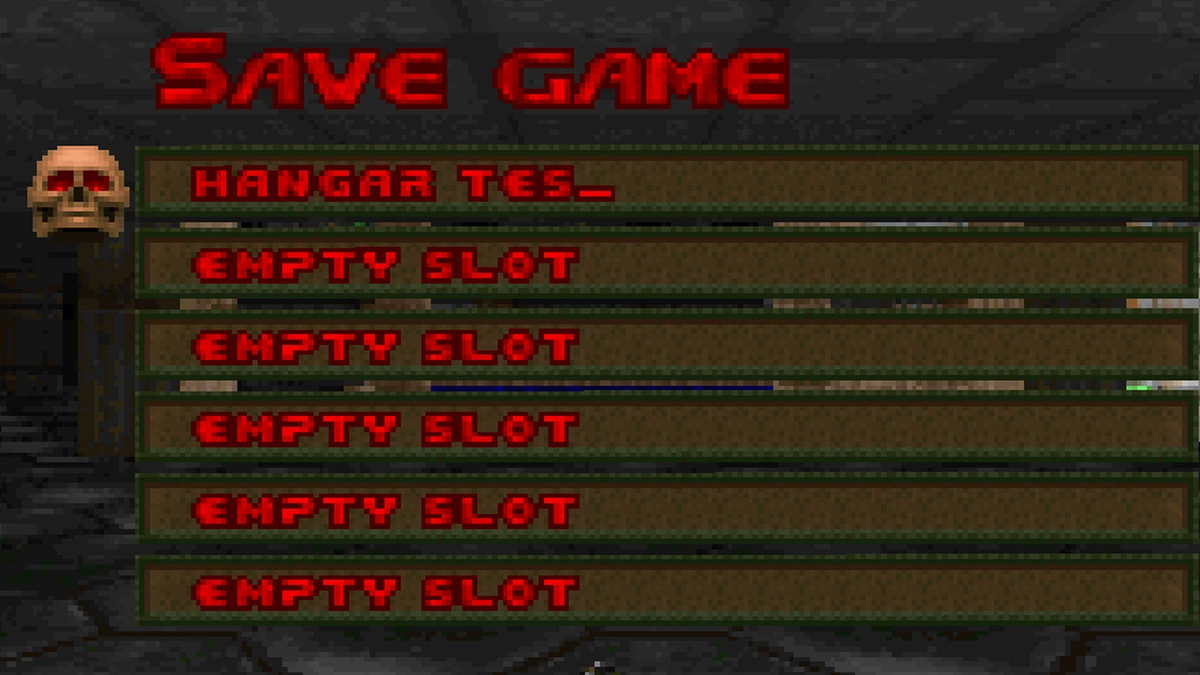
Doom's Save Game screen inside the emulator. This writes the game's own progress; it is not Rebit's cloud-save confirmation.
Make the checkpoint easy to distinguish: an opening room, a particular health value, or a short slot name. “I think this looks familiar” is a weak restore test. A named slot and a recognizable position give you two independent things to check.
Let the game finish its save before opening Rebit's menu. Exporting drive changes before using the game's save command cannot create a game checkpoint that was never written. The same principle applies to a setup utility: finish and accept its changes before expecting them in a later drive export.
2. Store both kinds of progress in Rebit
Open Rebit's menu/settings control while the DOS program is running. Choose Save State and wait for the success message. Then choose Export In-Game Save. Read the reminder, confirm that you already saved inside the game, and continue.
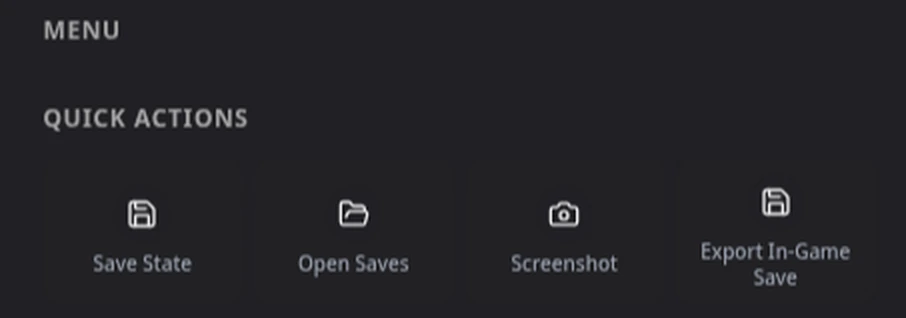
Save State preserves the current machine position. Export In-Game Save stores the game's drive changes.
Open Open Saves and look at the Manual and In-game tabs. Check the recent entry and thumbnail, rather than closing the browser as soon as you press Save. The operation still has to create the bundle and upload it.
We performed these actions with a non-Pro account. This is not a promise of unlimited storage or every autosave setting: the available choices still depend on account limits and settings. The important distinction is that manually saving the tested DOS session did not require a DOS-specific upgrade.
3. Download the in-game bundle
In Open Saves > In-game, use the entry's download button. You can also reach saved entries through Manage saves on the game details page. Keep the completed download alongside your own record of the game version and the checkpoint it represents.
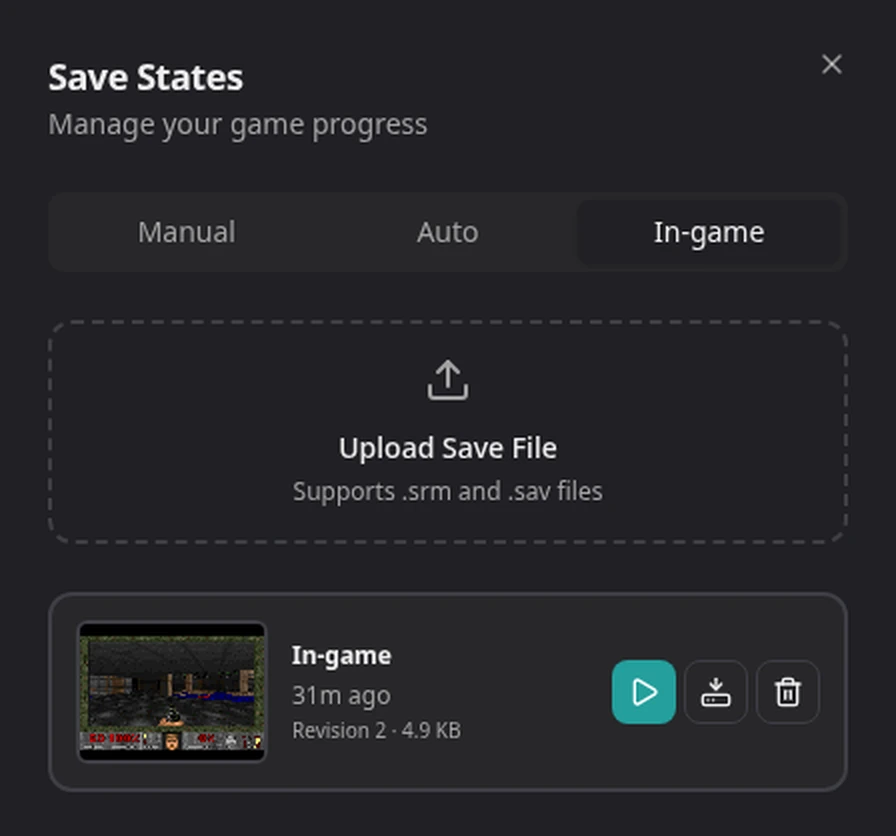
The exported DOS drive save in Rebit. The download icon creates the separate backup used in our inspection.
The download may end in .srm, because it travels through Rebit's shared in-game-save workflow. For DOS, its contents are a Rebit archive, not a cartridge's raw battery memory and not simply one Doom save file. In our test it contained a format manifest and a .pure.zip with DOOMSAV0.DSG inside.
Keep the bundle intact when bringing it back into Rebit. The Upload Save File interface accepts .srm and .sav filenames, but an accepted filename is not format conversion. An unrelated cartridge save or a bare Doom .dsg renamed to .srm is not a valid Rebit DOS bundle.
This also prevents a portability mistake: do not assume another emulator accepts the whole Rebit download as its native save format. We verified the Rebit workflow, not a conversion to every desktop DOSBox variant. Preserve your original backup before experimenting with other tools.
4. Restore a state and recognize the start menu
Reopen the same game in your library. A DOS state may first show the DOSBox Pure start menu. Rebit's resume tip tells you to start the game from that menu so the saved position can continue.
Select the same executable you were running when you saved. For this package, that is DOOM.EXE. Starting SETUP.EXE or DM.EXE is not a meaningful test of a Doom gameplay state. Once the game starts, compare the restored position with your checkpoint.
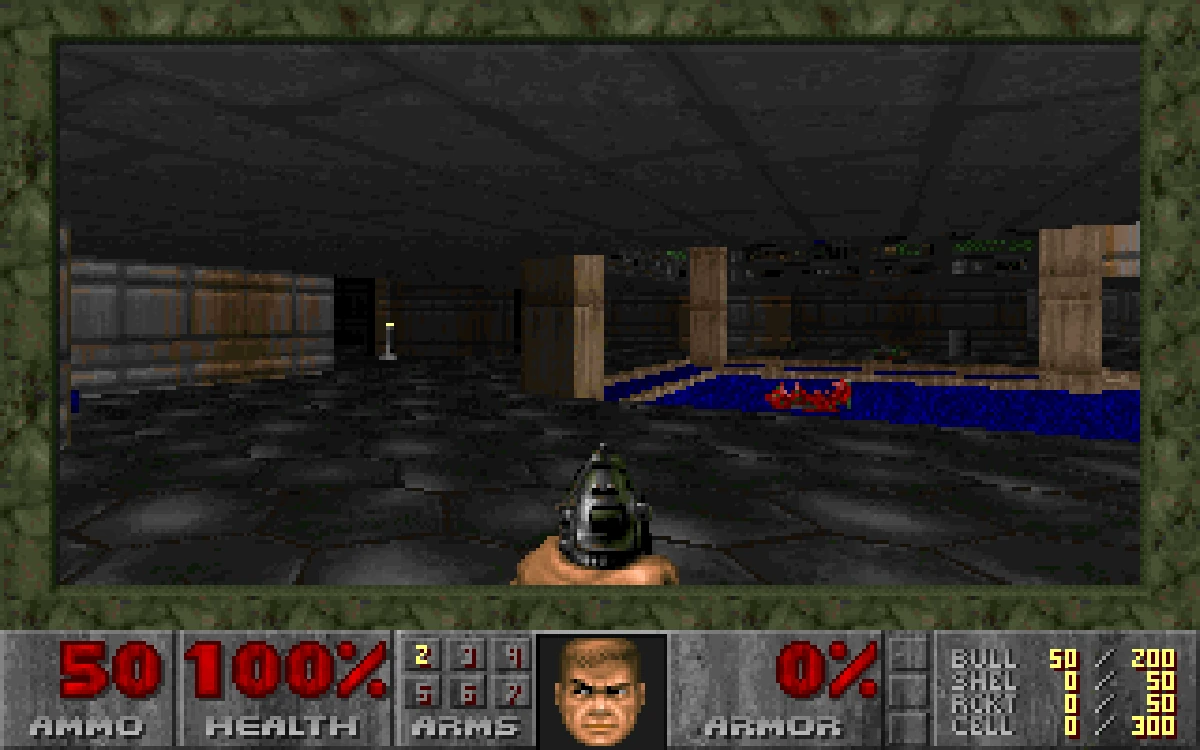
The desktop session after reopening the game and launching DOOM.EXE. The saved Hangar position returned.
An older state saved before Rebit bundled DOS drive changes may contain only the machine state. It cannot supply drive files it never included. If an old state resumes but the game's named save is absent, create a new in-game save, export it, and test a new bundle before relying on that workflow.
States also depend on the game and core. Rebit validates the build identity for its bundled DOS states. Keep an in-game export as well as a state before changing a package or emulator version; do not treat a state as a universal migration format.
5. Test the in-game save independently
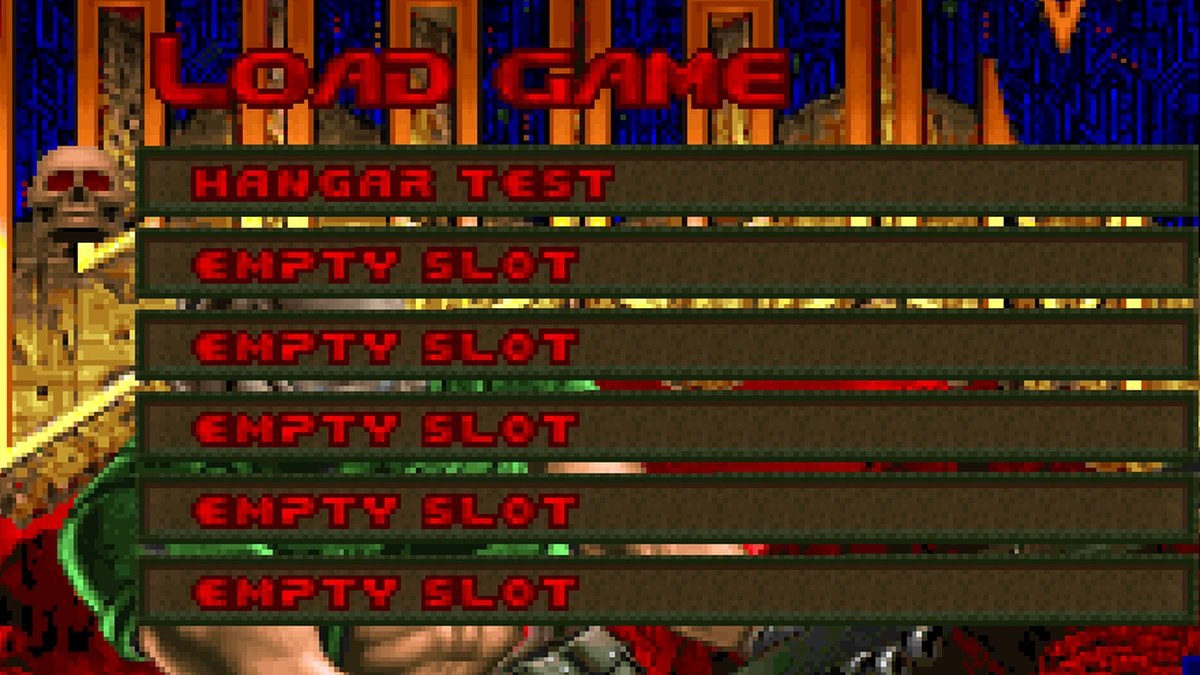
To verify the disk side, leave the play screen and open the game's details page. Choose Manage saves > In-game, then Play from save on the exported entry. This starts a fresh session with that save selected. Launch the game and open its own Load menu. Our Doom slot, HANGAR TEST, appeared even though we had selected only the in-game export, without an emulator state.
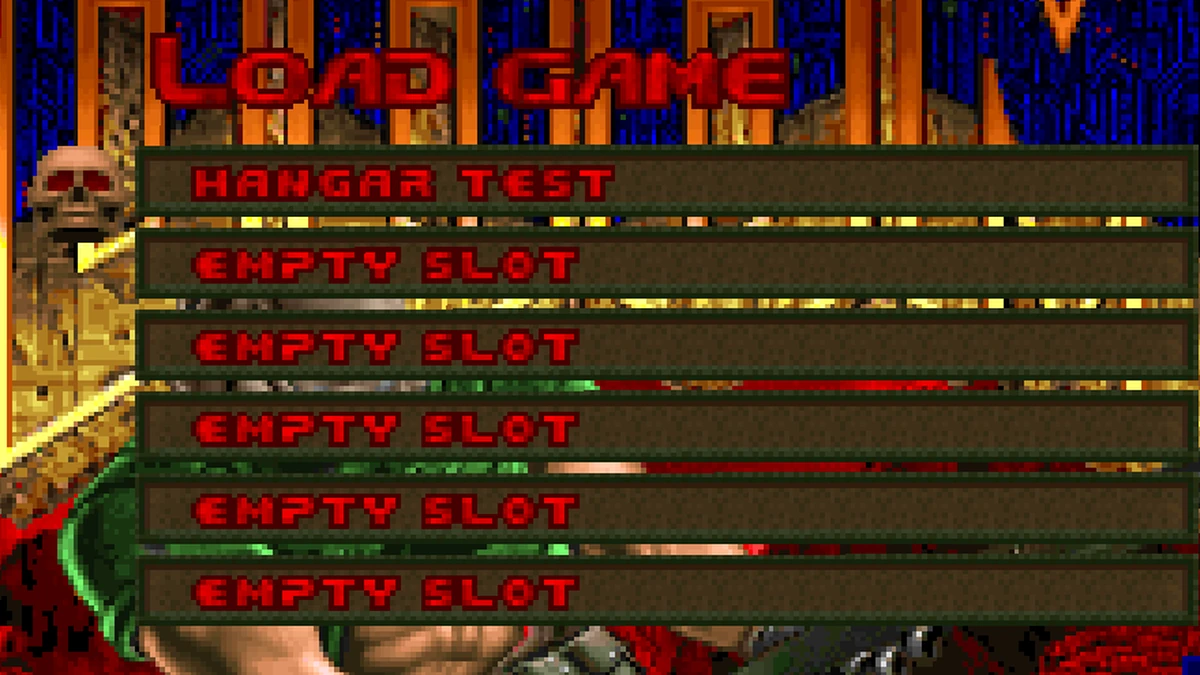
The named checkpoint recovered from the in-game bundle in a fresh desktop session.
The running session's Open Saves panel also offers a play action, intended to restart with the in-game data. That route became unresponsive during our test. If it stalls for you, close the play screen and use the fresh Manage saves > Play from save route above. Keep the exported entry; the failed restart did not mean its save file was missing.
This test matters because loading a state during an already-running DOS session restores the machine state; the DOS drive-change files are restored during launch. A visible return to an earlier room is not, by itself, proof that every file currently mounted in that running session was replaced.
For a move to another device, use the same account and the same library entry. Confirm the uploaded save is listed there before resuming. Re-uploading the original game ZIP is not the transfer step for progress. If the destination cannot launch or control the game, keep the confirmed desktop copy and backup while you resolve that separate problem.
See Saves, Screenshots, and Cheats for the shared UI and cross-device retro gaming for the account workflow. Our phone captures are Chromium viewport checks, not physical Android or iPhone restore certification.
Autosave is a rolling history, not an archive
Open Saves in the in-game settings to enable autosave, choose an interval, and set Max Auto Saves. DOS autosave uses the same state-and-drive bundle path. DOSBox Pure cannot create the normal gameplay state while sitting at its start menu; Rebit skips that autosave failure instead of presenting it as a saved checkpoint.
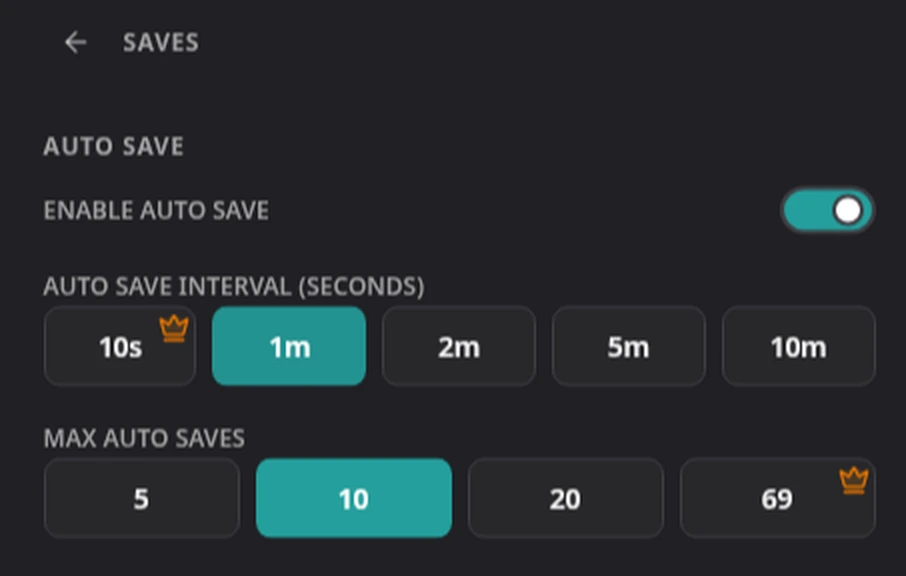
The save settings available in the tested client. The 10-second interval and 69-save history are Pro options.
Older automatic entries are removed when the configured history limit is exceeded. Keep a deliberate manual checkpoint and a downloaded in-game export before a risky change. A save attempt can also fail when the resulting bundle exceeds the 10 MiB upload limit; wait for the actual result instead of assuming that enabling autosave guarantees protection.
Troubleshooting FAQ
Why does my game save exist before closing but disappear afterward?
First distinguish a game write from a completed Rebit export. Save inside the game, export, verify the In-game entry, and load that entry for a fresh test. That sequence checks the full path instead of only the game's local save menu.
Why does a state return to the program selector?
The saved program must be running before DOSBox Pure can accept the state. Start the same executable and let it resume. The selector alone does not mean the save was deleted.
Can I delete the game and keep its saves?
Deleting a library game also removes its related saves. Download your in-game backups first. If you are only troubleshooting the launch program, use the DOS file guide rather than deleting a working library entry.
What is the safest first experiment?
Use the browser walkthrough to create a recognizable early checkpoint, confirm the cloud entry, download it, and reopen it. Once those steps work for your game, you have evidence that your next session can start where this one ended.