If your browser retro game has no sound, first check the control for what you are doing: in Rebit, players use Audio → Master Volume, while live spectators select Sound because Watch starts muted. Then check whether the browser or device is muted. Turn volume up gradually, rather than setting every control to maximum.
A moving picture does not tell you which audio setting is responsible. Work through one change at a time and listen at a moment when the game normally makes a sound—a menu selection, title tune, or familiar action. A quiet scene alone is not a useful test.
1. Are you playing, watching, or hearing only the menu?
| What you see or hear | First check | What this tells you |
|---|---|---|
| You control the game, but it is silent | Open the play menu, select Audio, and raise Master Volume a little | Checks the game's listening level |
| You opened a live Watch link and see the match | Select Sound in Watch | Live Watch starts muted; silence alone does not indicate a broken match |
| Big Picture navigation makes noises, but the game does not | Check the game's Master Volume | Menu feedback and game audio use separate controls |
| The game sounds normal, but menu feedback is silent | Check Interface sounds in the Big Picture quick menu | This switch controls navigation feedback, not the game's soundtrack |
The player controls are documented in In-Game Settings, and the spectator behavior is described in Multiplayer Replays and Live Watch. Big Picture's Interface sounds switch does not replace either of them.
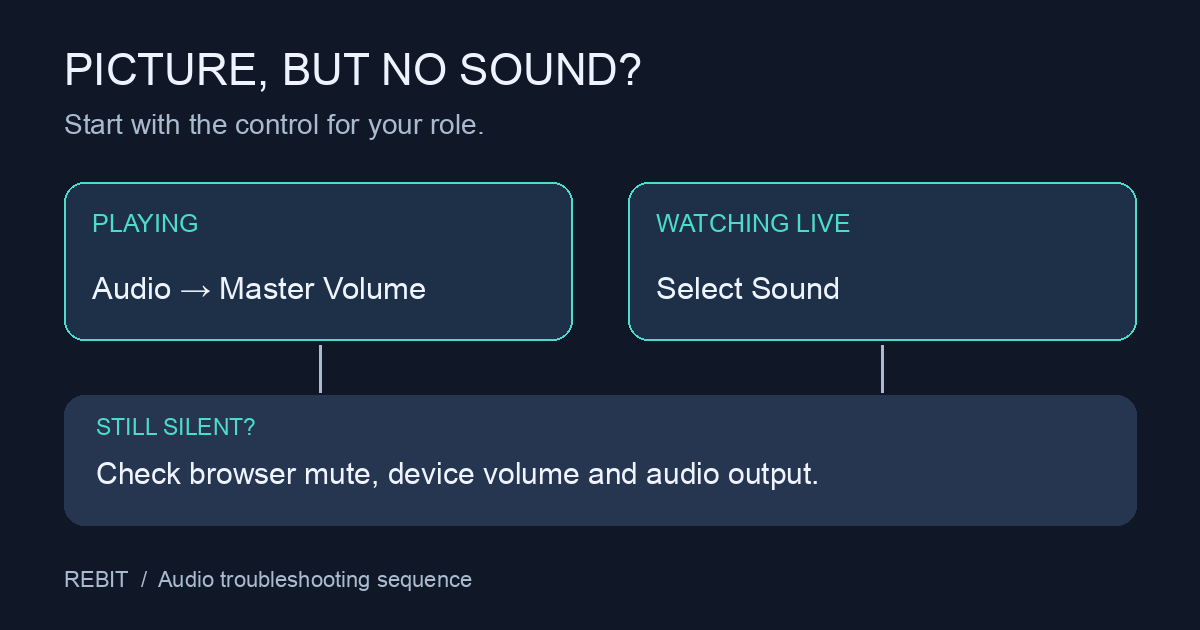
An illustrated troubleshooting sequence, not a screenshot of the app.
2. Give the page a deliberate interaction
Click or tap the game's page, use its on-screen menu, or select the visible sound control if you are watching. Then listen again. This is particularly worth trying just after opening a link.
Browsers can block audio that starts without user interaction, including audio produced through Web Audio. A click or tap can matter, but it is not a universal fix: the exact rules depend on the browser and its settings. MDN's autoplay guide explains that distinction.
If the browser shows that the tab or site is muted, unmute it. The wording and location vary by browser. There is no need to disable autoplay protection globally just to diagnose one silent page.
3. Check where the device is sending sound
Look at the device's selected audio output. Is it the speaker or headset you intend to use, or a connected Bluetooth device or display elsewhere? Check media volume on that output, including a physical headset volume control if it has one.
Next, manually play a short piece of audio you know works in another browser tab, using the same output device. Pause it before returning to the game.
- Neither tab produces sound: focus on browser mute settings, device volume, and output selection first. Changing the emulator core is unlikely to be a useful first experiment.
- The comparison tab works, but Rebit does not: return to the player-versus-Watch check and the page's mute controls. This narrows the search; it does not prove the game file is broken.
- Sound returns when you change output: note the original output device. You now have a reproducible condition to investigate instead of changing several unrelated settings.
If other Rebit games already in your library work, note whether the silence affects only one title. Use your own legally owned files; Rebit does not provide copyrighted ROM downloads.
4. Separate silence from broken-up audio
Crackling, stuttering, or sound that slows with the picture is a different symptom from complete silence. Raising volume makes a faulty sound louder; it does not establish why playback is uneven. Rebit's performance troubleshooting guide is the better next step when the picture also struggles.
Avoid switching cores or clearing site data as your first audio test. Those changes add new variables. If you eventually need to reload the game, save your progress first; in a multiplayer room, coordinate with the other players before interrupting the session.
Still silent? Send a report someone can reproduce
Instead of “audio broken,” collect the few details that distinguish these cases:
- Game title and system; whether you are playing or using live Watch.
- Device, operating system, browser name and version.
- Whether sound never started or stopped after an action, such as changing headphones or returning to the tab.
- Whether another browser tab plays audio through the same output.
- Which game or Watch sound control you checked, and what changed after clicking or tapping the page.
For example, a useful report would be: “Live Watch shows the match on my laptop. I selected Sound, but it remains silent. Another tab plays through the same headphones. It began after I changed the audio output.” That is an example of a report, not a recorded Rebit incident.
Once you have sound, return to the same game moment and confirm the result before changing anything else. If you are just starting to play retro games online, this short check keeps a silent first session from turning into an unnecessary full setup reset.