If your controller works in Rebit's menus but not inside a game, try a known working touch or keyboard control in that same game screen first. If that works, inspect the game's control mapping. If neither works, check whether the game is paused, waiting for a different action, or no longer responding before remapping your controller.
Menu navigation is useful evidence, but it does not prove that the button you pressed is assigned to the right in-game action. This guide covers a physical USB or Bluetooth gamepad. It is separate from pairing a phone through Remote Controller, and it does not certify any particular controller model.
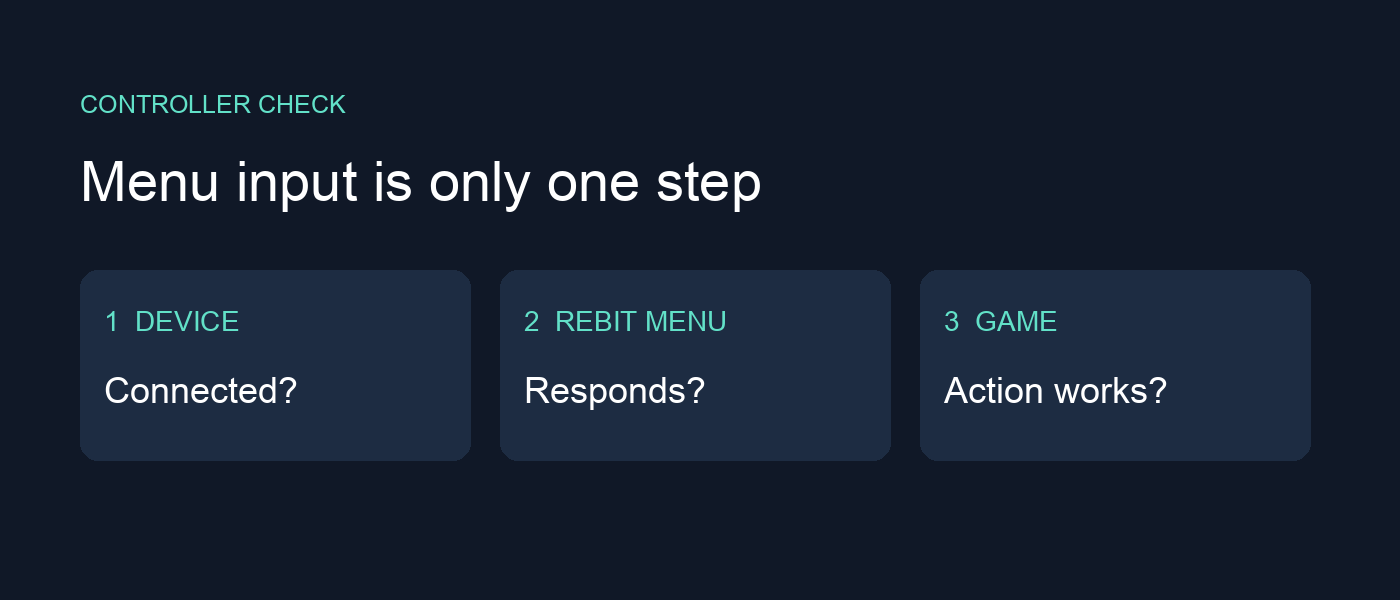
Check three different steps
A controller can pass one step and fail the next. Keep these observations separate:
| Step | What you can observe | What it does not establish |
|---|---|---|
| Device connection | Your computer or phone lists the controller as connected | The browser page has received its input |
| Rebit navigation | The controller moves through Big Picture or selects a game | Every in-game action has a suitable mapping |
| Game input | A direction or action changes the running game | Every other button or multiplayer seat works |
Rebit's Big Picture documentation explicitly separates its navigation controls from the buttons configured for gameplay. For example, the bottom face button selects an item in Big Picture. Inside a game, test the action shown in your game mapping rather than assuming that the same button must also confirm a menu.
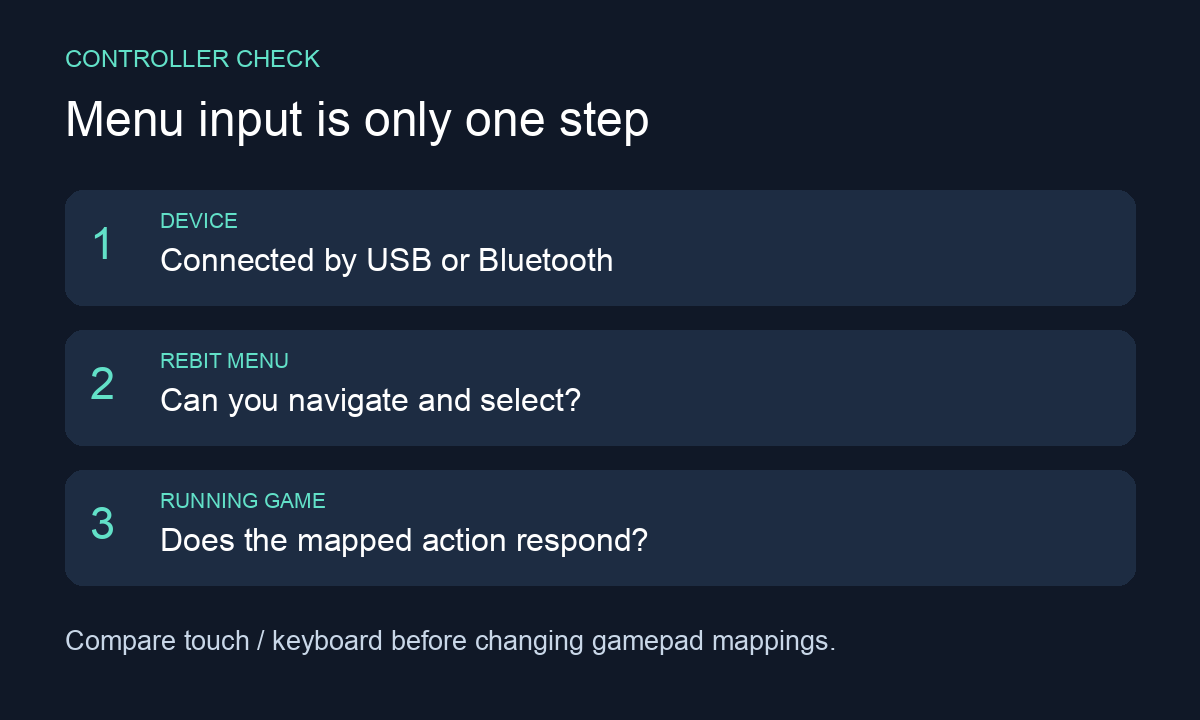
An original troubleshooting diagram, not a hardware test result.
If Rebit does not detect the controller at all
Connect the controller, select the Rebit window, and press a physical button with the page visible. Rebit's playing guide recommends that sequence before changing mappings.
There is a browser reason for the extra press. MDN's Gamepad API guide explains that a controller already connected before a page loads can become visible to that focused page after a button press or stick movement. It also documents Firefox's requirement for interaction with a visible page. A paired controller and a controller exposed to a website are different milestones.
If nothing changes, check the device connection itself. Close another game or tab using the controller, then return to Rebit and try again. Record whether the controller works in another application. That comparison helps locate the failure; success in a native emulator does not guarantee that the same browser setup supports it.
If menus work, compare one action inside the game
Use a safe area or ordinary game menu, not a trade, boss fight, or save-deletion screen. Keep your current mappings visible or take a screenshot before editing them.
- Close the Rebit settings drawer and return to the game. Confirm it is waiting for player input rather than showing a cutscene.
- Test one direction or action with touch controls or a keyboard mapping you know works. Use Show Controls if the touch overlay is hidden.
- Try that same action with the physical controller.
- If only the physical controller fails, open Settings > Controls or the in-game Controls section. Connect the controller before following the mapping editor's prompts.
- Change only the failed action, return to the same game screen, and test it again. Check both pressing and releasing the button.
Do not rebuild every mapping because one button fails. A working direction with a missing action button is a different result from a controller that sends nothing. Also test an action the original game actually uses: a modern controller has more buttons than many older systems.
If both input methods fail, a mapping change may solve nothing. Check the game's pause/menu state and whether animation still progresses. For a multiplayer session that has stopped advancing, use the netplay freeze guide rather than treating the symptom as a controller diagnosis.
If it works at first and then stops
Note what happened immediately before the failure: changing windows, locking the screen, reconnecting the controller, or opening another application. Select the game window again and press a button. Record whether this alone restores input.
If the controller supports both Bluetooth and wired data, try a short wired session as a separate comparison. Keep the game, browser, and mappings unchanged. A wired success narrows the investigation; it does not prove that Bluetooth is the only cause or that every cable carries data.
Avoid refreshing a multiplayer room as the first experiment. Tell the other players before leaving, and preserve your progress through the active mode's save workflow. Reconnecting a controller is not a save action.
Report the last step that worked
A short report can be specific without including private account details:
- Setup: controller model, USB or Bluetooth, device, OS, and browser or app version.
- Game: title and solo or multiplayer mode.
- Menu: whether Rebit navigation works.
- Comparison: whether touch or keyboard performs the same in-game action.
- Button: physical button pressed and intended action.
- Focus: whether selecting the game window restores input.
- Change: one mapping or connection change tried, and its result.
Attach the relevant mapping screenshot if needed, not your game files. Rebit does not provide copyrighted ROM downloads; use your own legally obtained files.
Before your next attempt to play retro games online, prove one direction and one action button in a safe game screen. Once those work, finish the remaining mappings and return to the game without changing the rest of your setup.