If a retro game starts lagging when you broadcast it, first ask whether the players feel the slowdown or only the viewers see it. Compare the same short section with the broadcast off and on, keeping the game and multiplayer room unchanged. That separates a useful observation from the vague report that “the stream lags.”
This guide is for an extra broadcast, such as sharing your game in a Discord call or capturing it with OBS. It does not assume that your broadcast software, game, or connection is at fault. The comparison below is a diagnostic method, not a measured Rebit performance result.
Keep the game connection separate from the broadcast
A friend controlling a character and a friend watching a video are doing different jobs. Ask each person which screen they are using before interpreting their report.
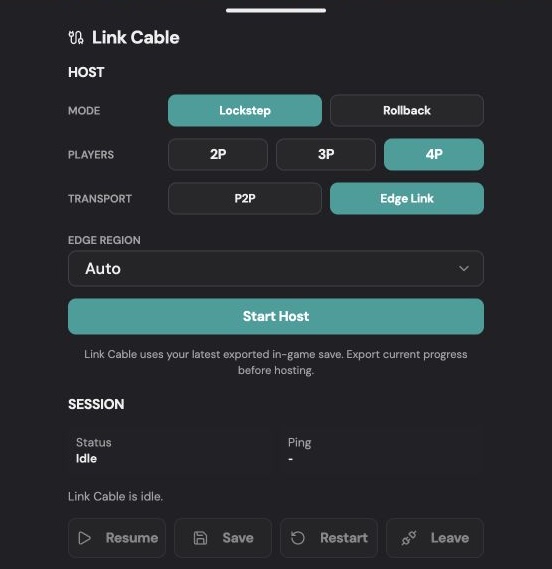
There is one important Rebit distinction: in Stream multiplayer mode, guests receive the host's game video and send controller input. That stream is part of the game connection. Do not stop the room itself for this test; stop only the additional Discord or OBS broadcast. The multiplayer mode guide explains how Stream differs from synchronized play.
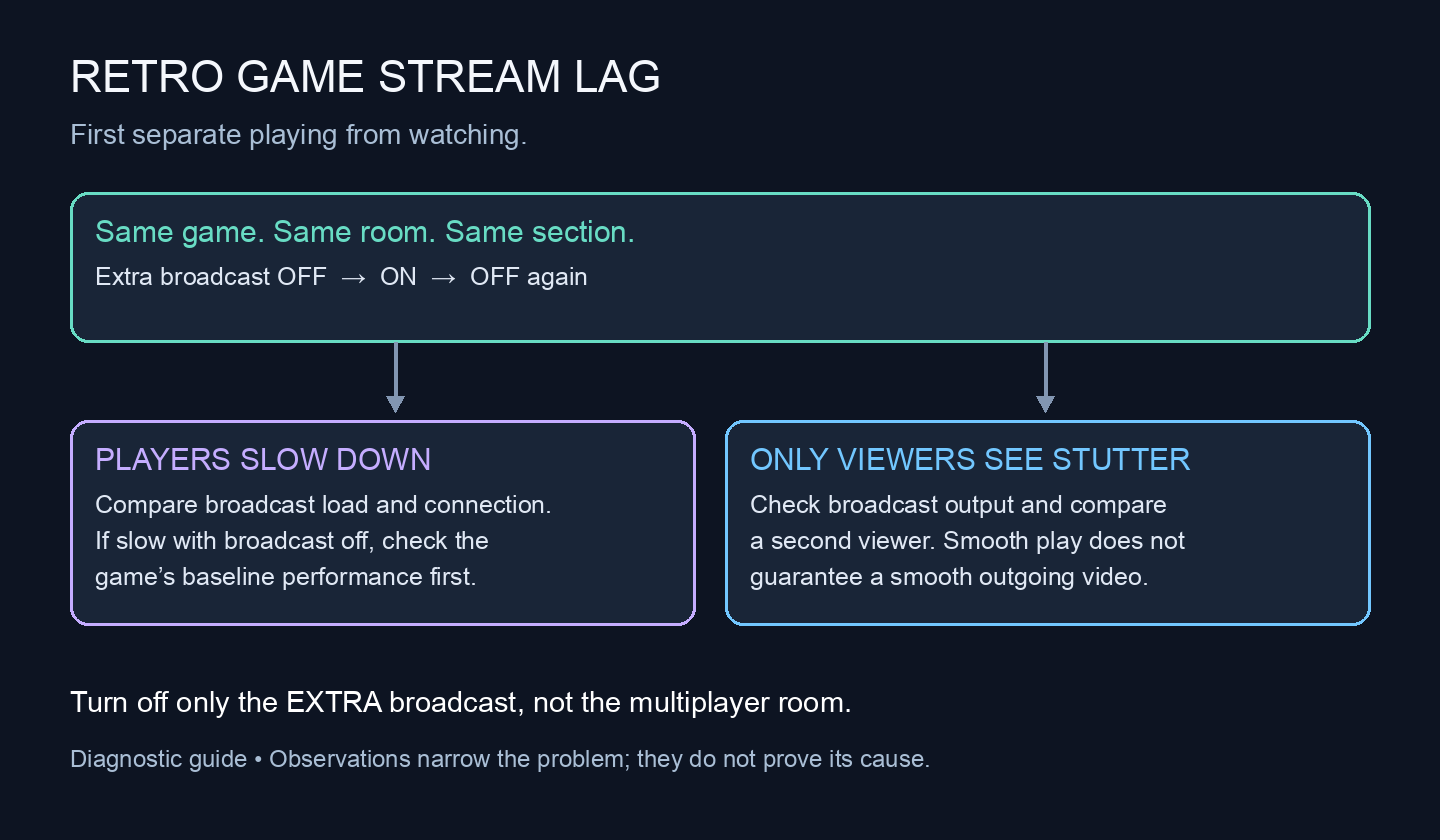
An original troubleshooting diagram, not a screenshot or a benchmark. The branches tell you what to compare next; they do not identify a proven cause.
Run an off–on–off comparison
Choose a repeatable, low-stakes section: walking across the same area or playing a short practice round. Keep the same players, game build, room settings, and device. Avoid a boss fight or valuable trade while experimenting.
- Broadcast off: play the section with the game visible. Ask the host and each guest whether movement and controls feel normal.
- Broadcast on: start the extra broadcast and repeat the section. Ask a viewer to describe whether video freezes, skips, buffers, or simply arrives late. Ask players about their controls separately.
- Broadcast off again: repeat once more. Note whether the symptom goes away when the broadcast stops.
A single bad moment is weak evidence. A problem that repeatedly appears with the extra broadcast and disappears without it gives you a more useful direction. It still does not distinguish processing load from network contention by itself.
Keep fast-forward at normal speed for all three attempts. Changing emulator speed, room transport, and streaming quality together would make the result difficult to interpret.
Choose the next check from the affected screen
| What you observe | Next useful comparison |
|---|---|
| Host and guests play smoothly; only viewers see stutter | Inspect broadcast output and ask a second viewer whether it happens at the same moment |
| Host gameplay slows only while broadcasting | Try a lighter broadcast setting or a simpler capture scene, one change at a time |
| Host stays smooth; remote players respond late | Record the multiplayer mode and compare their delay with the extra broadcast off |
| Gameplay is already slow without broadcasting | Investigate the game's baseline performance before adjusting stream quality |
| Video is smooth but consistently behind the live action | Record it as viewing delay rather than frame stutter; compare control response separately |
For baseline problems, Rebit's gameplay troubleshooting guide recommends normal speed, fewer busy apps, and the Original shader to reduce graphics work. Change one item and replay the same section. If the game actually stops progressing, use the separate netplay freeze report.
If you use OBS, distinguish connection trouble from processing load
OBS provides different evidence for these problems. A choppy picture alone is not enough to pick a fix.
Dropped frames on the outgoing stream: OBS's connection troubleshooting guide associates these with an unstable connection to the streaming server or a bitrate the connection cannot sustain. Note the dropped-frame counter during the bad section. Try a lower video bitrate as one comparison; record whether the counter and gameplay improve. A high download-speed result does not establish a stable upload path.
Overloaded encoding or rendering: OBS also needs resources to assemble and encode the broadcast. Its performance guide recommends reducing output resolution or frame rate and simplifying expensive scenes. Try one change, such as reducing a 60 fps broadcast to 30 fps, while leaving the game's own speed alone. Fewer broadcast frames are a quality tradeoff, not a promise that every system will run smoothly.
Only one viewer has trouble: OBS's buffering guide explains that viewers can buffer even when the broadcaster reports no dropped frames. Ask that viewer to try a lower playback quality if the service offers it, and compare with another viewer. One person's buffering is not evidence that your whole multiplayer room is failing.
These OBS labels do not automatically apply to Discord or Rebit's own live Watch feature. Report the tool you actually used rather than copying an unrelated settings recipe.
Send a report that someone can act on
Keep the useful result short:
Game / build and multiplayer mode:
Host device, OS, browser or app:
Extra broadcast tool and quality settings:
Who noticed it: host / guest players / viewers:
Broadcast off: gameplay and controls were ...
Broadcast on: gameplay ..., viewer video ...
Broadcast off again: ...
One setting changed and result:
Exact error or counter, if the tool shows one:
Share a short clip only if everyone shown is comfortable with it, and exclude private chat and account details. There is no need to attach game files. Rebit does not provide copyrighted ROM downloads; bring your own legally obtained files.
Before your next session, agree on one short broadcast comparison with your friends. Establish comfortable play first, then add the viewing setup. That makes it easier to get back to playing retro games online with friends with a clear idea of which part needs attention.