A higher fast-forward setting does not guarantee a faster game. First check whether fast-forward actually activates, whether normal play already runs slowly, and whether changing the speed limit changes the result. Those three observations are more useful than repeatedly raising the multiplier.
This guide is for solo play, whether you use a native GBA emulator or play GBA games online in a browser. Run the comparison outside a multiplayer room: synchronized sessions may restrict speed changes so players stay together.
Separate the button, the limit, and the actual speed
A speed control has three different jobs to check:
- Activation: did the emulator enter fast-forward mode when you pressed the control?
- Limit: how fast is that mode allowed to run?
- Achieved speed: how quickly can this device run this game with the current settings?
For a concrete example, RetroArch's configuration reference defines fastforward_ratio as a maximum rate. A value of zero removes that cap; it does not promise unlimited performance. The same reference distinguishes a hold control, which stops fast-forward when released, from a toggle, which switches modes.
Those are RetroArch settings, not universal names or shortcuts for every emulator. Check your own app's controls instead of assuming a key from another guide applies.
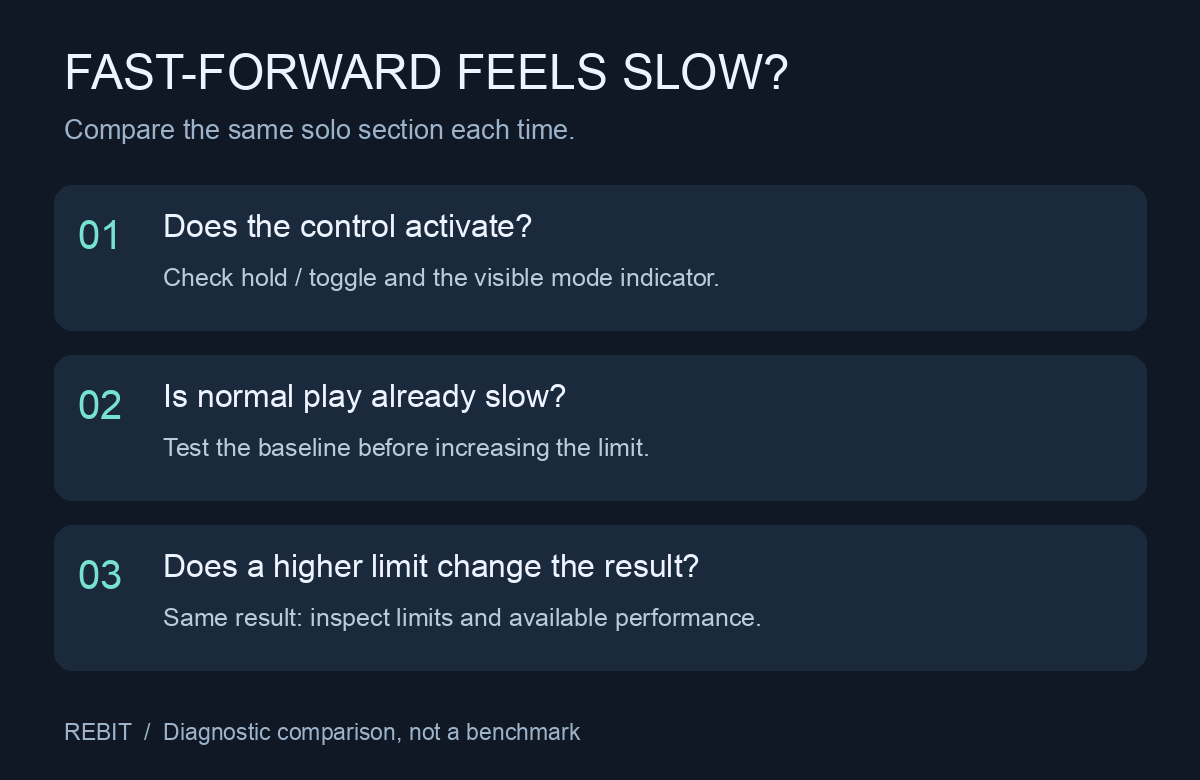
Original diagnostic diagram. It describes a comparison, not measured performance on a particular device.
Run one repeatable solo comparison
Pick a quiet, repeatable section with a clear beginning and end. An automatic animation or sequence is easier to compare than a route where you might stop walking at different points. Avoid sections waiting for dialogue input, network traffic, or another player.
- Normal speed: run the section with fast-forward off. Note the time and whether movement and sound are steady.
- Fast-forward: repeat with the control active. If your emulator shows a speed indicator, record it and its label.
- Another limit: if the app offers one, choose a higher fast-forward limit and repeat. Keep the same core, shader, game section, and power conditions.
- Normal again: turn fast-forward off and confirm the baseline is still similar.
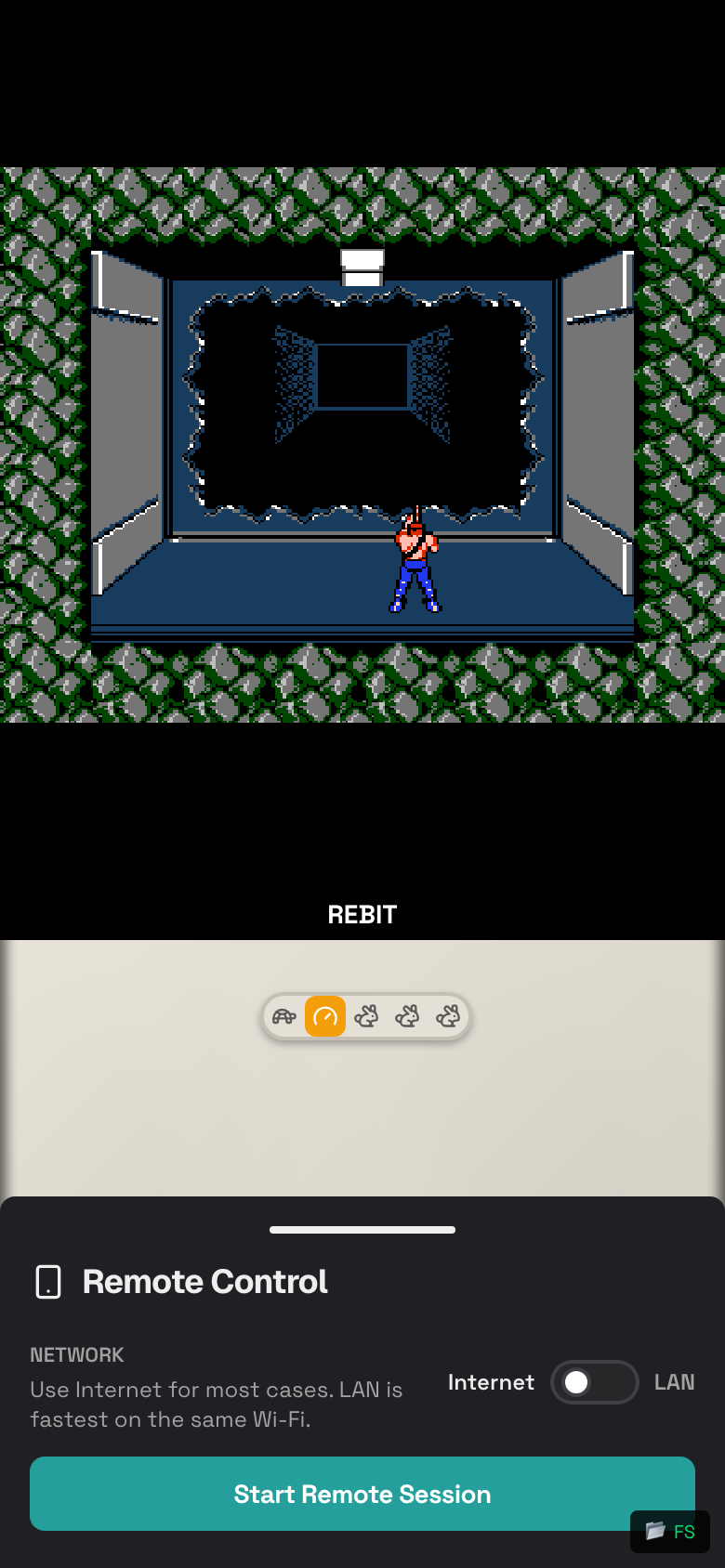
If you use a hold binding, keep it pressed for the whole comparison. If you use a toggle, check that it remains enabled. A visible toolbar control can help distinguish a missed keyboard shortcut from an emulator that is running fast-forward but cannot go much faster.
You can compare elapsed time without a speed overlay. For example, a sequence taking 20 seconds normally and 10 seconds with fast-forward ran about twice as quickly over that section. These are illustrative numbers, not a Rebit benchmark. Repeat the timing to reduce start/stop error; do not use it to claim an exact device-wide speed.
Let the result choose the next change
| Observation | Useful next step |
|---|---|
| No mode indicator changes, and timing stays the same | Check the binding, hold versus toggle behavior, and whether this play mode allows speed changes |
| Normal play is already slow or uneven | Establish a comfortable normal-speed baseline before increasing the fast-forward limit |
| Fast-forward works, and a higher limit makes the same section faster | Choose a speed you can control comfortably; there is no need to maximize it |
| Two higher limits produce about the same result | Check for another limiter and available performance; this alone does not identify the bottleneck |
| Speed starts high but falls during a longer session | Record when it changes, power mode, and whether the device is warm; a slowdown alone does not prove thermal throttling |
For Rebit, the live troubleshooting guide recommends keeping the game visible, closing busy apps or tabs, and choosing the Original shader to reduce graphics work. Try one change at a time. If battery saver is active, compare with it disabled where appropriate, then restore your preferred setting afterward.
Keep frame skip unchanged during the initial comparison. Changing both speed and presentation settings makes it harder to understand why the result changed. Likewise, lowering volume is not a general performance fix.
What changes when you join friends?
Rebit's playing guide describes speed controls for supported solo games and notes that synchronized multiplayer may disable them. A control being unavailable in a room is therefore a different problem from a solo game failing to reach the selected speed.
Finish the solo comparison before inviting friends. Do not ask one participant to force a different speed or change room settings during a trade or battle. If the real symptom is a room that stops progressing, use the netplay freeze checklist instead.
If it used to be faster, report what changed
“After a reset” can mean resetting an emulator's settings or reinstalling the whole operating system. Specify which happened. Then send a compact comparison:
Device, operating system, emulator/app and version:
Browser and version, if applicable:
Game and exact core:
Solo or multiplayer:
Control used: hold / toggle / on-screen:
Normal-speed observation:
Fast-forward limit A and result:
Fast-forward limit B and result:
Change since it last worked:
One setting tested and what happened:
The next useful step is the one your comparison supports. Confirming that the control never activates calls for different help than confirming it activates but reaches the same ceiling at every setting. Neither requires reinstalling everything as a first experiment.