Protect Retro Game Saves Before an SD Card Fails
A failing SD card is scary because it turns a simple question into a panic: where is my actual progress?
For retro handheld players, that question might point to a microSD card, a firmware image, a hidden emulator folder, or a save directory with names that do not match the game title. For browser and desktop emulator players, it might point to a browser profile, a local app folder, an autosave slot, or a manual save state that only works in one setup.
The safest answer is not to wait for a card, handheld, browser profile, or laptop to fail. Protect retro game saves by making the important save layer visible, exporting a copy before risky changes, and testing the restore path while the old setup still works.
Rebit can help with that routine for your own legally owned game files: you can play retro games online, keep saves easier to inspect from your browser library, and export important in-game saves before changing devices or setups. Rebit does not provide copyrighted ROM downloads, clone handheld SD cards, restore firmware images, or replace a hardware backup plan.
Quick answer
To protect retro game saves before an SD card, handheld, browser profile, or device fails:
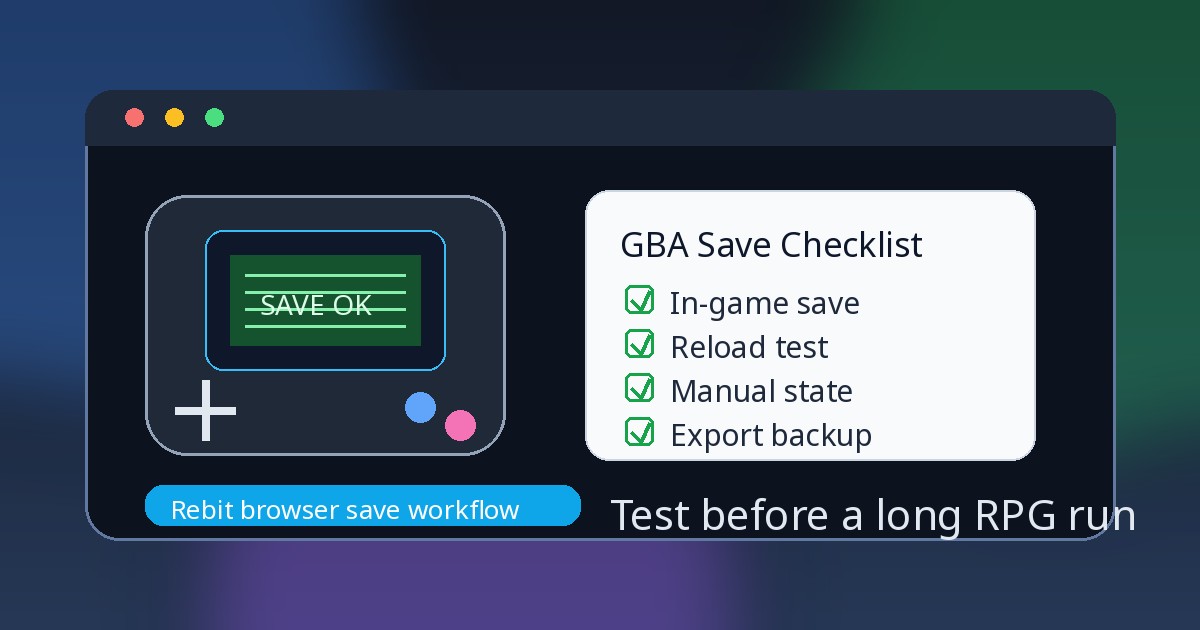
- Save inside the game first, then reload once through the game's normal Continue or Load menu.
- Create a manual save state only after the in-game save is confirmed.
- Keep autosave on if it helps, but do not make it your only recovery plan.
- Export or download important
.savor.srmin-game saves before replacing cards, clearing browser data, switching devices, changing cores, or updating a ROM hack patch. - Test the restore path with a copied save before deleting the old file, old SD card, or old emulator setup.
- If you use Rebit, use Open Saves to separate Manual, Auto, and In-game saves, then use Export In-Game Save or Upload Save File when those actions fit your game and file type.
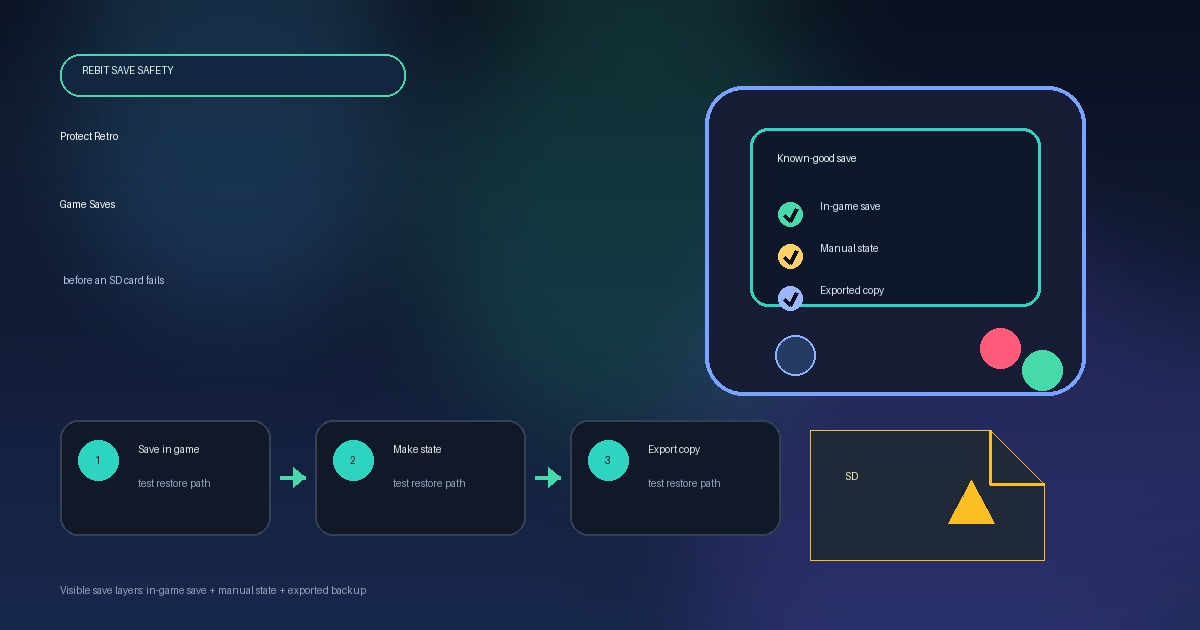
The short rule: in-game save first, manual state second, autosave in the background, exported copy before risk.
Why one SD card or folder is not enough
Many retro handheld guides focus on imaging or replacing a microSD card. That can be useful for a handheld setup, but it is a different job from proving which save file carries your progress.
A whole-card image might preserve a device exactly as it was. It can also be large, confusing, or risky if you write it to the wrong drive. More importantly, it may not teach you which file is the portable save for the RPG, ROM hack, platformer, or challenge run you care about.
The same problem appears outside handhelds. Progress can be trapped in:
- a bundled SD card that is already unreliable
- a handheld app folder with several similarly named save files
- a desktop emulator directory you forgot to sync
- a browser profile that gets cleared or replaced
- an autosave slot made after a mistake
- a save state tied to one emulator core, game revision, or patch version
- a cloud folder that synced the wrong file at the wrong time
So the real job is not only "make a backup." The job is: identify the save that matters, keep a second copy away from the device at risk, and prove that the copy loads.
Know the three save layers before you back anything up
Before you protect retro game saves, separate the layers. They solve different problems.
In-game saves, SRAM, and battery-style saves
An in-game save is progress written by the game itself. Depending on the console, emulator, or core, people may call it a battery save, SRAM, SaveRAM, flash save, memory-card-style save, .sav, .srm, or simply the game's save file.
The name matters less than the behavior. If you use a save menu, save point, inn, cartridge-style battery save, or memory card screen, the game records progress in the format it expects to load later.
For long campaigns, in-game saves are the foundation. They are usually the first layer to export before a device move, SD-card replacement, browser cleanup, emulator change, or ROM hack patch update. If you want a deeper comparison, read the guide to save states vs in-game saves.
Manual save states
A manual save state is an emulator snapshot of a moment. It is great before a boss, difficult jump, long cutscene, route test, or stopping point when the game itself does not offer a save menu.
A state is not the same thing as the game's normal save. It can depend on the emulator core, core version, game file, region, patch version, settings, or exact runtime state. That makes it useful as a checkpoint, but risky as the only record of a 40-hour playthrough.
Autosaves
Autosave is a helpful net. It can catch an interruption, a forgotten checkpoint, or a session you closed too quickly.
It can also preserve the wrong moment: after a bad load, after a soft-lock, after a failed menu choice, or after you overwrote the manual state you wanted. Treat autosave as the extra layer, not the source of truth.
The save-safety checklist before a card or device fails
Use this routine before you trust a new SD card, clear storage, update a patched game, move devices, or start a long retro campaign.
1. Start from a legal, known game file
Use your own legally owned game file or homebrew. Rebit is built around bringing your own files into a browser library; it does not provide ROM downloads, copyrighted game files, system files, or instructions for obtaining them.
If you are setting up browser play for the first time, the safest product path starts with upload ROM and play online using a file you are allowed to use.
2. Make a known-good in-game save
Launch the game, reach the first normal save opportunity, and save inside the game. For an RPG, that might be a town, save point, menu, or memory-card screen. For a handheld game, it might be a built-in save menu. For some arcade-style games, there may be no meaningful in-game save layer at all.
Do not treat "the game booted" as proof that progress is protected. You need the game itself to write progress first.
3. Reload through the game, not just the emulator
After saving, reset, return to the title screen, close and reopen, or otherwise use the normal Continue or Load path when practical. You are checking whether the game sees the save without relying on a state.
If the game's own menu does not show the save, fix that before you invest hours in states or card backups.
4. Create a stable manual state
Once the in-game save is confirmed, create a manual save state at a calm moment: a menu, overworld, town, safe room, or pause point. Avoid making your only known-good state during a transition, crash, loading screen, or risky experiment.
This order matters. A state made before an in-game save can keep you playing, but it does not prove the game has a normal save file.
5. Export or download the save that matters
Before replacing an SD card, wiping a handheld, clearing browser data, changing devices, changing emulator cores, or updating a ROM hack patch, export or download the important in-game save where your workflow supports it.
In Rebit, the saves, screenshots, and cheats docs describe the current flow: use Open Saves to review Manual, Auto, and In-game saves; use Export In-Game Save after saving inside the game; and use Download Save File when you need a local copy.
Store that exported copy somewhere separate from the at-risk device or card. A backup on the same failing SD card is not a backup.
6. Test restore before deleting anything
Import or upload the copied save into the destination setup and load it through the game's normal menu. In Rebit, compatible .srm and .sav files can be uploaded through Open Saves -> In-game -> Upload Save File. Then launch the game and confirm the progress appears.
Keep the old SD card, old emulator folder, old browser profile, or old backup untouched until the restored setup works. For a step-by-step migration view, read how to move retro saves between devices.
Where Rebit fits in the routine
Rebit is not an SD-card imaging tool. It will not clone a handheld card, repair firmware, migrate BIOS folders, or make every external emulator state portable forever.
What Rebit can do is give players a clearer browser/account workflow for their own legally owned game files:
- Sign in to Rebit.
- Add your own game file to your private browser library.
- Save normally inside the game when the game supports it.
- Use Save State for deliberate manual checkpoints.
- Keep autosave as a background recovery layer.
- Use Open Saves to inspect Manual, Auto, and In-game save categories separately.
- Use Export In-Game Save or Download Save File before risky changes.
- Use Upload Save File for compatible
.srmor.savin-game saves from another emulator, then verify the load before deleting the source copy.
That makes Rebit useful when you want fewer mystery folders and a more visible save workflow. The cloud saves for retro games page explains the account-backed side of that promise, while this checklist explains the habit that keeps progress safer no matter where you play.
What to protect first: a decision framework
| Situation | First thing to protect | Secondary layer | Safe Rebit action |
|---|---|---|---|
| Starting a long RPG | In-game save | Manual state after verification | Save in-game, reload, then create Save State |
| Replacing a handheld SD card | Whole-card backup outside Rebit plus the actual game save | Manual state if available | Export/download important in-game saves before the hardware change |
| Moving from a local emulator to browser play | Compatible .sav or .srm in-game save |
Fresh state after import | Use Open Saves -> In-game -> Upload Save File, then verify load |
| Updating a ROM hack patch | Current in-game save plus patch/version notes | Known-good state before update | Export before testing the new patched file |
| Clearing browser data | Exported/downloaded in-game save | Manual checkpoint | Verify restore in the new browser/profile before deleting old data |
| Practicing a hard boss or platforming section | Recently verified in-game save | Manual states in safe slots | Keep manual states, but do not skip normal saving |
If you can only do one thing before a risky change, protect the in-game save first. Save states are excellent convenience tools, but the game's own progress layer is usually easier to reason about over time.
Common failure cases
The save state loads, but the game menu has no save
This usually means you used states without saving inside the game. Load the state, reach a normal save point, save in-game, reload through the game's own menu, and then make a fresh manual state.
The SD-card image exists, but you still cannot find the progress
A card image can preserve data without making it understandable. Look for the actual in-game save file or emulator export path for the game you care about. Keep notes about the game file, patch version, emulator, and save filename so the backup is useful later.
The imported .sav or .srm does not load
Possible causes include the wrong game revision, different region, changed filename, incompatible emulator behavior, unsupported save format, or a ROM hack patch mismatch. Go back to the last known-good setup, copy the file again, and test with a duplicate rather than experimenting on the only copy.
Autosave brought back a bad moment
Autosave did its job: it saved recent activity. The problem is relying on it as the only layer. Use autosave for interruptions, but keep manual known-good states and normal in-game saves for important progress.
A browser change made progress disappear
Browser play can still depend on the product's storage model, account state, and browser profile. Before clearing site data, switching profiles, using private browsing, or moving to a new device, export important saves or confirm the account-backed save workflow you are using.
Practical checklist
Before a risky change:
- Confirm the game is your own legally owned file or homebrew.
- Save inside the game.
- Reload through the game's normal Continue or Load menu.
- Create a manual save state after the in-game save is verified.
- Export or download the in-game save where supported.
- Store the exported copy somewhere separate from the SD card, device, or browser profile at risk.
- Note the game file, region, patch version, emulator/core, and save filename if relevant.
- Keep the old setup untouched until the new setup proves it can load the save.
After restore/import:
- Import or upload the in-game save first.
- Load through the game's normal menu.
- Confirm the expected progress appears.
- Save again inside the game on the new setup.
- Create a fresh manual state on the new setup.
- Reopen once before trusting the move.
- Keep the old backup longer for RPGs, ROM hacks, challenge runs, and PS1-style memory-card progress.
FAQ
Should I back up my handheld SD card or export my saves?
If you rely on a handheld, a whole-card backup can protect the device setup, but it is separate from a portable save routine. For important games, also identify the in-game save, export or copy it when possible, and test that it loads before you retire the old card.
Are save states the same as .sav files?
No. A save state is an emulator snapshot. A .sav or .srm file is usually an in-game save-data layer, depending on the system and emulator. Use in-game saves as the foundation for long-term progress and states as checkpoints.
Can Rebit back up my handheld SD card?
No. Rebit does not clone, image, repair, or restore handheld SD cards. It helps with browser play and save management for your own legally owned game files.
Can Rebit import existing emulator saves?
Rebit's current save flow supports uploading compatible .srm and .sav in-game save files through Open Saves -> In-game -> Upload Save File. After uploading, load through the game's normal menu and verify the progress before deleting the original copy.
Does Rebit provide ROM downloads?
No. Rebit is for players who bring their own legally owned game files or homebrew. This guide does not link to ROM sources, system-file sources, or copyrighted game downloads.
Final recommendation
The best way to protect retro game saves is deliberately simple: save inside the game, confirm the game can load it, create a manual state, keep autosave as a backup layer, export important in-game saves before risky changes, and test restore before deleting anything old.
If you want a clearer place to test and protect retro game saves, Rebit lets you bring your own legally owned game files, play in the browser, create manual save states, keep in-game saves visible, and export important progress before changing devices or setups. Start with cloud saves for retro games, or upload your own file and build a safer browser routine before the next SD card surprise.