PS1 RPG Save Safety: Memory Cards vs Save States Before a Long Run
A long PS1 RPG deserves a boring save test before the real adventure starts.
Disc-era RPGs can ask a lot from a player: long intros, save points that are not always nearby, multi-hour dungeons, major story milestones, and sometimes multi-disc setup. Losing progress after that kind of session feels much worse than losing a quick arcade run.
This guide is for players using their own legally owned PlayStation game files in a browser or emulator workflow. Rebit can make PS1 games online easier to return to, but the safest habit still starts with understanding the difference between a memory-card-style in-game save and an emulator save state.
Quick answer
- For a long PS1 RPG, trust the in-game memory card save as your foundation.
- Use manual save states as short-term checkpoints, not as your only copy of progress.
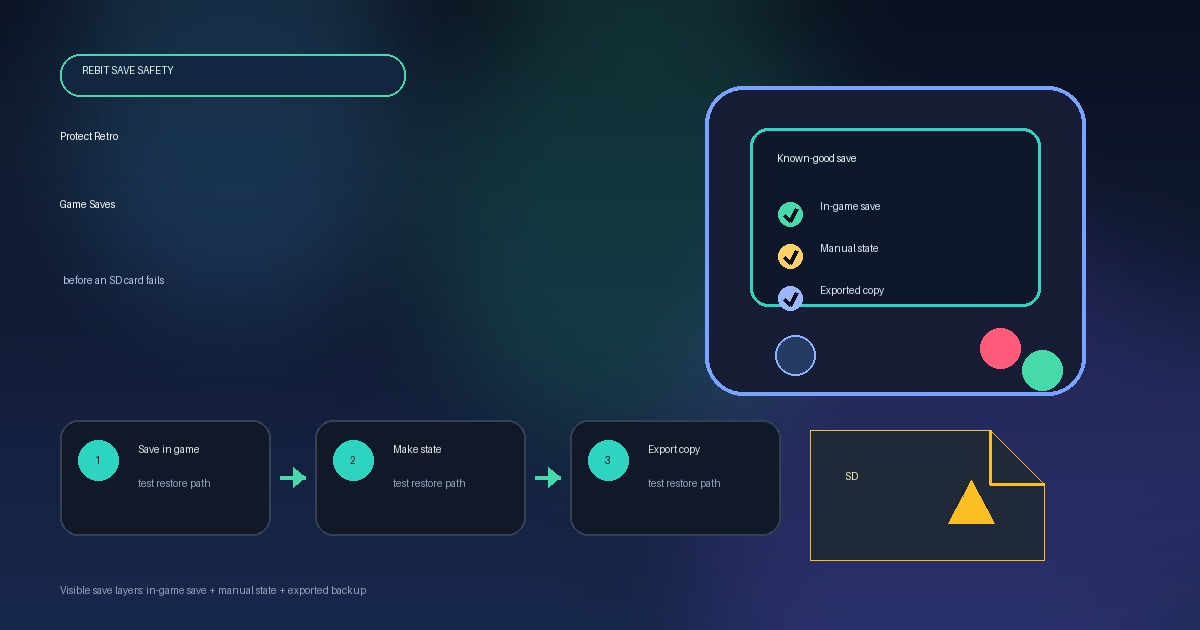
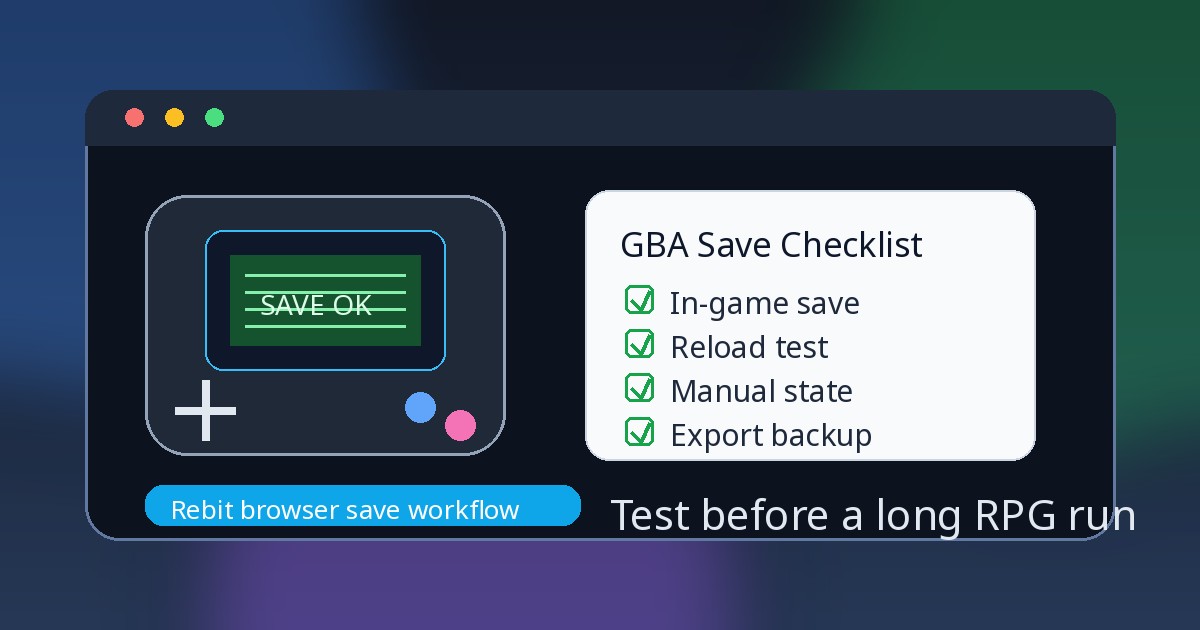
- Before a serious session, save inside the game, reset or reload once, confirm the save appears in the game's own Load or Continue menu, then create a manual state.
- Keep at least one known-good checkpoint before bosses, long dungeons, disc changes, device switches, or deleting old states.
- Use your own legally owned game files. Rebit does not provide copyrighted PlayStation game downloads.
Why PS1 RPG saves need more care than short arcade sessions
A five-minute puzzle run and a 40-hour RPG campaign do not need the same safety plan.
PS1 RPGs often have longer setup time before the first meaningful save. Some begin with story scenes, tutorials, opening battles, or location changes before you can write normal progress. Once the campaign opens up, your save may represent party setup, inventory, location, story flags, play time, and decisions you do not want to repeat.
That is why the first browser session should be treated like setup, not a full campaign night. Upload or open your own legally owned game file, confirm the game launches, test controls, reach the first real save point, and prove that the game can load its own save before you sink hours into the run.
If you are still setting up PlayStation browser play generally, start with the PS1 browser setup guide. This article focuses on the save routine you should use once the game is running.
Memory card saves vs save states: what is the difference?
The most common mistake is treating every save button as if it protects the same thing. It does not.
Memory card / in-game save: your campaign foundation
A PS1 memory card save is the normal progress the game expects to load through its own menu. In a browser or emulator, you may see this described as in-game save data, regular save data, SaveRAM, SRAM-like save data, or a virtual memory-card-style save depending on the system and interface.
For a player, the important idea is simple: this is the save created by the RPG itself.
When you choose Save at a save point, inn, world-map menu, or other normal game prompt, the game writes progress in the format it understands. Later, when you choose Load or Continue inside the game, it looks for that progress.
For long PS1 RPGs, that normal in-game save should be your base layer. It is the record of the campaign that the game is designed to read.
Save state: your short-term checkpoint
A save state is different. It is an emulator snapshot of the exact moment you are playing.
That makes save states extremely useful. A manual state can help before a boss, a long cutscene, a difficult menu choice, a rare encounter, or a moment when you need to stop far away from a normal save point.
But a state is not the same as a memory card save. It may depend on the same emulator core, game file, region, disc setup, patch version, browser state, and timing. A state can also preserve a bad moment: after a mistake, during a soft lock, after loading the wrong file, or right before a failure you cannot escape.
Use save states for recovery checkpoints. Do not use them as your only long-term RPG save.
For the broader concept across retro systems, read save states vs in-game saves.
Autosave: helpful, but not a plan by itself
Autosave is a convenience layer. It can protect you from interruptions and forgotten manual saves, but it can also capture the wrong moment.
For a short game, that may be enough. For a long RPG, pair autosave with deliberate habits: save inside the game, verify that save, then create manual states around risky sections.
The PS1 browser play save checklist
Use this checklist before committing to a long browser session.
Before starting the real RPG run
- Open your own legally owned PlayStation game file in Rebit or your browser play workflow.
- Treat the first launch as a test session.
- Reach the first normal in-game save point.
- Save through the game's own save menu or save point.
- Quit, reset, or reload the session once.
- Use the game's own Load or Continue flow to confirm the memory-card-style save appears.
- Create a manual save state only after that normal save is confirmed.
- Keep the first verified in-game save as your baseline before playing for hours.
If any step feels unclear, stop before a long run. It is better to discover a save issue after 15 minutes than after an entire dungeon.
Before a boss, dungeon, or long cutscene
- Save in-game first if a save point is available.
- Create a manual state before the risky section.
- Avoid overwriting your only known-good state during the sequence.
- After success, save in-game again at the next safe opportunity.
- Keep one older checkpoint until you have verified the next normal save.
Save states are perfect for this kind of short-term risk. They let you recover from a hard fight or interruption without pretending they replace the game's own save system.
Before disc changes, major milestones, or device switching
- Save inside the game first.
- Keep a manual state as a secondary checkpoint.
- If export or backup is available for the relevant save layer, keep a copy before changing setup.
- Reopen and verify progress before deleting old local backups or clearing old states.
- Create a fresh manual state in the new session only after the normal save loads.
For device movement, pair this with cross-device retro gaming and the guide on how to move retro saves between devices. The key habit is the same: verify the save you care about before removing the old safety net.
Before clearing old states
- Confirm the latest in-game memory card save loads.
- Keep one older known-good state until the next stable save point.
- Delete only redundant states.
- Never clear your only working checkpoint because a newer autosave looks convenient.
Common PS1 save problems and what they usually mean
The save state loads, but the in-game Continue menu is empty
This usually means you made a state but never saved through the game itself.
A state can drop you back into the exact moment where the game is still running, but that does not mean the RPG has written normal progress. Reach the next save point, save inside the game, reload once, and confirm the game's own menu sees the save.
The memory card save worked before, but not after changing files or setup
A mismatch can happen when the game file, region, disc layout, patch version, emulator core, or browser setup changes.
Go back to the last known-good setup if you can. Verify the normal in-game save before continuing, and avoid deleting older backups until the new setup has proven it can load your progress.
Autosave restored a bad moment
Autosave can capture progress, but it can also preserve a mistake. That might be a failed load, a wrong menu choice, a soft-lock, or a moment after a bad battle.
Do not rely on autosave alone for campaign safety. Keep manual states at stable moments and normal in-game saves as the foundation.
A state moved devices but will not load
Save states can be sensitive to exact runtime conditions. Even when a browser library makes return play easier, a state is still an emulator snapshot.
For long-term progress and device movement, prioritize the game's own save data when possible. Treat states as useful backups, not the only portable record of a campaign.
Rebit workflow for safer PS1 RPG sessions
Rebit is built for players who want a cleaner browser library for legally owned retro game files. For PS1 RPGs, the safest Rebit routine is simple:
- Sign in to Rebit.
- Upload or open a legally owned PlayStation game file you are allowed to use.
- Launch the game in the browser.
- Treat the first session as setup.
- Reach the first save point and create a normal in-game save.
- Reload once and confirm the save appears through the game's own menu.
- Create a manual save state after the normal save is verified.
- Use manual states before risky moments, while continuing to save normally in the game.
This keeps the workflow practical. Rebit can reduce scattered emulator folders and make it easier to return to your library, but it is still smart to verify important saves before deleting backups, switching devices, changing files, or relying on one state for a long campaign.
For broader save habits, read cloud saves for retro games or cloud saves for retro games in your browser. If you are new to the product flow, start with how to upload your own game file and play online.
Checklist
- Use your own legally owned PlayStation game file.
- Treat the first PS1 RPG launch as setup, not a full campaign night.
- Reach the first normal in-game save point.
- Save through the game's own menu or save point.
- Quit, reset, or reload once.
- Confirm the save appears through the game's own Load or Continue flow.
- Create a manual save state after the in-game save is verified.
- Keep one known-good checkpoint before bosses, dungeons, disc milestones, or device changes.
- Do not overwrite your only reliable state until a newer in-game save is confirmed.
- Keep autosave as a backup layer, not your only save strategy.
FAQ
Are PS1 memory card saves the same as save states?
No. A PS1 memory card save is the game's own progress loaded through the game's menu. A save state is an emulator snapshot of an exact moment. For long PS1 RPGs, use the memory-card-style in-game save as the foundation and save states as checkpoints.
Should I use save states for PS1 RPGs?
Yes, but use them as a backup layer. Create manual states before bosses, long dungeons, long cutscenes, difficult choices, or interruptions. Keep saving normally inside the game whenever a save point is available.
What should I test before playing a PS1 RPG in the browser?
Open your own legally owned game file, reach the first save point, save in-game, reload once, confirm the game's own Load or Continue menu sees the save, and then create a manual save state. That small test is the difference between a safe campaign start and an unproven setup.
Why did my PS1 save state stop working on another device?
A state can depend on the same emulator core, game file, region, disc setup, patch version, browser state, and runtime conditions. For device switching, use normal in-game saves as the long-term progress layer when possible and keep states as secondary checkpoints.
Does Rebit provide PS1 game downloads?
No. Rebit is for your own legally owned game files. It does not provide copyrighted PlayStation game downloads, ROM sources, BIOS files, or instructions for obtaining copyrighted games.
Final recommendation
For PS1 RPG save safety, use the boring rule:
Save inside the game first. Reload once. Then create a manual state.
That habit makes browser play safer without overcomplicating it. If you want a cleaner place to play and return to your legally owned PlayStation game files, try Rebit for PS1 browser play and build your campaign around normal memory-card saves plus manual save-state checkpoints.