Pokemon GBA Save File Without Losing Progress: Update Checklist
Updating a Pokemon-style GBA ROM hack or patched Game Boy Advance game can be risky because the thing you care about most is not the new file. It is the save file that already has your party, badges, items, story flags, and hours of progress.
The safe approach is not just “rename the .sav and hope.” Filename matching can matter in many emulator folders, but it is only one step. Before you update, make a backup, test on a copy, prove the updated game can load and save normally, then keep the old setup until the new one survives a reopen test.
This guide is for players using their own legally owned GBA files and patches they are legally allowed to use. Rebit does not provide copyrighted games, ROM downloads, patch bundles, source links, BIOS files, or instructions for obtaining copyrighted files.
Quick answer
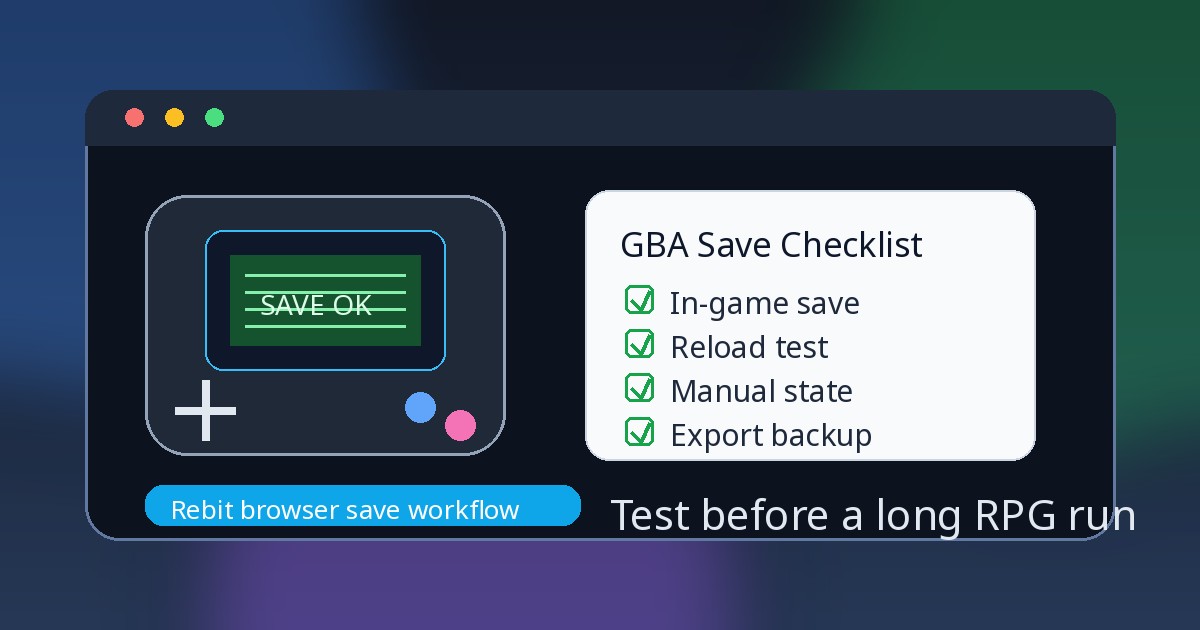
Before updating a Pokemon/GBA ROM hack save file without losing progress:
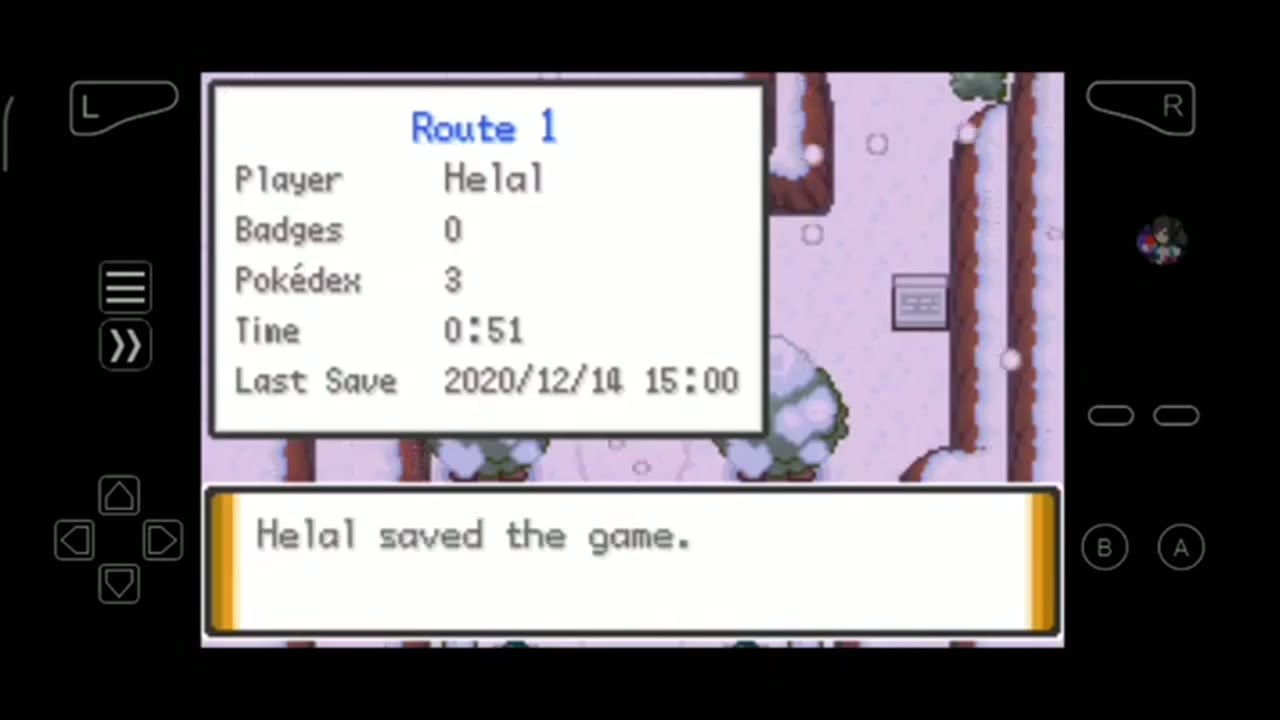
- Save inside the current game first, then close and reopen once to confirm the game’s own Continue or Load screen sees the save.
- Back up the current
.savor.srmin-game save, the old working game file, and any manual save states you care about. - Test the updated game with a copy of the save, not your only save file.
- If your emulator workflow uses filename matching, make the copied save’s base filename match the updated game file while keeping the
.savor.srmextension intact. - Launch the updated game, confirm the old progress appears, save in-game again, close, reopen, and confirm the new save still loads.
- Treat save states and autosaves as backup layers, not the main migration plan.
If you want a browser workflow for supported files you own, Rebit’s play GBA games online, upload ROM and play online, and cloud saves for retro games pages explain the broader setup.
Why GBA ROM hack updates can lose progress
A GBA save file is usually tied to more than the words in the game title. Compatibility can depend on the exact game revision, patch version, emulator core, save memory type, filename, and how the emulator stores in-game saves.
That is why a new patched file can launch but still fail to show your old Continue option. It may be looking for a differently named save. It may expect a different save layout. It may be based on a different revision than your current file. Or you may be trying to move a save state when the game’s own in-game save is the safer layer to migrate.
The goal is not to guarantee every patched GBA game update will work. No browser, emulator, save file, or patch version can promise that. The goal is to avoid preventable mistakes before they overwrite the only working copy of your progress.
The save layers: .sav, .srm, save states, and autosave
In-game save / SRAM / .sav or .srm
The in-game save is the progress written by the game itself through its normal save menu or save point. Depending on the emulator and tool, this may appear as .sav, .srm, battery save, SRAM, or save memory.
For a ROM hack update, this is usually the layer to trust first. If the updated game can load the old progress through its own Continue or Load screen, then save in-game again, you have a much stronger sign than “a save state opened once.”
In Rebit, this layer appears under In-game saves. The saves, screenshots, and cheats docs show how to open saves, upload compatible .srm or .sav files, and use Export In-Game Save after saving inside the game.
Manual save state
A save state captures an exact emulator moment. It is useful before a boss, puzzle, trade, route split, or risky test. It is not the same as the game’s own save file.
Save states can depend on the emulator core, state format, timing, game file, and patch version. After an update, an old save state may fail even when the in-game save can still work. Use states as checkpoints, not as the migration source of truth.
Autosave
Autosave can rescue you from a closed tab or forgotten manual state, but it can also preserve a bad moment. During an update test, autosave should be treated as a backup layer only. Do not let an autosave overwrite your confidence in the basic routine: in-game save, backup, test copy, reopen.
Step 1: make a clean backup before changing anything
Before you touch the updated file, freeze the working setup.
- Keep the old working GBA file or patched file.
- Save inside the old version of the game.
- Close and reopen the old version to confirm the Continue or Load screen sees the save.
- Copy or export the current in-game save file (
.sav,.srm, or the equivalent from your emulator). - Copy any manual save states you care about, clearly labeled as secondary backups.
- Write down the current patch version and any compatibility note from the patch creator.
Do not test an update on the only copy of your save. A backup folder named something boring like before-update-backup is worth more than a clever recovery plan after the file is already overwritten.
Step 2: understand filename matching without over-trusting it
Many local emulator workflows pair a game file and a save file by base filename. For example, an updated file named ExampleHack-v2.gba may need a save named ExampleHack-v2.sav beside it before the emulator associates that save with the updated game.
That filename rule is useful, but it is not magic. Keep these limits in mind:
- Match the base filename only on a copied save, not your only save.
- Keep the save extension intact. Do not turn
Progress.savintoProgress.gbaor remove.savby accident. - Do not assume
.savand.srmare interchangeable in every tool, even though some workflows can import compatible files. - Do not assume a filename match fixes a save layout change between patch versions.
- Do not delete the old game file just because the updated game reached the title screen.
A title screen proves the game launched. The real test is whether the game’s own Continue or Load screen finds your progress and can write a fresh in-game save afterward.
Step 3: test the updated game with a copy
Use a copy-on-test routine so failure does not damage the original progress.
- Put the updated GBA file somewhere separate from the old working setup.
- Copy the backed-up in-game save into that test location or upload/import a compatible copy into your emulator workflow.
- If the workflow needs filename matching, rename only the copied save’s base filename to match the updated game file.
- Launch the updated game.
- Use the game’s own Continue or Load option, not a save state, to confirm the old progress appears.
- Check a safe area of the game: party/menu data, location, items, story flags, and any feature affected by the update.
- Save inside the updated game once.
- Close, reopen, and confirm the newly saved progress still loads.
- Only after that, create a fresh manual save state in the updated version.
If any step fails, stop. Return to the old working file and backup save, then check the patch creator’s compatibility notes. Do not keep experimenting on the only copy of a long save.
A Rebit workflow for safer GBA save updates
Rebit supports Game Boy Advance uploads for supported .gba files and runs GBA with the mGBA core. For save safety, the useful part is that the save layers are visible near the game: manual states, autosaves, and in-game saves are separate concepts rather than one mystery folder.
A cautious Rebit update routine looks like this:
- Start from your own legally owned GBA file or a patched file you are allowed to use.
- Upload the supported file to your private Rebit library.
- Launch it and make a normal in-game save as soon as the game allows it.
- Use Open Saves to check the Manual, Auto, and In-game tabs.
- Before changing versions, save inside the game again and use Export In-Game Save so you have a local backup.
- Keep a manual save state as a convenience checkpoint, not as the only migration plan.
- If you are importing an existing save from another emulator, use Open Saves -> In-game -> Upload Save File with a compatible
.srmor.sav, then verify progress through the game’s own load screen. - Test the updated file and save copy before long play.
For the general product path, pair this checklist with Rebit’s upload ROM and play online guide and saves, screenshots, and cheats docs.
What not to do during a GBA save update
Avoid the mistakes that most often turn a small update into a lost-progress problem:
- Do not rename or delete your only
.sav/.srmfile. - Do not remove the save extension while renaming.
- Do not update the game file, emulator, device, browser, and save file all at once.
- Do not assume a save state is portable across patch versions or emulator cores.
- Do not trust the update just because the title screen opens.
- Do not let autosave be the only copy of important progress.
- Do not ignore patch-version notes if the creator warns that old saves may not migrate.
- Do not mix save-safety work with game-file sourcing. Keep your files legal, private, and backed up.
Troubleshooting: when the updated game does not see the save
The Continue option is missing
First, go back to the old working setup and confirm the backup save still loads there. If it does, the updated setup may be looking for a different filename, extension, or save location, or the patch version may not support that old save. Test filename matching only on a copy, then check compatibility notes.
The old save appears, but the game behaves strangely
Do not keep playing as if everything is fine. A changed patch can affect maps, flags, scripts, items, or events. Return to a safe in-game location if possible, save on a copy, reopen, and test the areas affected by the update before replacing your main setup.
A save state loads, but the in-game save does not
Use the state only to recover to a safe point. From there, save inside the game, export or copy the in-game save, and test that in-game save with the updated file. A state that opens once is not proof that the normal save survived.
Rebit imports the save, but progress is blank
Confirm the save came from the same game or compatible patched version, and confirm it is the in-game save layer rather than a state file. Rebit can upload compatible .srm or .sav in-game saves, but compatibility still depends on the game and patch. Test with the game’s own Continue or Load screen before assuming the import worked.
Final pre-update checklist
Use this list every time the save matters:
- I still have the old working game file.
- I saved inside the old version and confirmed the save loads.
- I exported or copied the in-game save.
- I saved a second copy somewhere the emulator or browser will not overwrite.
- I am testing the updated file with a copy of the save.
- I kept the
.savor.srmextension intact if renaming was needed. - I loaded progress through the game’s own Continue or Load screen.
- I saved inside the updated game, closed, reopened, and loaded again.
- I created any fresh save state only after the updated in-game save passed.
FAQ
How do I update a Pokemon GBA save file without losing progress?
Back up the current in-game save first, keep the old working game file, test the updated file with a copy of the save, and only rely on the update after the game’s own Continue or Load screen sees the progress. If filename matching is required, rename the copied save to match the updated game’s base filename while keeping the .sav or .srm extension intact.
Are .sav and .srm the same thing?
They both often refer to in-game save memory in emulator workflows, but they are not guaranteed to behave identically in every tool. Rebit supports uploading compatible .srm or .sav in-game save files, but you should still verify the result from the game’s own load screen.
Can I use a save state to move to a new ROM hack version?
Do not make that your main plan. Save states are emulator snapshots and can depend on the core, version, file, patch, and timing. Use the game’s own in-game save as the safer migration layer, then create a fresh save state after the updated version works.
Does Rebit provide Pokemon games or ROM hacks?
No. Rebit does not provide copyrighted games, ROM downloads, patch bundles, source links, BIOS files, or instructions for obtaining copyrighted files. Users bring their own legally owned game files and use only patches they are legally allowed to use.
What should I do before GBA Link Cable trades or battles after an update?
Save inside the updated game, close and reopen, confirm your party or progress loads correctly, and keep an exported in-game save before the session. For linked play, read the GBA Link Cable docs and run a small test before high-stakes trades or battles.
Final recommendation
Before updating a Pokemon-style GBA ROM hack, protect the save first and the game file second. The safest order is: old version works, in-game save exported, copied save tested with the updated file, Continue screen confirmed, fresh in-game save made, reopen test passed, then fresh save state created.
If you want a calmer place to manage supported GBA files you legally own, try Rebit with one game first. Use the browser library to launch it, test the save layers, export important in-game saves, and keep backups before every patch or version update.