Quick answer: You can race Mario Kart DS online through Rebit's Nintendo WFC option. Open the game's Rebit Settings menu, switch WFC on, then choose Nintendo WFC inside Mario Kart. To race a friend, register each other's in-game friend codes and search Friends together.
There is something wonderfully specific about seeing that blue Nintendo Wi-Fi Connection logo again, then reaching Figure-8 Circuit with another human on the grid. The course selection screen is the one you remember. So is the wait while the game looks for opponents. The difference is that you can make the connection from a browser without configuring a desktop emulator's network adapter.
We raced Regional and Friends matches on October 26, 2026, and registered a fresh WFC profile the next day. The screenshots below follow the route from that little On badge to the course picker and a real race. Get your friend ready: there are a couple of old DS quirks to work through before the starting lights.
What came back after the 2014 shutdown?
Nintendo ended the original Nintendo Wi-Fi Connection service on May 20, 2014. Its original DS matchmaking service has not reopened.
Rebit's current melonDS WFC integration connects through a community service, Kaeru. Rebit prepares the emulated DS identity and network connection, so this browser workflow does not require you to enter a replacement DNS server or edit firmware. That is a different setup from following a hardware DS connection tutorial.
You still use Mario Kart's familiar online menus to register a friend and find a race. Agree that you are both using Friends before connecting, and leave time for the game to find you. The last bit of setup happens inside Mario Kart itself.
Set up Mario Kart DS online in Rebit
1. Open your own game and keep your existing save
Add your legally obtained Mario Kart DS game to your library and launch it. If you already have a kart collection or Friends roster, use that game's in-game save. Confirm that your expected progress appears before making changes.
Use a dump from a cartridge you own where permitted; Rebit does not supply copyrighted ROMs. The own-game-file guidance in our Pokémon ROM hack article explains why owning a cartridge, making a lawful backup, and distributing somebody else's ROM are different things. You do not need to send your game file to your racing partner.
Back up an established save before experimenting. Let the game finish any save operation, then use Export In-Game Save in Rebit. For a separate device backup, download the in-game save from the saves interface. Keep it until the new session has been reopened successfully.
2. Turn on Nintendo WFC in the Rebit menu
Open Settings while Mario Kart DS is running. In Quick Actions, find Nintendo WFC. If its badge says Off, select it and wait for the switch to finish. Reopen the menu to confirm On.
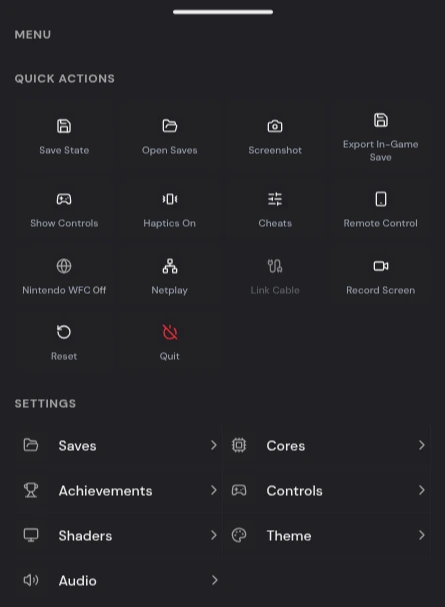
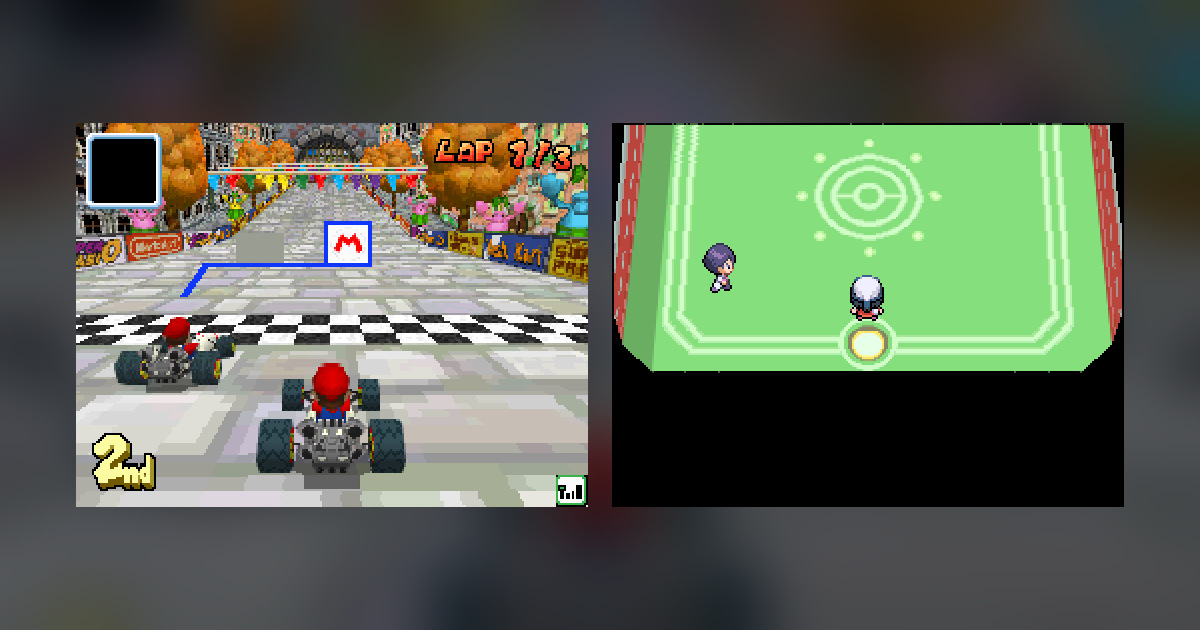
Rebit capture: the Nintendo WFC tile before enabling online mode.
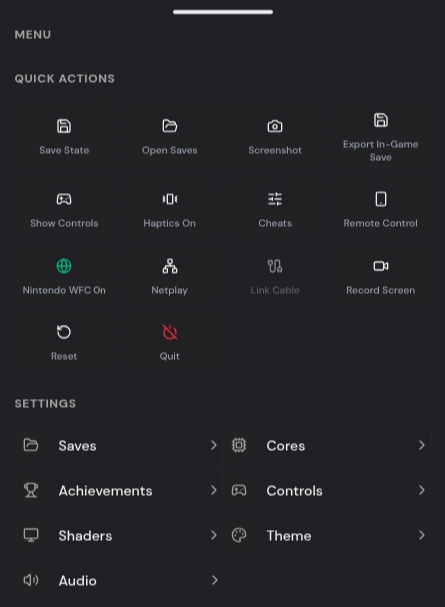
Rebit capture: the Nintendo WFC tile reports On after enabling online mode.
Do this before starting a connection inside Mario Kart. Switching the emulation mode during matchmaking adds an unnecessary interruption. If a switch is still busy, let it finish instead of clicking it repeatedly.
3. Use Nintendo WFC inside Mario Kart
Close Rebit's menu and choose Nintendo WFC on Mario Kart's main screen, then Nintendo WFC Match. A fresh save first asks you to confirm a nickname and offers an emblem editor. Follow the connection prompts and allow profile registration and saving to complete. Choose Regional to search for opponents, or use Friends after the registration steps below.
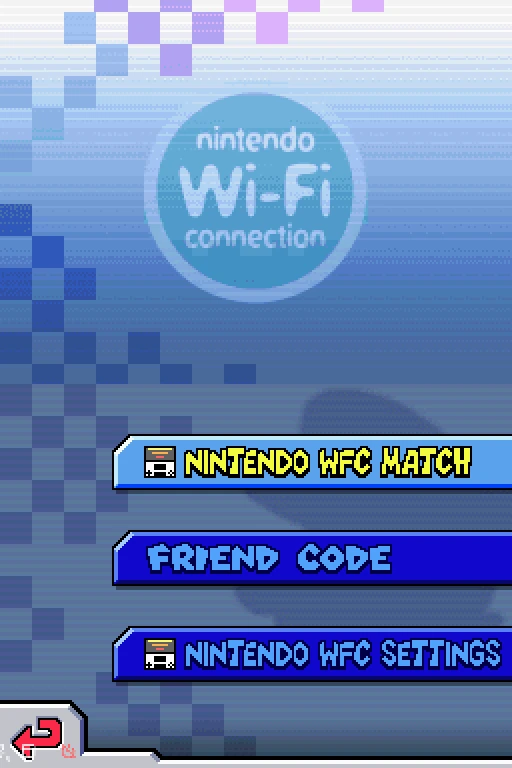
Rebit capture: Nintendo WFC Match starts the online connection; Friend Code opens the registration tools.
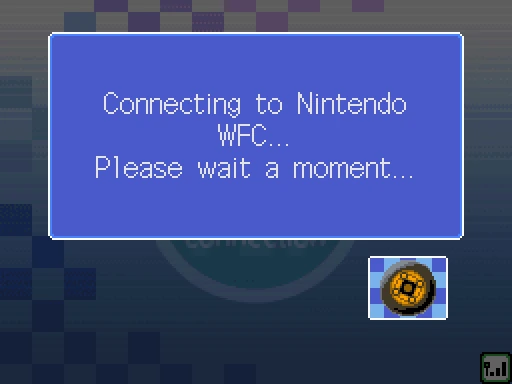
Rebit capture: Mario Kart DS connects to WFC during first-time setup.
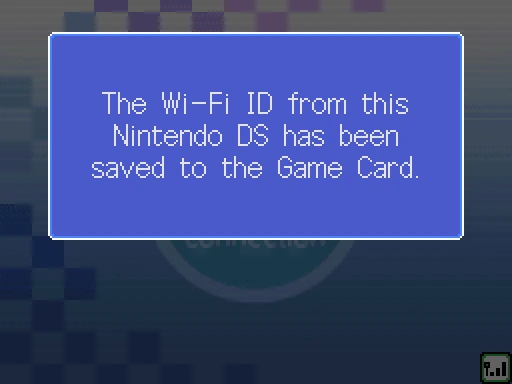
Rebit capture: successful first-use registration saves the emulated DS's Wi-Fi identity into this Mario Kart save.
Worldwide is also on the menu; our races used Regional and Friends.
Do not choose the main menu's Multiplayer option when your friend is searching Nintendo WFC. Multiplayer is the local wireless route, handled through a separate Rebit room. The DS multiplayer guide explains both paths; the NDS room manual covers hosting local sessions.
Get two friends into the same search
Mario Kart's Friends matchmaking uses the game's friend codes, not Rebit usernames or Room IDs. Both players need to do the registration; adding one person on only one side is not the complete setup.
- Open Mario Kart's Nintendo WFC menu and its Friend Code section. Use Confirm Friend Code to read your own code after the required connection/registration.
- Share that code privately with your friend. They share theirs with you.
- Use Register Friend Code to enter the other player's code on each game. Check the digits before confirming.
- Finish any saving, disconnect from the in-game WFC session, and reconnect on both sides before searching Friends.
- Choose Friends on both games and keep both searches open together.
Our Friends roster updated after two reconnects following registration. If your newly added friend stays unavailable, check both codes, then both disconnect and reconnect before searching again. You do not need to erase your WFC profile or start a new save to give matchmaking another try.
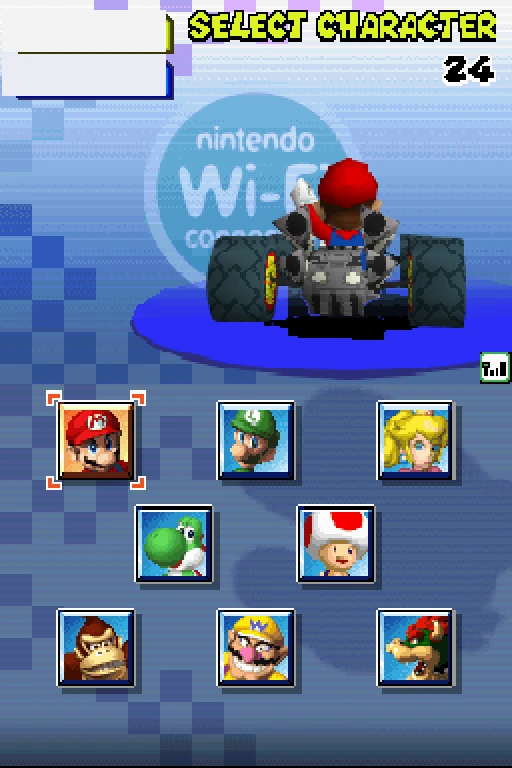
Rebit capture: character selection after WFC matchmaking, with player names removed.
The long search does not necessarily mean failure
Our Regional and Friends searches took roughly 80–90 seconds before starting with two racers. That feels like a long time when you are both ready to go, so keep the searches open together. Matchmaking needs another player searching the same mode at the same time.
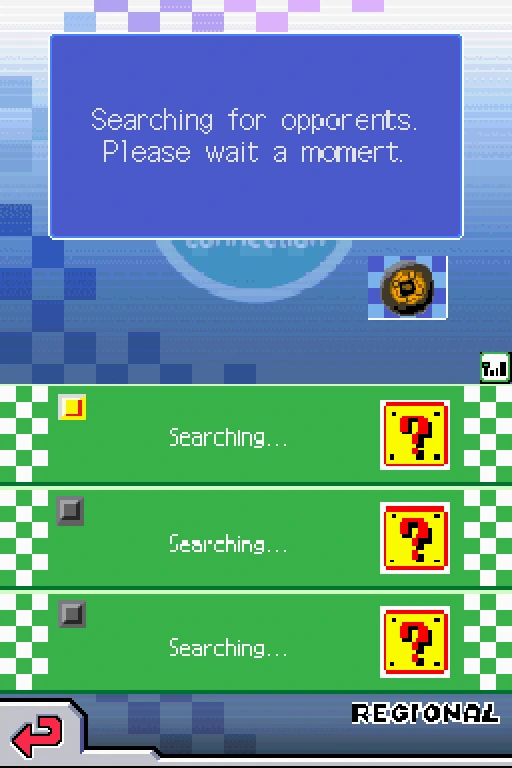
Rebit capture: Regional matchmaking searches for opponents.
If you and your friend keep backing out after twenty seconds, you may never remain in the search together long enough. Agree on a start time, choose the same mode, and give it a sustained attempt. Keep the game visible on both devices while waiting.
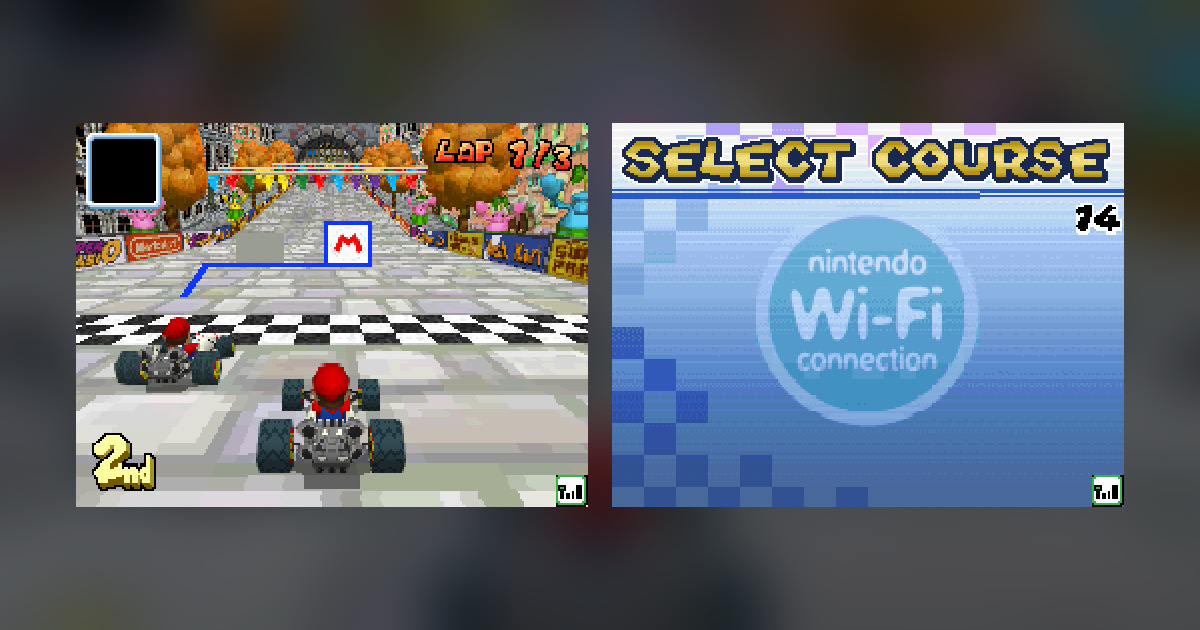
When matchmaking succeeds, you move through character selection and Select Course before reaching the starting grid. Seeing that blue Wi-Fi logo on the course picker is the moment the evening starts to feel like Mario Kart again.
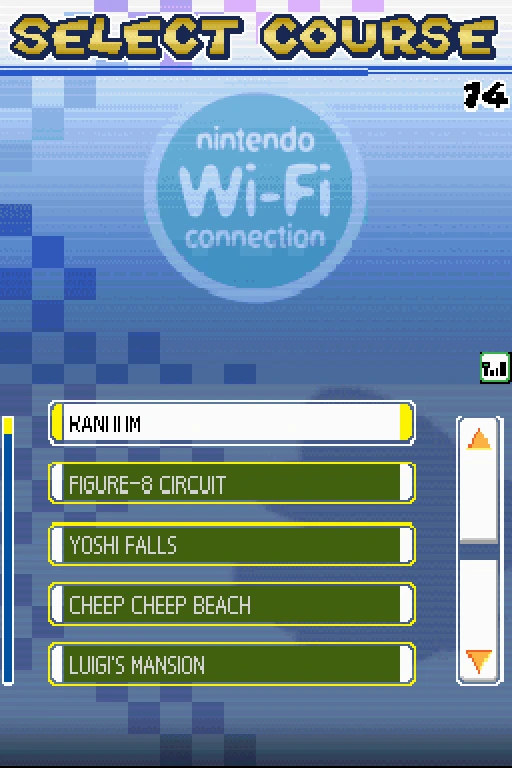
Rebit capture: Select Course during a WFC match, with Figure-8 Circuit among the choices.
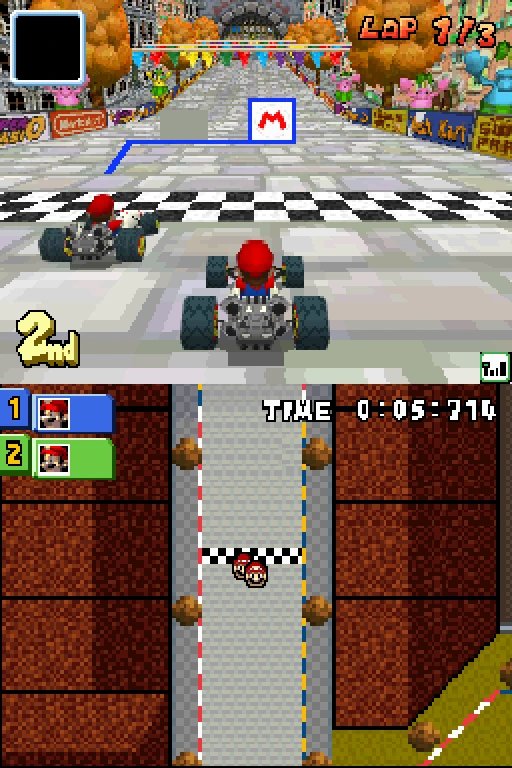
Rebit capture: a Figure-8 Circuit WFC race, showing 2nd and Lap 1/3. The opponent's name is removed.
Keep the save and the DS identity together
Rebit keeps the emulated DS identity and Wi-Fi settings with your account, which we checked across sessions. Your Mario Kart save keeps the game-side progress and friend information. Bring both with you when you change devices: sign into the same account and open the intended in-game save.
If you have spent an evening exchanging codes, keep that save rather than replacing it with a blank one. Erasing WFC data or switching accounts changes the identity setup you just finished. When a search is slow, try reconnecting first and leave your established profile intact.
After registration or racing, let saving complete and export the in-game save. On the next launch, inspect the Friend Code section and roster before assuming the handoff worked. Preserve the previous backup until that check passes.
Questions worth answering before a race night
Can I use a phone?
We have no recent phone test; check the connection and controls on your device before race night.
Is this Nintendo's official online service?
No. The original service closed in 2014. This route uses a community service, so availability and matchmaking population can change independently of Rebit.
What about other WFC games?
Mario Kart DS is the game we have tested; other WFC games and Pokémon's GTS still need their own checks.
We can play locally, but Friends still finds nobody
Check that Nintendo WFC says On, that both games registered the other person's code, and that both players selected Friends. Reconnect after adding codes, then leave both searches open. A Rebit Local Wireless Room ID is for the game's separate Multiplayer menu; Friends uses your in-game codes.
For first-time play, use the Nintendo DS browser page. The retro netplay overview covers other multiplayer arrangements; GBA Link Cable is for linked Game Boy sessions, not Mario Kart DS WFC.