GBA Wrong Save Type Flash 128K: Protect Your Save Before Testing It
A GBA wrong save type Flash 128K warning, blank Continue screen, or advice to switch a Pokémon-style save to Flash 128K can make it feel as if one setting stands between you and lost progress. Treat that setting as a test condition, not a rescue button.
Use this guide only with your own save data and legally owned game files. It does not provide or link to ROMs, BIOS files, firmware, emulator cores, patches, game downloads, third-party saves, or acquisition instructions. Flash 128K may be relevant to a specific GBA save setup, but it is not a universal fix, repair tool, conversion step, or compatibility guarantee.
Quick answer
If a GBA or Pokémon-style save says the wrong save type should be Flash 128K, do not change the only save file. First verify the original in-game save if possible, make an untouched archive plus a separate working copy, record the game/revision/core/save-setting details, then test Flash 128K on the copy only. The test succeeds only when the game loads the expected progress, writes a fresh in-game save, and reopens successfully.
Before changing anything, separate the save layers. Rebit's saves, screenshots, and cheats docs use distinct Manual, Auto, and In-game save categories; that distinction matters whether you are testing locally or later trying a browser workflow.
A safe first pass is:
- Stop before creating more blank or mismatched saves.
- Identify whether the file is an in-game
.sav/.srmsave or an emulator save state. - Prove the original save in the old setup if it still opens.
- Make two copies: one untouched archive and one working Flash 128K test copy.
- Record the game filename, save filename, extension, size, timestamp, region/revision/patch details if known, source emulator/core, and current save-type setting.
- Change one variable only: Flash 128K on the working copy, not the game revision, filename, folder, core, and destination at the same time.
- Verify through the game's own Continue or Load flow.
- Make a fresh in-game save, close or reset, reopen, and verify again.
- Export, download, or copy the verified save as a new rollback point.
Why Flash 128K is a test condition, not a universal fix
Flash 128K is a save-type label players may encounter when a GBA game expects one kind of long-term save memory and the current emulator/core/settings/file context is trying to read it another way. You may also see labels such as SRAM, Flash, EEPROM, Automatic, 64K, .sav, .srm, battery save, or SaveRAM in nearby discussions.
Those labels are clues, not proof. A setting can change the symptom without repairing the underlying file. A game may start blank because the current test is looking at a new empty save, a save for a different game revision, a mismatched filename, the wrong folder, or a state instead of an in-game save.
If the game starts blank after a Flash 128K test, treat that as a failed test condition. It does not prove the untouched archive is gone unless you tested on the only copy and overwrote it.
In-game .sav or .srm versus save states
In-game save: the file you usually need to preserve
An in-game save is progress written by the game's own save menu, save point, Continue screen, or Load flow. Depending on the emulator and system, this long-term save layer may be described as battery save, SRAM, SaveRAM, Flash, EEPROM, .sav, or .srm.
For Flash 128K testing, this is usually the layer you want to protect and verify. It is also the layer Rebit describes as In-game when working with compatible copied .srm or .sav files.
Save state: useful checkpoint, unsafe substitute
A save state is an emulator snapshot of a moment. It may be useful as a secondary checkpoint in the original emulator/core context, especially before you investigate a save issue. But a state is not interchangeable with a portable in-game .sav or .srm file.
Do not rename a save state and upload it as an in-game save. Do not assume a state loading in the old emulator proves the in-game save can be moved. If the terms are still fuzzy, read save states vs in-game saves before testing Flash 128K.
GBA wrong save type Flash 128K checklist
This is the part to follow before you touch a setting. The order is intentionally conservative because the goal is to keep one known-good path alive while you test a duplicate.
1. Stop playing in the questionable setup
If the current setup has no Continue option, shows a wrong-save-type symptom, or just created a blank save, stop. Continuing to play can produce more placeholder saves and make it harder to know which file contains the old progress.
2. Prove the source save if possible
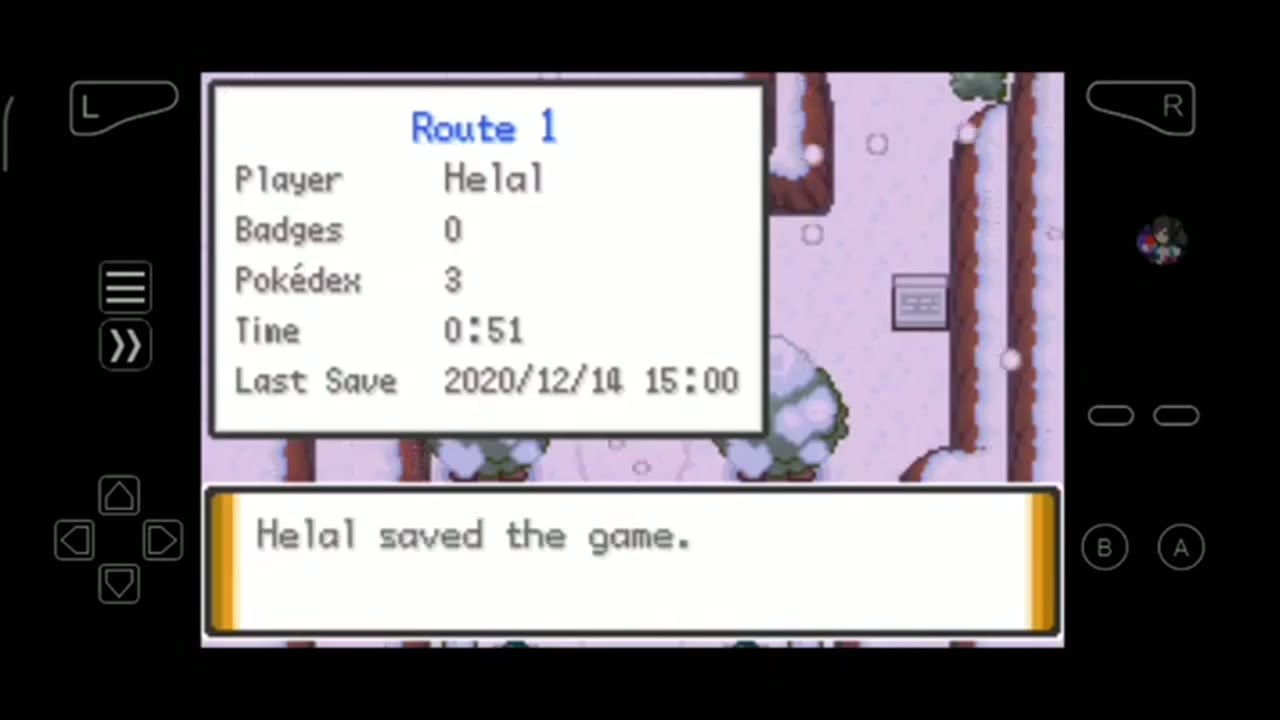
Open the old known-good setup once, if you still have it. Use the game's own Continue, Load, or save menu. Check concrete progress markers: location, party/team, inventory, badges, story flags, timer, recent save point, or other details that prove this is the progress you care about.
If the old setup no longer loads, still preserve the file before experimenting. A failed read in one place is not a reason to run destructive tests on the only candidate.
3. Make an untouched archive and a working copy
Create two copies before renaming, uploading, changing settings, or pairing the save with another game file:
- Untouched archive: store this outside the emulator folder, browser import flow, sync folder, or test destination. Do not rename it. Do not upload it. Do not use it for Flash 128K experiments.
- Working copy: use only this duplicate for the Flash 128K save test.
If you later need to try a different variable, make a fresh working copy from the archive rather than reusing a file that a failed setup may have modified.
4. Record the source context
Write down the details that make the old setup identifiable:
- Game filename and save filename.
- Save extension, file size, and timestamp.
- Game region, revision, or patch version if known.
- Source emulator, core, device, or browser workflow.
- Current save-type setting before any change.
- Whether the file is an in-game save or a save state.
- Any filename pairing rule you know, such as the save sharing the game's base filename.
These notes do not guarantee compatibility. They keep the test from becoming guesswork after several settings have changed.
5. Build a duplicate test setup
Pair the working save copy with the matching copied game file where your emulator or destination expects that relationship. If the setup matches saves by base filename or folder, make those adjustments only to the copy.
Do not change the only setup that may still load the original progress. Do not switch game revision, core, folder, filename, patch version, and save type all in one attempt.
6. Change one variable only
If you decide to test Flash 128K, make that the only deliberate change for this round. Keep everything else as close to the known source context as possible.
This one-variable rule is what makes the result meaningful. If the save works after you changed five things, you do not know whether Flash 128K mattered. If it fails after five changes, you do not know which change broke the test.
7. Verify through the game, not the file list
A visible filename, successful upload, boot screen, or title screen is not enough. Use the game's own Continue or Load flow and check specific progress details.
If expected progress appears, make a fresh in-game save in the test setup. Then close, reset, or reopen and verify again. A one-time read does not prove the setup can write and reload safely.
8. Preserve the verified result without deleting the archive
After a successful read/write/reopen cycle, export, download, or copy the fresh in-game save. Treat it as a new rollback point. Keep the untouched archive and old setup through several normal sessions instead of deleting them immediately.
Do not skip these safety rules
- Do not test Flash 128K on the only copy.
- Do not save over the archive after a blank Continue screen.
- Do not change game revision, filename, core, folder, destination, and save type at the same time.
- Do not assume an emulator state proves the portable in-game save is safe.
- Do not delete the old setup after one successful load.
- Do not treat Flash 128K as a repair, conversion, or expansion step for every
.sav.
Symptom table: what the test is really telling you
| Observation | Safer conclusion | Do not assume |
|---|---|---|
| Wrong save type message mentions Flash 128K | Flash 128K may be worth testing on a copy | It is correct for every GBA save |
| Game boots but no Continue option appears | The current test did not read expected progress | The archive is erased |
.sav file exists but does not load |
It may be wrong layer, wrong pairing, or incompatible context | Every .sav works everywhere |
| Save state loads in the old emulator | The snapshot may be useful in that setup | It replaces an in-game save import |
| A new blank save appears | The test may have created or selected a separate save | The backup should be overwritten |
| Changing to Flash 128K changes the symptom | One variable affected the test | The file has been repaired or converted |
Where Rebit fits after the save is protected
Rebit is a browser/account workflow for supported files you provide and are allowed to use. It is not a Flash 128K editor, save-type detector, save repair service, file-size converter, or guarantee that every external GBA save will load.
For Game Boy Advance browser play, Rebit supports .gba files and uses mGBA as the default GBA core. After your untouched archive and working copy are safe, the play GBA games online page can help you understand the supported browser-play path for files you own.
A cautious Rebit sequence looks like this:
- Keep the untouched source save outside Rebit and outside any Flash 128K experiment.
- Start with your own supported, legally owned GBA file; the upload your own game file and play online guide covers the library starting point.
- Upload only a compatible copied
.savor.srmthrough Open Saves -> In-game -> Upload Save File. - Confirm expected progress inside the game.
- Save inside the game.
- Use Export In-Game Save or a save download action to preserve a fresh browser-made copy.
- Reopen and verify before treating the browser workflow as the new primary path.
Once a copied save survives that cycle, cloud saves for retro games can be part of your broader continuity plan. It still should not replace local rollback copies for a save you cannot afford to lose.
What this guide and Rebit do not claim
This guide does not cover emulator menu paths copied from a source video, where to obtain games, BIOS files, firmware, emulator cores, patches, third-party saves, completed saves, or replacement files. It also does not provide a universal list of which Pokémon-style or GBA titles use which save type.
Rebit does not promise to auto-detect Flash 128K, convert Flash 64K to Flash 128K, repair corrupt saves, expand a save file, or accept every .sav or .srm produced by every emulator. The safe claim is narrower: for supported user-owned games and compatible copied in-game saves, Rebit keeps Manual, Auto, and In-game saves separate and provides documented upload/export controls you can test carefully.
FAQ
Should I change my GBA save type to Flash 128K?
Maybe as a copied test condition, not as a first move on the only save. Preserve the original, record the old setting, test one variable on a working copy, and judge success by in-game load, fresh in-game save, close or reset, and reopen.
Can Flash 128K recover an old Pokémon GBA save?
It may help a specific setup read a compatible save, but it should not be described as recovery, repair, or conversion. If progress appears, make a fresh in-game save and export or copy it before changing anything else.
Why does my GBA .sav start a new game after changing settings?
The test may not be reading the expected save, may be paired with the wrong filename or game revision, may be using the wrong save layer, or may have created a new empty save. Stop and return to the untouched archive before trying another single variable.
Is a save state safer than an in-game save for Flash 128K testing?
A save state can be a useful extra checkpoint in the original emulator, but it is not interchangeable with a portable .sav or .srm in-game save. It may depend on the same core, core version, settings, and game file that created it.
Can Rebit import a GBA .sav or .srm?
Rebit docs describe Open Saves -> In-game -> Upload Save File for compatible .srm or .sav in-game saves from another emulator. Compatibility still depends on the supported game, source save, and destination setup, so test only a copy.
Does Rebit convert Flash 64K saves to Flash 128K?
No. Do not treat Rebit as a Flash 128K converter, repair tool, save-size expander, or universal compatibility layer. Use it as a browser workflow for supported files you own after the save you care about has been copied and verified.
What should I back up before trying Flash 128K?
Back up the original in-game .sav or .srm, any useful save state in the old emulator, the matching game/revision/patch context, and notes about the old emulator/core/settings/filename/size/timestamp. Keep an untouched archive and use a separate working copy for the test.
Final recommendation
A successful Flash 128K change is not the moment you select the setting. It is the repeatable result: the copied setup loads expected progress, writes a fresh in-game save, reopens correctly, and leaves the untouched archive available if anything later goes wrong.
If you want to try Rebit afterward, do it after the safety routine, not before. Start with supported files you own, keep save states and in-game saves separate, upload only a copied compatible in-game save, and keep rollback copies until normal play has proved the new setup boringly reliable.