If your RetroArch Android save folder now starts with content://, that address alone does not mean your saves moved or were deleted. It can be Android’s way of giving the app access to a folder selected through the system file picker. Check the folder’s contents and load the expected progress before changing filenames or moving files.
This matters when a game suddenly loses its Continue option even though your saves are still visible in a file manager. Finding a file and letting an emulator access it are separate steps.
Why the address looks different
A normal filesystem path might begin with /storage/emulated/0/. A document-provider address begins with content://. Android’s Storage Access Framework documentation explains that its system picker returns a URI representing the selected file or directory and grants the app access to that selection.
The word external in a provider’s name does not establish that the files live on an SD card. Android’s storage reference describes shared/external storage that is emulated on the device’s own user-data partition.
Do not paste another player’s URI into your settings. Select your own folder through the picker; copying address text is not a substitute for granting access.
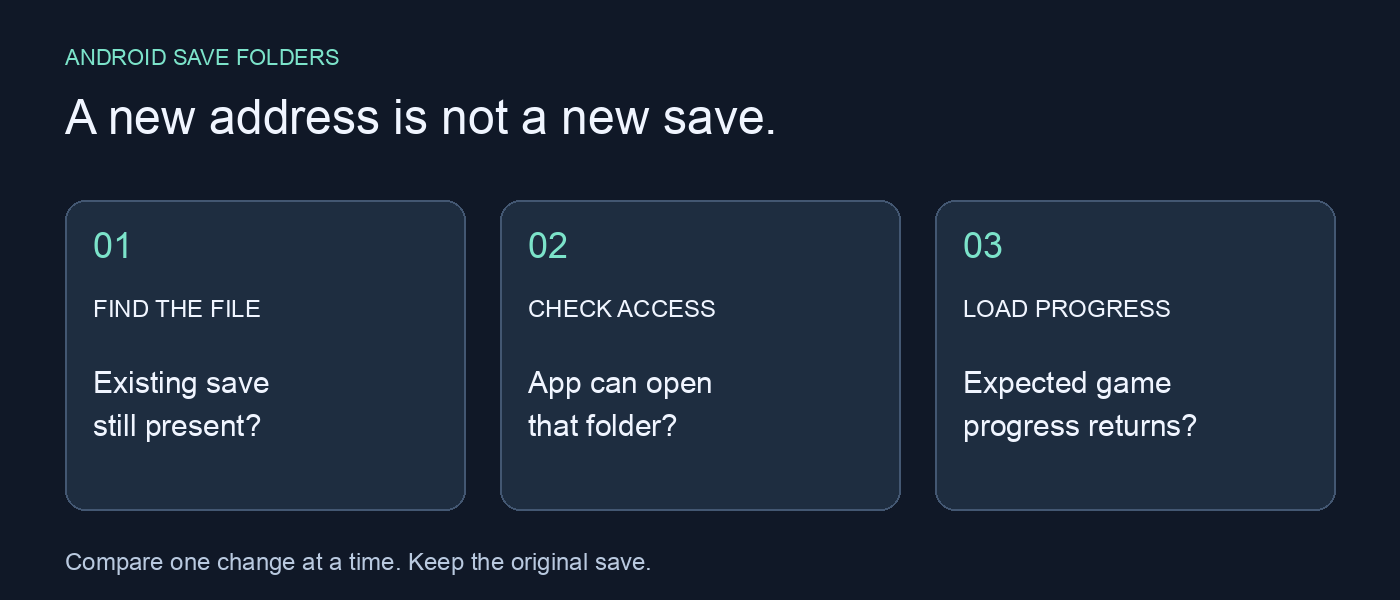
An explanatory diagram, not a screenshot or a tested-device compatibility claim.
A reported recovery, with a narrow conclusion
In a recent RetroArch Android support discussion, a player using RetroArch 1.22.2 reported restoring access after navigating back through the folder browser and selecting the saves folder through System File Explorer. Their old address was a filesystem path; the replacement was a document-provider URI. They reported that both referred to the same folder.
That is a useful lead for a similar symptom. It does not prove what originally broke access, that a particular Android update caused it, or that this procedure repairs incompatible save data. We did not reproduce the issue on that phone.
Reselect the folder without reorganizing your saves
Before testing, copy the existing save files somewhere separate using a file manager that can already read them. Keep the game file, core and save filenames unchanged for this comparison.
- Open RetroArch’s Settings > Directory. Some menus call it Directories. The official directory guide distinguishes Save Files from Save States; choose the category that is failing.
- Record the current location. Open that directory setting and look for the option to use Android’s system file picker. In the reported case, navigating back to a parent level exposed System File Explorer. Labels and availability vary by build.
- If that option is available, select the existing saves folder, checking its name and contents rather than choosing a new empty folder. Confirm the folder-access prompt for that location.
- Return to the directory setting and note the selected address. A new URI is evidence of a changed access route, not proof of recovered progress.
- Launch the same game with the same core. For an in-game save, use the game’s Continue or Load option. For a state, use the intended state slot. Check a recognizable progress marker.
After recovery, make a small new save, close normally, reopen and check it again. Keep the backup until that second load succeeds.
If your build has no system-picker option, record its version and installation source before asking for help. Do not replace the app or clear its data just to make its menus match this example.
What the next result tells you
- The picker cannot select the location: check the folder itself. Android restricts directory-tree selection in some locations, including storage roots and Android/data. Selecting an ordinary saves subfolder is a different request from granting access to an entire drive.
- The folder is accessible, but Continue is missing: compare the game filename, selected core and save type with the previous working setup. Access alone cannot establish compatibility.
- An old save loads, but new progress disappears: record the exact save action and any error message. Verify the active save directory again rather than repeatedly changing it.
- Only a save state fails after a core change: treat that as a separate compatibility question. Re-selecting a folder does not convert a state into another core’s format.
For a support report, include the app version, Android version, core, save extension, directory category, exact error and whether the picker can see the file. Redact personal folder names from screenshots.
If you later move that progress to Rebit
Recover and verify the local save first. Rebit’s save-management documentation describes Open Saves > In-game > Upload Save File for compatible saves such as .srm or .sav. Choose a copy of the actual save file, not the folder’s URI text, then load through the game and compare your progress.
The cloud saves for retro games workflow is a separate next step, not a repair for Android folder access. Rebit does not provide copyrighted ROM downloads; bring your own legally obtained game files. Before continuing to play retro games online, prove that the imported progress opens where you expected.