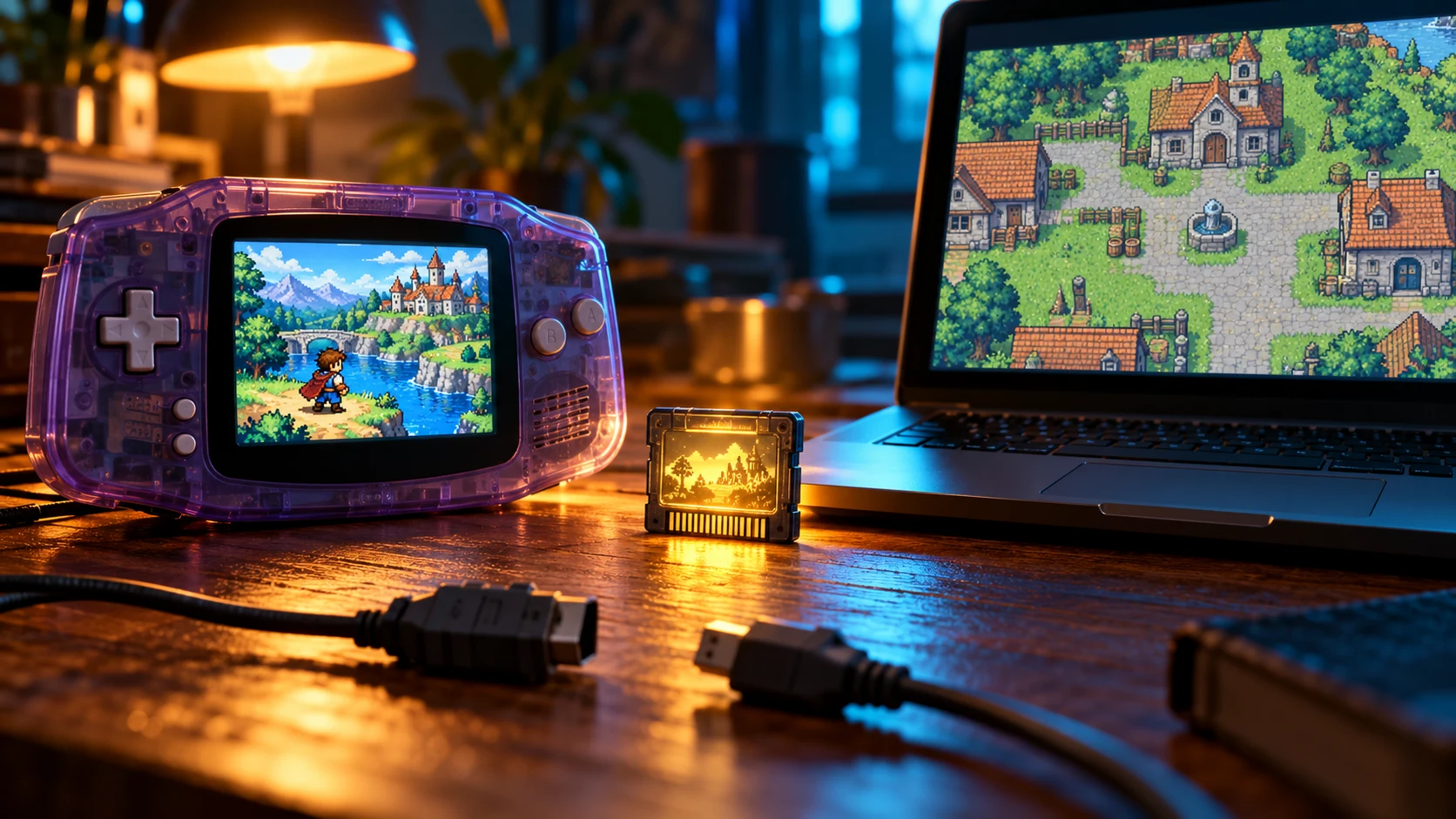
If a RetroArch mGBA .srm renamed to .sav gives you only New Game in another emulator, first save inside the source game and use Quit RetroArch before copying the file again. Then test a copy in the destination's actual save location, with the same game release and without loading a save state. Do not start by running the only copy through several converters.
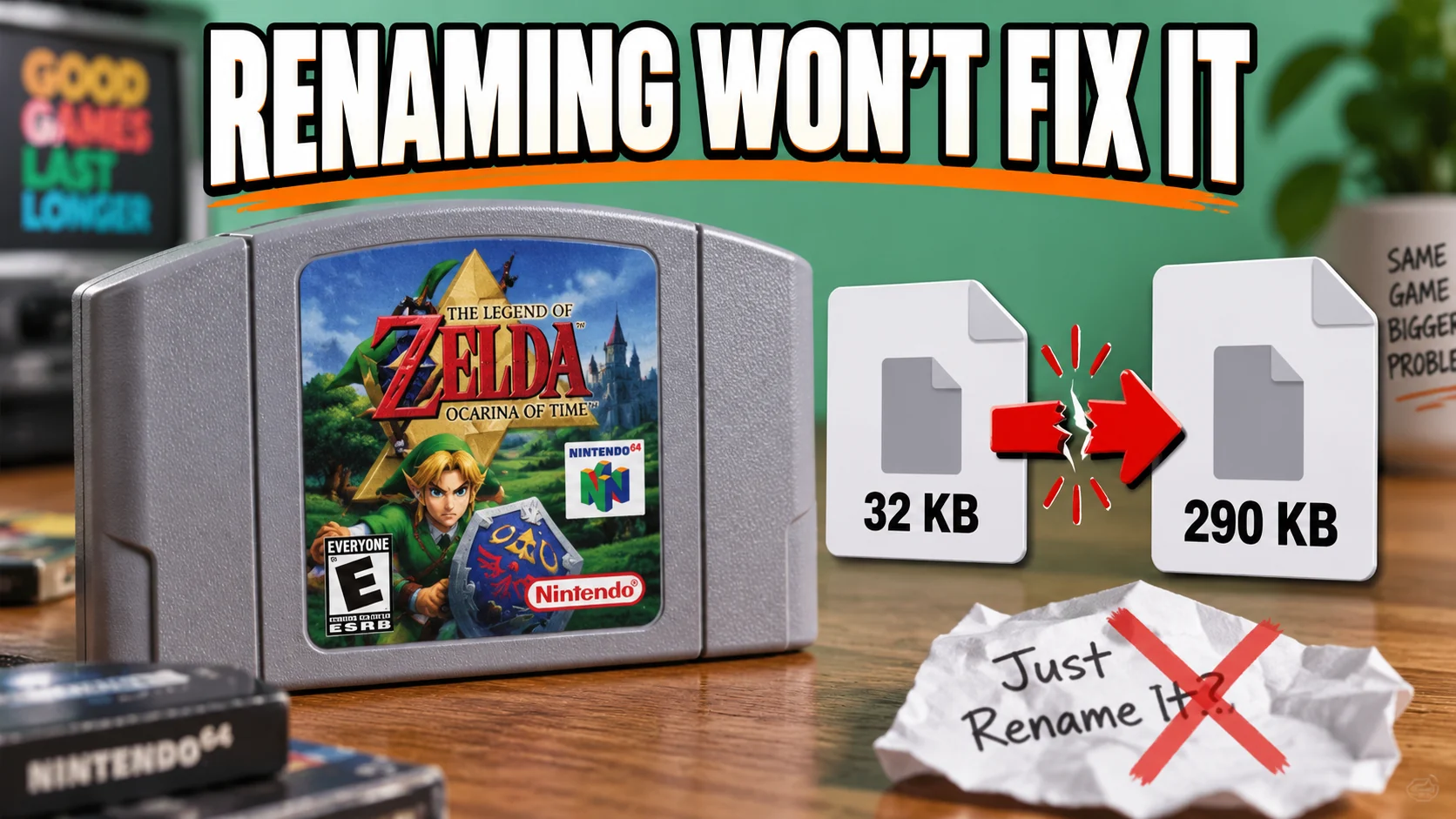
This is a specific GBA battery-save problem. It is not a recipe for renaming Nintendo DS saves, N64 save containers or emulator states. The extension tells an application which file to look for; changing it does not repair missing progress or convert an incompatible binary format.
The real case: the rename was not the missing step
In a player's mGBA save-transfer discussion, saves produced in RetroArch were not offering Continue in the destination. The player tried VBA-M on Windows and Linkboy on Android. They reported RetroArch 1.22.1 and mGBA 0.11.
Several clues made this more interesting than a wrong extension:
- A save from the other emulator could be brought into RetroArch successfully.
- A disposable save could make the trip into RetroArch and back.
- The compared files had the same size, and the RetroArch file had an updated timestamp.
- The problem remained with newly produced RetroArch progress.
The player eventually reported success after saving in-game and exiting through Quit RetroArch, then renaming the copied file. Earlier, they had closed the app improperly. That is a reported resolution for this setup, not a claim that every GBA transfer needs a special converter or that every force-close loses a save. We did not instrument the player's disk writes, so the precise low-level failure remains unproven.
The useful lesson is practical: establish that you are copying the completed save before deciding its format is wrong. A plausible timestamp and file size did not establish that in this case.
Identify the file you actually need
The Libretro mGBA documentation identifies .srm as the cartridge battery save and .state files as emulator states. These are different artifacts. A state can resume the game at an exact moment even when the battery-save file you intend to transfer contains older progress.
Before copying, write down one progress marker you can recognize through the game's normal load screen: a slot name, location, party or playtime. “The game opens” is not sufficient. “Continue shows the expected party at the last town” is a useful check.
If your progress exists only in a working state, preserve that state. In its original working setup, load it, use the game's own save feature when available, let saving finish, and exit normally. Only then copy the battery save. This does not make the state itself portable.
Finish and locate the source save
- Open the game in the source RetroArch setup where the progress still works. Keep the game release and core unchanged for this test.
- Save using the game's own menu and wait until the game says saving is finished.
- Open RetroArch's main menu and choose Quit RetroArch. Let the application finish closing before copying. Avoid swiping it away or terminating the process during this check.
- Find the active save location under Settings > Directory > Save Files when you need to establish where the source writes. Some configurations sort saves into subfolders; use the file that the current setup creates, not the first matching name found in Downloads.
- Make a separate backup and a separate transfer copy. Leave the original in place.
If normal startup in the source no longer offers the expected Continue, pause the migration: the destination cannot recover progress that is absent from the source file. If the source explicitly warns that it cannot open or update the save file, investigate that write-path problem instead of treating it as a rename problem.
Let the destination reveal its expected filename
The destination may use a configured save folder or an import command. Do not guess solely from where its application was installed.
If that location is unclear, create a disposable in-game save in an isolated test setup using the same game release. Close the destination normally and inspect the file it produced. Back it up before replacing anything. This gives you the expected extension, basename and actual folder without risking an existing campaign.
For example, suppose that test creates:
- Game file:
Adventure.gba - Destination battery save:
Adventure.sav - Source battery save:
Adventure.srm
If the two applications use compatible raw battery-save data for this game, name the transfer copy Adventure.sav and place it where the destination created that file, while the destination is closed. If the application provides a battery-save import action, follow that workflow instead.
These filenames are illustrative. Do not literally rename your game to Adventure. Match what your destination expects, and display full extensions in the file manager so you do not accidentally create Adventure.sav.srm or Adventure.srm.sav.
A rename leaves the bytes unchanged. It is appropriate only when the destination expects the same data under another filename. A different file size is a reason to inspect formats, not permission to truncate or pad the save until it fits. Identical sizes are also not proof of compatibility.
Verify Continue, then verify a second save
Start the destination normally. For this check, avoid automatically resuming an older state, because that can hide whether the imported battery file was loaded.
- Select the game's Continue, Load, or normal save slot.
- Compare the progress marker you wrote down earlier.
- Make a small, recognizable change in a safe part of the game and save in-game again.
- Close the destination normally, reopen it, and load that new progress through the game menu.
The first load proves that the transfer was read. The second proves that the new setup can also write and reopen progress. Keep the source backup until both have succeeded.
If the destination has the right progress but loses it after reopening, stop renaming the source file: the first import worked. Investigate which destination file is being updated and whether startup resumes an older state.
Use the result to choose the next step
| Result | Next useful action |
|---|---|
| Source itself has no expected Continue | Revisit the source save/state distinction; do not overwrite the last working copy |
| Destination ignores the copy | Compare the actual test-save path and full filename, with the app closed during replacement |
| File is found but only New Game appears | Confirm exact game revision and battery-save format; repeat the clean source exit before trying conversion |
| Expected progress loads once but disappears later | Check destination save writes and automatic state resume |
| Progress loads and a new save survives reopening | Transfer verified for this game and setup |
If you still suspect format incompatibility, use a disposable round trip: create a working battery save in the destination, take a copy into the source, then return a copy to the destination. Keep the game file fixed. Success establishes that this particular path can carry compatible data; it does not prove that a different source file contains a valid completed save. That distinction was central to the reported case.
Moving the verified save into Rebit
For compatible cartridge saves, Rebit's save manual documents Open Saves > In-game > Upload Save File. Use a copy of the battery save and the matching game, then perform the same Continue-and-reopen check. Do not upload a renamed state as an in-game save.
If you later move progress back out, saving inside the game, exporting to the account and downloading a separate device copy are distinct steps in Rebit. Follow the app's save workflow rather than applying a desktop emulator's Quit command literally to a browser session.
Rebit does not provide copyrighted ROM downloads; bring legally owned game files. Once the transfer is verified, cross-device retro gaming becomes a repeatable handoff: complete the source save, copy the correct file, and prove the destination can both load and save. A new extension alone proves none of those things.