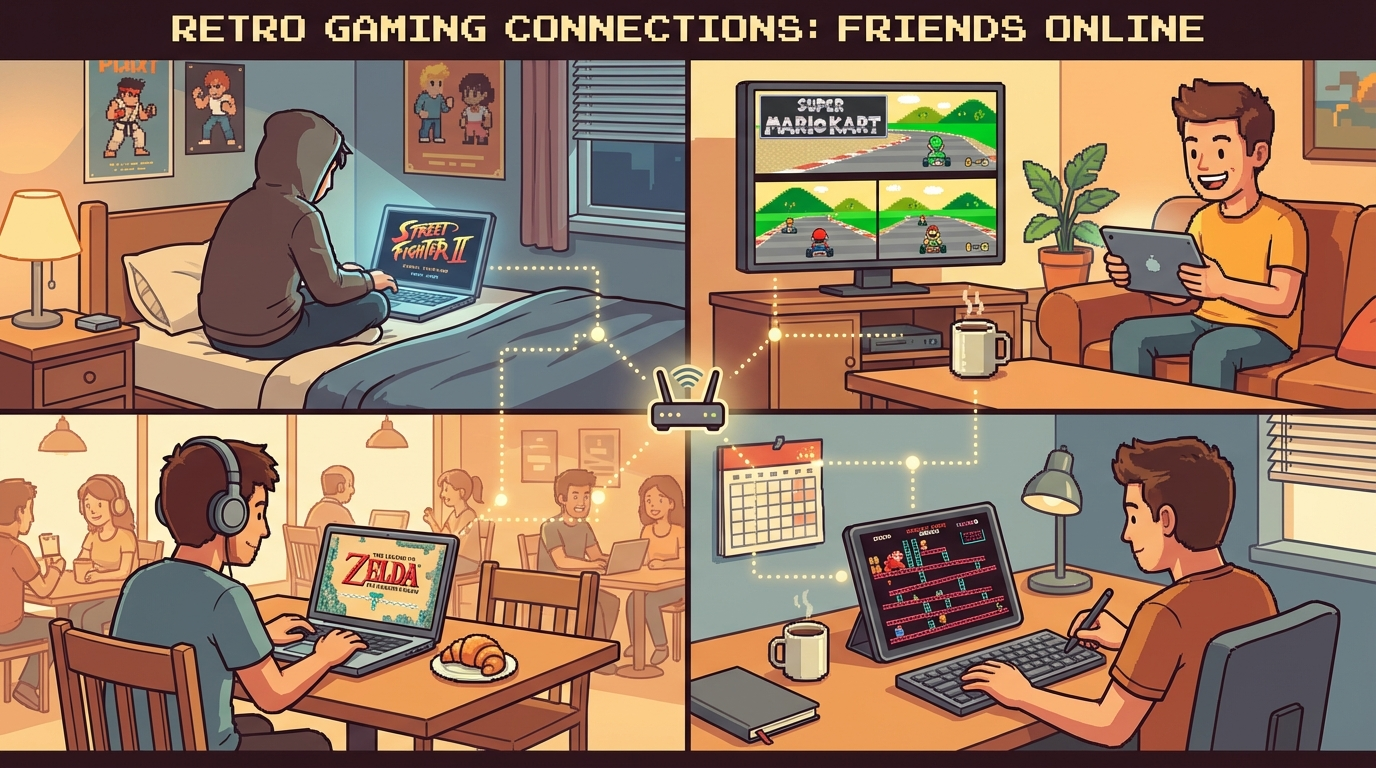
If you want cross-device retro gaming that actually feels seamless, the goal is simple: play on whatever screen you have now, then continue later with the same save state and controls that still make sense. Most players overcomplicate this. You don’t need ten tools and a weekend of setup. You need one clean workflow, a short game list, and a few rules that prevent sync mistakes.
Your main hub should be cross-device retro gaming, and your backup system should be cloud saves for retro games.
Why Most Cross-Device Setups Break
The usual failure isn’t performance. It’s inconsistency.
What breaks sessions:
- saving locally on one device and expecting it to appear everywhere
- changing control layouts every session
- mixing random ROM versions for the same game
- treating phone and desktop as if they should use the exact same button map
- not checking sync before quitting
Retro games are forgiving in difficulty spikes, not in file discipline. If you keep save structure predictable, cross-device play becomes boringly reliable (which is exactly what we want).
The 15-Minute Baseline Setup (Do This First)
Before you start your next run, lock this in:
- Pick one primary device (desktop/laptop) and one secondary device (phone/tablet).
- Standardize ROM filenames so both devices recognize the same title/version.
- Enable cloud saves once and verify that your save folder is syncing.
- Build two control presets: one for keyboard/controller, one for touch.
- Run one test game for 5 minutes, save, switch device, and continue immediately.
That one switch test is the difference between confidence and future rage.
If you still need upload help, this guide is useful before step 3: /blog/upload-rom-play-online-guide.
Best Game Types for Cross-Device Play
Not every retro title feels great on touch controls. Pick games where quick adaptation is possible.
1) JRPG / Turn-Based Games (Best for Phone Continue Sessions)
- Final Fantasy VII (PS1)
- Chrono Trigger (SNES)
- Pokémon Emerald (GBA)
Why they work: menu-heavy pacing, lower punishment for input latency, easy “one more battle” sessions on mobile.
2) Platformers with Predictable Inputs
- Super Mario World (SNES)
- Mega Man X (SNES)
- Kirby’s Adventure (NES)
Why they work: clear control loops and short stage chunks. Great for desktop progress + phone cleanup runs.
3) Racing / Match-Based Games for Quick Device Swaps
- Mario Kart 64 (N64)
- F-Zero: Maximum Velocity (GBA)
Why they work: short rounds, low save complexity, easy to jump in/out.
4) Tactical / Adventure Games with Session Flexibility
- Castlevania: Symphony of the Night (PS1)
- The Legend of Zelda: The Minish Cap (GBA)
Why they work: exploration-heavy loops where stopping and resuming on another device feels natural.
That’s more than five examples, but the point is clear: choose games that survive context switching.
Device Role Strategy (Don’t Mirror Everything)
A common mistake is trying to make desktop and phone identical. Better approach: give each device a role.
- Desktop/Laptop role: long sessions, boss fights, precision platforming, netplay.
- Phone/Tablet role: grinding levels, side quests, item farming, replaying short stages.
This keeps frustration low. You’re not forcing touchscreen precision on difficult boss phases, and you’re still making progress when away from your desk.
Save Discipline Rules That Prevent Data Loss
This is where most “cross-device is broken” complaints come from.
Rule 1: Exit Cleanly Before Device Switch
Always close to menu/save screen before switching devices. Hard app closes can delay or skip sync.
Rule 2: Wait for Sync Confirmation
Don’t launch the same game instantly on device two. Wait for sync signal/indicator first.
Rule 3: One Active Session per Game
Don’t run the same title simultaneously on two devices unless you like conflict files.
Rule 4: Keep a Weekly Backup
Cloud saves are great, but still export weekly backups for your important runs.
If you want a deeper prevention checklist, pair this article with /blog/cloud-saves-retro-gaming-never-lose-progress.
Control Mapping That Actually Works Across Screens
The fastest way to kill momentum is changing controls every day. Use stable templates.
Desktop Template (Controller/Keyboard)
- D-pad / analog mapped to movement
- Face buttons match original console layout as closely as possible
- Shoulder buttons reserved for quick actions (menu/save state)
Phone Template (Touch)
- Keep virtual D-pad larger than default
- Place primary action buttons lower-right within thumb arc
- Avoid stacking too many tiny utility buttons
- Reserve one corner for quick-save only
Pro tip: keep action button positions consistent across NES/SNES/GBA profiles. Muscle memory matters more than “perfect authenticity.”
Common Sync Problems and Fast Fixes
Problem: Save exists on desktop but not on phone
Fast fix:
- Confirm same ROM region/version on both devices.
- Re-open cloud saves panel and force refresh.
- Relaunch game once after sync completes.
Problem: Wrong save version appears
Fast fix:
- Stop launching the game on both devices.
- Keep newest timestamped save.
- Remove stale duplicate and resync.
Problem: Input feels laggy only on mobile
Fast fix:
- Reduce visual filters/shaders.
- Disable background battery saver for browser/app.
- Move precision sections back to desktop.
For multiplayer-specific latency issues, this still helps: /blog/fix-retro-netplay-lag-practical-checklist.
A Weekly Cross-Device Routine (Copy This)
Use this lightweight cycle:
- Monday-Thursday (mobile): 20-30 minute progress sessions
- Friday/Saturday (desktop): long run, bosses, difficult stages
- End of weekend: clean save, sync check, optional backup export
This works especially well for long campaigns like FFVII, Chrono Trigger, and Zelda runs where consistency matters more than marathon sessions.
What Most Players Miss
Cross-device isn’t just convenience. It improves completion rates.
Games people usually abandon (long RPGs, grind-heavy action RPGs, adventure titles) become finishable when you remove “I need to be at my desk” as a requirement. That’s the real win. You play more often, for shorter bursts, with less setup friction.
And when your progress is safe, you’ll take on bigger retro libraries without anxiety.
Final CTA: Build Your Two-Device Stack Today
If your target is reliable cross-device retro gaming, stop treating save sync like a bonus feature and make it your default flow. Start with cross-device retro gaming, lock in cloud saves for retro games, then run one 5-minute switch test tonight.
Do that once, and your retro backlog immediately becomes easier to actually finish.